

Toll & Fine Exceptions — Disputes, Waivers & Corrections
Dispute, waive, mark NRT, mark paid by customer, correct a plate, assign or attribute, reopen, and add charges manually.
Not every charge fits the normal billing path. A plate might not match any fleet vehicle, a plate might be misread, a renter might settle a fine directly with the authority, a fee might be one the company should absorb, or a charge might be one you need to contest. For these, SpectroNova Express gives you ten targeted actions on the Tolls & Fines reconciliation hub. This guide covers all ten — when each appears, what it asks for, and what happens after.
This is the companion to Billing Tolls, Fines & Parking to Customers: that guide is the normal path, this one is the exceptions.
Before you start. Read Billing Tolls, Fines & Parking to Customers first — it explains the reconciliation hub and how charges reach a customer. You also need the Toll management feature, which depends on your plan, and at least one completed toll and fine sync.
Where the actions live
Every action is reachable three ways:
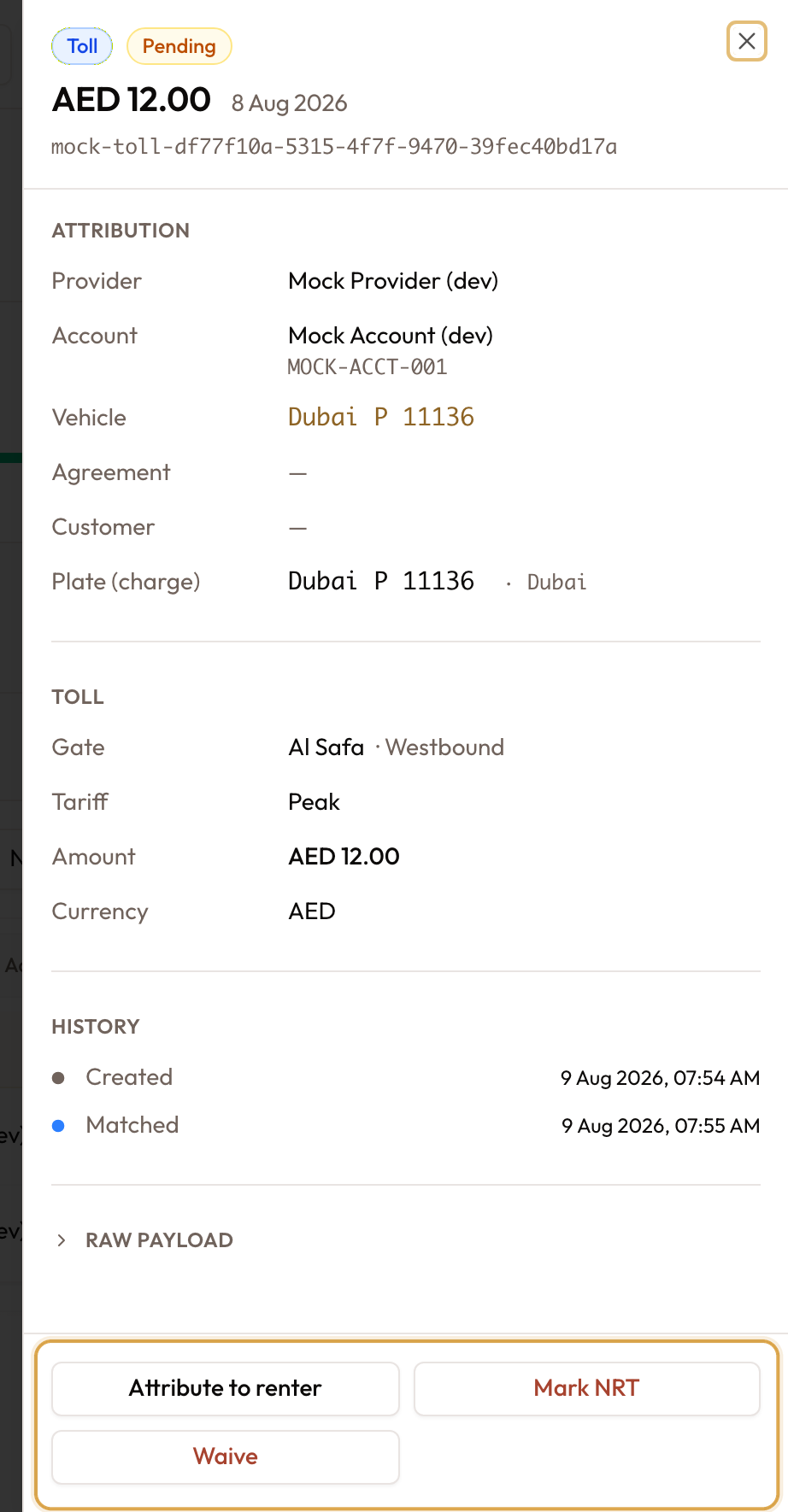
- The charge detail drawer — click a charge row and the drawer opens from the right. Action buttons sit in a sticky footer at the bottom, below the Attribution, Charge Details and History sections.
- The bulk toolbar — tick several charges and a toolbar appears at the bottom. Four actions can run in bulk: Add to invoice…, Paid by customer…, Waive… and Mark NRT….
- The right-click menu — right-click any row for the single-row actions.
The footer and the toolbar are dynamic: they only show the actions that are valid for the charge in front of you (in bulk, only the actions valid for every selected charge). If a charge shows no action buttons, none are available in its current state.
Which actions appear, and when
Availability depends on the charge's status, whether it has a vehicle assigned, and — for one action — its charge type.
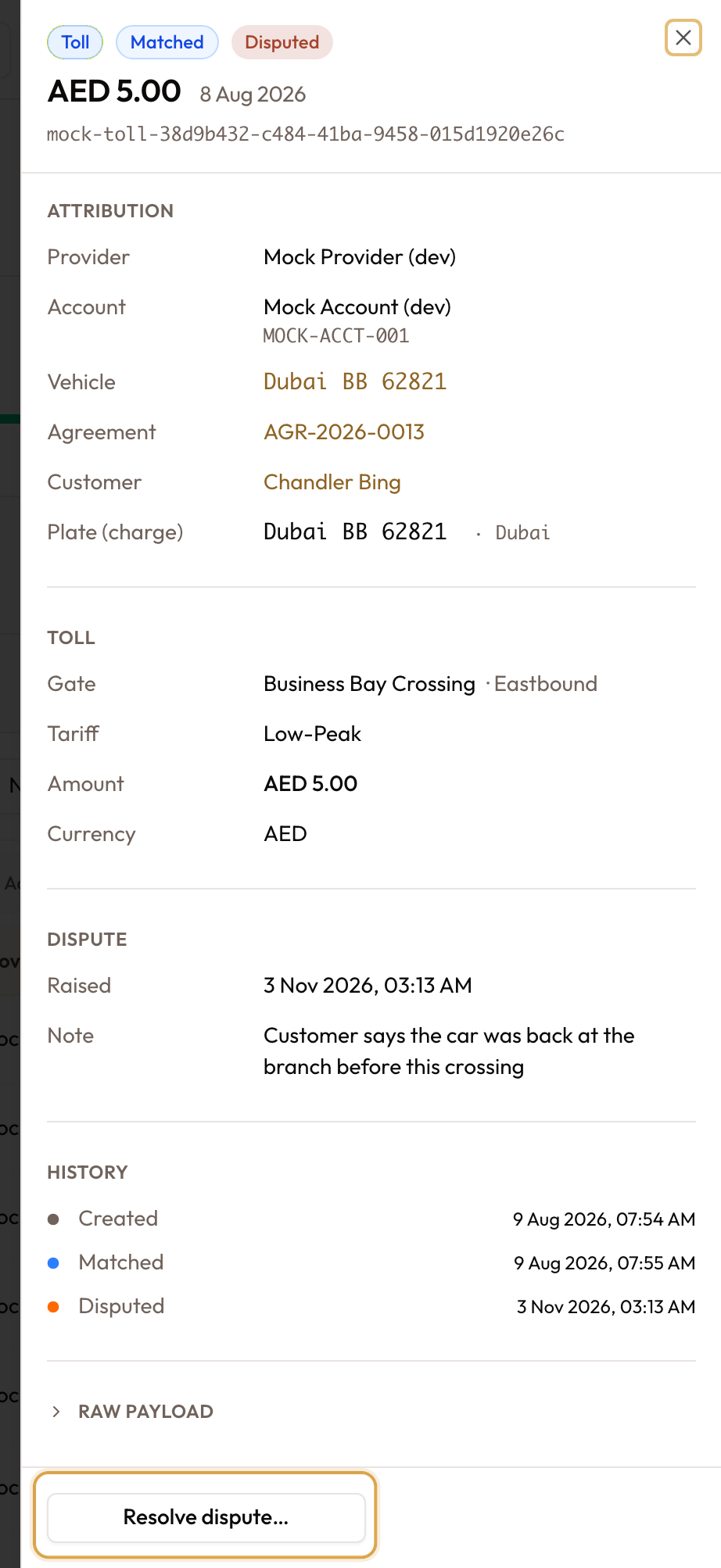
An open dispute hides everything else. While a charge has an unresolved dispute, the only action offered is Resolve dispute… — every other action is locked until the dispute is settled.
Paid by customer is fines-only. It is offered on fine charges only. A toll or a parking session is debited from the operator's own tag account at the gate, so there is no bill left for a renter to pay — only a traffic fine can be settled by the renter directly with the authority.
| Charge status | Vehicle assigned? | Actions offered |
|---|---|---|
| Pending | No | Assign vehicle, Correct plate, (Paid by customer — fines only), Mark NRT, Waive |
| Pending | Yes | Attribute to renter, (Paid by customer — fines only), Mark NRT, Waive |
| Matched | — | Add to invoice, Mark disputed, (Paid by customer — fines only), Mark NRT, Waive |
| Billed | — | Mark disputed |
| Paid | — | Mark disputed |
| NRT | No | Reopen |
| NRT | Yes | Attribute to renter, Reopen |
| Waived | — | Reopen |
| Paid by customer | — | Reopen |
| Any, dispute open | — | Resolve dispute (only) |
Triage — getting a charge to the right vehicle and renter
Assign a vehicle
For a pending charge with no vehicle (the plate matched nothing in your fleet).
Correct a license plate
Also for a pending charge with no vehicle — use this when the sync captured a mistyped or misread plate. Correcting the plate re-runs matching, rather than binding the charge to a vehicle by hand.
Attribute to a renter
For a pending charge that has a vehicle but no agreement (the charge date fell outside any rental window), or an NRT charge with a vehicle you want to re-attribute before reopening.
Settlement and write-off
Waive a charge
For a pending or matched charge you will not bill — a duplicate, goodwill, or something unrecoverable.
Mark as NRT (company cost)
NRT — Not Rented — means the business absorbs the charge: the vehicle was off-rent, in internal use, or being moved by the dealer. Available on pending or matched charges.
Mark as paid by customer (fines only)
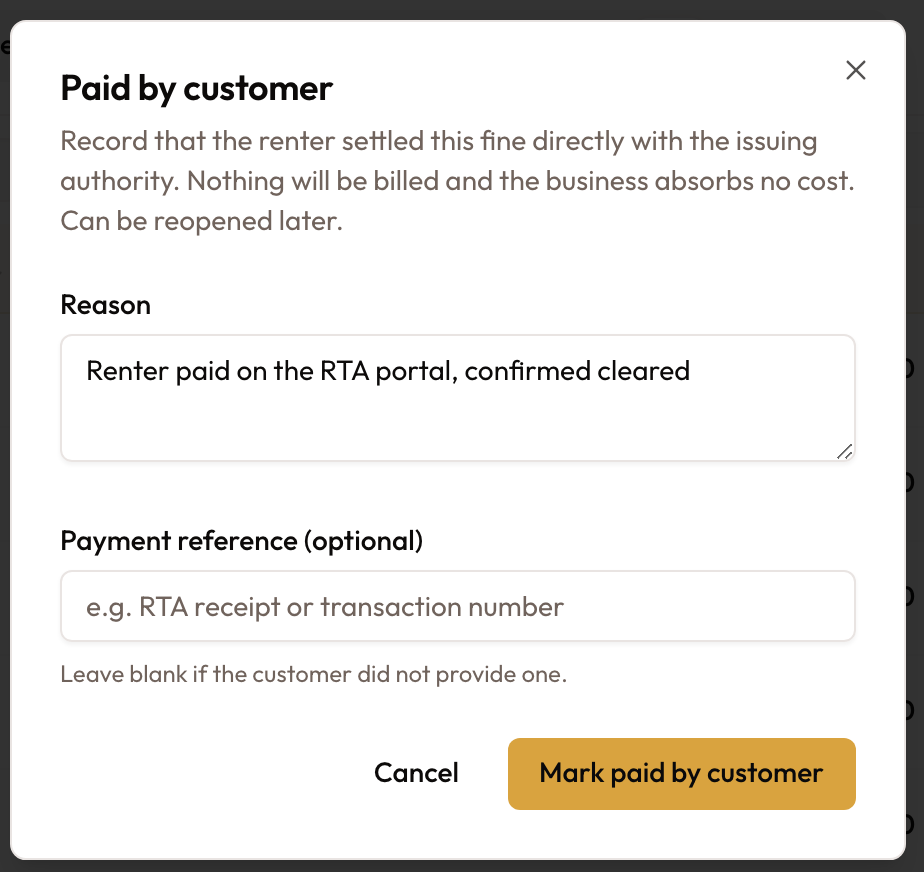
When the renter has paid a fine directly with the authority, close it here rather than billing it. Offered on fine charges in pending or matched status only.
The charge moves to a Paid by customer status with a green badge, settled outside any invoice, and a Paid by customer section recording the reason and reference appears in its drawer. It can be reopened later.
Reopen a settled charge
Changed your mind? Waived, NRT and Paid by customer charges can all be put back into triage.
Disputes
Flag a dispute
You can flag any matched, billed or paid charge for dispute review — even one already on an invoice.
The charge's billing status does not change — a side flag tracks the dispute alongside the billing record, so any invoice line stays linked. A red Disputed badge appears, and until the dispute is resolved the only action offered on that charge is Resolve dispute….
Resolve a dispute
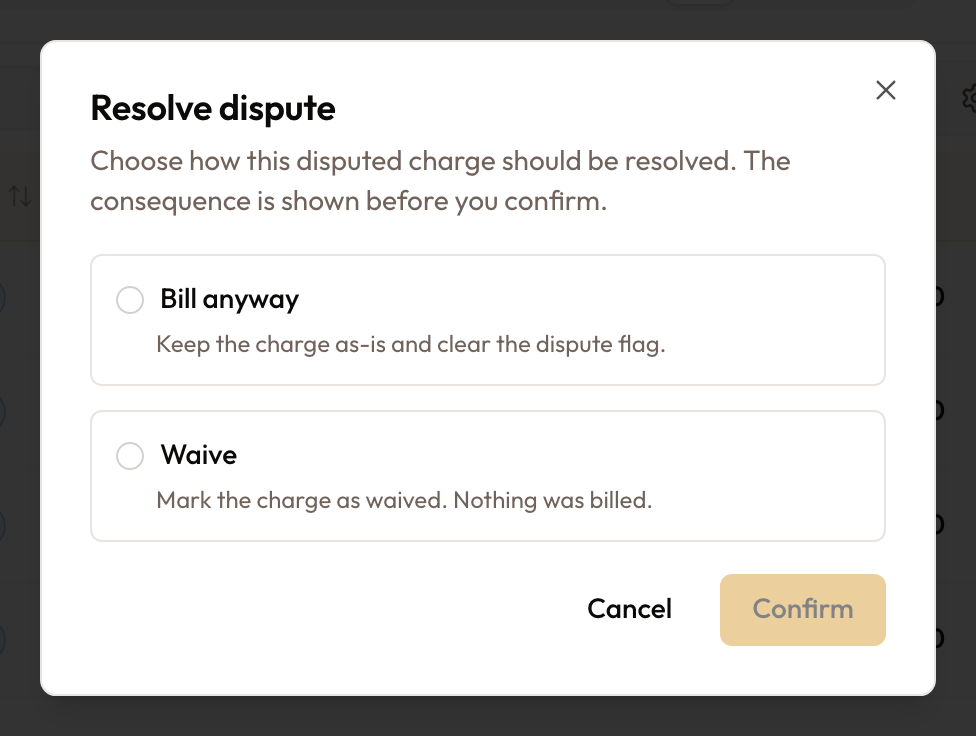
Choose one of two cards:
- Bill anyway — the authority upheld the charge. The dispute flag clears and the charge continues on its normal path.
- Waive — you won the dispute. The outcome depends on the billing state: on a draft invoice the line is removed and the charge reverts to matched; on a finalized invoice a credit note is created automatically; if it was never invoiced, the charge is simply waived.
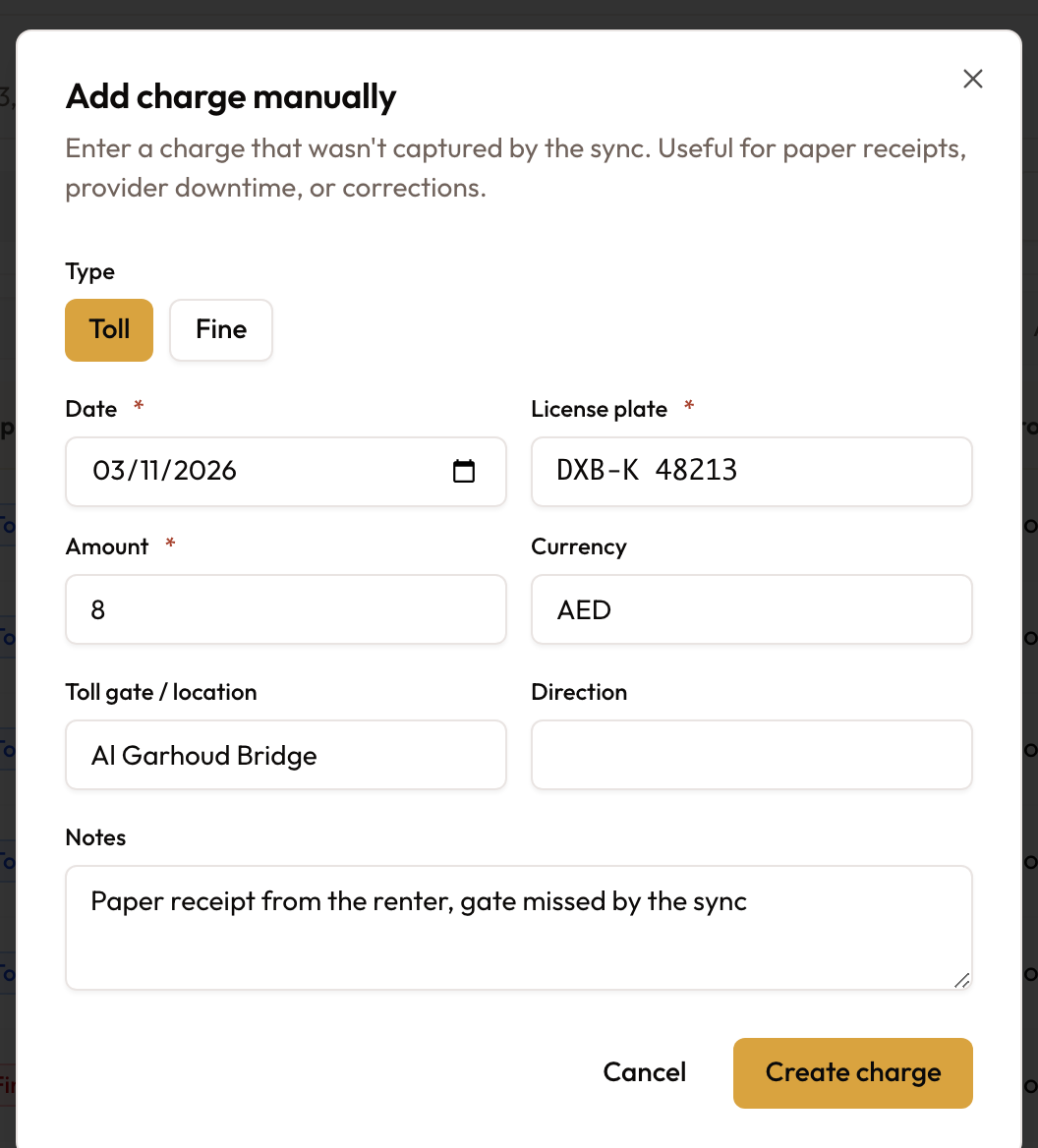
Add a charge manually
For a charge the sync never captured — a paper receipt, a provider outage, or a correction.
Doing it in bulk
Tick several charges and the bulk toolbar shows only the actions valid for every selected row. Four actions are bulk-capable:
- Add to invoice… — additionally requires the whole selection to sit on a single agreement (that is the billing path — see Billing Tolls, Fines & Parking to Customers).
- Paid by customer… — only when every selected charge is a fine.
- Waive… and Mark NRT… — enter one reason that applies to all selected charges.
The bulk dialog confirms "Applied to all N selected" before you commit, and the requests run in parallel — a partial failure is reported rather than rolling the whole batch back. The remaining actions (Assign vehicle, Correct plate, Attribute to renter, Mark disputed, Resolve dispute, Reopen) are single-row only, because each needs its own input or review.