

Billing Tolls, Fines & Parking to Customers
Triage charges on the reconciliation hub, then bill them from the agreement's Tolls and Fines tab.
Once tolls and fines are synced in, they have to be reviewed, cleaned up, and put on a customer's invoice. That happens in two places, and knowing which is which saves the most common mistake in this module.
The Tolls & Fines page does not bill anything. It is a triage surface — you review, filter, correct and write off charges there. Add to invoice only exists on an agreement's own Tolls and Fines tab, because a single agreement means a single customer to bill.
On a short-term rental, matched charges also wait on the agreement's Rental Account under Not yet billed, where Bill rental puts them on one invoice with the rental. See The Rental Account & Bill Rental.
Before you start
- At least one completed toll and fine sync.
- Toll management on your plan.
- Permission to create invoices.
Part 1 — The reconciliation hub
Open Tolls & Fines under Financial Management.
How charges find their customer
When a sync runs, each charge is matched to a fleet vehicle by its plate, then to whichever rental agreement was active on the transaction date, and the customer is taken from that agreement. A sold car is never matched, so a plate moved from a sold car to a new one matches the new car.
| Result | Status |
|---|---|
| Vehicle matched, but no agreement covers that date | Needs Attention |
| Agreement, customer and vehicle all matched | Ready to Bill |
This is not a one-shot at sync time. Matching re-runs whenever its inputs change — an agreement closing, a vehicle being edited, a sync finishing. A charge that could not be attributed on Monday may attribute itself on Tuesday because the agreement it belongs to was closed with corrected dates. Nobody has to re-run anything.
A Darb fine can arrive with no plate, and that is correct. Unlike a toll crossing, a Darb fine does not carry a plate — it is matched through the crossings in the same sync. When that car has no crossing in the batch, the charge stays plate-less rather than being attached to a guess. These are usually account-level company costs, and a wrong plate would bill a renter for one. It lands in Needs Attention with no vehicle, waiting for you.
The three charge types
| Type | What it is |
|---|---|
| Toll | Salik or Darb gate crossings. Billing follows the agreement's toll billing mode: passthrough (billed to the customer) or included in the lease price (absorbed, never billed) |
| Fine | Traffic violations from RTA, Dubai Police or Darb, and Darb parking-violation tickets. Always billed individually |
| Parking | Paid parking sessions from third-party operators, via Salik. Always billed individually. Unsettled sessions that arrive at zero are skipped at billing |
All three can carry a processing fee when recharged, if your workspace charges one.
A Darb parking ticket is filed as a Fine, not as Parking. A parking violation is a penalty rather than a routine paid session, so it appears under Fine and is priced by the fine rule. Salik paid-parking sessions are the only thing under Parking.
Related: Darb fines only exist from 9 September 2026 onward. Before a fix that day they were discarded as they were imported. If you look back for older ones you will not find any — that is the bug, not your syncing.
The eight tabs
Each tab covers a set of charge statuses, enforced server-side — so clearing your filters cannot silently widen a tab to the whole workspace.
| Tab | What it holds |
|---|---|
| Needs Attention | Nothing was matched to a customer. Assign a vehicle, attribute to a renter, correct a plate, waive, or mark NRT. The default tab |
| Ready to Bill | Agreement, customer and vehicle all matched, and the rental is still open — so the charge can go on an invoice |
| Closed rental | Matched to a customer, but the rental has already closed, so each charge is a decision — see below |
| Billed | Already on an invoice |
| Our Cost | Everything the company absorbed — waived charges you could have billed and chose not to, and NRT charges where the car was yours at the time so there was never anyone to bill |
| Paid by Customer | The renter settled directly with the authority. Deliberately separate from Our Cost — no money moved through the business, so folding it in would overstate what you absorbed |
| All | Everything in your fleet |
| Not in Fleet | Charges on plates that are not yours. See below |
Closed rental is a charge that arrived too late. A toll or fine can land after the rental it belongs to has been closed. It is correctly attributed to that customer, but the rental's close is already done, so it sits here as a decision: raise a separate recharge invoice, or absorb it.
On a short-term rental the charge also waits on the Rental Account under Not yet billed, and Bill rental can still invoice it after the close. That includes a rental closed with Close without billing.
Attributed but not yet billed
Above the tabs, a summary line — Attributed but not yet billed — calls out the money that is matched to a customer but hasn't reached an invoice, split by whether the rental is still open:
- N charges on open rentals · [amount] — still billable — these live in Ready to Bill and can go straight onto an invoice.
- N charges on closed rentals · [amount] — the agreement is closed, so these need a decision — these live in Closed rental and each needs a recharge-or-absorb call.
A Review link jumps you to the charges behind the figure.
Check Our Cost if you have never looked at it. It is usually the largest bucket by value, and until recently no tab reached it at all. If you have been reconciling against a shorter list of tabs, that money was invisible.
Not in Fleet, and what it does to your totals
Charges arriving on a plate you do not own are pulled out of the queue entirely and listed on their own tab.
These are excluded from every figure on the page — the queue count, the amounts, the attributed split. The summary panel names the exclusion out loud for exactly that reason: without it, your totals would disagree with the provider's statement and nothing on screen would explain the gap.
The tab lists one row per plate — Plate, Source, Charges, Amount, First seen, Providers. A plate one character away from one of yours is flagged as such, which is how a typo'd plate stays findable rather than disappearing.
Reading the summary
Above the list, Charge reconciliation summary splits into a Charge queue figure and a Sources breakdown, counting what is attributed, awaiting attribution, and on no vehicle. Below that, a block headed Not counted above states what the figures leave out — plates outside your fleet, and charges on no registered vehicle.
Filtering and grouping
Group by vehicle, agreement or month. Filter by status, charge type, provider, toll account, and a Charge Date range.
The date range includes the day it names. A range ending on the 30th covers the 30th. It did not always, which is worth knowing if you reconciled against an earlier month and came up short.
What you can do here
Selecting charges brings up a toolbar with Waive…, Mark NRT…, Export CSV and Clear.
Add to invoice… is not among them, and that is the point of this page. Above the list you also get Re-match all charges — which re-derives which rental owns each charge already held, and fetches nothing — plus Add charge for manual entry, and a Sync providers panel with a Pull now per source.
The full set of triage actions — disputing, waiving, correcting an attribution, manual entry — is covered by Toll & Fine Exceptions.
Part 2 — Billing from the agreement
Open the agreement's Tolls and Fines tab
Get to the agreement — the quickest route is clicking its link on a charge in the hub — and open the Tolls and Fines tab.
Four cards sit on top: Total, Pending, Ready to bill and Billed. Below them, the ledger of charges for this rental.
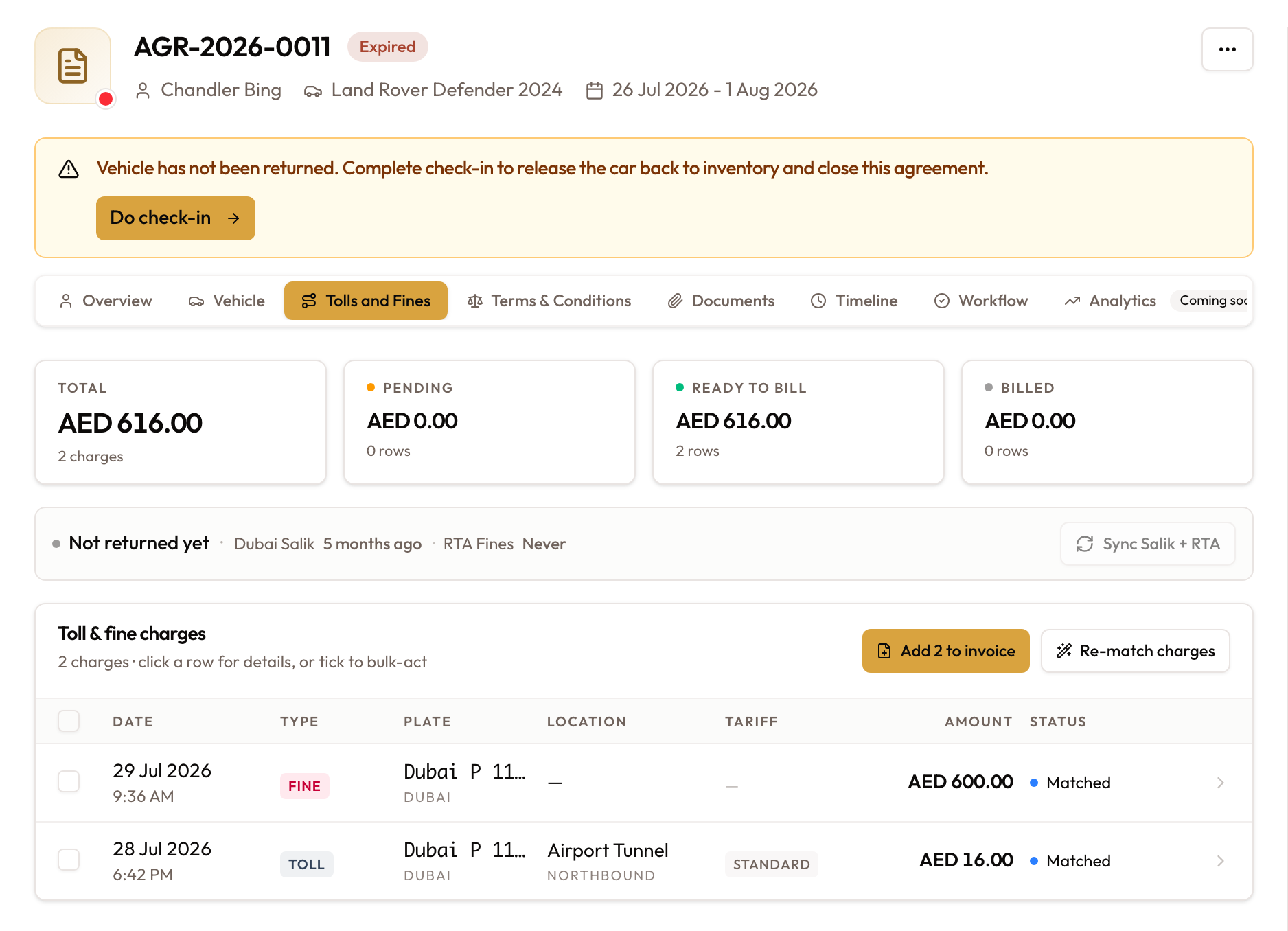
The ledger's Type column tags each row Toll, Fine or Parking. Without it a 500.00 fine and a 500.00 toll are indistinguishable at a glance, and the type is what decides which recharge rule applies.
A coloured dot carries the status:
- Amber: pending.
- Blue: matched or billed. The status name beside the dot tells them apart.
- Green: paid, or paid by customer.
- Red: disputed.
- Grey: reserved, waived or NRT.
Can this rental's list be trusted yet?
Above the ledger, a panel answers one question — whether the charges you are looking at are the complete set.
| It says | It means |
|---|---|
| Not returned yet | The car is still out. Charges can land up to two weeks after it comes back, so coverage cannot be judged yet |
| May be incomplete | A provider has not pulled recently enough to cover the two weeks after this car came back |
| Complete | Every provider has pulled past that settling window |
From the same panel you can Sync Salik + RTA for this rental's plate and dates, Sync Darb, or Re-match charges.
Re-match charges fetches nothing. It re-decides which rental each charge already held belongs to, using the current dates and plate. If you are missing a charge entirely, this will not find it — run a sync instead.
A rental sync walks five stages — working out the window, RTA fines, Salik tolls, importing, then attaching to the rental — and finishes with a count of each.
Billing the charges
Select what you are billing
Tick the charges you want — usually the ones with the status matched. A toolbar appears at the bottom showing how many are selected.
Because you are in an agreement, the toolbar now includes Add to invoice….
Open the dialog
Add to invoice… opens a preview. Choose Add to existing draft if one is open, or Create a new draft invoice.
The Lines preview shows what will be added, each labelled by source — a count of tolls, a Fine, Parking, or a Fee. Any charges being left out are listed in an amber box with the reason, such as an unsettled parking session that arrived at zero.
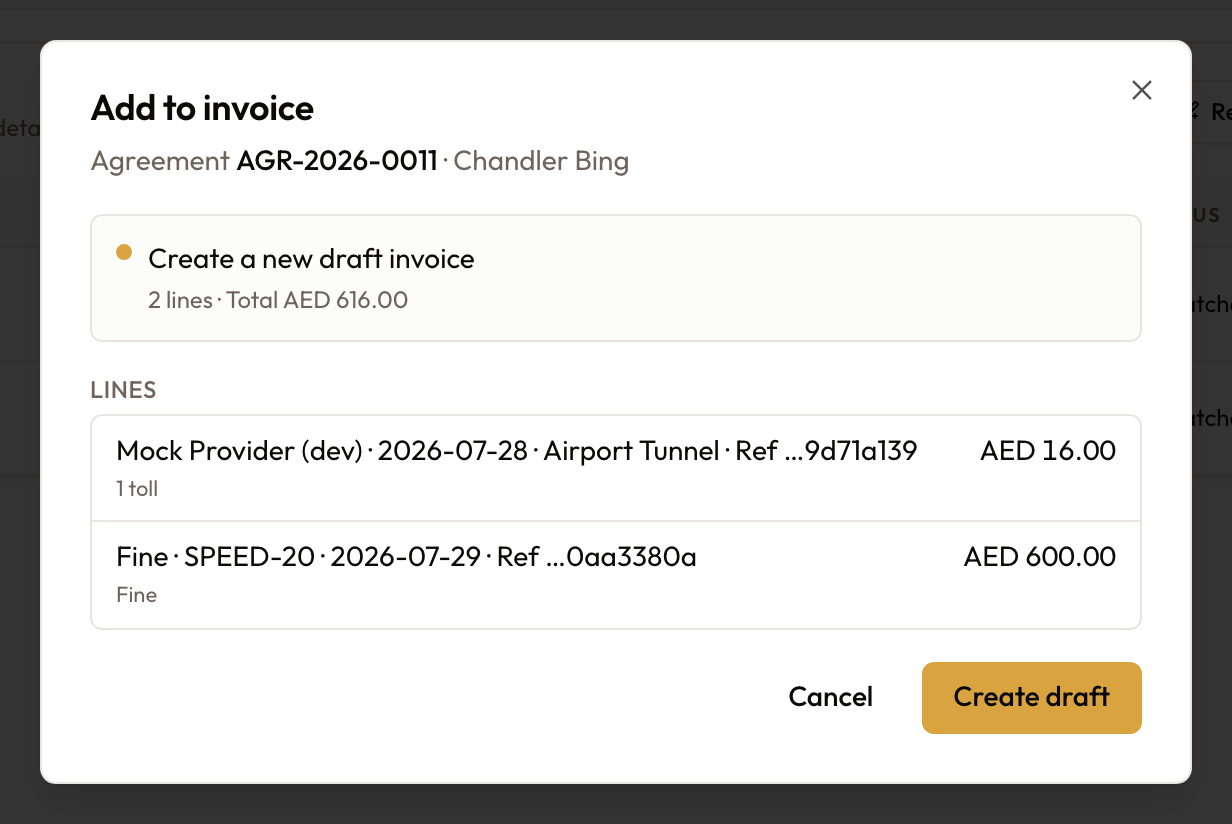
Confirm
Add to draft or Create draft commits it. The stat cards move the billed charges from Ready to bill to Billed, and their status changes to billed.
Your view and the renter's will not match, by design. A Fee line is the processing fee on the charge above it. The invoice really does hold two lines — the recharge is money you are holding for the authority, the fee is your own income — but the renter's copy folds them into one unless Show fees separately is switched on. One invoice, two line counts. This is expected, not a fault.
Billing everything at once
The coverage panel also offers Add N to invoice. That bills every waiting charge on the rental, not just what is currently visible in the ledger — the list below may only have loaded part of it. Use the toolbar instead when you want to bill exactly what you selected.
Finding the invoice afterwards
The new invoice is a Draft, typed Toll Recharge, Fine Recharge or Parking Recharge. Where it shows depends on the rental:
- Monthly or long-term: the agreement's Overview tab, under Addon Invoices, with a stats row for Total, Paid and Outstanding.
- Short-term: the Rental Account on the Overview tab, under Invoices.
From there it follows the normal invoice workflow — review, finalise, send.
Adding a handling fee
Prefer the automatic fee. When your workspace charges a processing fee on tolls, fines or parking, it is added automatically, every time, against the right product.
For a genuine one-off, open the draft and add a new line item from your product catalog.
Never edit the synced toll or fine amounts on the draft. Those lines are linked back to the original charges. Change them and the link breaks: the charge stays unmatched in reconciliation, and nobody can answer "which tolls were billed for this agreement" afterwards.
Mistakes that break reconciliation
| Don't | Why |
|---|---|
| Edit synced toll or fine amounts on a draft | The invoice line can no longer be matched to its charge |
| Hand-key toll amounts into a manual invoice | Those lines link to nothing. The real charges stay unbilled, and the totals double-count |
| Add charges to an invoice that are not linked to a synced record | Same result — the audit trail breaks |
| Try to bill from the Tolls & Fines page | Add to invoice is not there. Always bill from the agreement's tab |
Quick reference
| Do | Don't |
|---|---|
| Bill from the agreement's Tolls and Fines tab | Bill from the main Tolls & Fines page |
| Select matched charges and use Add to invoice… | Type toll amounts into a manual invoice by hand |
| Check the result on Overview: Addon Invoices, or Invoices in a short-term Rental Account | Edit the auto-populated amounts |
| Let the automatic processing fee do it | Add the same handling fee by hand every month |
When something looks wrong
| What you see | What it means |
|---|---|
| Add to invoice is missing | You are on the hub, not an agreement's tab |
| A charge is in Needs Attention with no vehicle | No plate matched. For a Darb fine with no crossing in the same sync, this is expected |
| No Darb fines anywhere in your history | Expected before 9 September 2026 — they were discarded at import |
| A Darb parking ticket sits under Fine | Intended. A violation is not a paid session |
| Your totals disagree with the provider's statement | Check Not in Fleet — those charges are excluded from every figure here |
| The renter's invoice has fewer lines than the preview | The processing fee folded into its charge line |
| A charge was skipped at billing | Usually an unsettled parking session that arrived at zero. It becomes billable once the tag settles |
| Re-match charges found nothing | It does not fetch. Run a sync if a charge is genuinely missing |
| Coverage says May be incomplete | A provider has not pulled far enough past this rental's return date |
What to read next
Disputes, waivers, corrections and manual charge entry are covered by Toll & Fine Exceptions.