

The Rental Account & Bill Rental
The money view of a short-term rental: what is billed and not yet billed, adding items, Bill rental, Edit rate, Void & Reissue, and billing after the close.
The Rental Account is where a short-term rental's money lives. It sits at the top of the agreement's Overview tab, and from it you:
- see what the rental has run up, what is invoiced and what is still owed
- add your own items, such as damage or cleaning
- bill everything that is waiting, on one invoice
- fix a rate that hasn't been billed yet, with Edit rate
- cancel a wrong invoice with Void & Reissue, and bill it again
- keep billing after the agreement is closed, for fines that arrive late
Before you start
- The agreement is short-term: its Billing Frequency is Single Invoice. A monthly agreement has a payment schedule instead. See Agreement Types Explained and Short-term vs monthly below.
- The vehicle has been handed over. Billing works on an agreement that is active, expired, closed or terminated. A draft or a cancelled agreement can't be billed.
- What you can do depends on your role:
- Add item and Bill rental need permission to create invoices.
- Edit rate needs permission to update agreements.
- Void needs permission to void invoices.
Is the rental already invoiced? That depends on Raise invoices automatically in Settings → Billing. When it is on, checkout invoices the rental straight away, and each extension bills its own period. The rental is then listed under Invoices, and Not yet billed collects tolls, fines and items. When it is off, the rental waits under Not yet billed until you bill it.
Read the Rental Account
Open the Rental Account
Open the agreement. The Overview tab opens first; on a short-term rental the Rental Account is at the top. Four figures sit across it:
- Total: what the rental has run up, invoiced plus not yet billed
- Net billed: the invoices raised so far, less any credit notes
- Net received: what the customer has paid, less any refunds
- Outstanding: what is still owed, in red while anything is owed. When the customer is owed money back, it reads In credit, in green
Underneath, Rate shows the rate the rental is charged at, and Due back shows the return date with the days left, or the days overdue once it has passed. The security deposit isn't part of these figures; it has its own Security Deposit card further down.

See what is not yet billed
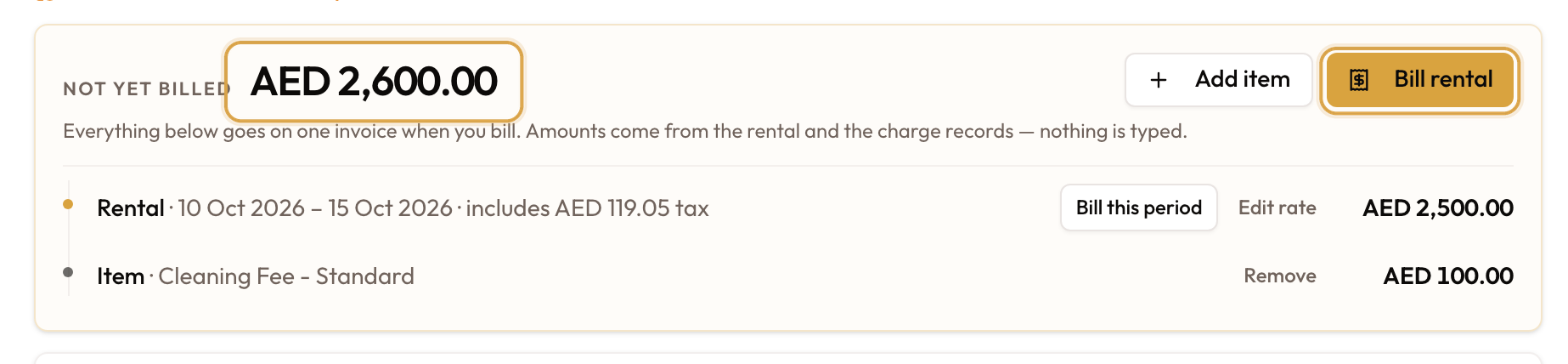
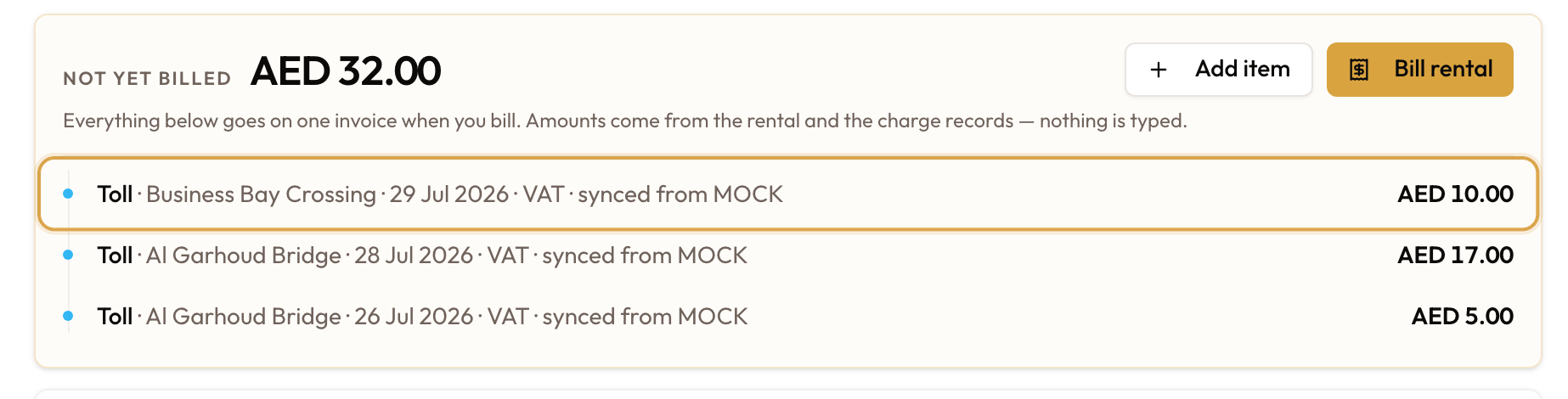
The Not yet billed card shows one amount, and the lines behind it in the order they landed on the rental:
- Rental: the rental period, with its dates and the tax it includes
- Extension: each extra period added by extending the rental
- Toll, Fine, Parking: charges matched to the rental, with "synced from …" when they came from a provider
- Processing fee: the fee your workspace adds on a toll, fine or parking charge
- Item: anything you added with Add item
Everything listed goes on one invoice when you bill. The amounts come from the rental and the charge records; nothing is typed. When nothing is waiting, the card says "Everything on this rental is on an invoice."
The buttons on the card:
- Add item and Bill rental, at the top of the card
- Bill this period, on the first rental period
- Edit rate, on each rental and extension period
- Remove, on items you added
- Cancel extension, at the top of the card while the latest extension is unused (see Cancel an unused extension)
Check the invoices
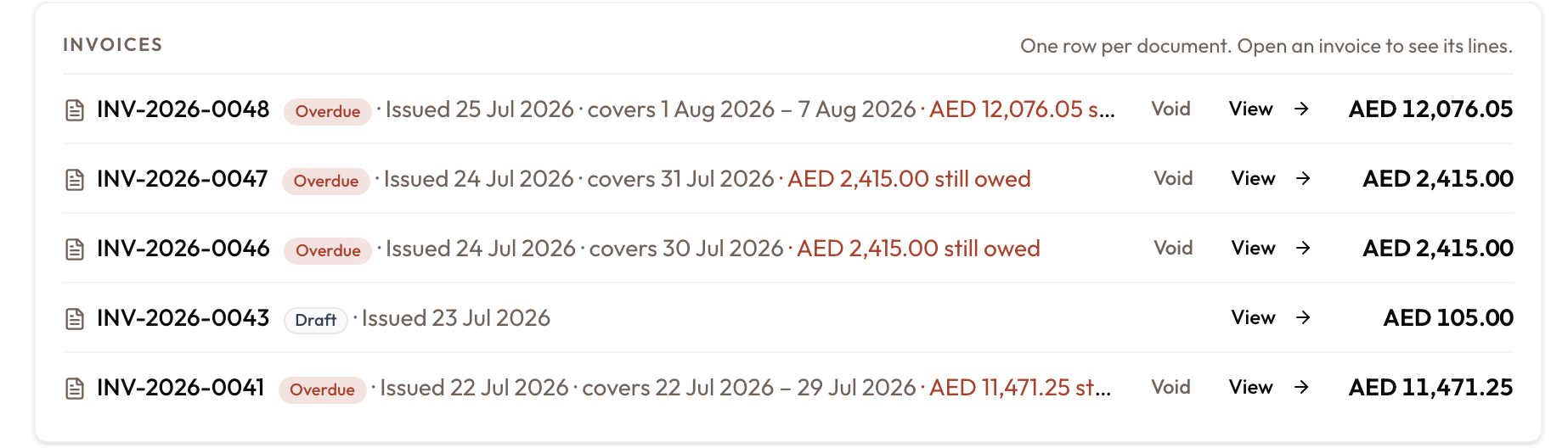
The Invoices card has one row for each invoice raised on the rental (the deposit invoice is shown on its own card). Each row shows:
- the invoice number and its status, such as Awaiting send, Sent, Partially paid, Overdue, Paid or Void
- when it was issued, and which rental dates it covers
- how much is still owed, in red
- View, to open the invoice, and Void, when your role allows it
A voided invoice stays in the list, struck through. If anything has been credited, refunded or written off, those totals appear under the heading.
Add an item
Use Add item for damage, cleaning, a fuel shortfall or any other extra. The products you can pick, and how VAT is worked out, are covered in Adding Damage & Extra Charges.
Pick the product and fill in the line
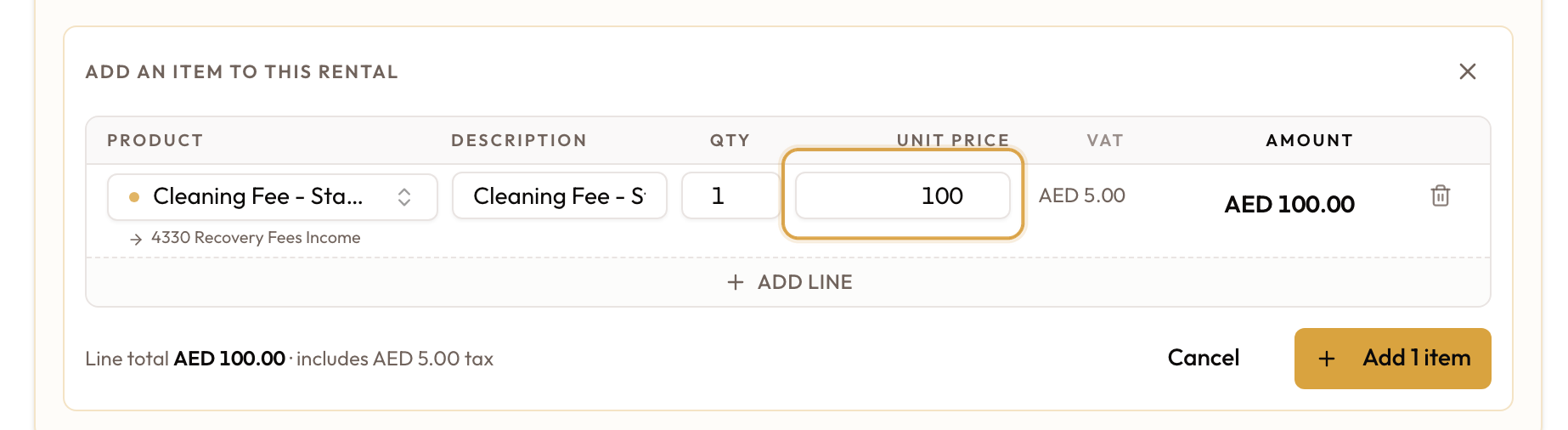
Click Add item on the Not yet billed card. The Add an item to this rental editor opens at the foot of the card, with one row ready.
- Click Pick product and choose a product. Only Usage products are offered. Picking one fills in Description and Unit price.
- Check the Description and Qty.
- Enter the Unit price the customer pays, VAT included.
- To add more than one item, click Add line.
Line total shows the sum of the rows.
Save the items
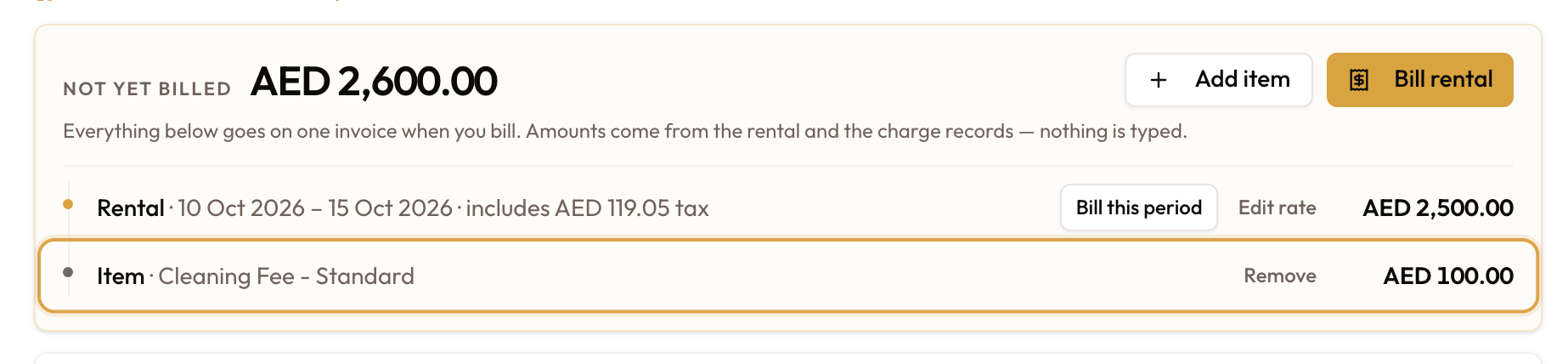
Click Add 1 item (or Add 2 items, and so on). Each item joins Not yet billed as Item, and the amount goes up. Nothing is invoiced yet.
To take an item off again, click Remove on its row. Only an item that is not on an invoice yet can be removed.
Bill the rental
Open Bill Rental
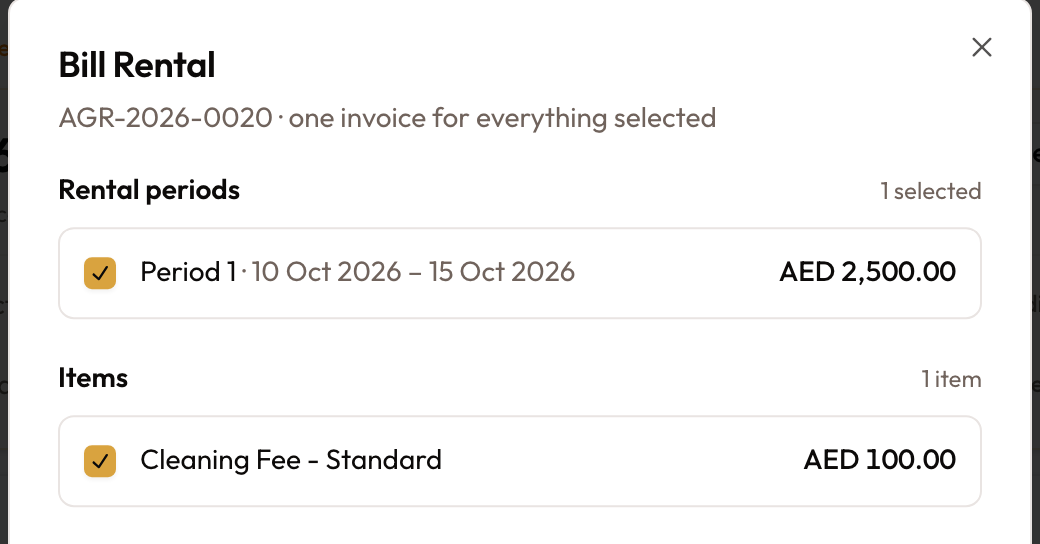
Click Bill rental on the Not yet billed card. It shows only while something is waiting. The Bill Rental dialog opens with everything ticked, ready for one invoice.
To bill only the rental period, click Bill this period on the first rental line instead. The same dialog opens with just that period ticked.

Choose what goes on the invoice
The dialog lists up to three groups:
- Rental periods: each period with its dates; extensions are tagged EXT
- Tolls & fines: each charge with its date, reference and tax treatment, and any fee under it
- Items: the items you added
Untick anything you aren't billing now. It stays under Not yet billed for the next invoice. Periods are billed in order, so unticking a period also unticks the periods after it.
Create the invoice
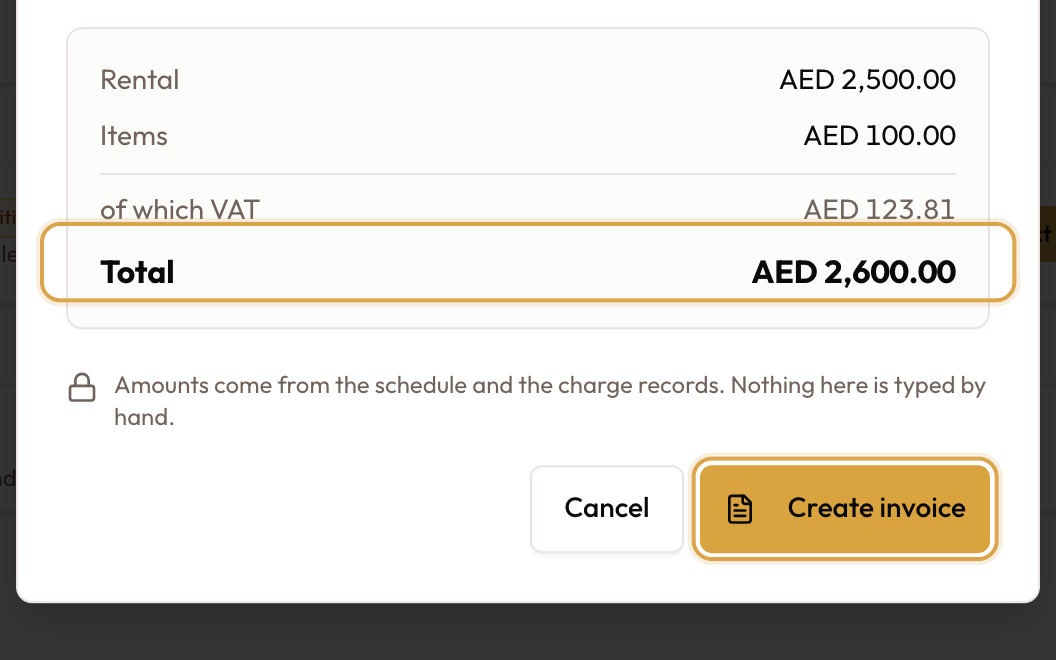
Check the summary: Rental, Tolls & recovery fees, Fines (out of scope), Items, of which VAT and Total, for what is ticked. Then click Create invoice.
"Invoice … raised" confirms it, and the new invoice opens.
- It is one invoice for everything you ticked, due 7 days after it is issued.
- It is not emailed. Send it from the invoice when you are ready; see Sending Invoices.
- On the Rental Account it is listed under Invoices, and what it billed leaves Not yet billed.
You can bill as often as you like: once at the end, or each time something new arrives. Tolls and fines are matched to the rental as they sync; see Billing Tolls, Fines & Parking to Customers.
Fix a rate before it is billed: Edit rate
Edit rate changes the price of a rental or extension period that is still under Not yet billed. No invoice is voided and no credit note is needed. Every way to fix a rate is compared in Correcting a Wrong Rate.
Open Edit Rate
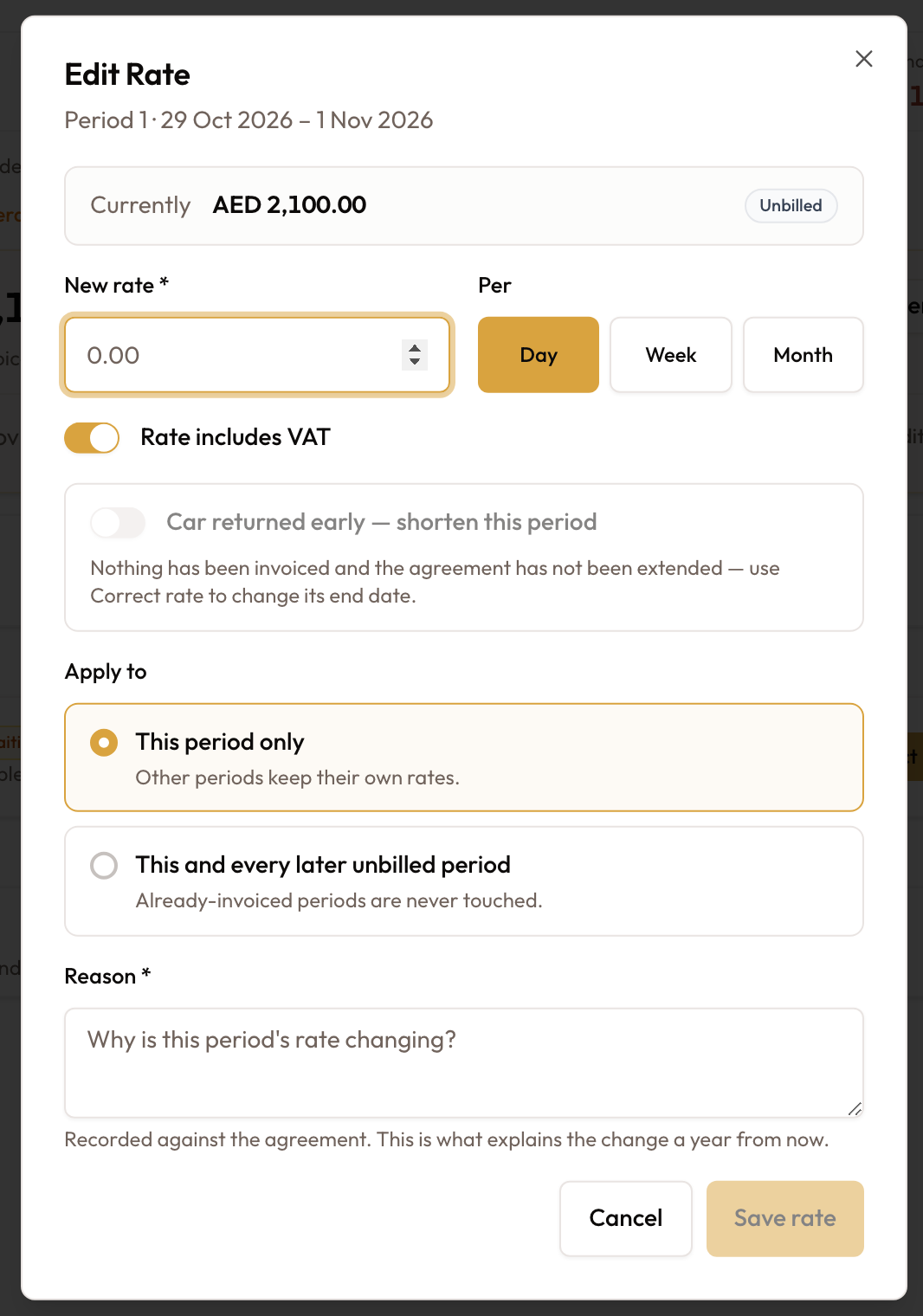
Click Edit rate on the period's row. The Edit Rate dialog opens for that period, showing what it costs Currently and an Unbilled badge.
Enter the new rate
- New rate: the box starts empty, so type the rate. 0 is allowed, for a courtesy day.
- Per: Day, Week or Month. It starts on Day and is never guessed from the dates, so pick the unit you quoted.
- Rate includes VAT: starts on, so the figure you type is the price with VAT. Turn it off to enter a rate before VAT.
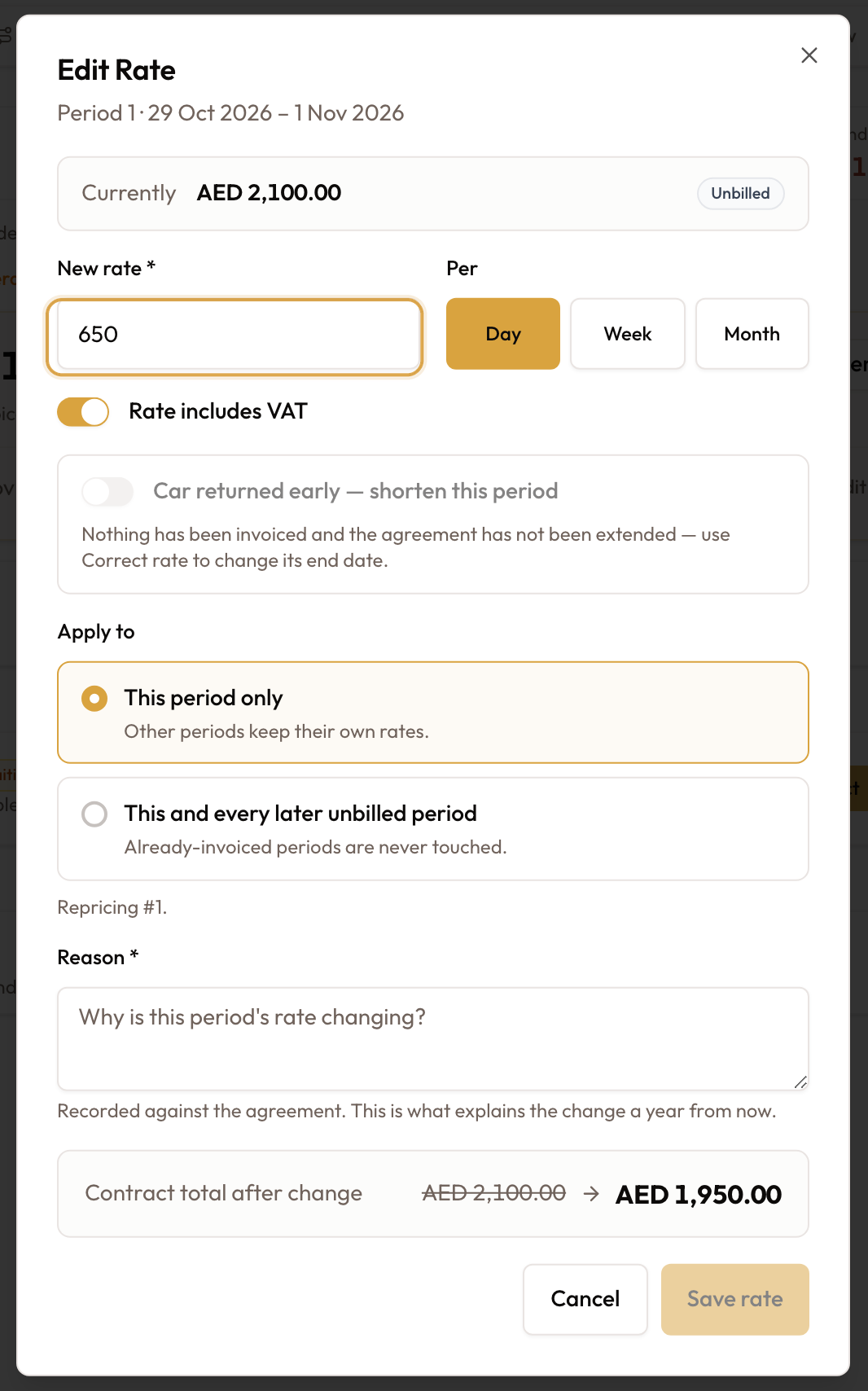
The box at the bottom of the dialog then shows the new price:
- Period with its number (for example Period 3): what this period costs now, struck through, and what it will cost
- the period's dates and days, as
{start} → {end} · {days} days - Contract total: the old total, struck through, and the new one
If the car came back early, shorten the period
After check-in, the last unbilled period can end on the day the car came back. Turn on Car returned early — shorten this period, then pick Period ends on (return day). The period is repriced over the days actually used, and its new dates and days show in the box at the bottom. The agreement's end date moves to match. Apply to switches to This period only.
This is offered once the rental has an invoice or an extension. Before that, Correct Rate handles the whole rental; see Correcting a Wrong Rate.
If the contract was already signed, a note reminds you: "The signed contract still shows the old end date." When the switch is greyed out, the reason is shown beneath it.
Choose the periods, give a reason and save
- Under Apply to, choose:
- This period only (the default): other periods keep their own rates.
- This and every later unbilled period: invoiced periods are never touched. A "Repricing #…" line lists the periods that change.
- Enter the Reason. It is required and kept on the agreement.
- Click Save rate. It is enabled once the new price is shown and a reason is entered.
"Rate updated on … period(s)" confirms it, and Not yet billed shows the new amount.
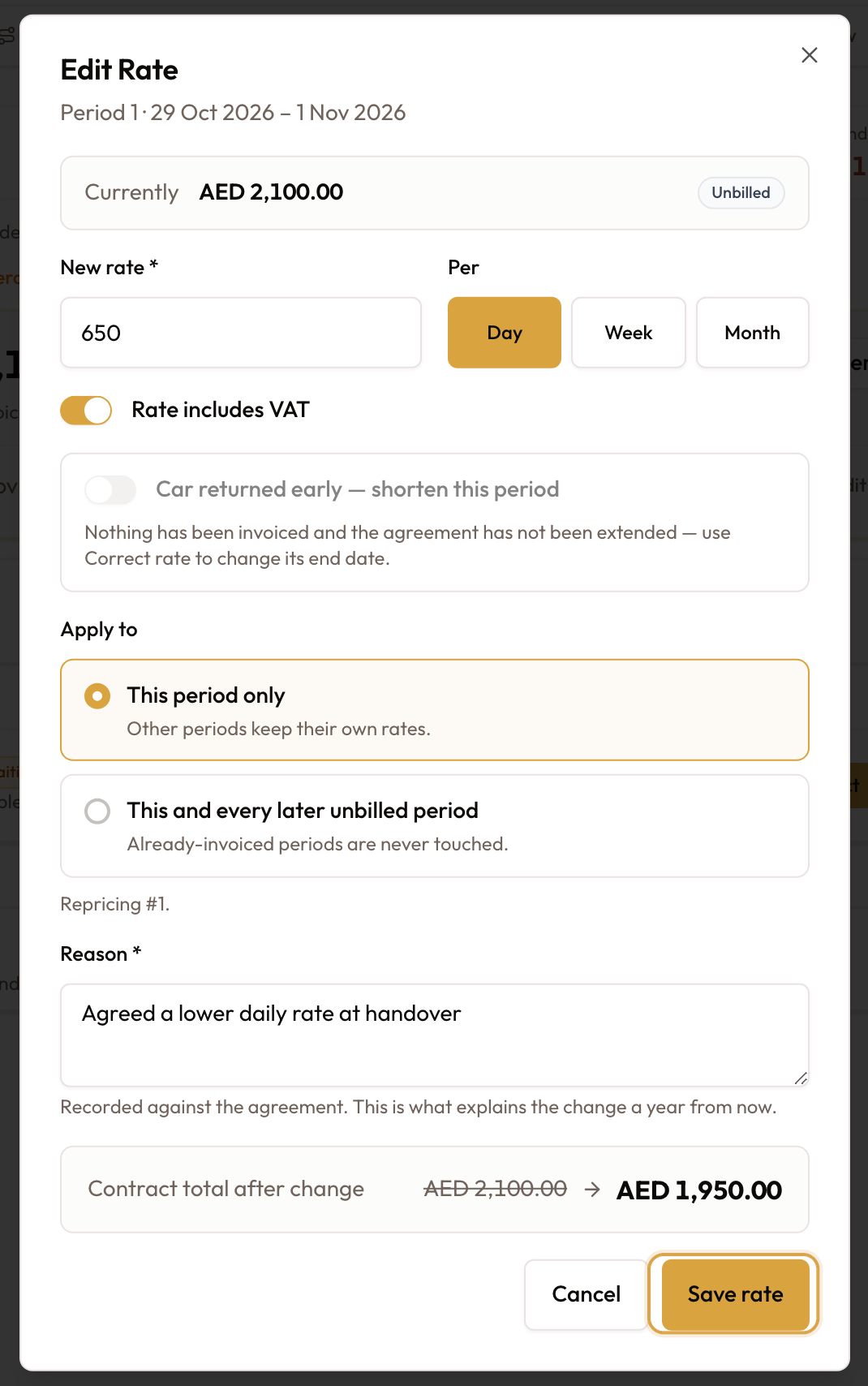
Edit rate charges the rate exactly as you enter it. The agreement's discount isn't applied to the new rate, so enter the figure you want to charge.
Cancel a billed invoice: Void & Reissue
Use this when an invoice on the rental is wrong and the customer hasn't paid it. Voiding puts what it billed back under Not yet billed. You then fix it and bill it again; that is the "reissue".
Open Void & Reissue
Click Void on the invoice's row under Invoices. The Void & Reissue dialog shows the invoice number, the period it covers, its total, and where it came from: "Issued automatically" or "Created by hand".
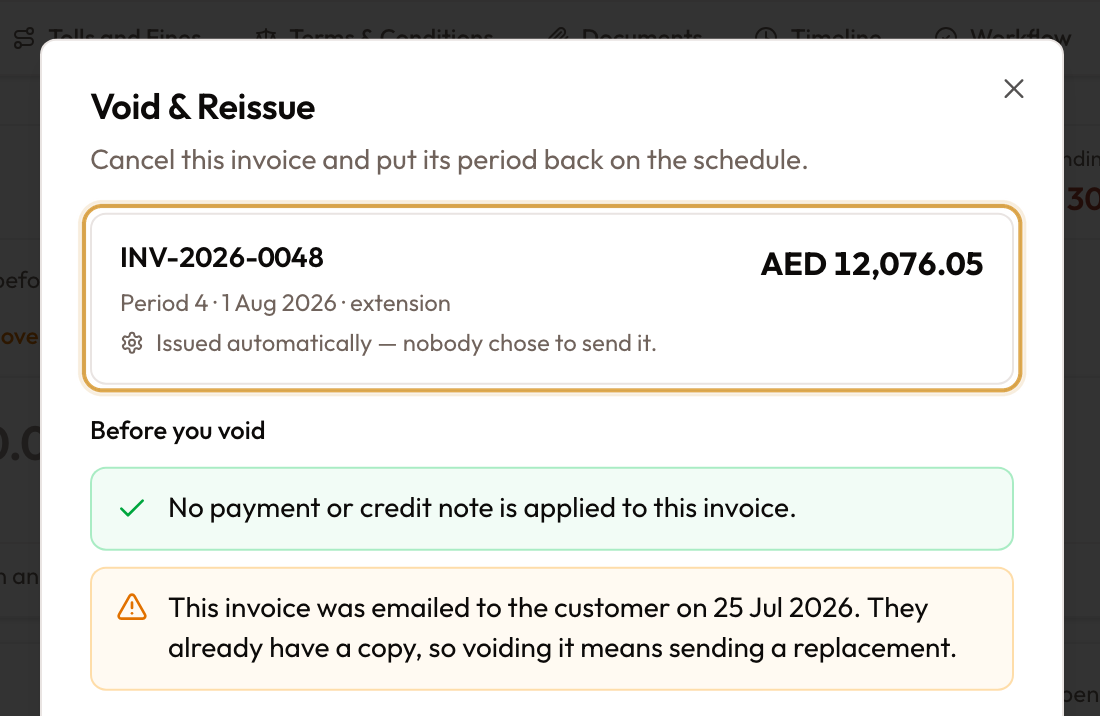
Void an unpaid invoice
- Before you void confirms that no payment or credit note is applied. If the invoice was emailed, a warning reminds you that the customer has a copy, so they will need a replacement.
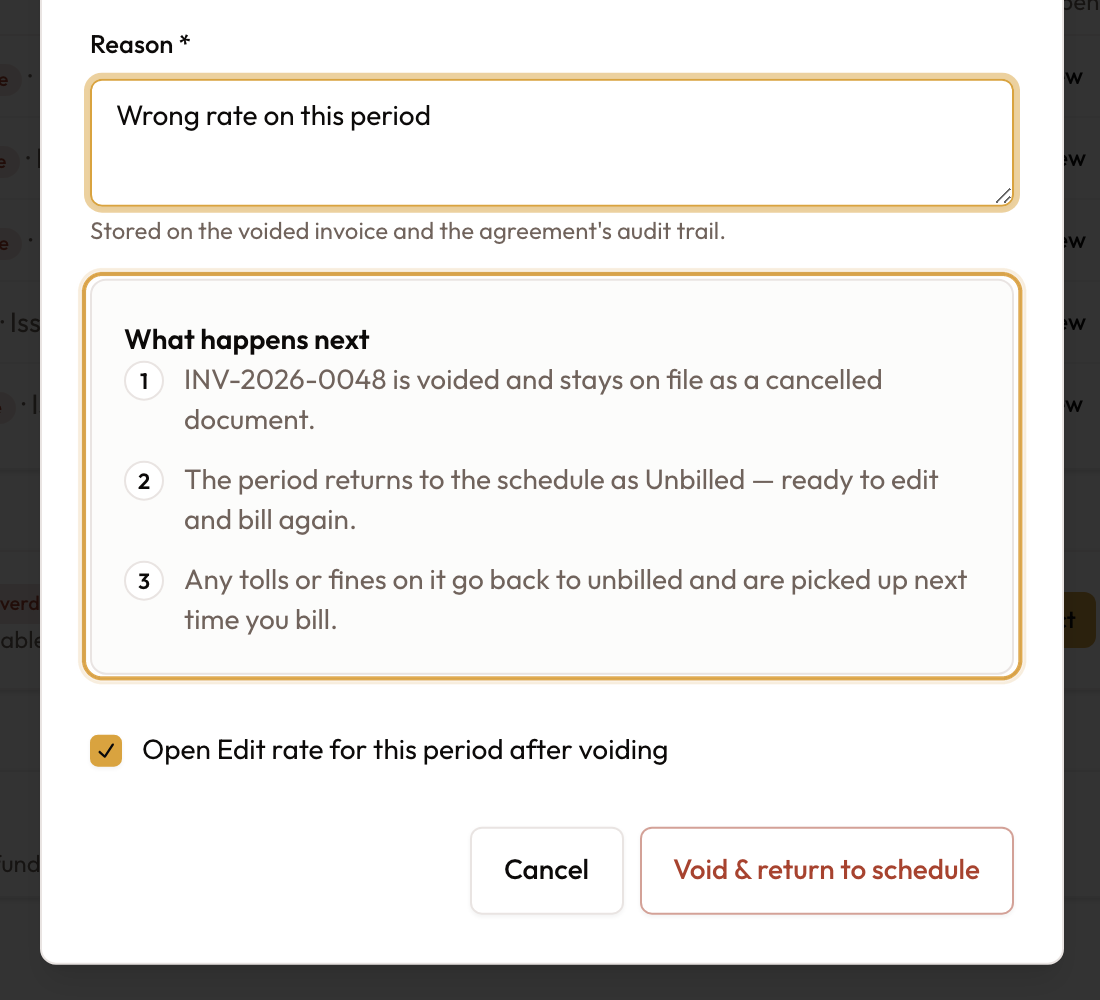
- Enter the Reason for cancelling it.
- Read What happens next:
- the invoice is voided and stays on file as a cancelled document
- the period goes back on the schedule as unbilled, ready to edit and bill again
- any tolls or fines on it go back to unbilled, for the next bill
- Leave Open Edit rate for this period after voiding ticked (the default) if the rate was the problem.
- Click Void & return to schedule.
"… voided — its period is back on the schedule" confirms it. If the box was ticked, Edit Rate opens for the period. When it is right, bill it again with Bill this period or Bill rental.
If the customer has paid
When a payment or credit note is applied, the invoice can't be voided. The dialog says "This invoice has been paid, so it cannot be cancelled." and offers two routes:
- Issue a credit note: the invoice stands, and a credit note reverses what was wrong. Click Issue credit note to open the invoice and raise it there. See Creating Credit Notes & Deposit Refunds.
- Unlink the payment first: only if the payment was applied to the wrong invoice. Once it is unlinked, the invoice can be voided.
A fully paid invoice has no Void button at all. Open it with View and issue a credit note.
Billing after the agreement is closed
Closing doesn't end billing on a short-term rental.
- At the close, Close without billing leaves everything unbilled on the Rental Account. Nothing is lost; you can bill it after closing. See Closing an Agreement.
- Fines can arrive up to two weeks after the return. Once one is matched to the rental, it shows under Not yet billed.
- On a closed rental you can still use Add item, Bill rental, Edit rate on an unbilled period, and Void on an unpaid invoice, exactly as above.
Short-term vs monthly
A monthly agreement has no Rental Account. It keeps a Payment Schedule, with one invoice for each period, raised in order. Details: Viewing Agreement Details & Timeline.
Edit rate is on the monthly schedule too, on the last period still unbilled. There it is priced per day and applies to that period, so it can also shorten the last month when the car comes back early. See Correcting a Wrong Rate.
| Short-term (Single Invoice) | Monthly | |
|---|---|---|
| Where the money is | Rental Account | Payment Schedule |
| Invoices | You choose: the rental, extensions, tolls, fines and items together on one invoice, as often as you like | One invoice per period, generated in order with Generate |
| Extra charges | Add item | Create Addon Invoice |
| Wrong rate, nothing billed yet | Edit rate on the period | Correct Rate in the sidebar, or Edit rate on the last unbilled period (priced per day) |
| The car came back early | Edit rate, then Car returned early — shorten this period | The same, on the last unbilled period |
| After the close | Still billable from the Rental Account | Bill on the first unbilled period opens Bill Rental |
Who can do what
| Action | Your role needs | Agreement is | Also |
|---|---|---|---|
| Add item, Remove | Create invoices | Active, expired, closed or terminated | Remove only before the item is billed |
| Bill rental, Bill this period | Create invoices | Active, expired, closed or terminated | Something is waiting; periods are billed in order |
| Edit rate | Update agreements | Active, expired, closed or terminated | The period isn't billed yet |
| Void | Void invoices | Any | No payment or credit note is applied |
When something looks wrong
| What you see | What it means |
|---|---|
| A Payment Schedule instead of a Rental Account | The agreement bills monthly. See Long-Term Rental Workflow |
| No Add item or Bill rental | Your role can't create invoices, or the agreement isn't checked out yet or was cancelled. Bill rental also hides when nothing is waiting |
| The rental isn't under Not yet billed after checkout | Raise invoices automatically is on, so checkout invoiced it. Look under Invoices |
| No Edit rate on a row | Only rental and extension periods have a rate, and your role needs permission to update agreements |
| No Void on an invoice | It is fully paid or already void, or your role can't void invoices. Issue a credit note from the invoice |
| "Cannot bill: an earlier payment … has not been billed yet." | Periods are billed in order. Tick the earlier period too |
| "Payment #… is already invoiced." | It was billed already. Refresh the page; void that invoice if it needs billing again |
| Create invoice is greyed out | Nothing is ticked |
| "Cannot edit rate: payment #… has already been invoiced." | Void the invoice first, then use Edit rate |
| Save rate is greyed out | Enter a Reason, and wait for the new Period price and Contract total to appear |
| "Cannot void an invoice with money applied to it." | A payment or credit note is applied. Issue a credit note, or unlink a payment applied by mistake |
| An item can't be removed | It is already billed. Void the invoice to return it, or issue a credit note |
| Something you unticked is still listed | Unticking only leaves it off that invoice. It waits for the next one |
| The customer didn't get the invoice | Bill rental doesn't email it. Open the invoice and send it |
What to read next
- Short-Term Rental Workflow: the whole rental, from creating it to releasing the deposit
- Adding Damage & Extra Charges: products and VAT for the items you add
- Correcting a Wrong Rate: every way to fix a rate, short-term and monthly
- Extending Agreement Duration: how an extension adds a period to the Rental Account
- Pricing & Rates: how the rental price is worked out in the first place
Viewing Agreement Details & Timeline
Read an agreement at a glance: the next action, the tabs, the Overview for monthly agreements and short-term rentals, the deposit, the timeline and the sidebar.
Security Deposits
How a rental's deposit is set, invoiced at checkout, collected, held after close and released, plus how to correct it or add one later.