

Modifying an Active Agreement
What you can change once an agreement is running, where each change lives, and why an action you expected is missing.
Once an agreement is Active, it is a live contract: a vehicle is out on the road and invoices are being raised against it. Changes are still possible, but each one runs through its own controlled flow rather than a general edit — and which ones are offered depends on the agreement's status and on what has already happened to it.
This page is the map. It covers where the actions live, when each one appears, and what to do when the one you expected is missing. Short-term rentals (billing frequency Single Invoice) also have their own money actions on the Overview tab, in the Rental Account — see below.
Before you start
Open the agreement from the agreement list. The detail page opens on the Overview tab, with the action sidebar down the right-hand side. Every action below needs permission to update agreements; with it, the action groups appear in the sidebar.
Changes to the agreement's terms
The Agreement Management group in the sidebar holds these.
| Action | When it appears | What it does |
|---|---|---|
| Correct Rate | Active or Expired, nothing invoiced yet, not extended or re-rated, and no temporary replacement out | Fixes a mistyped rate, end date or mileage limit before any billing has happened |
| Extend Agreement | Active or Expired | Extends the duration and rebuilds the billing schedule |
Correct Rate leaves the sidebar the moment the first invoice is raised, or once the agreement is extended or a period is re-rated. On a short-term rental, periods that are still unbilled can be re-rated with Edit rate in the Rental Account. On a monthly agreement, Edit rate is on the last period of the Payment Schedule while it is unbilled. An invoiced period needs a void or a credit note — the figure has already been relied on.
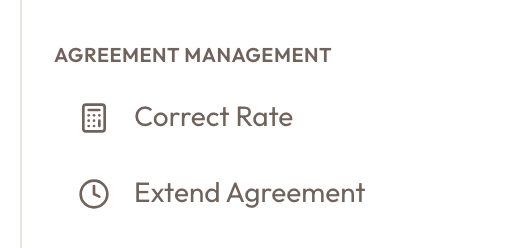
The Agreement Management group on an active, uninvoiced agreement, showing Correct Rate and Extend Agreement.
Changes to the vehicle, and ending the agreement
The Workflow Actions group holds the changes to what is happening physically.
| Action | When it appears | What it does |
|---|---|---|
| Replace Vehicle | Active, and check-in has not been completed | Swaps the vehicle, temporarily or permanently, and raises a swap adjustment invoice |
| Return to Original Vehicle | Active, while a temporary replacement is out | Puts the customer back in the original vehicle |
| Vehicle check-in | Active or Expired, with a vehicle checked out and not yet checked in | Runs the return inspection |
| Close Agreement | Active or Expired — but on Active, only after check-in | Ends the agreement. You choose Bill and close or Close without billing; the deposit is never applied or refunded by closing |
On an Active agreement, Close Agreement appears once the vehicle has been checked in. Run Vehicle check-in first.
Correcting the security deposit
Not every change lives in the sidebar. The security deposit is managed from the Security Deposit card on the Overview tab. The button it shows depends on the deposit's state:
| Card state | Button | What it does |
|---|---|---|
| None agreed — no deposit was agreed | Add deposit | Opens Add a security deposit: enter the Deposit amount and a reason, and a deposit invoice is raised |
| Not invoiced — agreed but never invoiced | Raise deposit invoice | Opens the same dialog to raise the deposit invoice |
| A deposit invoice exists | Correct deposit (or Re-issue deposit once the invoice is voided) | Replaces the deposit invoice at the corrected amount |
| The deposit invoice is paid | Release deposit | Hands the deposit back to the customer |
See Security Deposits for the full flow, and Creating Credit Notes & Deposit Refunds for releasing it.
Short-term rentals: the Rental Account
On a short-term rental, the top of the Overview tab is the Rental Account: Total, Net billed, Net received and Outstanding, a Rate line (for example "200.00 per day · includes VAT · 11 days"), then a Not yet billed list of everything still waiting to be invoiced. These actions change the rental from here:
- Edit rate — on each unbilled rental period. Opens Edit Rate to re-price that period, or that period and every later unbilled one, with a reason. Works on Active, Expired, Closed and Terminated rentals; invoiced periods are never touched.
- Add item — adds a charge to the rental (for example damage or fuel) from your product catalogue. It waits in Not yet billed until you bill.
- Bill rental — opens Bill Rental and raises one invoice for everything you tick. Shown only while something is unbilled.
- Cancel extension — takes back the latest extension when the customer didn't use it. See Cancel an unused extension.
Nothing is invoiced until you choose Bill rental. Monthly agreements keep the payment schedule instead.
Monthly agreements: the Payment Schedule
On a monthly agreement, the Payment Schedule on the Overview tab has one row per period. Besides Generate, two row actions change what is billed:
- Edit rate — on the last period while it is unbilled. Opens Edit Rate priced per day, to re-price the last month or, after an early return, end it on the return day with Car returned early — shorten this period. See Correcting a Wrong Rate.
- Bill — on a closed or terminated agreement, on the first unbilled period. Opens Bill Rental with that period ticked.
Changes that take another route
- Extra items on a running agreement. Add-ons are set when the agreement is created. To charge something extra, use Add item in the Rental Account on a short-term rental, or Create Addon Invoice (sidebar, under Billing) on a monthly agreement.
- The agreement's other terms. A running agreement changes through the flows above; Edit Draft is for drafts.
- A rate that's already invoiced. Void the invoice or issue a credit note, then re-rate. See Correcting a Wrong Rate.
- The deposit. Correct it while the agreement is Active or Expired. Closing leaves the deposit held until someone clicks Release deposit on the deposit card.
Why an action is missing
| What you expected | Why it is not there |
|---|---|
| Close Agreement, on an active agreement | The vehicle has not been checked in yet |
| Correct Rate | An invoice has been raised, the agreement was extended or had a period re-rated, or a temporary replacement is out. On a short-term rental, use Edit rate on any period still unbilled; on a monthly agreement, on the last period while it is unbilled |
| Edit rate, on a rental period | On a monthly agreement it is on the last period. The period may already be invoiced, or your role can't update agreements |
| Replace Vehicle, on an active agreement | Check-in has already been completed, which closes the replacement route |
| Return to Original Vehicle, after a swap | It appears only for a temporary replacement. A permanent swap has no return |
| The whole Agreement Management group | Either the status offers no management actions, or your role cannot update agreements |
What to read next
- Correcting a Wrong Rate Before Billing — fixing a mistyped rate while the agreement is still unbilled
- Extending Agreement Duration — moving the end date and pricing the extra period
- Vehicle Replacement Mid-Agreement — swapping the vehicle, and bringing the original back
- Vehicle Check-In & Return Inspection — recording the vehicle coming back
- Closing an Agreement — ending the agreement, and billing what's left on the way out
- Security Deposits — collecting, releasing, correcting or adding a deposit on a live agreement
- Creating Credit Notes & Deposit Refunds — releasing the deposit and crediting invoices
- Viewing Agreement Details & Timeline — reading the detail page these actions sit on
Security Deposits
How a rental's deposit is set, invoiced at checkout, collected, held after close and released, plus how to correct it or add one later.
Correcting a Wrong Rate Before Billing
Fix a wrong rate: Edit rate on an unbilled short-term period or on a monthly agreement's last unbilled period, Void & Reissue once it is billed, Correct Rate while nothing is invoiced, or a void or credit note.