

Creating Credit Notes & Deposit Refunds
Raise a credit note against an invoice, apply it to reduce a balance, or refund it as cash — including deposit refunds, which are a credit note with the Deposit refund reason.
A credit note reduces what a customer owes. In SpectroNova Express a credit note is always raised against an invoice; there is no standalone credit note. Once issued, you can:
- apply it to an open invoice, which lowers that invoice's balance with no cash moving; or
- refund it, so cash actually goes back to the customer.
A deposit refund is a credit note: one raised with the Deposit refund reason and then refunded as cash. So this page covers credit notes and deposit refunds together.
Closing an agreement never refunds or applies the deposit. It stays held after close, because tolls and fines can still land. To return it, use Release deposit on the agreement's Security Deposit card; see Security Deposits. The rest of this page is the manual path for crediting any invoice.
Just giving back money the customer paid? Issue Refund on the invoice (sidebar, under Payments) writes the credit note and the refund in one step. See Refunds & Write-Offs.
Before you start
- You need an open or paid invoice to credit against. Draft, void and written-off invoices don't offer it.
- Separate permissions gate creating and issuing, applying, refunding, marking a refund completed, and voiding. If an action is missing, you likely lack that right.
Create a credit note
Start from the invoice
Open the invoice you want to credit. In its right sidebar, under Credit, click Issue. That opens the credit-note editor, already tied to this invoice and its customer.
There is no "new credit note" button anywhere else. A credit note must reference an invoice, so the invoice sidebar is the only way in.
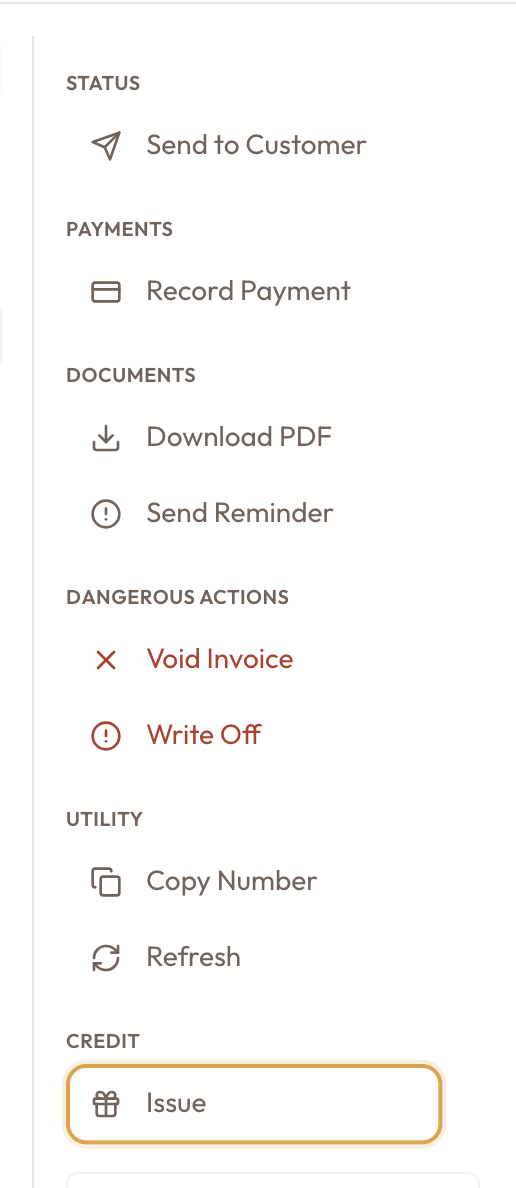
The invoice sidebar with the Credit group and its Issue action
Choose the reason
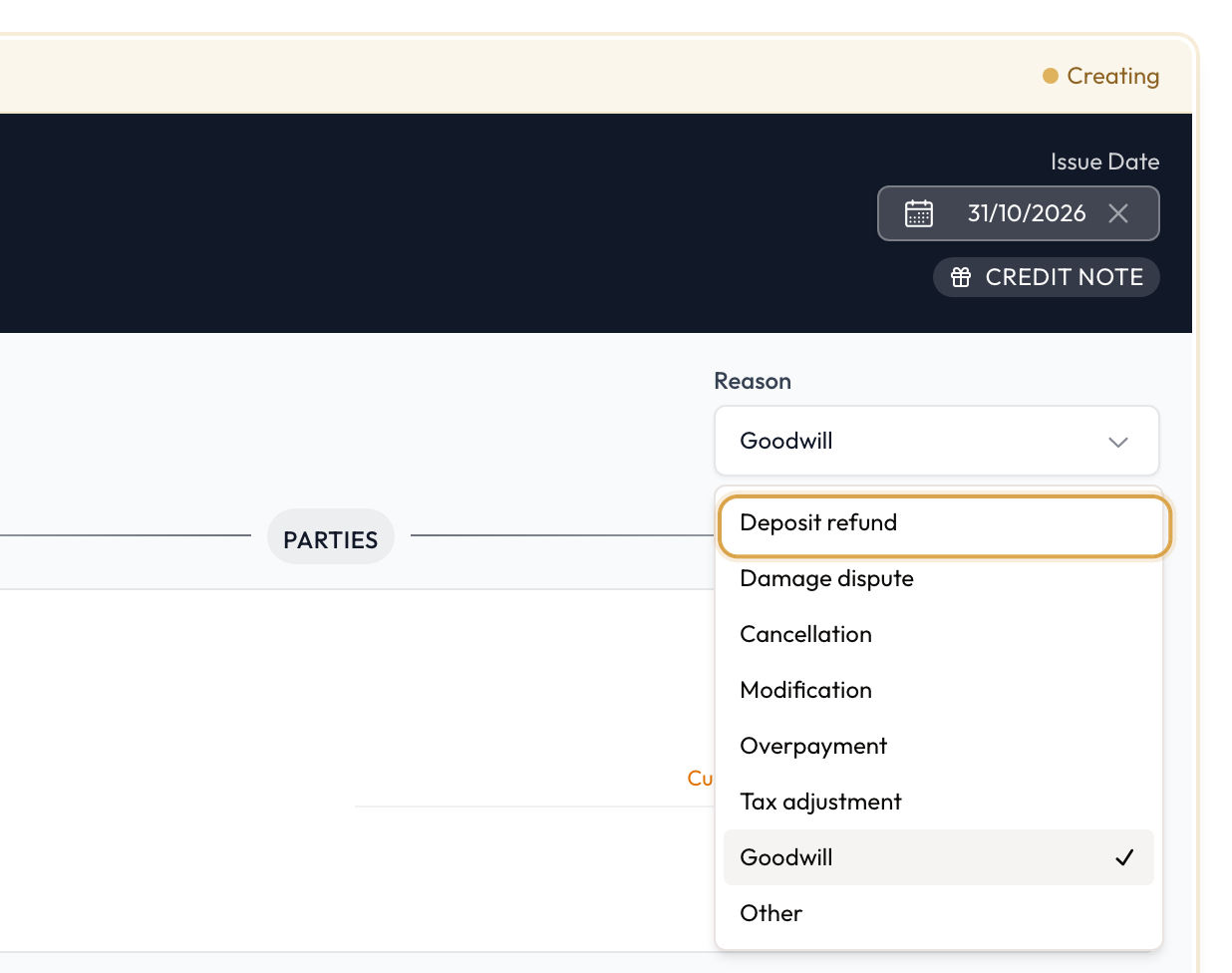
Set the Reason:
- Deposit refund: returning a security deposit
- Damage dispute: reversing a disputed damage charge
- Cancellation: a cancelled booking or charge
- Modification: a mid-term change that reduces a bill
- Overpayment: the customer was billed too much
- Tax adjustment: correcting VAT
- Goodwill: a discretionary credit
- Other: anything else
For a security deposit, choose Deposit refund, or skip all this and use Release deposit on the agreement, which does it in one step.
Adjust the lines
The lines come from the source invoice. The hint reads "From the source invoice — remove or reduce lines, never add."
- Delete a line, or lower its quantity or price. You can't add new charges.
- Each line shows its ceiling as max {amount}.
- The tax on each line is fixed and marked From invoice.
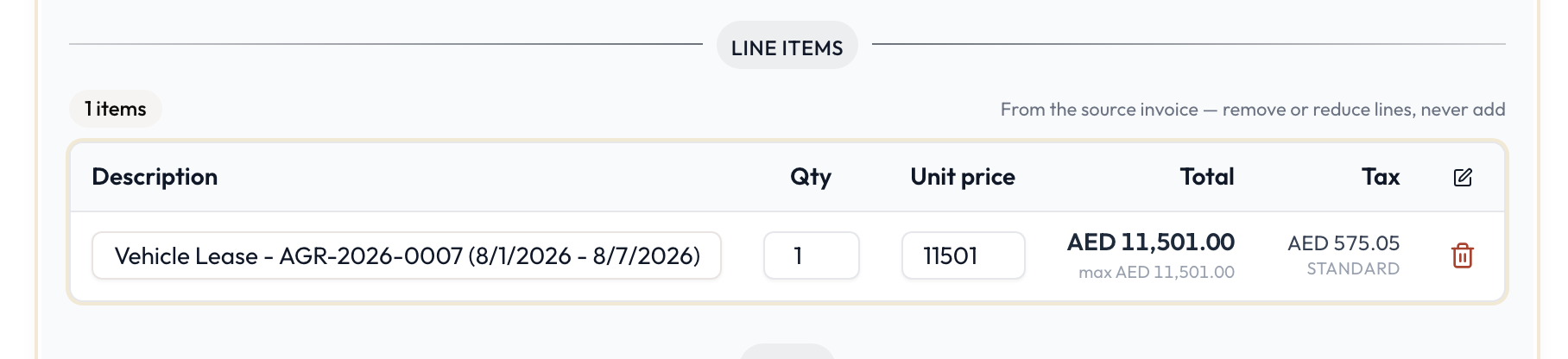
The Line items taken from the source invoice, each with its max ceiling and fixed tax
Check the total and save
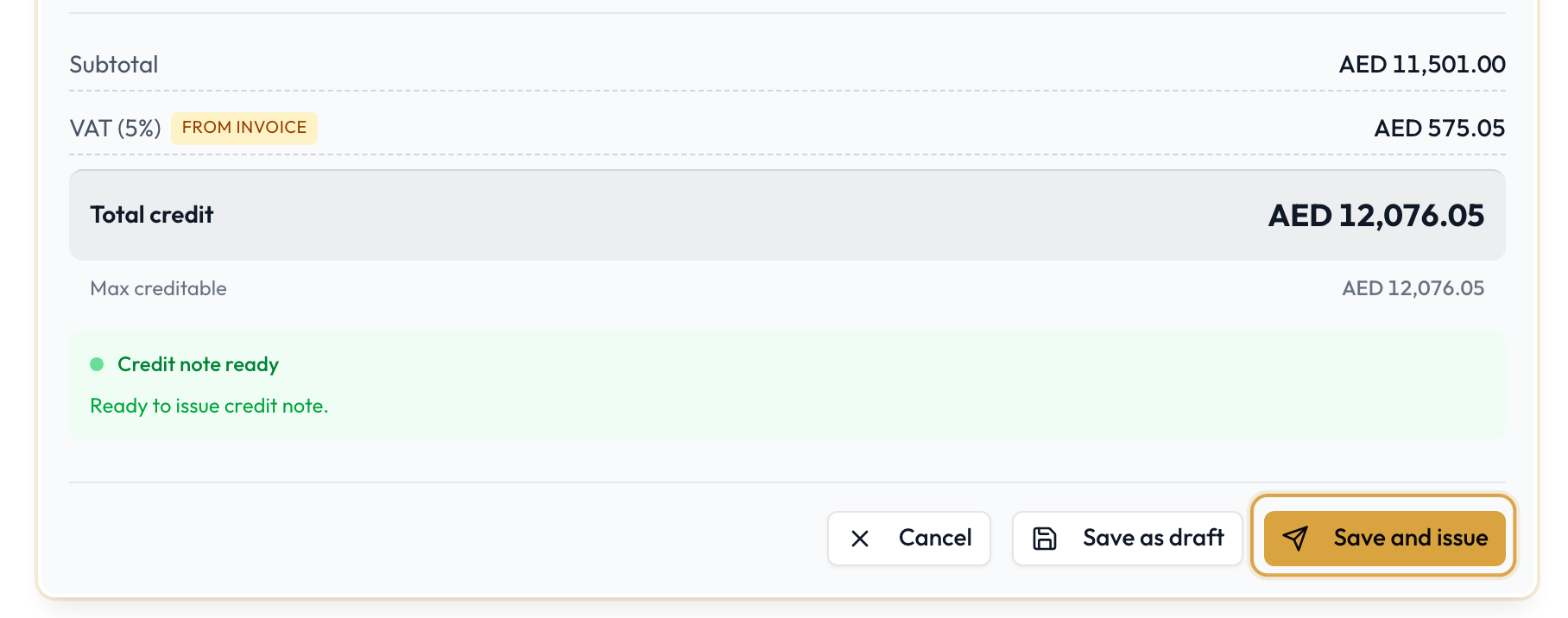
Below the lines, Total credit sits next to Max creditable, the amount still creditable against that invoice. Going over shows Exceeds invoice with guidance to reduce the amount; otherwise the panel reads Credit note ready.
Add any notes, then choose:
- Save as draft: editable, affects nothing yet.
- Save and issue: creates and issues it in one step.
You land on the credit note's detail page.
The credit note detail page
The detail page has three tabs: Credit Note, Applications and Refunds. The sidebar shows the status and four figures: Total, Applied, Refunded and Remaining.
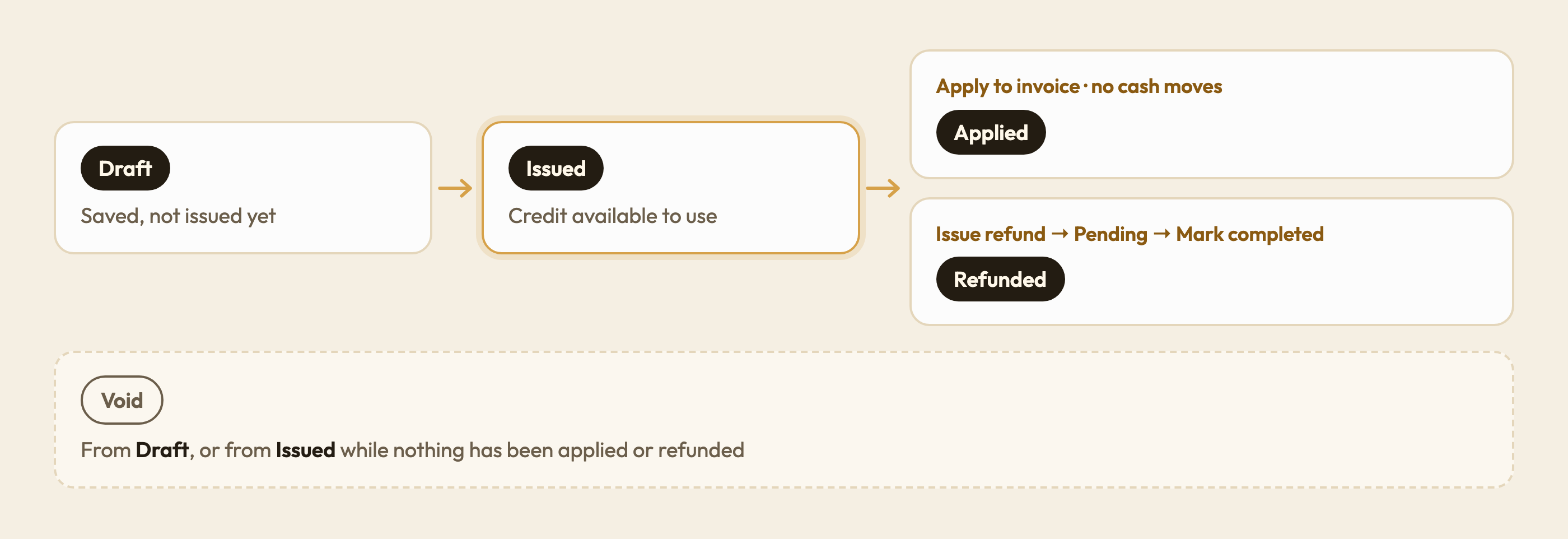
The status starts as Draft, then Issued. Once all the credit is used it becomes Applied (used on invoices) or Refunded (paid back). Void cancels it.
The sidebar actions depend on the status:
- Issue: on a draft, issues it.
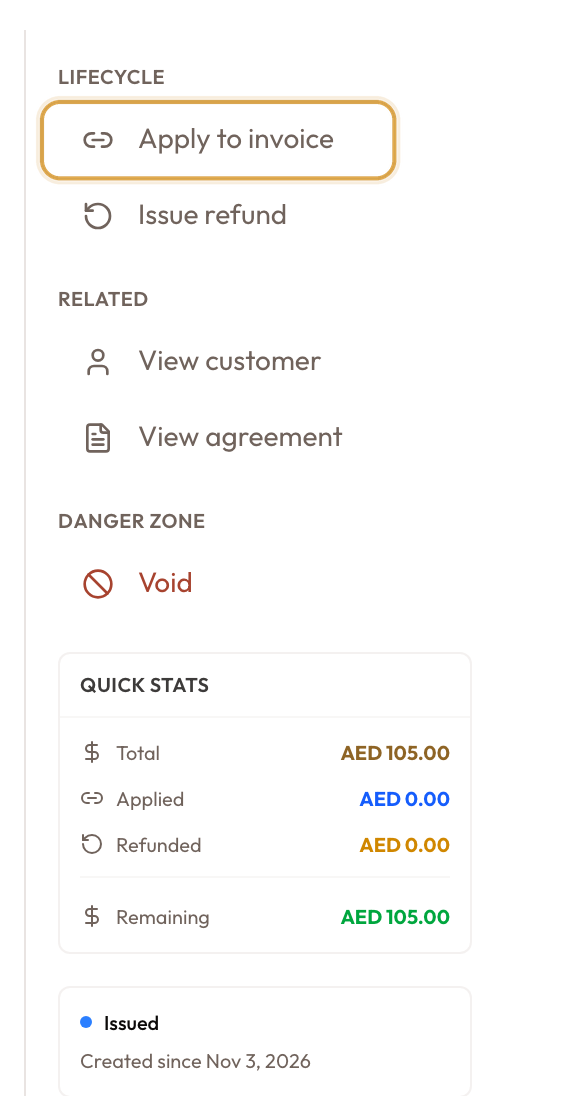
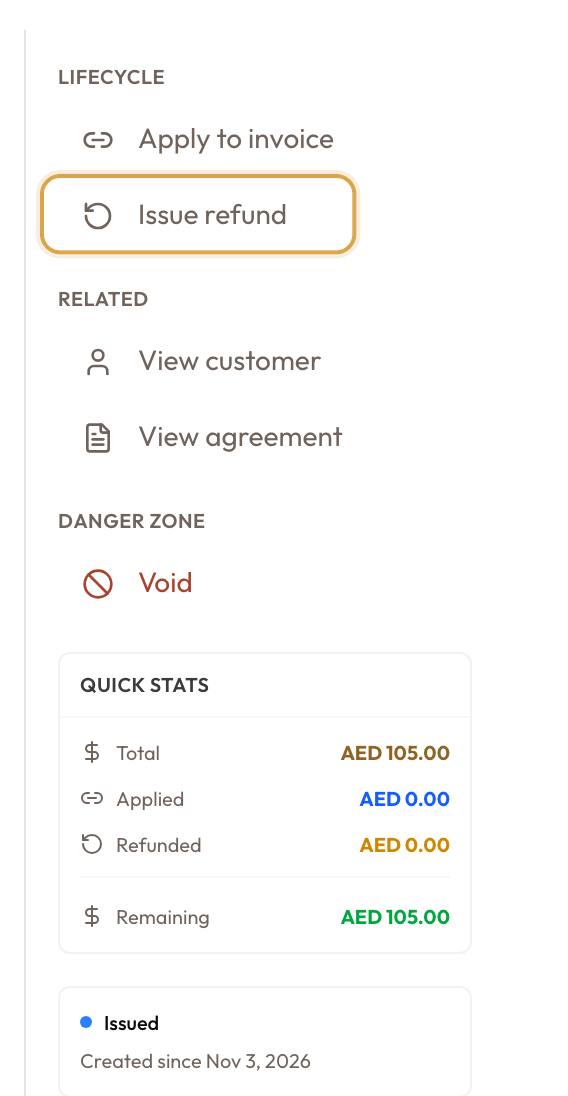
- Apply to invoice and Issue refund: on an issued credit note with credit remaining.
- Cancel refund: when a refund is still pending.
- Void (under Danger zone): on a draft, or an issued credit note with nothing applied or refunded.
Apply, or refund
This is the decision that matters:
Apply moves credit onto another invoice and lowers its balance: no money leaves the business. Refund pays the customer back in cash. A deposit refund is almost always a refund; a goodwill credit is often an apply.
Apply a credit note to an invoice
Pick the invoice and amount
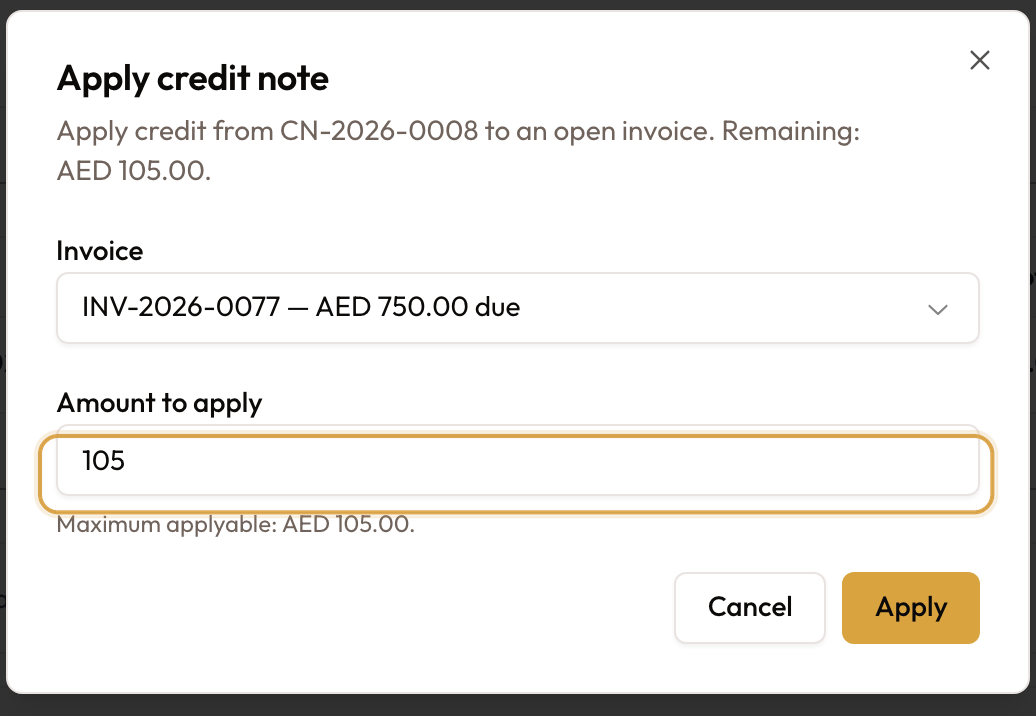
In Apply credit note:
- Choose the Invoice. Each one shows its number and the amount due. If the customer has none open, you see No open invoices.
- Enter the Amount to apply, capped at Maximum applyable: {max}.
- Click Apply.
You'll see Credit applied to invoice. The invoice's balance drops, and the entry appears on the credit note's Applications tab and under Credits applied on the invoice's Payments tab.
Applied to the wrong invoice? On that invoice's Payments tab, under Credits applied, click Unapply credit and confirm. The credit goes back to the credit note and the invoice returns to unpaid.
Issue a refund (cash back)
This is how a credit note, including a Deposit refund one raised by hand, returns money.
Open the refund dialog
On an issued credit note with credit remaining, click Issue refund in the sidebar.
Enter the refund
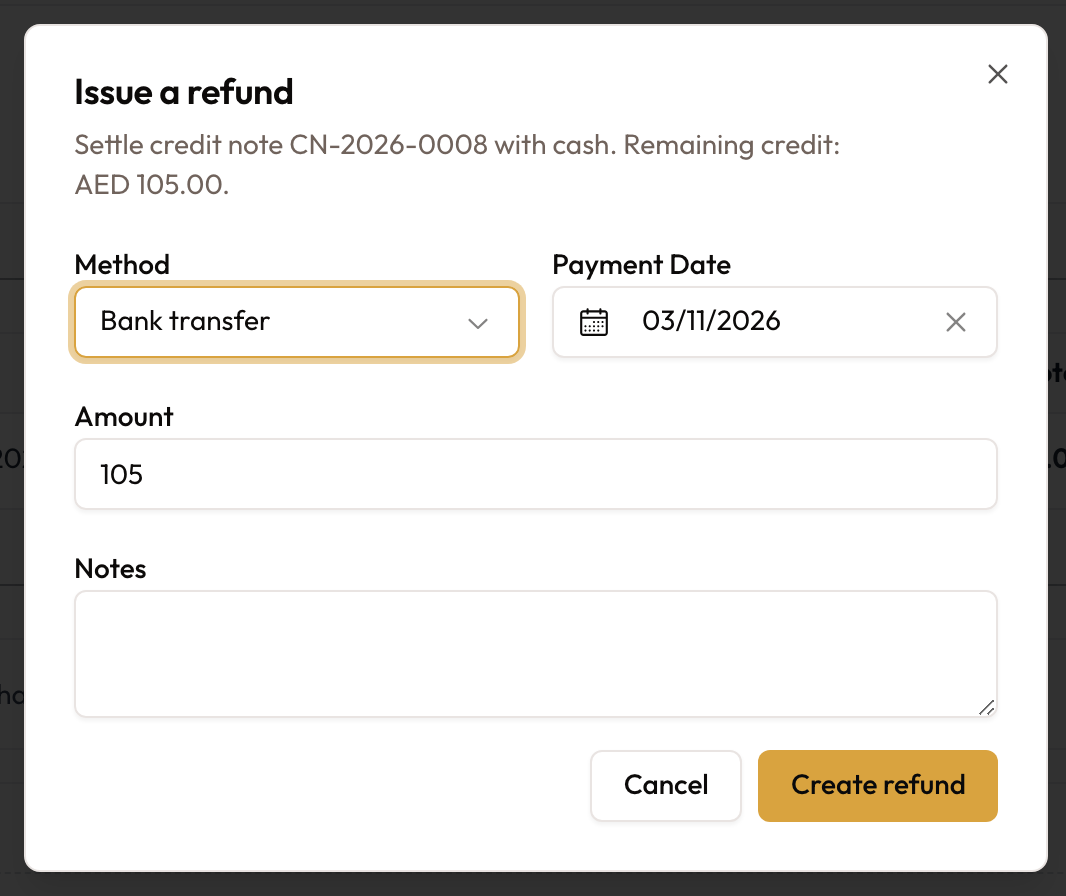
In Issue a refund, fill in:
- Method: Bank transfer (the default), Cheque, Cash, Card reversal or Stripe refund.
- Payment Date.
- Amount, up to the remaining credit.
- Notes, if you need them.
Click Create refund. The refund appears on the Refunds tab as Pending: "Mark it completed once cash actually moves." A pending refund already holds its amount, so if it uses up the remaining credit, Issue refund disappears and a banner explains why.
Mark it completed
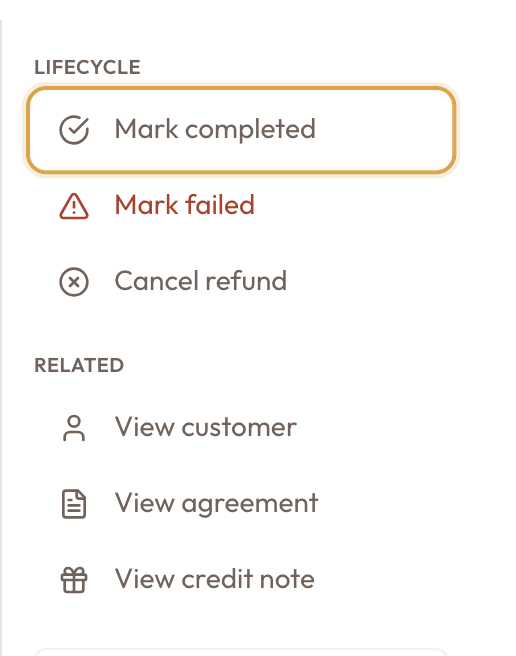
When the money has actually gone back, open the refund from the credit note's Refunds tab and click Mark completed, then confirm. The refund page also offers:
- Mark failed: the transfer was tried and didn't land.
- Cancel refund: you changed your mind before paying. The amount returns to the credit note. Cancel refund also appears on the credit note itself when one refund is pending.
Void a credit note
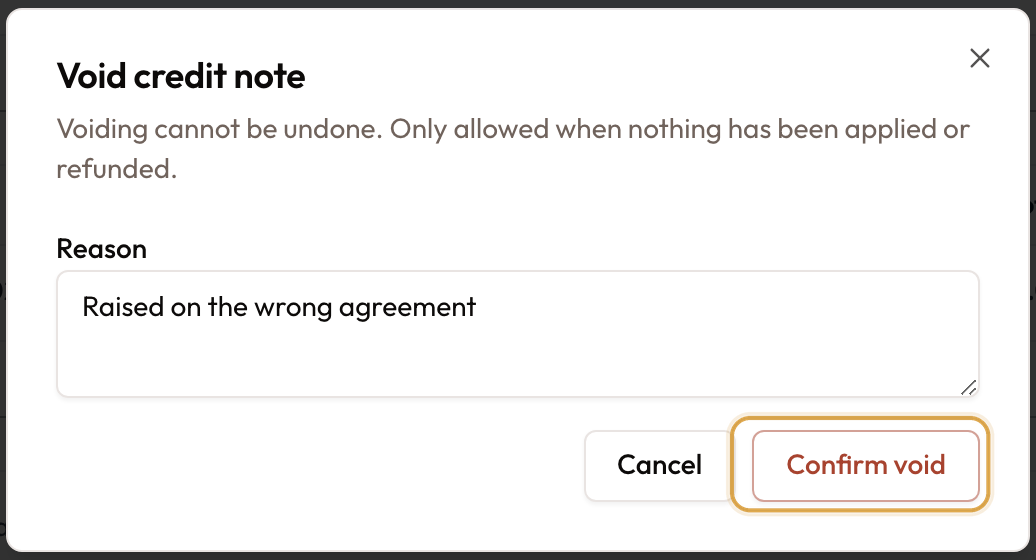
To cancel a credit note, click Void under Danger zone. The dialog warns that voiding cannot be undone and is only allowed when nothing has been applied or refunded. Enter a Reason and click Confirm void.
- A draft can always be voided.
- An issued credit note can be voided only when nothing has been applied or refunded. A pending refund counts, so cancel it first.
Release a deposit from the agreement
Releasing a security deposit uses this same refund, started from the agreement's Security Deposit card with Release deposit. It writes a credit note with the Deposit refund reason and the refund together. See Release the deposit.
Every agreement's Overview tab has a Credits & refunds card that lists the agreement's credit notes and refunds in one place, each credit note with what is still unapplied. When there are none it reads "Nothing has been credited or refunded." To start a new credit note, open the invoice you want to credit.
Common mistakes & edge cases
- No Credit → Issue on the invoice. The invoice is a draft, void or written off, or your role can't create credit notes.
- Exceeds invoice. The credit total is above what is still creditable against the source invoice. Reduce amounts or remove lines.
- The refund is still Pending. A refund from a credit note starts as pending. Open it and click Mark completed once the money has gone back.
- Issue refund is gone. A pending refund already holds the remaining credit. Complete it, or Cancel refund first.
- Void is blocked. The credit note has been applied or refunded (a pending refund counts).
- Applied but expected cash? Apply to invoice moves no money. To pay the customer back, use Issue refund.
What to read next
Security Deposits
Collecting, holding and releasing a rental's deposit.
Refunds & Write-Offs
Issue Refund on the invoice (credit note and refund in one step), and writing off bad debt.
Invoice Types & Automated Generation
The invoice statuses a credit note acts on.
Creating Manual Invoices
The invoice a credit note is raised against.
Closing an Agreement
Closing leaves the deposit held; release it afterwards from the deposit card.
Adding Damage & Extra Charges to a Rental
How damage and other extra charges are added to a rental, which a Damage dispute credit note reverses.
Creating Manual Invoices
Raise a standalone invoice by hand: pick the customer, add line items with server-computed tax, apply a discount, and save it as an editable draft.
Refunds & Write-Offs
The two ways an invoice ends in money out or a loss: refund a customer what they paid (one step that writes a credit note and the refund together), or write off an uncollectible balance as bad debt.