

Sending Invoices
Finalise an invoice, then email it to the customer with a permanent payment link — plus resending, reminders, and what the customer sees.
Once an invoice is finalised, one Send to Customer click in SpectroNova Express emails it to the customer with a permanent payment link. This page covers finalising a draft first, previewing, sending, resending, and what the customer receives.
Before you send:
- Your role needs permission to send invoices. Finalising a draft needs permission to create invoices.
- The invoice must be finalised (Awaiting Send). A draft can't be sent.
- The customer needs an email address on file.
Finalise, preview, send
Finalise the invoice (if it's a draft)
In the invoice's right sidebar, under Status, click Finalize Invoice.
You'll see Invoice finalized successfully. The status moves from Draft to Awaiting Send, and Edit Status changes from Editable to Locked: the lines and amounts can no longer be changed. (See Invoice Types & Automated Generation for the full status flow.)
An invoice can't be finalised without at least one line, a total above zero, a customer and a due date.

Invoices raised from an agreement's schedule skip Draft and arrive already Awaiting Send. If your workspace's Email the invoice to the customer billing setting is on, they are emailed as soon as they're raised and already show Sent.
Preview what the customer will see
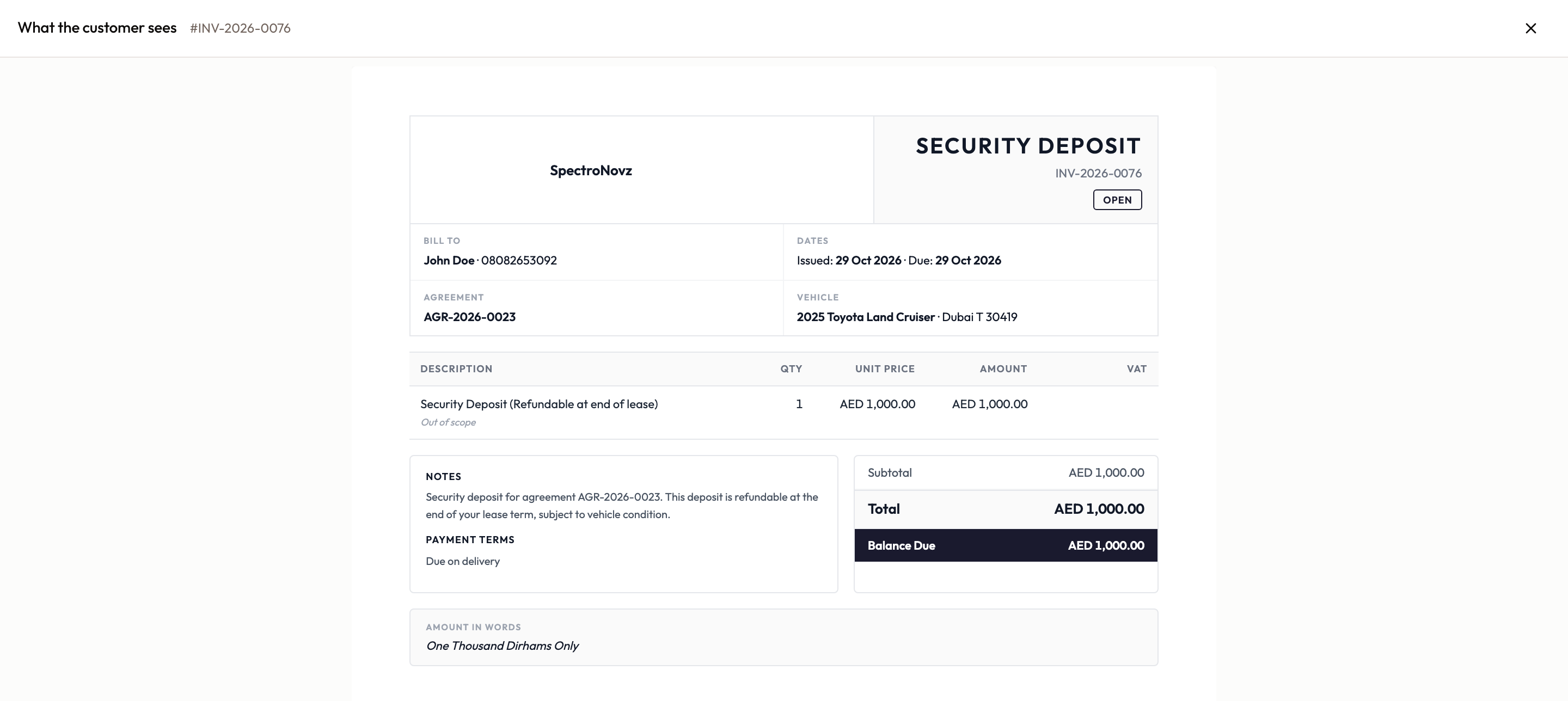
At the top of the invoice, click Customer preview. The What the customer sees window shows the invoice exactly as it will reach them. Worth a look before you send.
Send it
In the sidebar, under Status, click Send to Customer. There's no send form: it goes to the customer's email on file in one click. (Until the first send, Send Email under Documents does the same.)
You'll see Invoice sent successfully, and the status becomes Sent (or Overdue, if the due date has already passed).

The customer receives an email with the subject "Invoice {number} - {amount} Due by {date}" and a link to the invoice's payment page.
Resend or remind
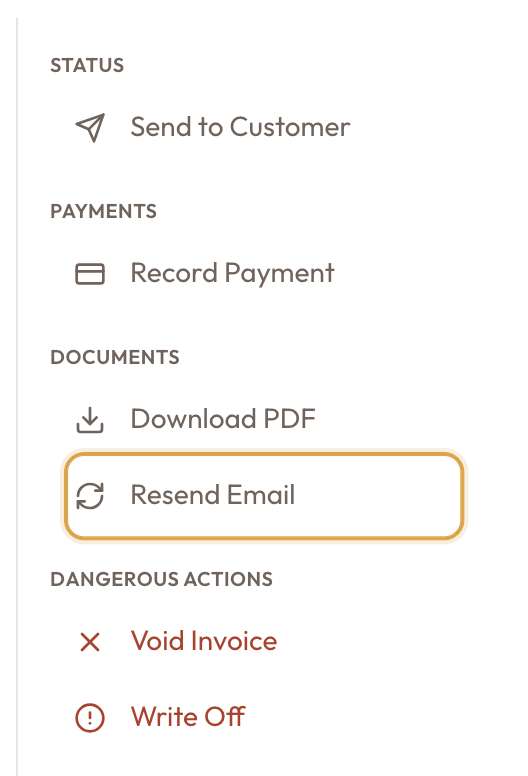
Once the invoice has been sent, the Documents group in the sidebar shows one email button:
- Resend Email sends the invoice email again, with the same payment link. You'll see Invoice resent successfully.
- Send Reminder replaces it when the invoice is overdue, and sends the customer an overdue-payment reminder.
The payment link is permanent
The link in the email opens a public, read-only page for that one invoice, with no login. There the customer can view the invoice, Download PDF, and Pay now when online payment is available.
The link never expires. Resending reuses the same link, so a link the customer received weeks ago still works.
Common mistakes & edge cases
- Nothing happens on a draft. A draft also shows Send Email in the sidebar and Send Invoice on the banner, but neither sends a draft. Click Finalize Invoice first.
- No send button on a finalised invoice. Your role doesn't have permission to send invoices.
- The send fails. The customer has no email address on file. Add one to the customer, then send again.
- Edit Status shows Locked. The invoice has been finalised. Only a draft can be edited.
- The customer's old link still works. That's by design: payment links are permanent.
- The customer sees "Invoice unavailable". The link was copied incompletely or is no longer valid. Resend the invoice so they have the link again.
What to read next
Refunds & Write-Offs
The two ways an invoice ends in money out or a loss: refund a customer what they paid (one step that writes a credit note and the refund together), or write off an uncollectible balance as bad debt.
Payments & Collections
Recording what customers pay and allocating it across invoices.