

Recording Payments
Record a payment against an invoice (cash, cheque, bank transfer or card) with an optional reference and proof, including partial payments that move the invoice to Partially Paid.
When a customer pays an invoice, record it in SpectroNova Express: the full amount or part of it. You choose the method, add an optional reference and proof, and the invoice moves to Partially Paid or Paid.
Before you start
- Your role must be able to process billing payments (
billing.payments.process). - The invoice must be finalized and still owe money: Awaiting Send, Sent, Overdue or Partially Paid. A Draft has nothing to pay yet, and a Paid, Void or Written Off invoice has no Record Payment action.
Record a payment
Open the Record Payment dialog
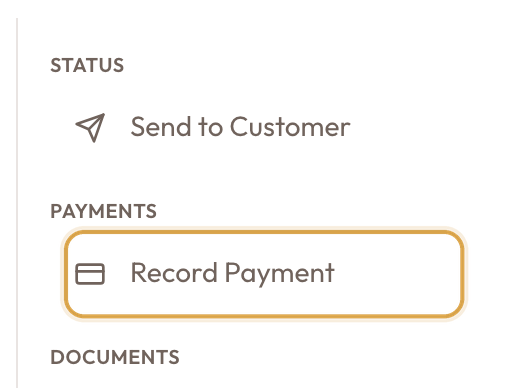
Open the invoice. Record Payment is in two places, and both open the same dialog:
- In the invoice sidebar, under Payments, click Record Payment.
- Or open the Payments tab. With nothing recorded yet, it reads No payments recorded and has a Record Payment button. Once a payment exists, Record Payment sits below the list so you can add another.
Enter the amount, date and method
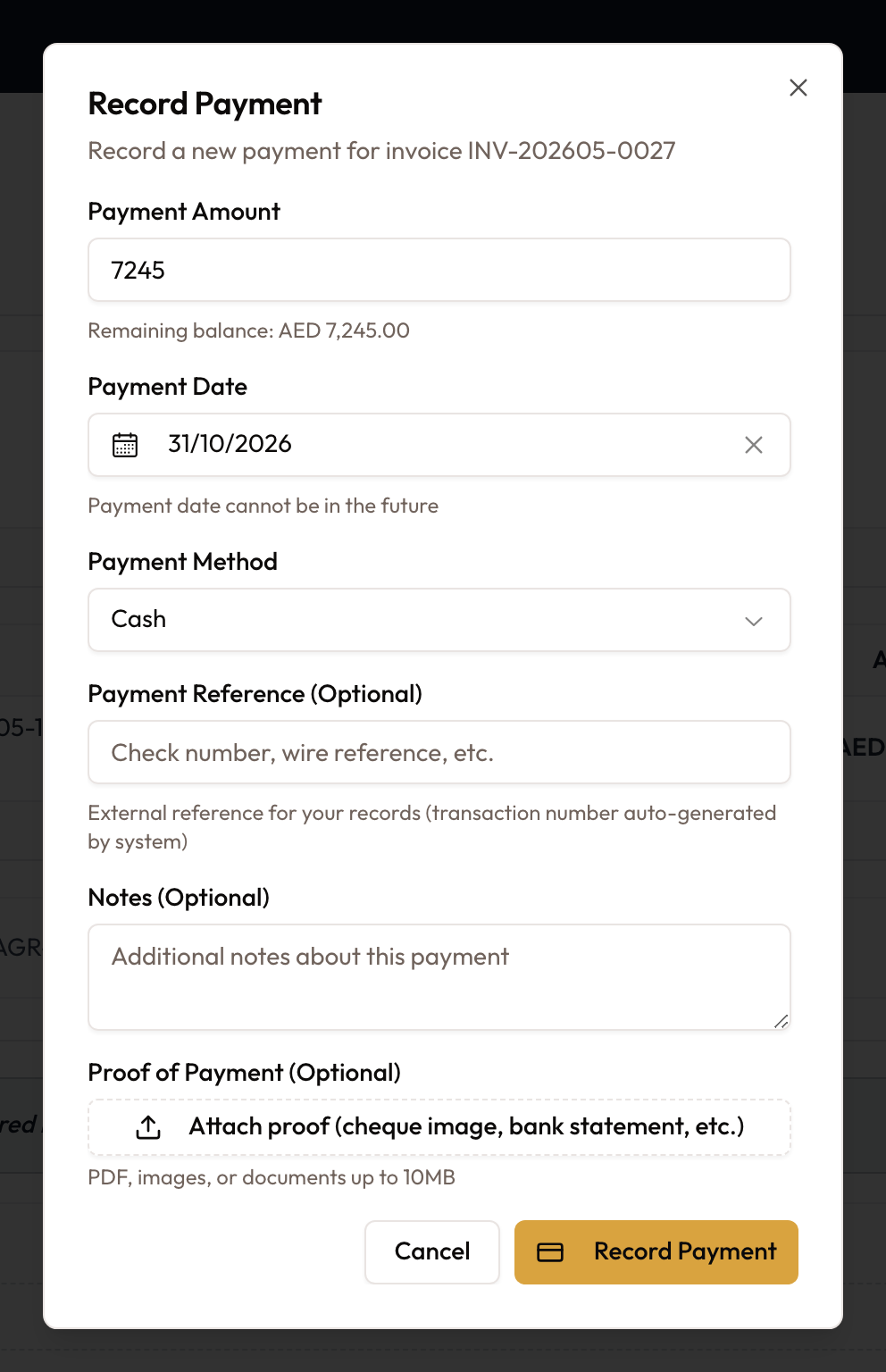
The dialog is pre-filled, so a full cash payment needs no typing:
- Payment Amount: starts at the full remaining balance, shown underneath as Remaining balance: {amount}. Lower it for a partial payment. It can't be more than the balance.
- Payment Date: starts at today and can't be in the future. Back-date it to the day the money arrived if needed.
- Payment Method: starts at Cash. The other choices are Cheque, Bank Transfer and Card (Credit/Debit).
Add a reference, notes and proof (optional)
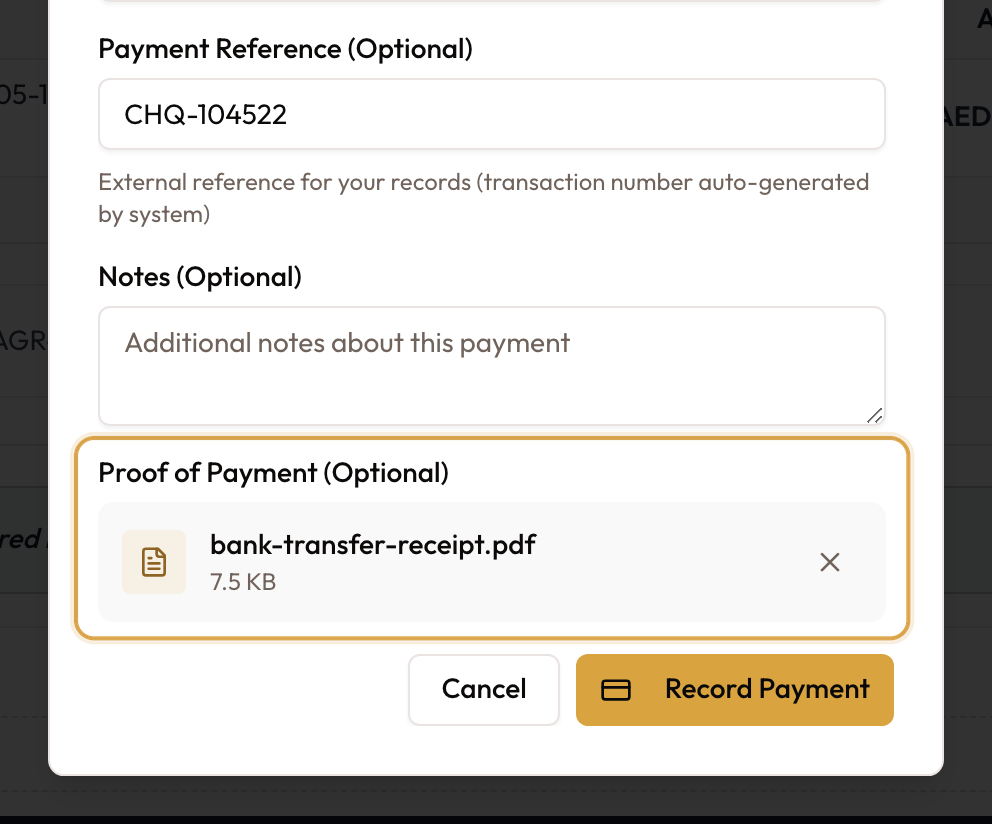
- Payment Reference (Optional): your own reference, such as a cheque number or wire reference. SpectroNova Express also assigns its own transaction number.
- Notes (Optional): anything worth keeping with the payment.
- Proof of Payment (Optional): click Attach proof (cheque image, bank statement, etc.) and pick a PDF, image or Word document up to 10 MB.
Record it and check the result
Click Record Payment. You'll see Payment recorded successfully, and the invoice opens on the Payments tab:
- The new payment shows with its Date, Method, Amount, Notes, and a paperclip under Proof if you attached a file.
- Paid in full, the invoice becomes Paid.
- Paid in part, it becomes Partially Paid, and Record Payment stays available for the rest.
The customer is also emailed a payment confirmation.
Recorded the wrong payment? Recording never edits or deletes a payment. To fix a mistaken receipt, use Unapply or Delete payment on the payment's row in the Payments tab. Both are covered in Invoice Types & Automated Generation.
Customer already paid on account? If the customer has cash that isn't applied to an invoice yet, the Payments tab also shows Apply on-account credit. Use that instead of Record Payment, or the same money is counted twice. See Payment Allocation & Partial Payments.
Common mistakes & edge cases
- No Record Payment action. The invoice is a draft, is already paid, void or written off, or your role can't process payments.
- Record Payment is greyed out in the dialog. The amount is empty, zero, or more than the remaining balance. One payment can't overpay its invoice.
- Can't pick a future date. The date picker stops at today.
- Payment refused for a closed period. If your workspace has locked its books through a date, a payment dated on or before it is refused. Date it in the open period, or ask whoever manages your accounting settings.
- The proof file won't attach. It's over 10 MB, or it isn't a PDF, image or Word document.
- Proof missing after recording. If the file fails to upload, the payment is still recorded without it. Look for the paperclip in the Proof column.
- An error appears after you click Record Payment. Nothing was recorded, and the dialog has already closed. Open Record Payment again and re-enter the details.
What to read next
Payments & Collections
Recording what customers pay and allocating it across invoices.
Payment Allocation & Partial Payments
How a payment is a receipt applied to an invoice, where on-account (unapplied) cash comes from, and how to apply a customer's already-paid cash to an open invoice, in full or in part.