

Payment Allocation & Partial Payments
How a payment is a receipt applied to an invoice, where on-account (unapplied) cash comes from, and how to apply a customer's already-paid cash to an open invoice, in full or in part.
In SpectroNova Express every payment is a receipt (the fact that cash arrived), and each receipt is allocated to the invoice it settles.
- On-account (unapplied) cash is the part of a receipt that isn't allocated to any invoice: money the customer has paid that isn't settling anything yet.
- This page shows where that cash comes from, how to see it on the customer, and how to apply it to an open invoice, in full or in part.
Recording a new payment (including a partial one) is covered in Recording Payments.
Permission. Unapplying a payment and applying on-account credit both need
the billing.payments.process permission.
Where on-account cash comes from
A recorded payment can never be more than its invoice's balance, so overpaying doesn't create on-account cash. It appears when you take a real payment off the invoice it was recorded on.
Unapply the payment
- Open the invoice and go to its Payments tab.
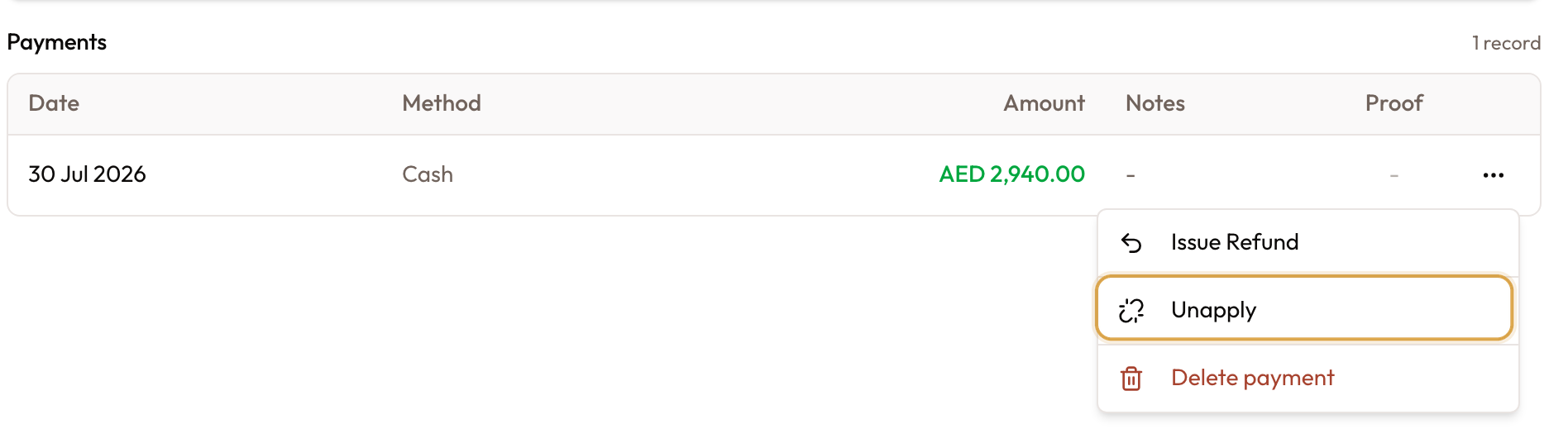
- On the payment's row menu, click Unapply. The confirmation reads "Unapply this payment from the invoice? The payment stays on the customer's account and can be applied elsewhere."
- Confirm with Unapply.
You'll see Payment unapplied. The invoice's balance goes back up, and the payment stays on the customer as on-account cash.
Voiding doesn't free a payment. An invoice with money applied to it can't be voided: the void dialog reads Resolve the payment before voiding. Unapply (or delete) the payment first. See Invoice Types & Automated Generation.
See a customer's payments
Open the customer's Payments tab
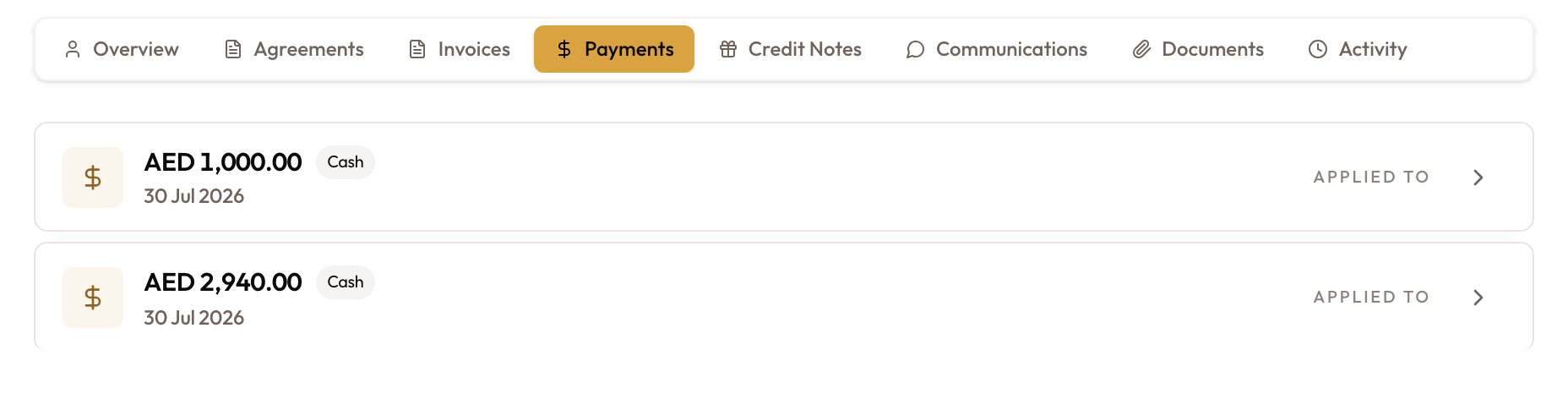
Open the customer and go to the Payments tab. Each payment is listed as a receipt:
- the amount and the payment method;
- the date and, if one was entered, the Reference;
- on the right, Applied to when the receipt is fully used, or {amount} unapplied in amber when part of it is free.
If the customer has no payments yet, the tab reads No payment history.
Expand a receipt
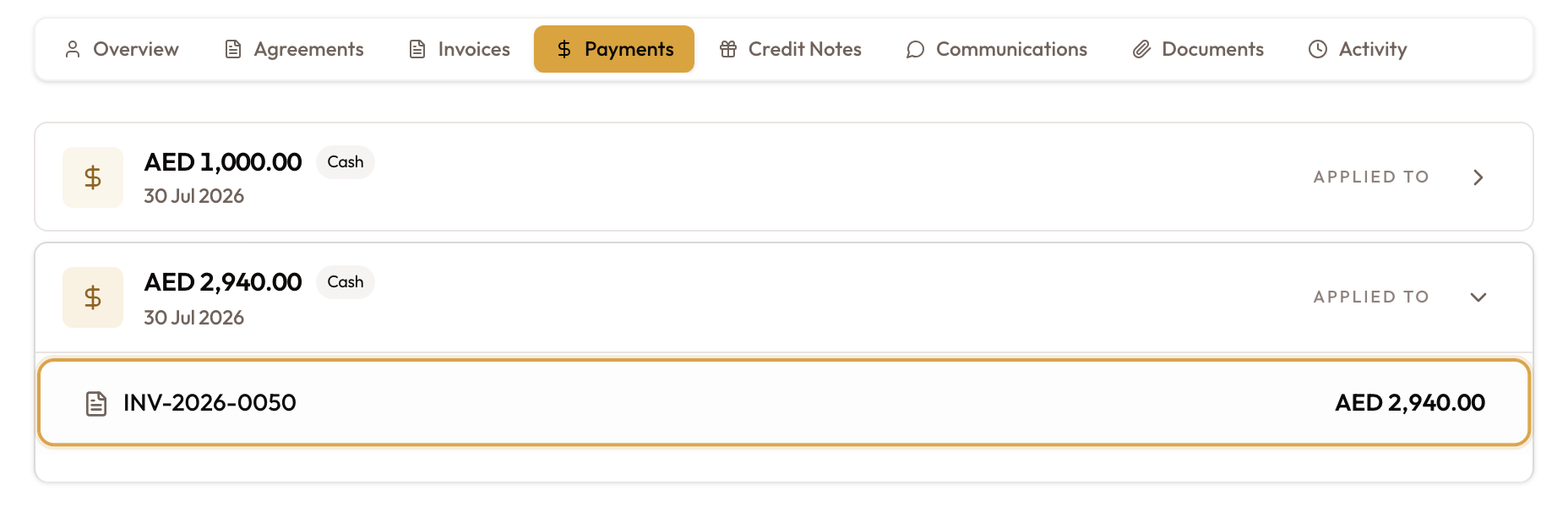
Click a receipt to see where its money went:
- each invoice it was applied to, with the amount (click one to open the invoice);
- Not yet applied to an invoice when none of it is used;
- Still unapplied — available to use with the free amount when part of it is used;
- any Notes recorded with the payment.
Apply on-account credit to an invoice
Open the invoice's Payments tab
Open an open invoice for that customer and go to its Payments tab. When the customer holds unapplied cash, an Apply on-account credit panel appears: "Cash this customer has already paid that is not yet applied to an invoice."
- Available is the customer's total unapplied cash. With more than one receipt it adds across {count} payments.
- This is a customer-wide total, not the amount this invoice can take. The limit for this invoice comes in the next steps.
Pick a receipt
Select the receipt to draw from. Each one shows its free amount (unapplied), the date, the method and any reference. A receipt that is partly used also shows of {total} received.
Check the amount
Selecting a receipt fills Amount to apply with the most you can apply. Change it for a partial apply, or click Max to go back to the most.
- Up to {amount} can be applied to this invoice. This is the smaller of the receipt's free amount and the invoice's balance.
- Invoice balance shows the balance now and after applying, and settles this invoice when it reaches zero.
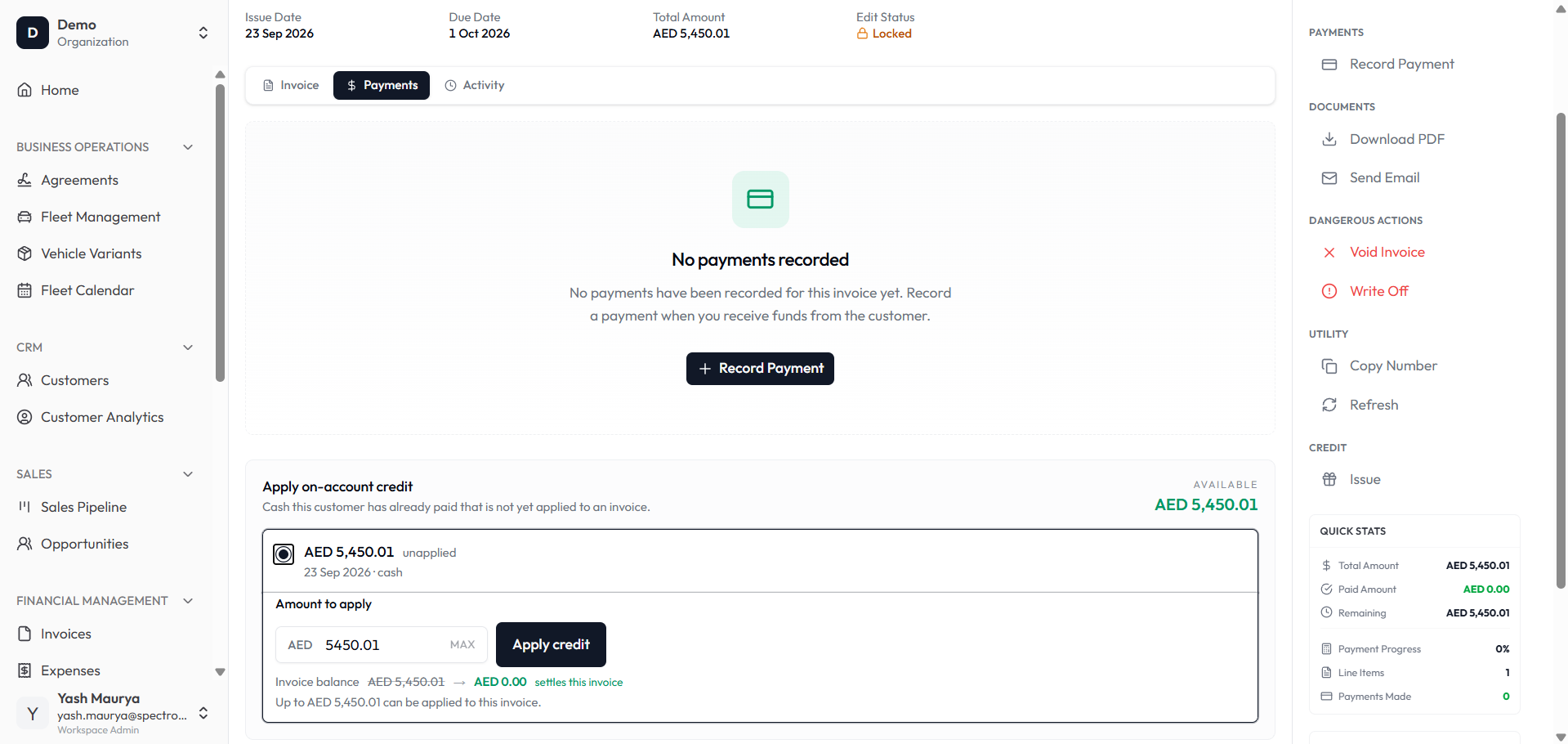
Apply on-account credit panel with the Available total, a selected receipt, and the Amount to apply field
Apply it
Click Apply credit. You'll see On-account credit applied.
- The invoice balance drops by the amount applied, and the receipt's free amount goes down.
- No new payment is recorded: the cash already arrived, so this only links it to the invoice.
- The invoice moves to Partially Paid or Paid.
One receipt at a time. The panel applies one receipt per click. To use cash from several receipts, apply them one after another. A receipt can also be split: apply part of it here and the rest to another invoice.
Partial payments
An invoice is Partially Paid when some money is on it and a balance is still owed. That happens two ways:
- you record a payment for less than the balance (see Recording Payments); or
- you apply on-account credit for less than the balance.
When the balance reaches zero the invoice is Paid. Until then, Record Payment and the on-account panel stay available for the rest.
Common mistakes & edge cases
- No Apply on-account credit panel. The customer has no unapplied cash, the invoice isn't open or has no balance left, or your role lacks the payment-processing permission.
- Available is more than you can apply. It's the customer's total across all receipts. The limit for this invoice is the Up to {amount} line.
- Apply credit stays greyed out. The amount is zero, empty, or more than the Up to limit.
- Expected a new payment row on the invoice. Applying credit links existing cash; it doesn't record a new payment, so your bank totals aren't counted twice.
- The apply is refused. The receipt is in a different currency from the invoice, or the current accounting period is locked. An error message says why, and nothing is applied.
- Used Record Payment for money already received. That records the cash a second time. Delete that payment and use the on-account panel instead.
What to read next
Recording Payments
Record a payment against an invoice (cash, cheque, bank transfer or card) with an optional reference and proof, including partial payments that move the invoice to Partially Paid.
Statements
Account-level views of what is owed and what has been collected, for customers and for vendors.