

Creating Manual Invoices
Raise a standalone invoice by hand: pick the customer, add line items with server-computed tax, apply a discount, and save it as an editable draft.
Most invoices in SpectroNova Express come out of an agreement's payment schedule. Sometimes you need to bill something on its own: a one-off charge, or a customer with no active agreement. That is a manual invoice. You create it by hand, and it starts as an editable draft.
This page covers raising one from scratch. Finalising and sending it are covered in Sending Invoices.
Before you start
- Your role needs permission to create invoices. Without it, the Create Invoice button is missing from the invoice list.
- At least one customer must be on file.
Start the invoice
Open the create-invoice page
- In the sidebar, under Financial Management, click Invoices.
- Click Create Invoice at the top right of the list.
The page opens as a live invoice you fill in place. The invoice number reads Auto-generated: the real number is assigned when you save, from your document numbering settings.

Choose the customer
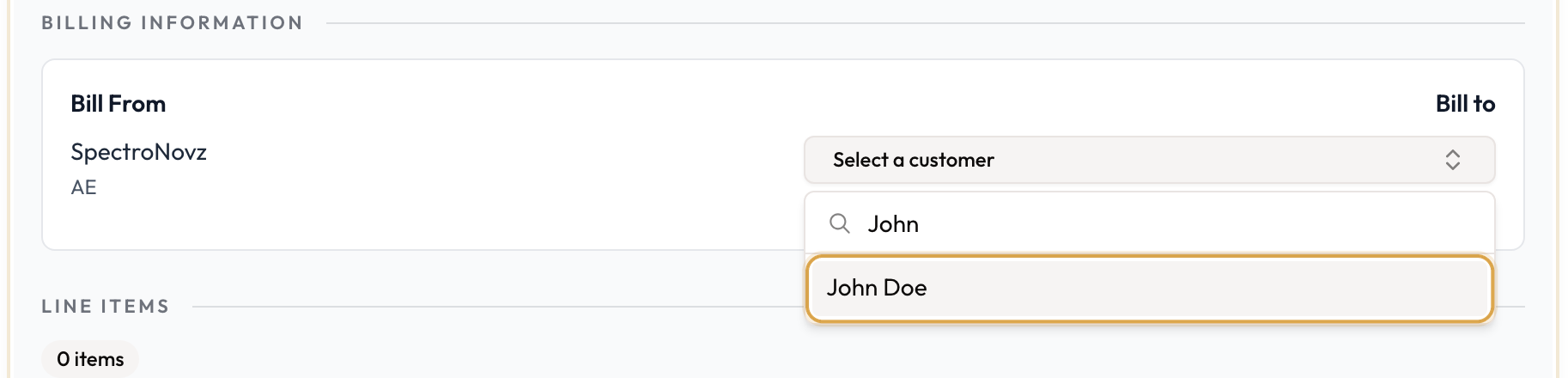
Under Billing Information, in the Bill to column:
- Click Select a customer.
- Search by name and pick the customer.
Their address fills in underneath.
Opened this page from an agreement instead? The customer is locked and tagged (linked to agreement). That is an addon invoice for the agreement, not a standalone manual one.
Check the place of supply and dates
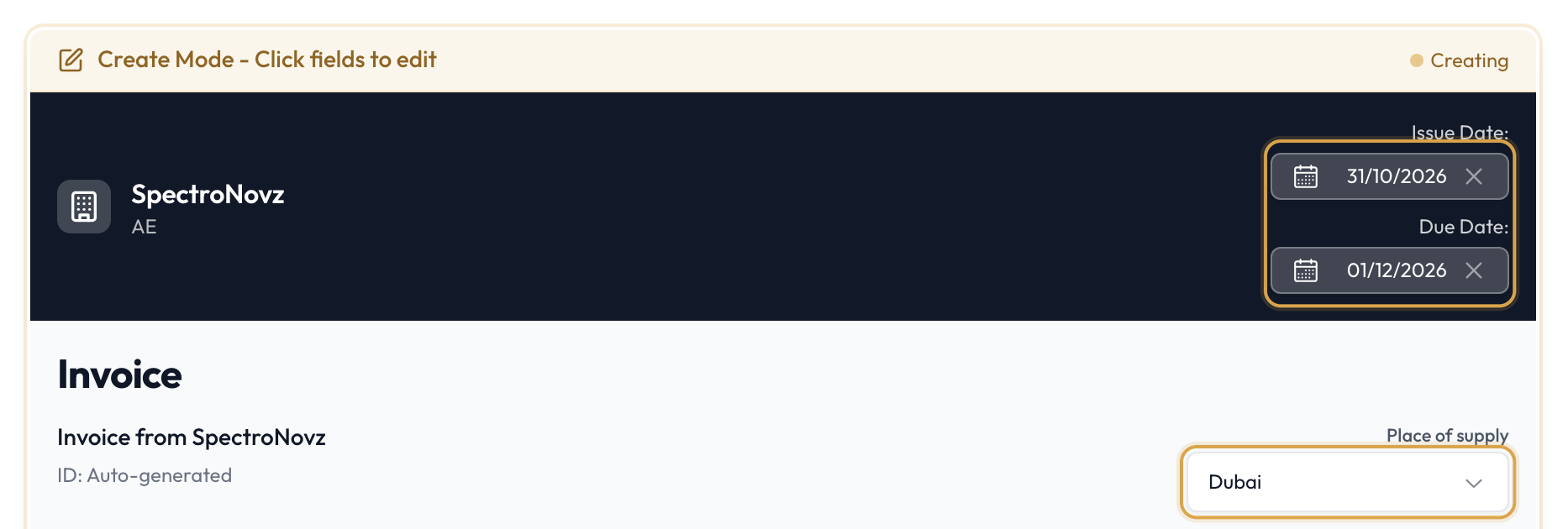
These sit in the invoice header:
- Place of supply: already set to your workspace's default jurisdiction. Change it only if this invoice belongs to a different jurisdiction; it decides how tax is calculated.
- Issue Date: defaults to today.
- Due Date: defaults to 30 days from today.
Add what you're billing
Add line items
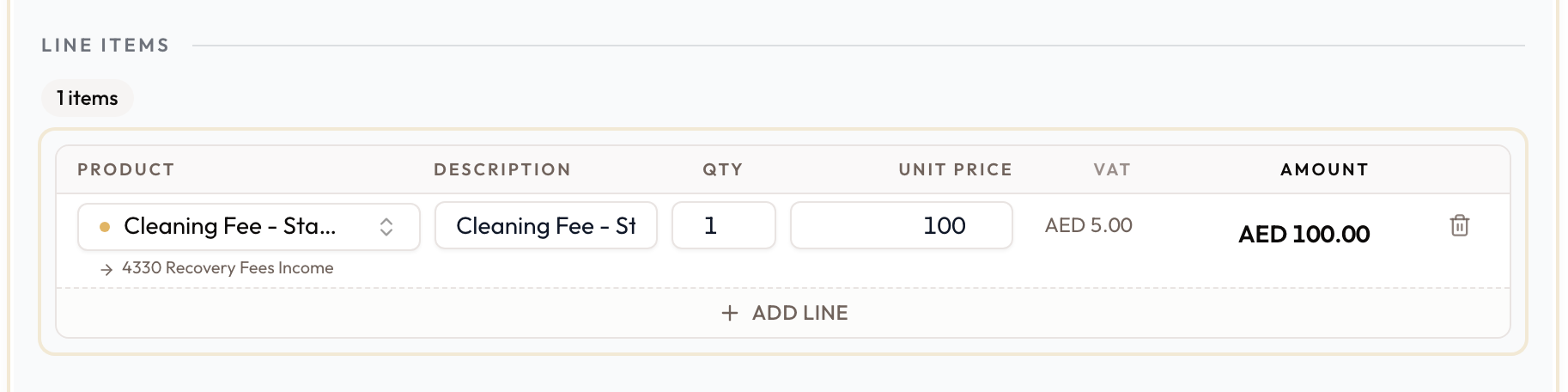
The Line Items section already has one empty row. For each row:
- Fill in what you're charging, either way:
- click Pick product and choose a catalog product; its description and price fill in, and its tax treatment comes with it; or
- type a free-text charge into Describe this line.
- Set the Qty and Unit price. Amount shows the line total.
Click Add line for another row, or the bin icon to remove one.
Pick product lists the products in your product catalog's Ad-hoc Charges and At Close / Usage tabs. Agreement products (recurring or one-time) are billed through the agreement, so they don't appear here.
Check the VAT on each line
The VAT column is worked out by SpectroNova Express for each line, from that line's tax treatment and the place of supply:
- … means it's still being calculated.
- — means the line carries no VAT (for example a zero-rated or exempt product).
- Otherwise you see the line's VAT amount.
A product that isn't standard-rated shows its treatment under the description, such as Zero-rated or Exempt.
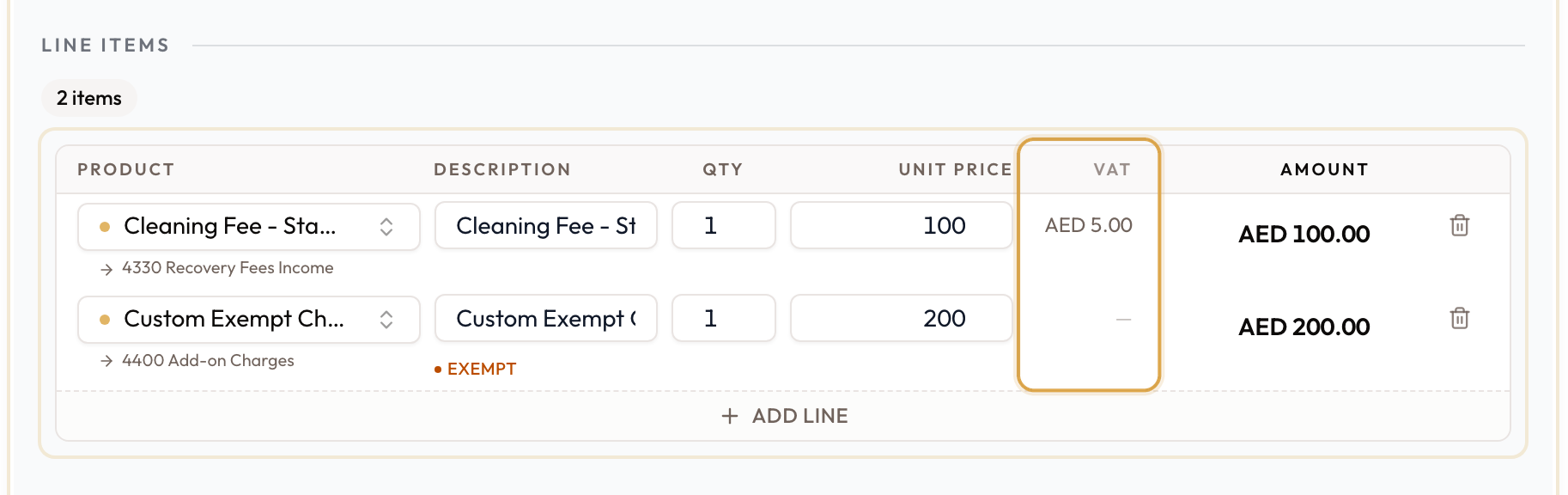
A free-text line is always taxed at the standard rate. To bill something zero-rated or exempt, pick its product instead of typing it.
Discount and notes (optional)
Apply a discount
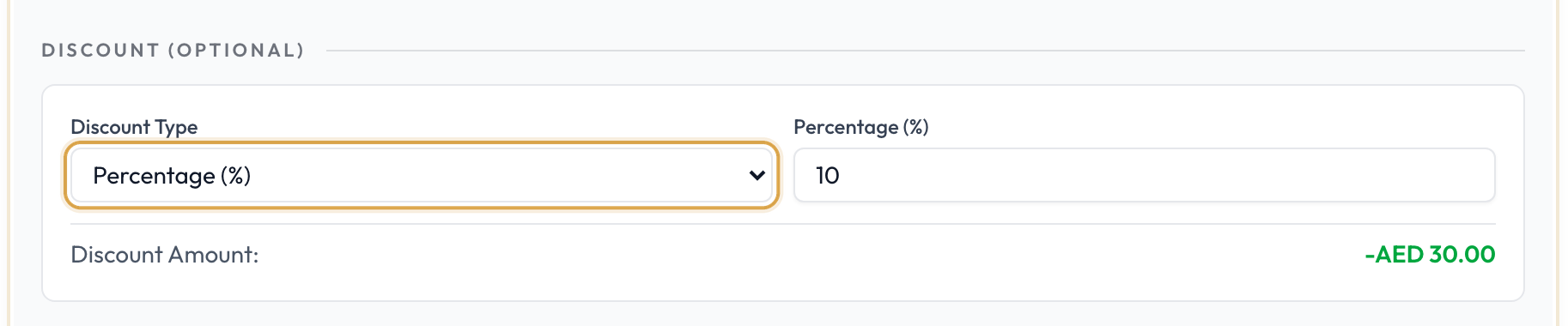
Under Discount (Optional):
- Set Discount Type to Percentage (%) or Fixed Amount (the default is No Discount).
- Enter the percentage or amount.
Discount Amount: shows what comes off. The discount is taken before tax.

Review and create
Check the totals and create the invoice
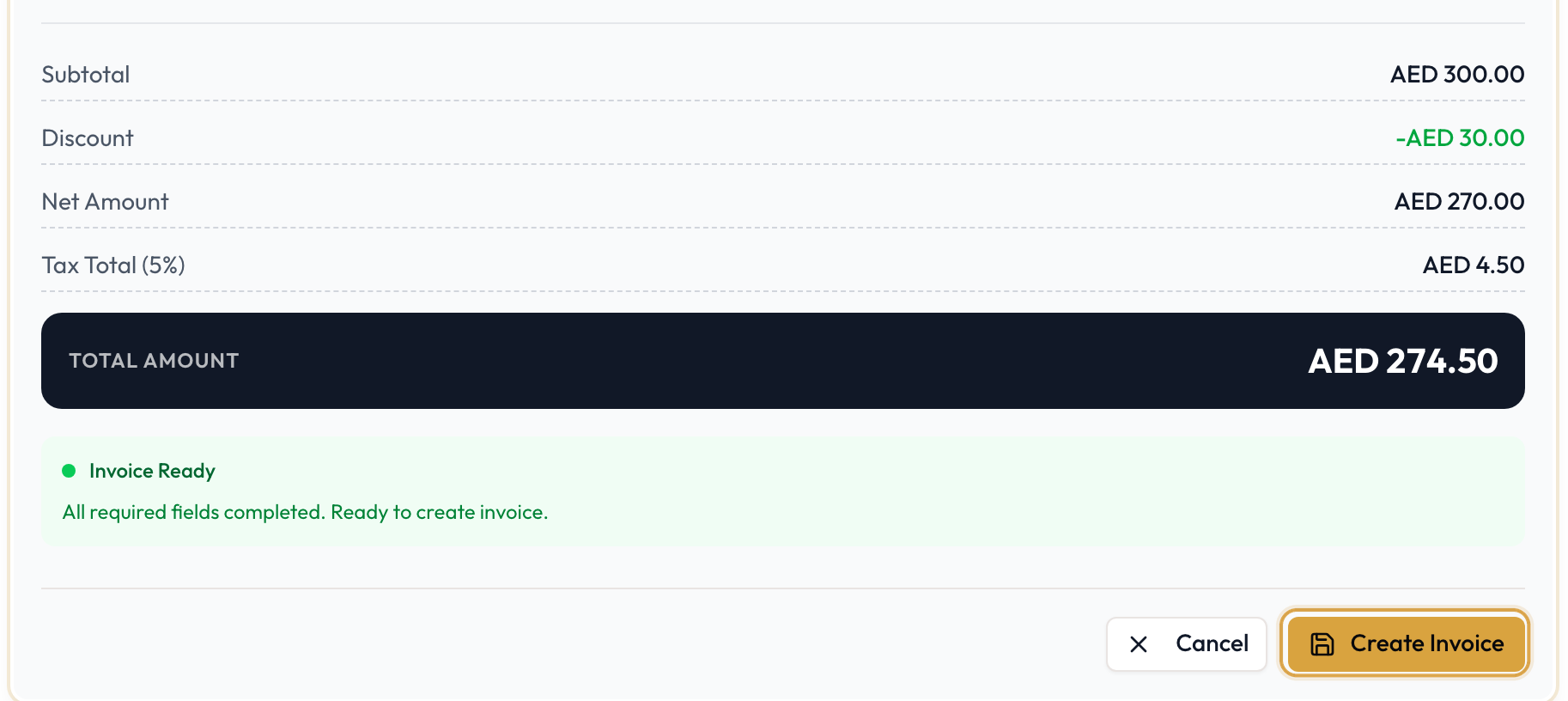
The summary at the bottom adds it up:
- Subtotal
- Discount and Net Amount, when a discount applies
- Tax Total, with the rate (for example Tax Total (5%)), when there is tax
- Total Amount
The status panel turns green and reads Invoice Ready once the customer, the due date and every line are complete. Until then it reads Invoice Incomplete and lists what is Missing:, and Create Invoice stays disabled.
Click Create Invoice, or Cancel to go back to the list without saving.
You'll see Invoice created successfully and land on the new invoice. It is saved as a Draft: you can still edit it, and the customer doesn't owe it yet. When it's ready, click Finalize Invoice on the invoice and send it; see Sending Invoices.
Common mistakes & edge cases
- Create Invoice is disabled. Check the status panel. Every line needs a description, a quantity of at least 1 and a unit price above 0. That includes the empty row the page starts with: fill it in or remove it.
- A product is missing from Pick product. Only Ad-hoc Charges and At Close / Usage products are offered.
- The VAT shows … and doesn't settle. Check the Place of supply, then edit a line to recalculate.
- The customer can't be changed. You opened the page from an agreement, so the invoice is tied to that agreement's customer. Start from the invoice list for a standalone invoice.
What to read next
Invoice Types & Automated Generation
Where every invoice in SpectroNova Express comes from: the payment schedule on a monthly agreement, Bill rental on a short-term rental, or an invoice you create yourself. Also covers the invoice types, the statuses an invoice moves through, and what voiding gives back.
Creating Credit Notes & Deposit Refunds
Raise a credit note against an invoice, apply it to reduce a balance, or refund it as cash — including deposit refunds, which are a credit note with the Deposit refund reason.