

Document Numbering
Set the prefix, format, padding, reset, and starting number for each document type
Settings → Document Numbering controls how SpectroNova Express generates the reference number for each kind of document:
- its prefix
- its format
- its padding
- when the counter resets
- the starting number
A live Next number preview updates as you edit. Each document type is configured and saved on its own, and changes apply to new documents only: numbers already issued are never changed.
The page covers the numbered document types across the app, including invoices, credit notes, refunds, agreements, reservations, expenses, opportunities, vehicles, customers, vendors, bills, bill payments, and vehicle variants.
Before you start
Only Workspace Admins can open this page. Anyone else who tries is sent away.
Settings are per workspace, and every change is forward-looking: editing a scheme never renumbers documents that already exist.
The layout
Each document type is a row in an accordion, with Invoices expanded by default. A collapsed row shows:
- the type name
- a Default badge if it's still on the built-in scheme
- a one-line summary (reset · padding · prefix)
- the Next number that will be issued
Expand a row to edit it.
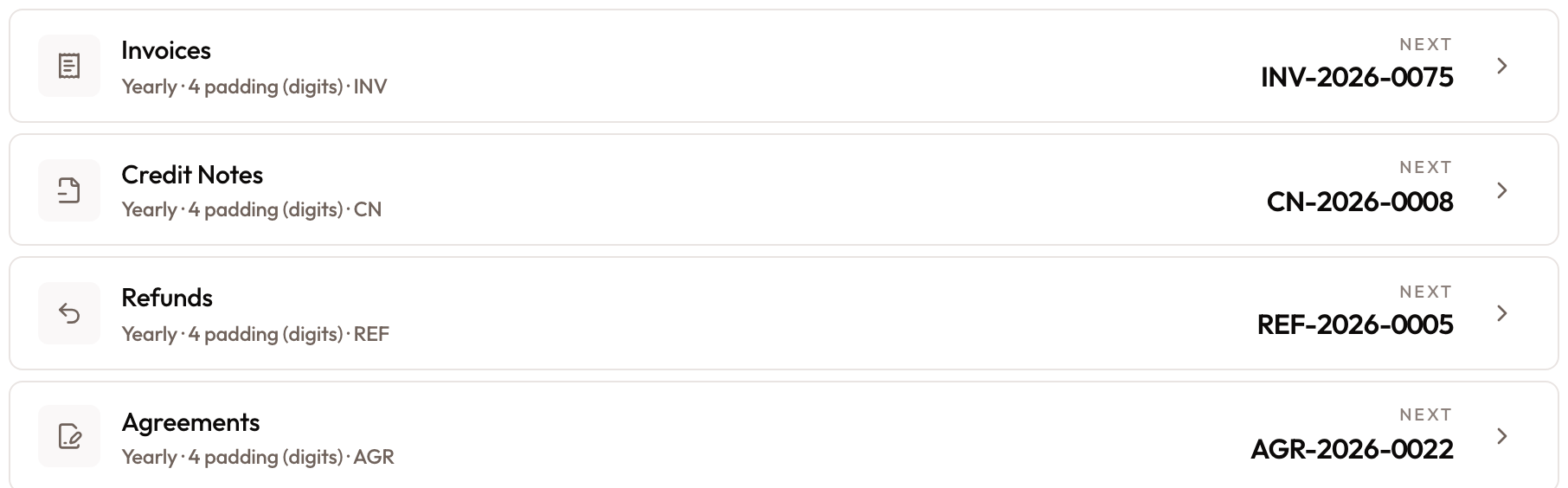
Document Numbering accordion, each document type showing its summary and its Next number
Configuring a document type
Open Settings → Document Numbering
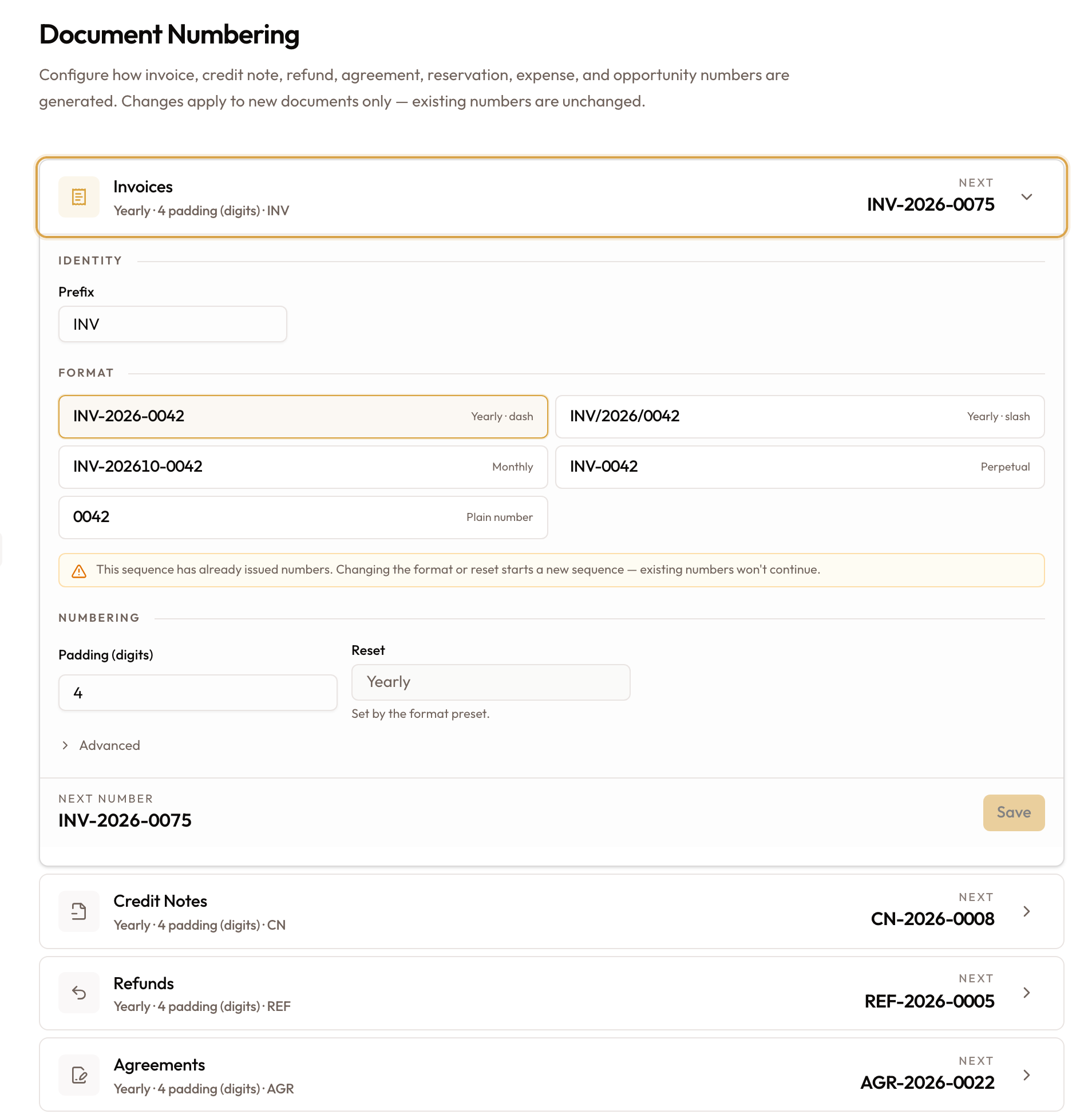
In the settings sidebar, under Business, click Document Numbering, then expand the document type you want to change (for example, Invoices).
Set the prefix
Under Identity, set the Prefix (up to 20 characters), such as INV. The
preview updates as you type.

Pick a format
Under Format, choose one of the five presets. Each shows a live example using your prefix, and choosing a preset also sets its matching Reset policy, so a date-less format can never be put on a period-based reset.
| Preset (tokens) | Example | Description | Reset |
|---|---|---|---|
{prefix}-{YYYY}-{seq} | INV-2026-0042 | Yearly · dash | Yearly |
{prefix}/{YYYY}/{seq} | INV/2026/0042 | Yearly · slash | Yearly |
{prefix}-{YYYYMM}-{seq} | INV-202610-0042 | Monthly | Monthly |
{prefix}-{seq} | INV-0042 | Perpetual | Never (perpetual) |
{seq} | 0042 | Plain number | Never (perpetual) |

The same five presets on Expenses. Each example uses the type's own prefix.
Set the padding
Under Numbering, set Padding (digits) (1–10): how many digits the
sequence is zero-padded to (padding 4 gives 0042). Reset is shown here but
is read-only: "Set by the format preset."

Optionally set a starting number
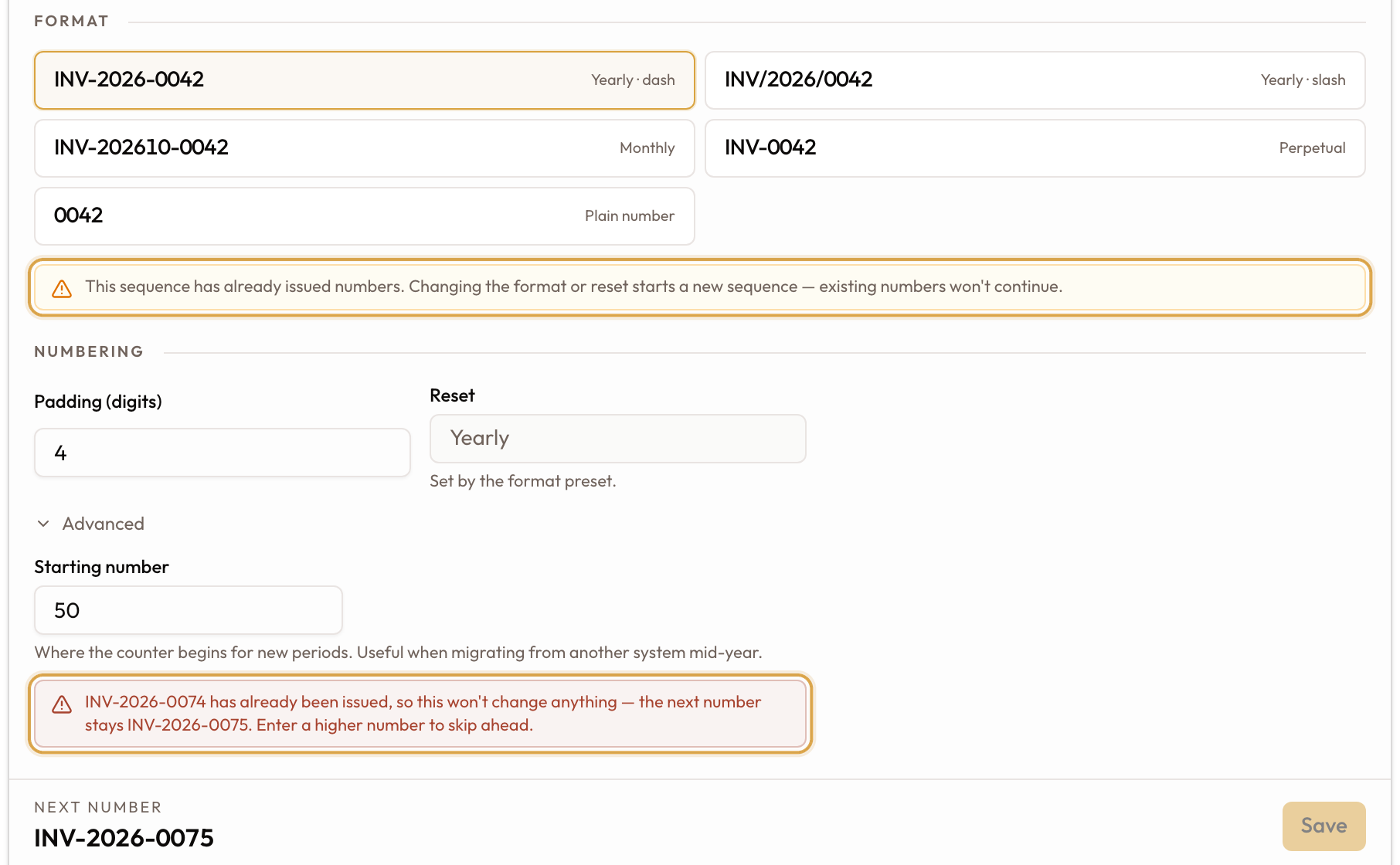
Expand Advanced to set the Starting number: "Where the counter begins for new periods. Useful when migrating from another system mid-year."

Save
Click Save. The action bar shows the resulting Next number, and a "Document numbering settings saved" toast confirms it. Each document type is saved on its own.

Starting numbers, gaps, and schemes already in use
These notes appear only once a document type has issued at least one number.
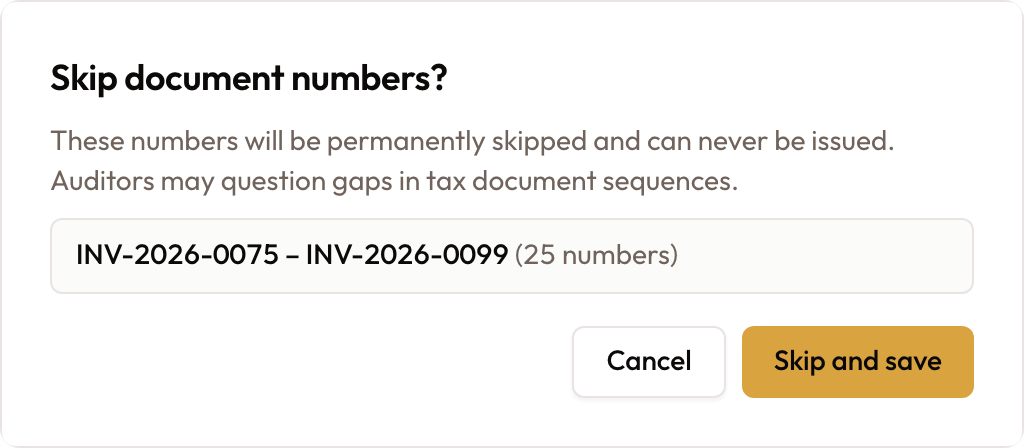
Gaps are permanent. A starting number above the next value is allowed but leaves numbers that will never be issued. For Invoices, Credit Notes, and Refunds, saving a skip opens a "Skip document numbers?" dialog that lists the skipped range: "These numbers will be permanently skipped and can never be issued. Auditors may question gaps in tax document sequences." Choose Cancel to go back or Skip and save to confirm.
- A starting number goes above the last one issued. A lower one shows a red note and disables Save.
- Skipping ahead shows a warning under the field: "Skips ahead to … — the numbers in between will never be issued."
- Changing the scheme of a sequence that's already in use. An amber note under Format warns: "This sequence has already issued numbers. Changing the format or reset starts a new sequence — existing numbers won't continue."
Common mistakes & edge cases
- Format comes from five presets. Pick one; the presets keep a date-less format off a period-based reset.
- Reset follows the format preset and is shown read-only.
- Save needs a starting number above the last one issued.
- Skipped numbers are gone for good, and for tax documents you must confirm the skip.
- Editing an in-use scheme. Once a type has issued numbers, changing its format or reset starts a new sequence; the old numbers don't continue under the new scheme.
- Each document type saves separately. There's a Save button per row.
- Existing documents keep their numbers. Every change is forward-looking.
Related guides
- Invoice Template Customization: how your invoices look when printed.
- Agreement Settings: the workspace's agreement defaults.
- Product Catalog Setup: the products and charges your documents bill for.