

Agreement Settings
Workspace defaults for deposits, mileage, fees, and pricing automation applied to every new agreement
Settings → Agreement holds the workspace-level defaults applied to every new agreement — the security deposit, mileage allowance and excess rate, and (once you turn on Advanced pricing) late fees, early-termination fees, and the multiplier and threshold machinery that auto-suggests pricing.
Nothing on this page changes what happens to the customer's deposit when an agreement closes: closing never applies or refunds it. You release a deposit yourself from the agreement's Security Deposit card once late tolls and fines have landed — see Creating Credit Notes & Deposit Refunds.
The page has two levels: a small always-visible Agreement defaults card, and an Advanced pricing automation drawer that appears only once Advanced pricing is on. In its default simple mode, operators set a deposit, mileage, and an optional manual discount per agreement.
Before you start
This page is Workspace Admin only. It's gated by the workspace-settings permission, so members without it are redirected away — it isn't just a matter of hidden controls.
Settings here are per workspace, and they are defaults and rules — they seed and constrain what operators see when creating an agreement. Existing agreements are not changed retroactively.
How billing fits with these defaults
- Billing cycle: Anniversary Date. Billing runs in fixed intervals from the start date (for example, the 15th to the 14th).
- Late-fee grace period: 5 days before late fees apply.
- When invoices are raised: set in Billing settings, along with default payment terms and refund timing. That's where you choose whether the first invoice is raised and emailed at checkout. Each later billing period is raised from the agreement's payment schedule when it falls due.
Agreement defaults
Open Settings → Agreement
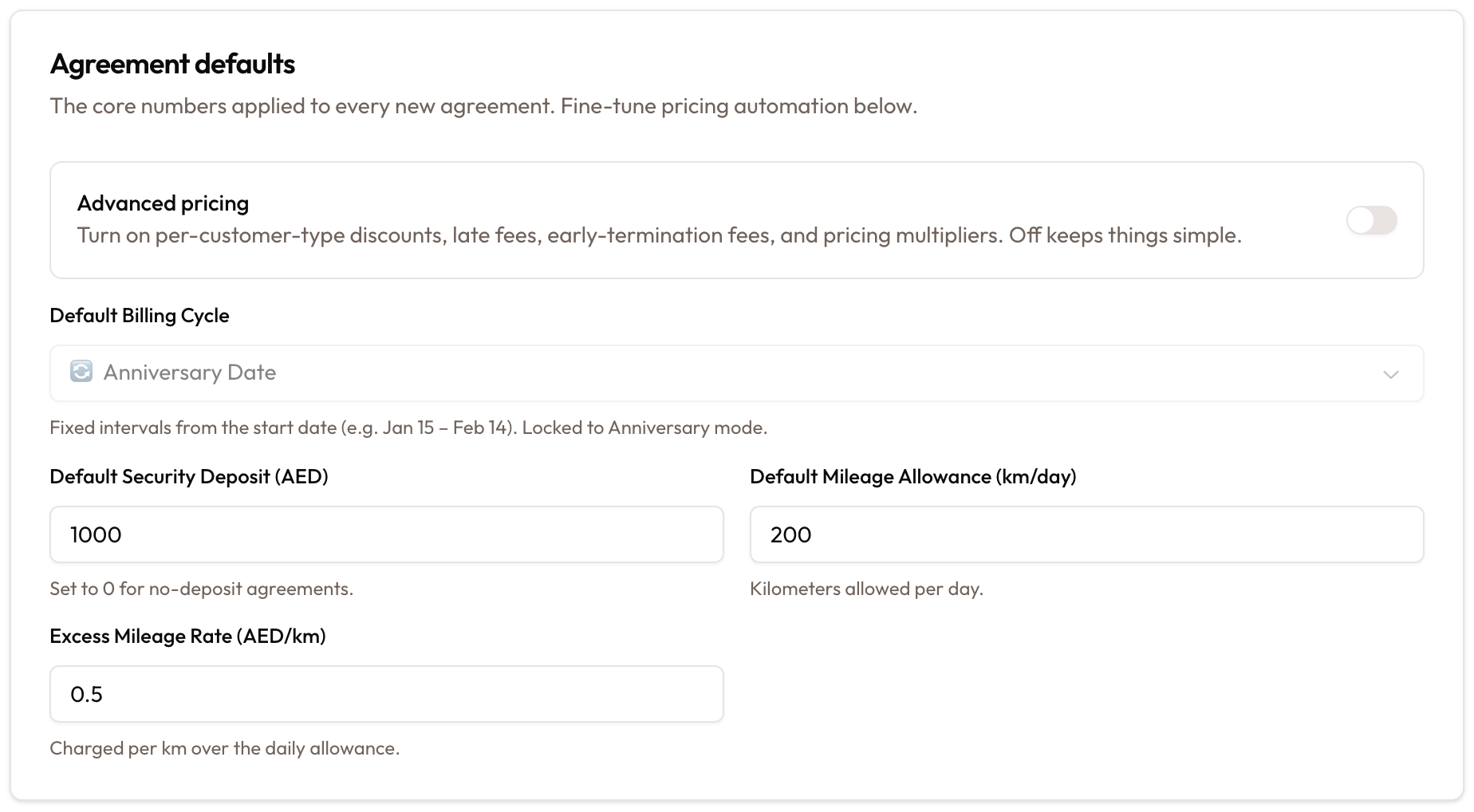
In the settings sidebar, under Business, click Agreement. The page is headed Agreement Settings, subtitled "Configure contract pricing rules, multipliers, fees, and deposits for this workspace".
Choose simple or advanced
Advanced pricing is off by default. Its hint reads "Turn on per-customer-type discounts, late fees, early-termination fees, and pricing multipliers. Off keeps things simple." Turning it on reveals extra fields in this card and the Advanced pricing automation drawer below.

Set the core numbers
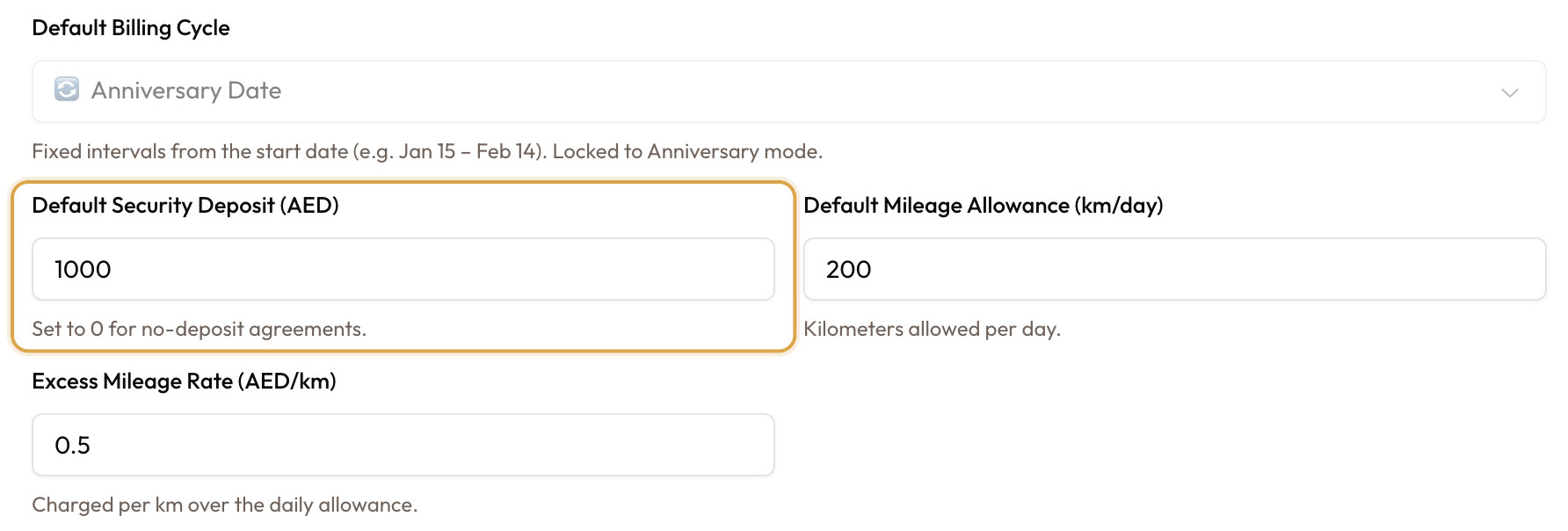
- Default Security Deposit (in your workspace currency) — set it to 0 for no-deposit agreements. In Advanced mode this also acts as the minimum floor for a calculated deposit.
- Default Mileage Allowance (km/day) — kilometres allowed per day.
- Excess Mileage Rate (per km) — charged for each km over the allowance.
Billing cycle is Anniversary.
Advanced-only defaults
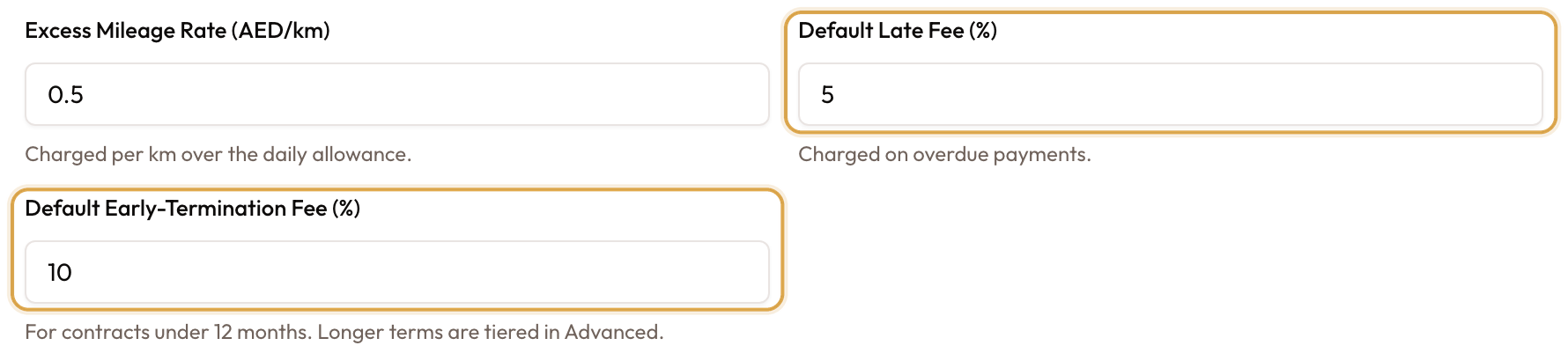
With Advanced pricing on, two more fields appear in this card:
- Default Late Fee (%) — charged on overdue payments.
- Default Early-Termination Fee (%) — for contracts under the early-termination threshold; longer terms are tiered in the drawer below.
Advanced pricing automation
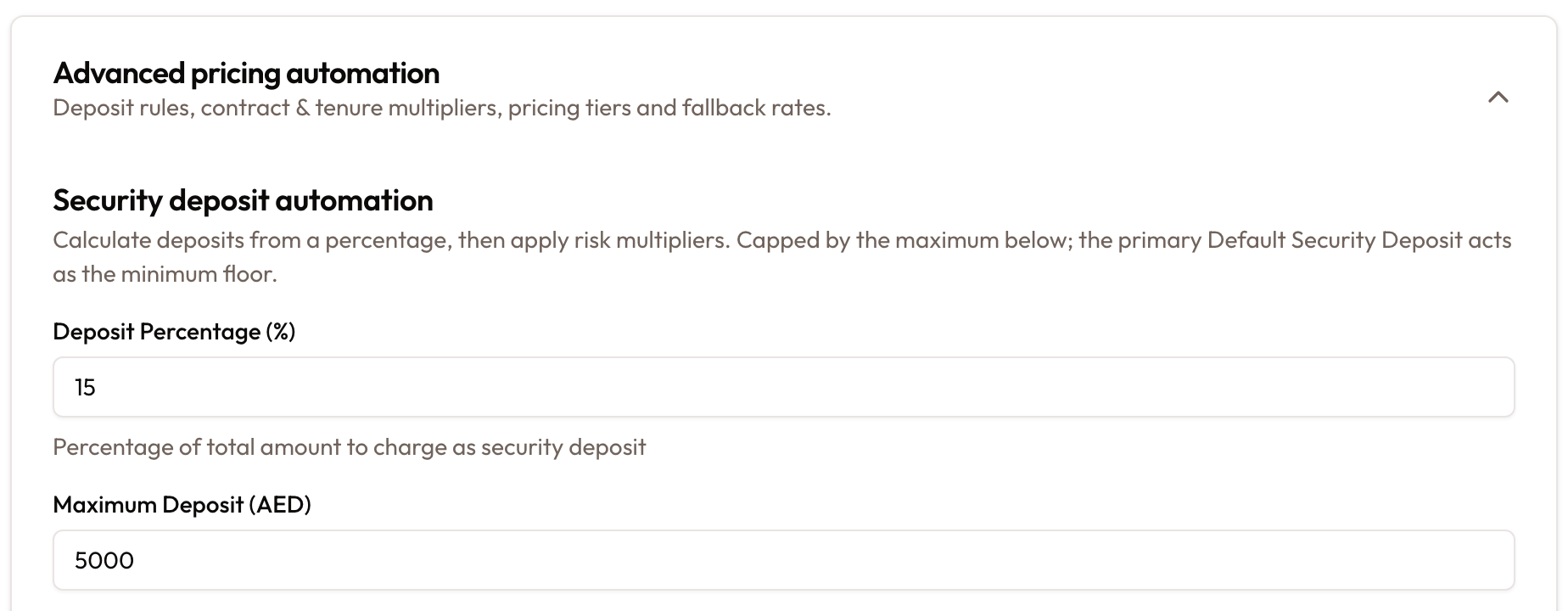
When Advanced pricing is on, a collapsible Advanced pricing automation drawer appears — "Deposit rules, contract and tenure multipliers, pricing tiers and fallback rates."
- Security deposit automation — a Deposit Percentage of the total, a Maximum Deposit cap, and Risk Multipliers (Low / Medium / High) that scale the deposit by customer risk. The Default Security Deposit is the floor; the Maximum Deposit is the cap.
- Contract type multipliers — Individual, Company, Fleet, Taxi, Garage, Employee, Internal. A multiplier below 1.0 is a discount (0.90 = 10% off), above 1.0 a premium (1.15 = 15% extra). Applies to lease agreements only, and each field shows a live discount/premium badge.
- Tenure-based discounts — tiers of Min Months / Max Months / Multiplier that discount by lease duration. They stack with contract type multipliers.
- Early-termination tiering — a Long-Term Fee for contracts at or above the Threshold (months); the short-term fee is the default set above.
- Pricing Tier Thresholds — where spot-rental pricing switches between hourly, daily, weekly, and monthly rates.
- Discount Limits — a Standard Max, an Absolute Max (hard ceiling), and an Approval Threshold. Discounts above the absolute max are rejected; those between standard and absolute max are allowed but logged as warnings.
- Fallback Rates — hourly / daily / weekly / monthly rates used only when a vehicle has no rate of its own.
Advanced pricing automation drawer showing deposit automation
Saving your changes
Any edit raises an Unsaved Changes banner with Save Changes and Discard buttons.
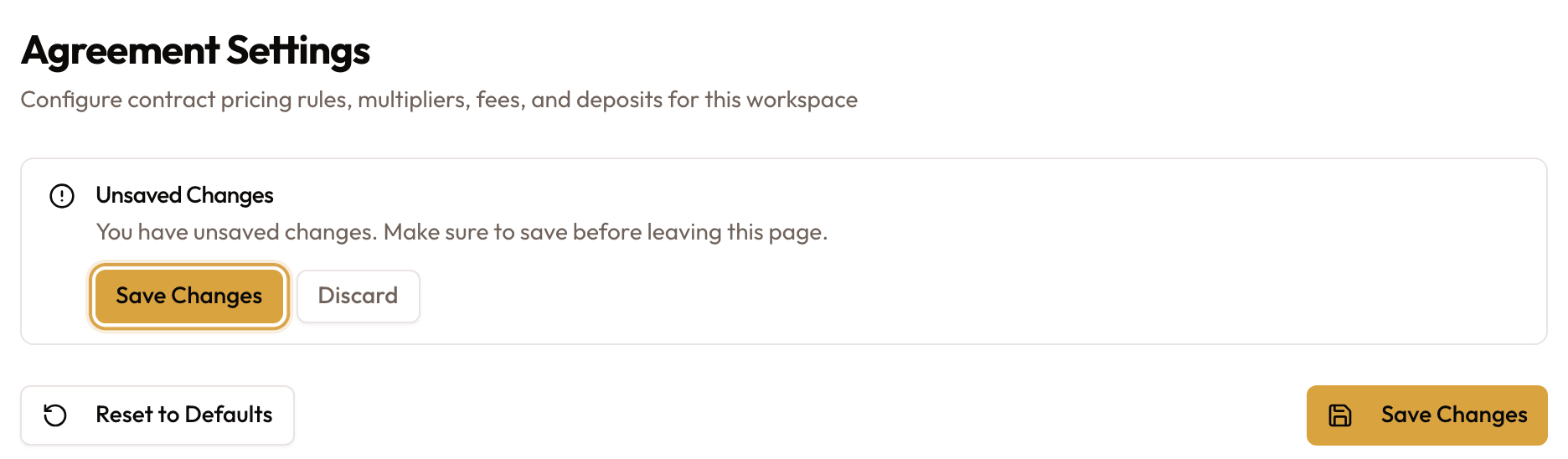
- Save Changes persists your edits (confirmed with "Agreement settings saved successfully").
- Discard reverts to the last saved values after confirming.
- Reset to Defaults restores every field, including the advanced automation, to the app defaults — and can't be undone.
Common mistakes & edge cases
- Late fees, multipliers and fallback rates live in the Advanced pricing drawer: switch on Advanced pricing to see them.
- Releasing the deposit. Release it from the agreement's Security Deposit card once the final amount owed is known (see Closing an Agreement).
- Every agreement bills on its anniversary, by design.
- Reset to Defaults is irreversible.
- Multiplier direction is easy to invert — below 1.0 is a discount, above 1.0 a premium; the live badge confirms which you've set.
- Contract multipliers apply to leases only, not spot rentals.
- Fallback rates are a safety net. They apply when a vehicle has no rate of its own, so set per-vehicle rates for accuracy.
What's next
With agreement defaults in place, set up Product Catalog Setup for the add-ons and services you'll attach to agreements, and see Creating a New Agreement to watch these defaults in action.