

Product Catalog Setup
Create pricing items, add-ons, service products with tax treatment
The Product Catalog is where you define every priced item your team can put on an agreement, add when an agreement is closed, or drop onto a one-off invoice: add-ons, services, fees, and mileage packages. It lives at Settings → Products.
The catalog is organised into four tabs by billing context (where and when a product is billed), and every product carries four classifications that decide how it is grouped, how it is billed, which revenue account it reports under, and how it is taxed. This page covers:
- the four tabs and the four classifications
- creating a custom product
- pricing the built-in products
- activating, deactivating, and deleting products
Vehicle rental rates are not set here. Lease payments and deposits are priced on each agreement; see Pricing & Rates.
Before you start
Managing the catalog needs permission to manage products, which among the built-in roles only Workspace Admin has. Other members can open Settings → Products and read the catalog; Create Custom Product and each product's action menu appear for roles that manage products.
- The catalog is shared across your organization. A custom product you create is available in every workspace, and the built-in products are the same for everyone.
- Nothing else needs to exist first. You can set the catalog up on an empty account.
The four tabs
Every product sits in exactly one tab, decided by its Billing Mode:
| Tab | Holds | Billed |
|---|---|---|
| On Agreements | Recurring and one-time products | Through the agreement's payment schedule |
| At Close / Usage | Usage-based products (e.g. excess mileage) | Reconciled when an agreement is closed |
| Ad-hoc Charges | Manual products | Added to one-off invoices, outside the schedule |
| System Base | Lease payments and security deposits | Generated by the agreement itself, read-only |
The System Base tab is reference only: lease payments and deposits are priced per agreement, not in the catalog, so that tab has no search, filter, or actions.

The four classifications
When you create or edit a product, four fields decide how it behaves. They're independent, and getting them right matters more than the name:
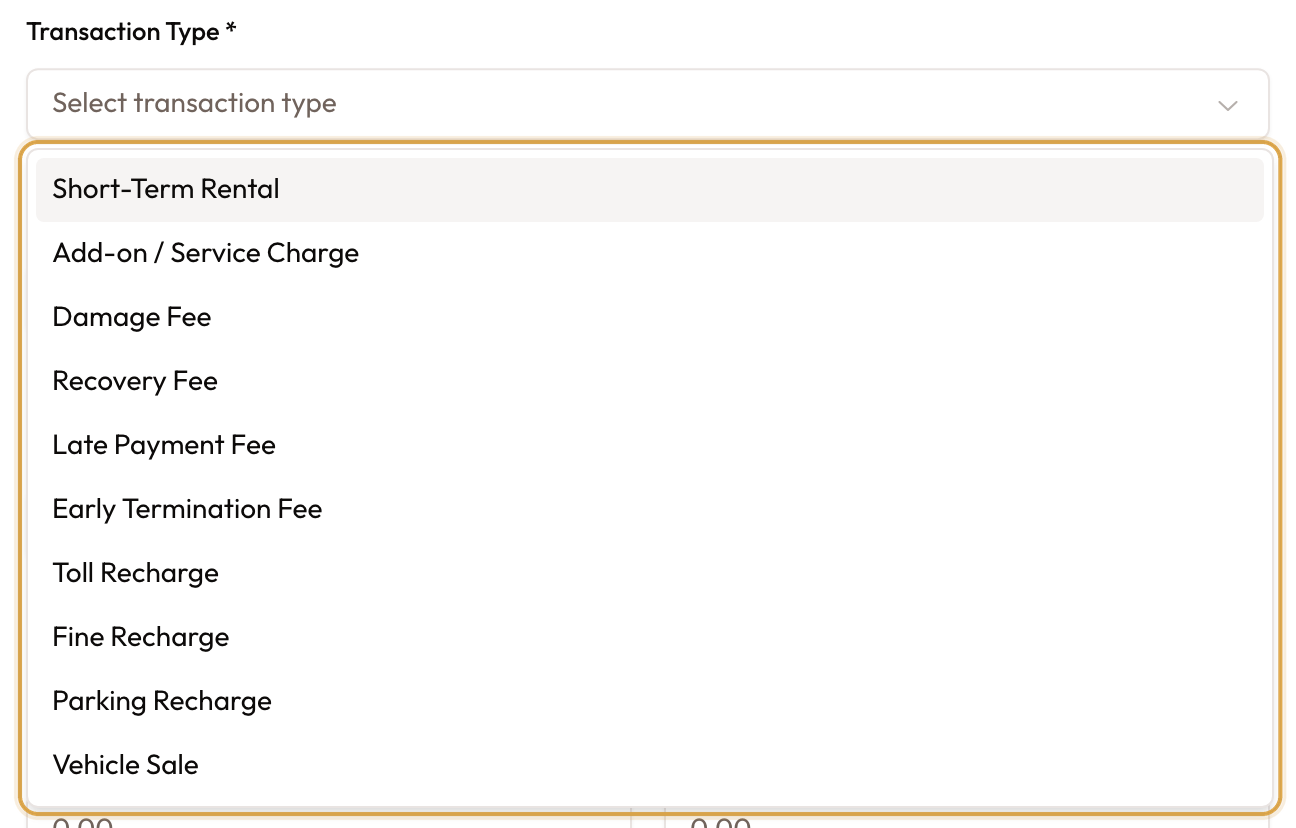
- Transaction Type is the accounting classification. It's stamped onto every invoice line the product generates and decides which revenue account the line reports under, so the wrong value mis-states your P&L rather than just mislabelling a row. The field hint says it plainly: "Decides which account this product's revenue reports under. Pick what the charge actually is." Options are Short-Term Rental, Add-on / Service Charge, Damage Fee, Recovery Fee, Late Payment Fee, Early Termination Fee, Toll Recharge, Fine Recharge, Parking Recharge, and Vehicle Sale.
- Form Group is the merchandising grouping. It only controls how the product is grouped in the agreement form; accounting comes from Transaction Type. Options are Insurance, Equipment, Services, Fees, Mileage, and Maintenance.
- Billing Mode is where and when the product is billed, which is also what puts it in one of the four tabs. Options are Recurring, One-time, Usage, and Ad-hoc. A new product starts on Ad-hoc.
- Tax Treatment is the per-line tax behaviour: Standard-rated, Zero-rated, Exempt, Reverse charge, Out of scope, or Disbursement. When Billing Mode is Recurring or One-time, this field is locked to Standard-rated.
You never type a VAT rate in the catalog. The tax treatment says how a line is taxed; whether VAT is charged at all follows your organization's VAT registration.
Creating a custom product
Open the catalog
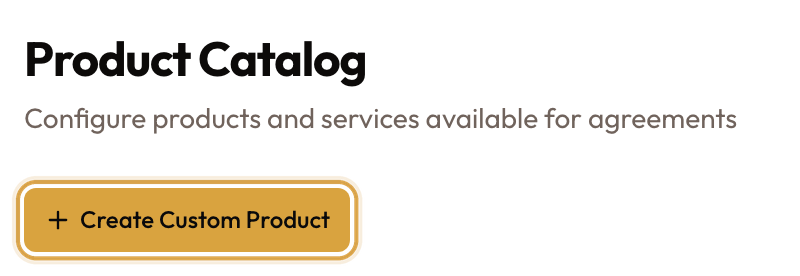
In the settings sidebar, under the Business group, click Products. The page header reads Product Catalog, subtitled "Configure products and services available for agreements". It opens on the On Agreements tab.
Click Create Custom Product
The Create Custom Product button is the small button just below the Product Catalog title, on the left, above the tabs. The dialog opens, described as "Add a custom product specific to your organization".
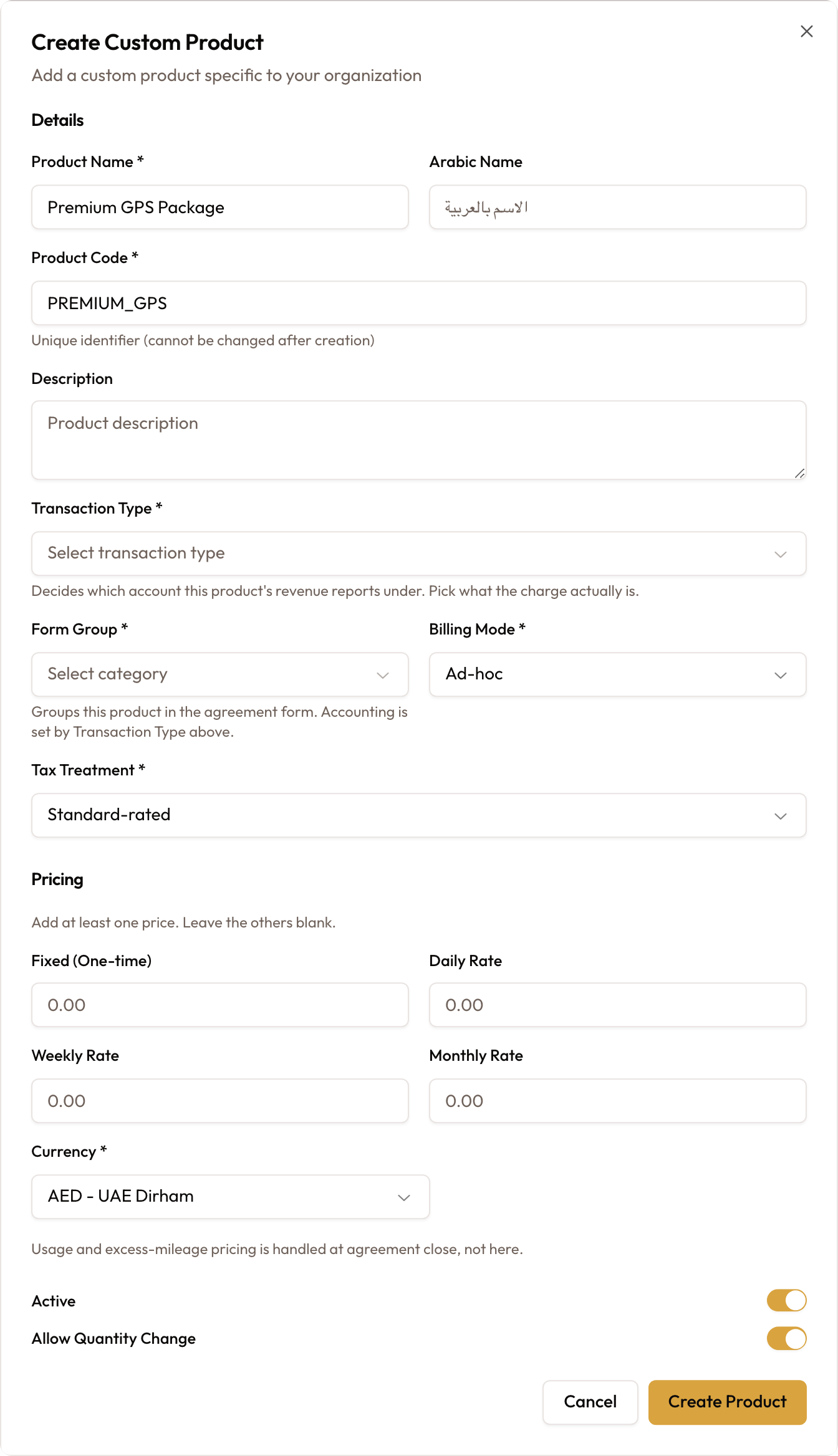
The Create Custom Product dialog: the product's details, how it is classified, its prices and whether it is active.
Fill in the details
Under Details:
- Product Name (required), e.g. Premium GPS Package.
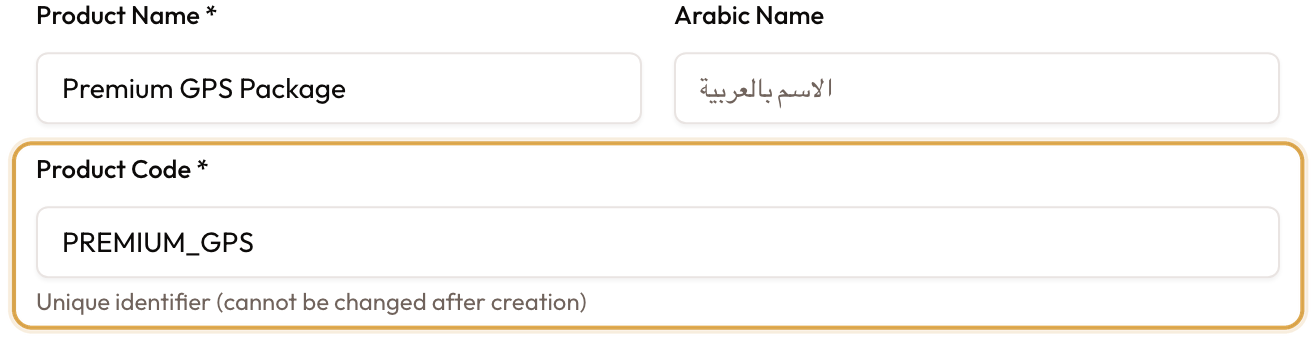
- Product Code (required), e.g.
PREMIUM_GPS. It's a unique identifier and, as its hint warns, cannot be changed after creation, so choose it deliberately. - Arabic Name and Description are optional.
Choose the Transaction Type
This is the accounting decision, and it leads the rest. Pick the option that matches what the charge actually is. A hint reminds you it decides the revenue account.
Set the Form Group and Billing Mode
Form Group groups the product in the agreement form; Billing Mode decides which tab it lands in. Billing Mode starts on Ad-hoc, so change it if the product belongs on agreements or at close.

Set the Tax Treatment
Choose how the product is taxed. If you picked Recurring or One-time billing, this field is locked to Standard-rated; its hint reads "Scheduled products are always standard-rated."

Add pricing
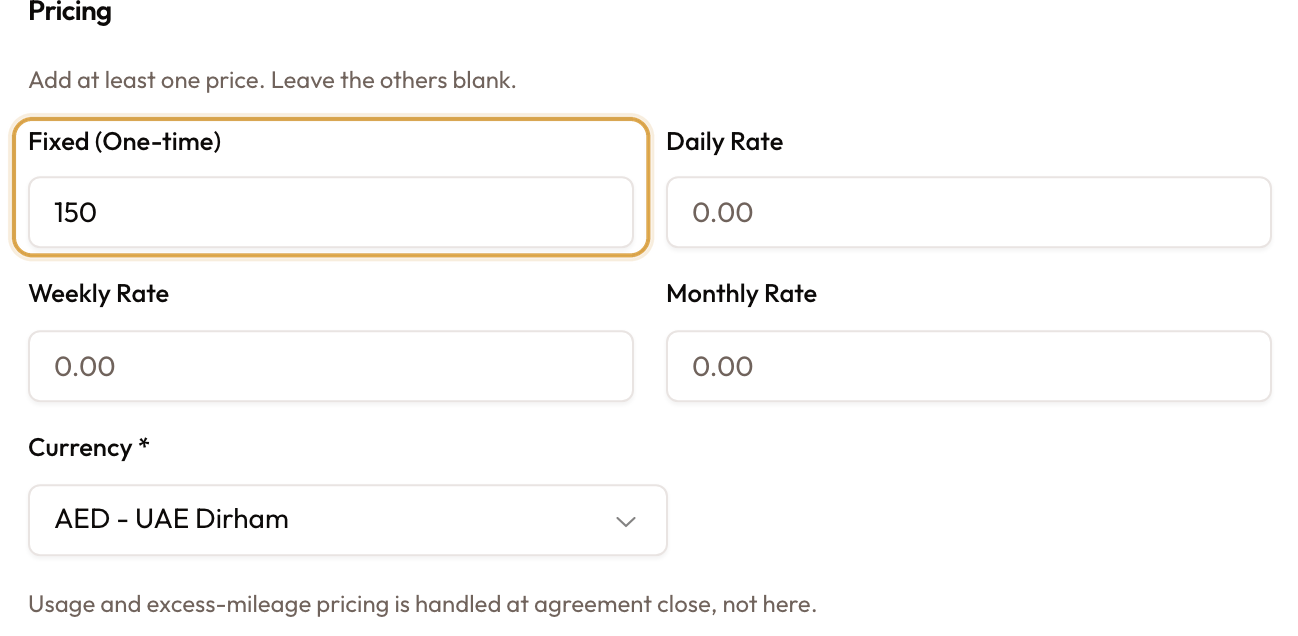
In the Pricing section, enter at least one rate (Fixed (One-time), Daily Rate, Weekly Rate, or Monthly Rate) and leave the others blank. Then check the Currency; AED is preselected. Usage and excess-mileage pricing isn't set here; that's handled at agreement close.
Set availability and save
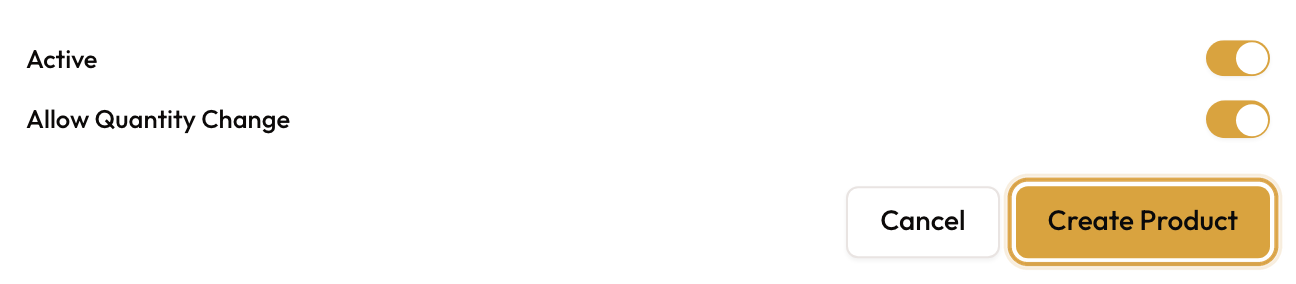
The Active toggle is on by default: a new custom product is priced, so it's ready to use immediately. Leave Allow Quantity Change on if operators should be able to change the quantity when adding it. Click Create Product.
You'll see a "Custom product created successfully" confirmation, and the product appears in the tab that matches its billing mode, grouped under its Form Group.
Pricing a built-in product
The system ships with products that carry a System badge. Their name and code stay as shipped; price them before they can be used:
Open Edit Price
On any tab except System Base, open a system product's action menu (the ⋮ button) and choose Edit Price.

Set the price
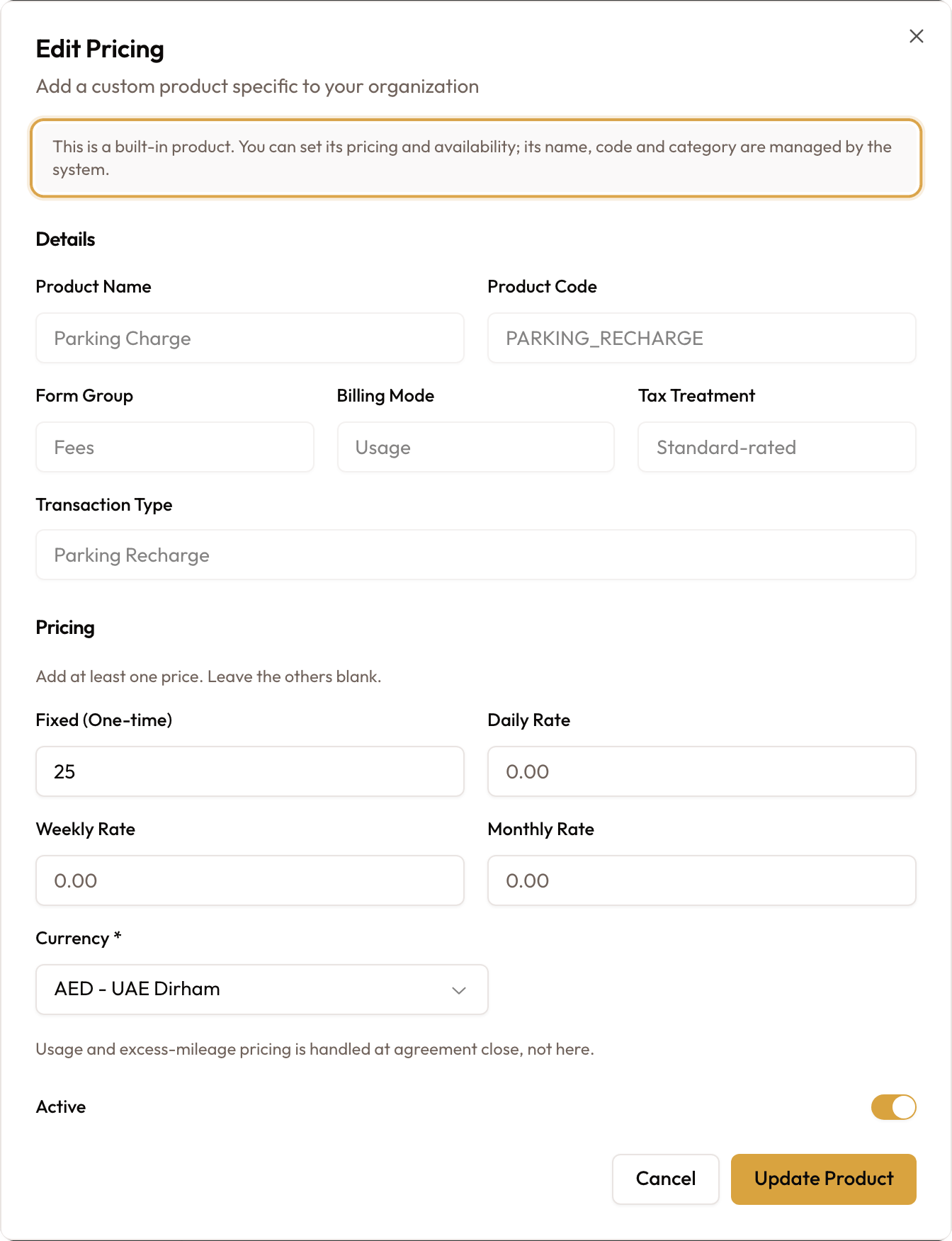
The Edit Pricing dialog opens. The name, code, Form Group, Billing Mode, Tax Treatment, and Transaction Type are shown but disabled, and a note explains "This is a built-in product. You can set its pricing and availability; its name, code and category are managed by the system."
- Enter at least one pricing tier.
- Confirm the Currency.
- Switch Active on.
- Click Update Product.
System products can't be deleted. The System Base products (lease payments and security deposits) can't be priced here at all; they're priced per agreement.
Managing existing products
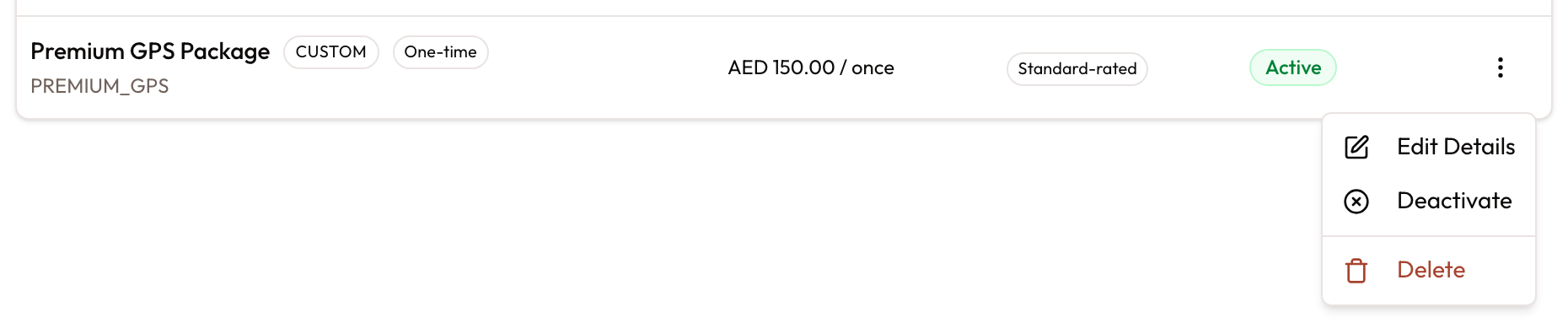
Open a product's ⋮ menu for these actions:
- Edit Details (custom) or Edit Price (system) opens the dialog.
- Activate appears when the product is inactive and has at least one pricing tier.
- Deactivate appears when the product is active. Inactive products aren't offered in product selectors.
- Delete is for custom products only, with a confirmation prompt. This can't be undone.
To find your way around:
- When built-in products are missing prices, a notice above the tabs reads "You have {count} products that need price configuration before they can be used." Its link switches between Show unconfigured only and Show all products.
- Each tab except System Base has a Search products… box, a status filter (All Status, Active, Inactive, Needs Configuration), and an All Types / System / Custom toggle.
- A product with no price shows No Pricing.

Common mistakes & edge cases
- Looking for the button in the top right. Create Custom Product sits just under the page title, on the left, for roles that manage products.
- Activate appears once a product is priced. Edit the product and add a rate, and Activate shows in its menu.
- Saving with no price. Submitting with every rate blank is blocked with "Please add at least one price."
- Skipping Transaction Type or Form Group. Neither has a default, and saving without one is blocked with "Choose a transaction type" or "Choose a form group." An unchosen classification is how products used to end up as "Add-on / Service Charge" and report their revenue in the wrong place.
- Leaving Billing Mode on Ad-hoc by accident. The product then lands on the Ad-hoc Charges tab and is only offered on one-off invoices, not on agreements.
- Reusing a product code. Codes must be unique within your organization; a duplicate is rejected with "Product code already exists."
- Expecting to rename a code. The Product Code is fixed after creation.
- Changing Transaction Type later. It affects future invoices only. Lines already invoiced keep the classification they were created with, and a warning in the dialog says so.
- Trying to zero-rate a scheduled product. Recurring and one-time products are forced to Standard-rated.
- Looking for usage or mileage pricing in the dialog. Only Fixed, Daily, Weekly, and Monthly rates are set here; usage and excess-mileage pricing is handled at agreement close.
What to read next
- Create Agreement wizard is where On Agreements products are attached to a rental.
- Adding Damage & Extra Charges to a Rental is where Usage products are added to a rental as items.
- Setting up your organization covers the VAT registration that decides whether VAT is charged.