

Adding Damage & Extra Charges to a Rental
Turn damage, cleaning, fuel and other extras into billable items — on the Rental Account or the Close screen — and bill them, before or after the close.
A dent, an empty tank, a car that needs a valet: each becomes an item on the rental. An item is priced from your product catalogue and waits as "not yet billed" until you bill it — on one invoice with the rental and any tolls.
Where you add it depends on the agreement:
| Agreement | Where to add an extra charge |
|---|---|
| Short-term rental | Add item on the Rental Account, any time — before or after the close |
| Any agreement, while closing | Add an item on the Close screen |
| Monthly agreement or lease, outside the close | Create Addon Invoice |
Before you start
- The vehicle has been checked in, so the inspection exists to work from. See Vehicle Check-In & Return Inspection.
- The products you charge with exist in the catalogue with the billing mode Usage and the right tax treatment. See Product Catalog Setup.
- You have permission to create invoices. Without it, Add item and Bill rental do not show.
Review what the inspection found
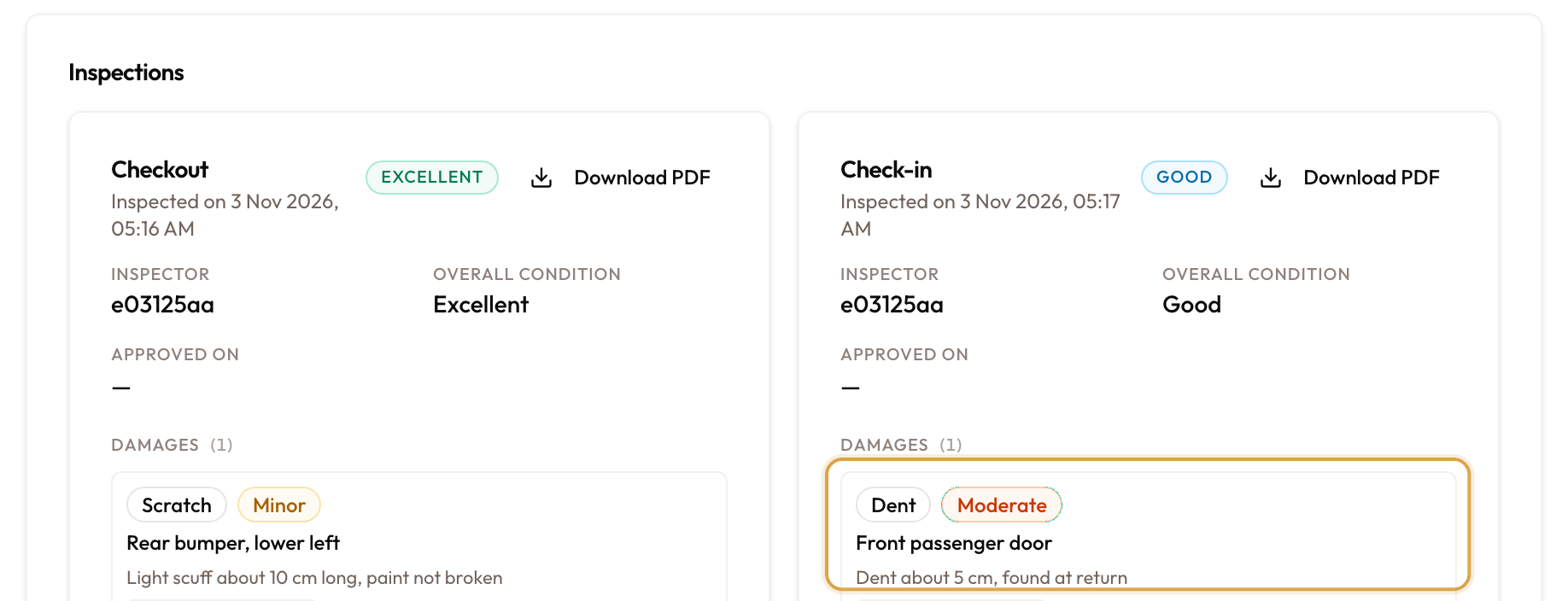
Open the agreement's Vehicle tab. The Inspections card puts Checkout and Check-in side by side: Overall condition, then Damages with each entry's type, severity, location and photos.
Damage on the check-in that is not on the checkout is what you charge for. Nothing is created from the inspection automatically — you add the item.
Excess mileage is worked out by hand. The Mileage Limit and Excess Mileage Rate are on the Terms & Conditions tab, and the return odometer is recorded at check-in: (return reading − checkout reading − limit) × rate.
Short-term rentals: the Rental Account
Open the item editor
On the agreement's Overview tab, the Rental Account is at the top. On its Not yet billed card, click Add item.
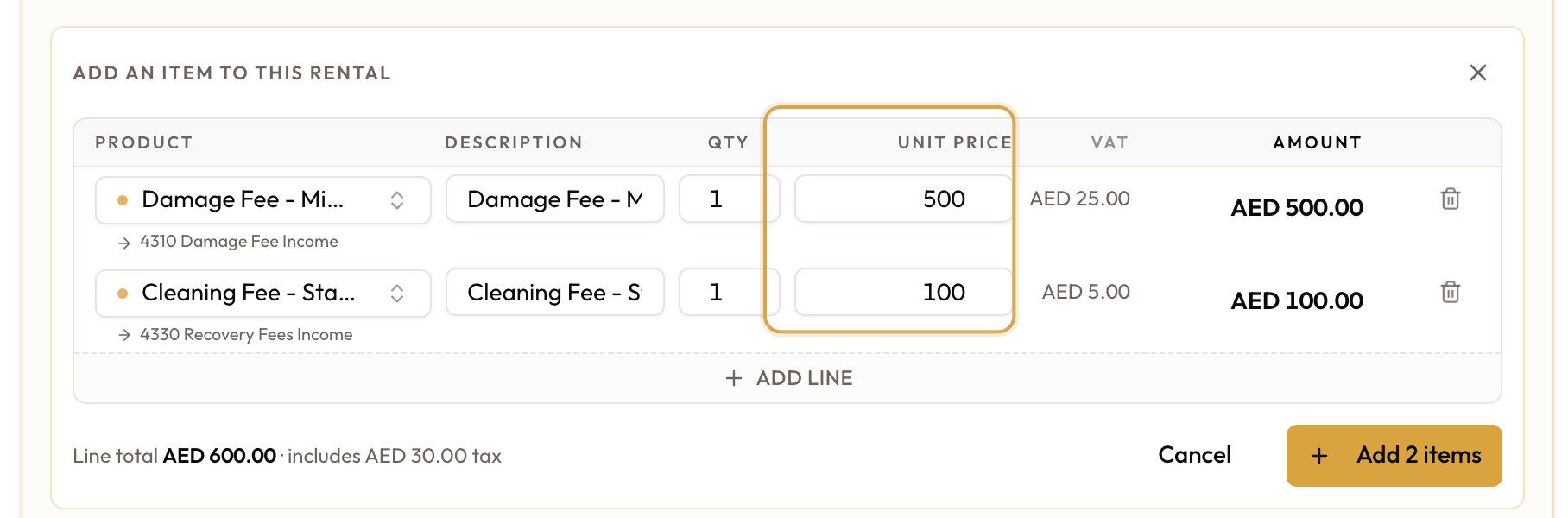
An editor opens at the foot of the card — Add an item to this rental — with one row ready to fill. It works while the rental is running and after it has been closed.
Pick the product
Click Pick product and search by name or code. Products are grouped by category, with your own listed first.
Only Usage products are offered; system products such as lease payments and security deposits never are. Picking one fills Description with the product name and Unit price with its default price.
Fill in the line
| Column | What to enter |
|---|---|
| Description | What the customer reads on the invoice |
| Qty | At least 1 |
| Unit price | The price the customer pays, VAT included |
| VAT | Filled in for you from the product's tax treatment |
| Amount | Qty × Unit price — what the customer pays for the line |
Add line adds another row, so damage, cleaning and fuel can go in together. The bin on a row removes it.
Prices include VAT. An item priced at 350 bills 350, with the VAT inside it — the same way the rental and the tolls beside it are shown.
Zero amounts are not allowed. A row with a unit price of 0 is not saved. If no row has a price, the save button stays disabled.
Save the items
The save button counts the rows that are ready — Add 1 item, Add 2 items and so on. Click it, or Cancel to discard.
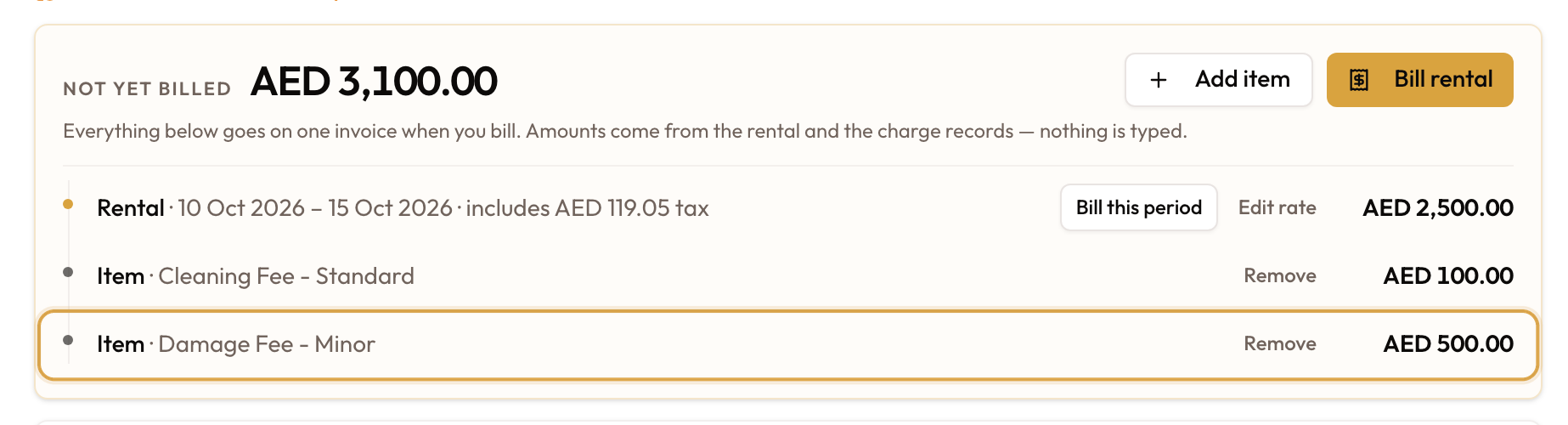
Each item joins the Not yet billed list as Item with its description, and the total goes up.
Remove an item you got wrong
Click Remove on the item's row. It is deleted straight away — there is no confirmation. There is no edit either: remove it and add it again.
Only an item that is not on an invoice yet can be removed. Once it has been billed the invoice owns it — void the invoice to put the item back, or issue a credit note if money has been applied.
Bill it
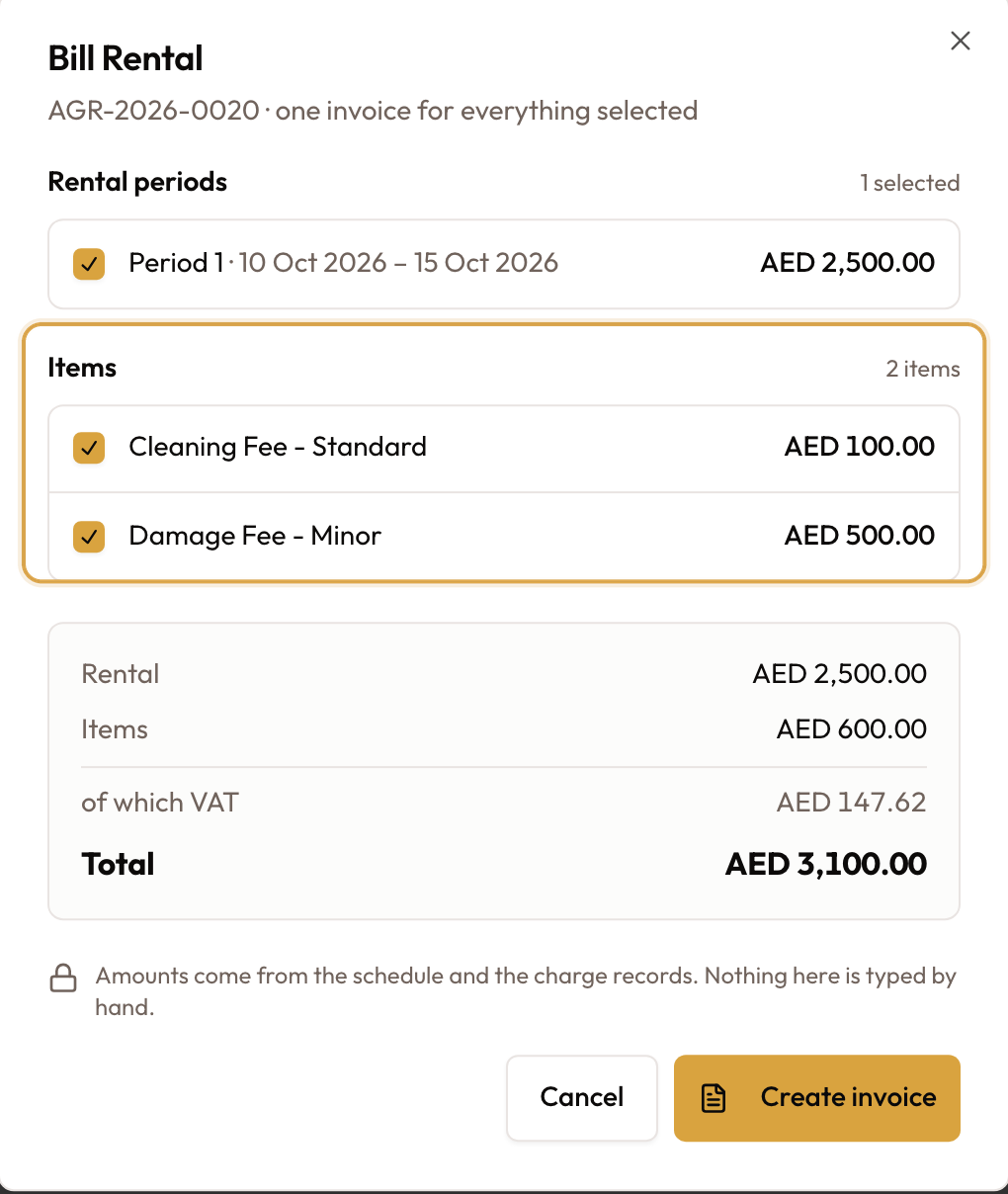
Click Bill rental on the Not yet billed card. In the Bill Rental dialog your items are in the Items section, ticked, next to Rental periods and Tolls & fines. Untick anything you are not billing now — it stays pending for the next bill. The summary shows Items, of which VAT and the Total.
Click Create invoice. One invoice is raised for everything ticked, and it opens.
Before or after the close, it works the same. A late fine or a damage found the next day can be added and billed on a closed short-term rental.
Any agreement: while closing
On the Close screen, under Not billed yet, click Add an item. It is the same editor — same picker, same columns, same VAT-inclusive prices. Click Add to the rental.
The items join the list under Items, with a bin icon to remove one. Bill and close puts them on the closing invoice. On a short-term rental, Close without billing leaves them on the Rental Account to bill later. Closing an Agreement covers the rest of the screen.
Monthly agreements and leases
On a monthly agreement, add charges this way:
- While it is running, or after it has been closed: use Create Addon Invoice — in the sidebar under Billing, or on the Addon Invoices card. It opens the invoice form with the customer and agreement already filled in. See Creating Manual Invoices.
- At the close: use Add an item on the Close screen, then Bill and close.
Don't close a lease without billing its items. Once a monthly agreement is closed, nothing in SpectroNova Express bills its pending items any more. If it happens, charge the same amounts with Create Addon Invoice.
How VAT is applied
The tax treatment comes from the product, never from the line. SpectroNova Express calculates the VAT figure for each line.
| Treatment | What the line shows | VAT charged |
|---|---|---|
| Standard | The VAT amount in the VAT column | Yes |
| Zero-rated | A Zero-rated tag under the description; VAT shows "—" | No |
| Exempt | An Exempt tag; VAT shows "—" | No |
| Out of scope | An Out of scope tag; VAT shows "—" | No |
| Reverse charge | A Reverse charge tag; VAT shows "—" | No |
| Disbursement | A Disbursement tag; VAT shows "—" | No |
A VAT cell showing "…" is still being worked out — it is not zero.
Picking a product: what gets filled in
- Picking a product fills Description with its name and Unit price with its default price.
- Switching to another product refreshes them only if you have not edited them. A description you typed, or a price you changed, survives the switch.
When something looks wrong
| What you see | What it means |
|---|---|
| A product is not in the picker | It is not a Usage product, or it is a system product. Change it in the catalogue |
| VAT looks wrong on a line | The product's tax treatment is wrong. Fix it in the catalogue — the line inherits it |
| A row was not saved | Its unit price is 0, or no product is picked |
| You priced an item without VAT | Prices include VAT. Remove the item and add it again at the full price |
| An item can't be removed | It is already on an invoice. Void the invoice, or issue a credit note |
| An item you unticked in Bill Rental is still there | Unticking only leaves it off that invoice. It waits for the next bill |
| No Add item on the agreement | It is a monthly agreement or lease. Use Create Addon Invoice |
| Damage was found but nothing was billed | Inspections never create charges. Add the item yourself |
What to read next
- Closing an Agreement — billing items as you close, or leaving them for later
- Vehicle Check-In & Return Inspection — where the damage and the return odometer are recorded
- Product Catalog Setup — Usage products and tax treatments
- Creating Manual Invoices — what Create Addon Invoice opens