

Long-Term Rental Workflow
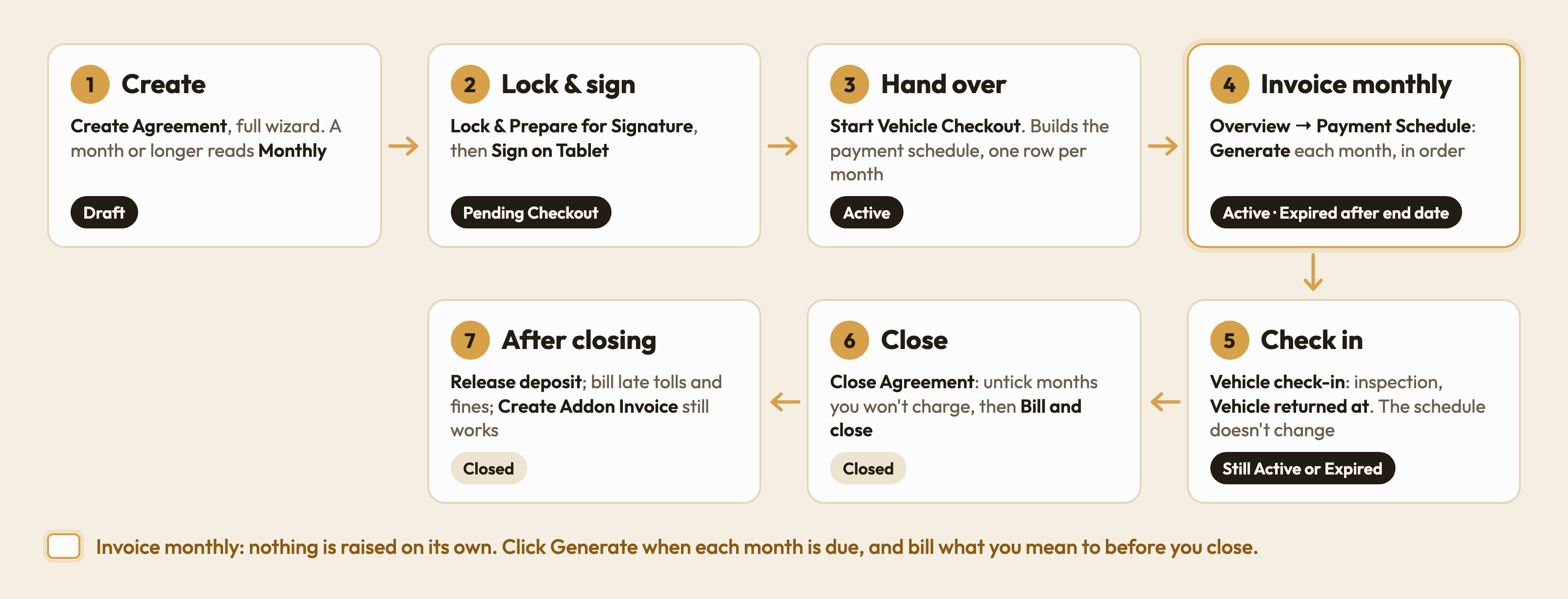
A monthly rental from start to finish: create, sign, hand over, generate each month's invoice from the payment schedule, check in, close, and release the deposit.
This page follows one long-term (monthly) rental in SpectroNova Express from start to finish: create the agreement, lock and sign it, hand the vehicle over, invoice it month by month from the Payment Schedule, check the vehicle back in, close the agreement and release the deposit.
Each shared stage is kept short and links to its own page. The time goes on what is different for a monthly rental: the payment schedule, generating each month, and what to check when you close.
Before you start
- A customer record and an available vehicle, ideally with a monthly rate on its rate card.
- Permission to create agreements and move them along. Generating invoices also needs permission to create invoices.
- Know how your workspace is set up under Settings → Billing Settings → Invoicing at handover. On a monthly rental, Raise invoices automatically only decides whether the first month is invoiced at handover.
What makes a rental long-term
You never choose. A rental that covers a full month gets the Billing Frequency Monthly: "Monthly invoices for long-term rentals (30+ days)." That means an exact calendar month (February 1–28 counts), an exact anniversary month (January 15 – February 14), or 30 days or more. Anything shorter bills as a single invoice and follows the Short-Term Rental Workflow instead. The exact rule is in Agreement Types Explained.
Monthly invoices are not raised automatically. Each month is invoiced when someone clicks Generate on its row of the payment schedule. Nothing raises month two, three or four on its own.
The workflow at a glance
1. Create the agreement
Start a new agreement
Open Agreements and click Create Agreement. On Agreement Details, pick the vehicle, then set Contract Duration in months and Start Date. End Date fills itself in.
Express Rental is for short-term walk-ups only, so a monthly rental always uses the full wizard.
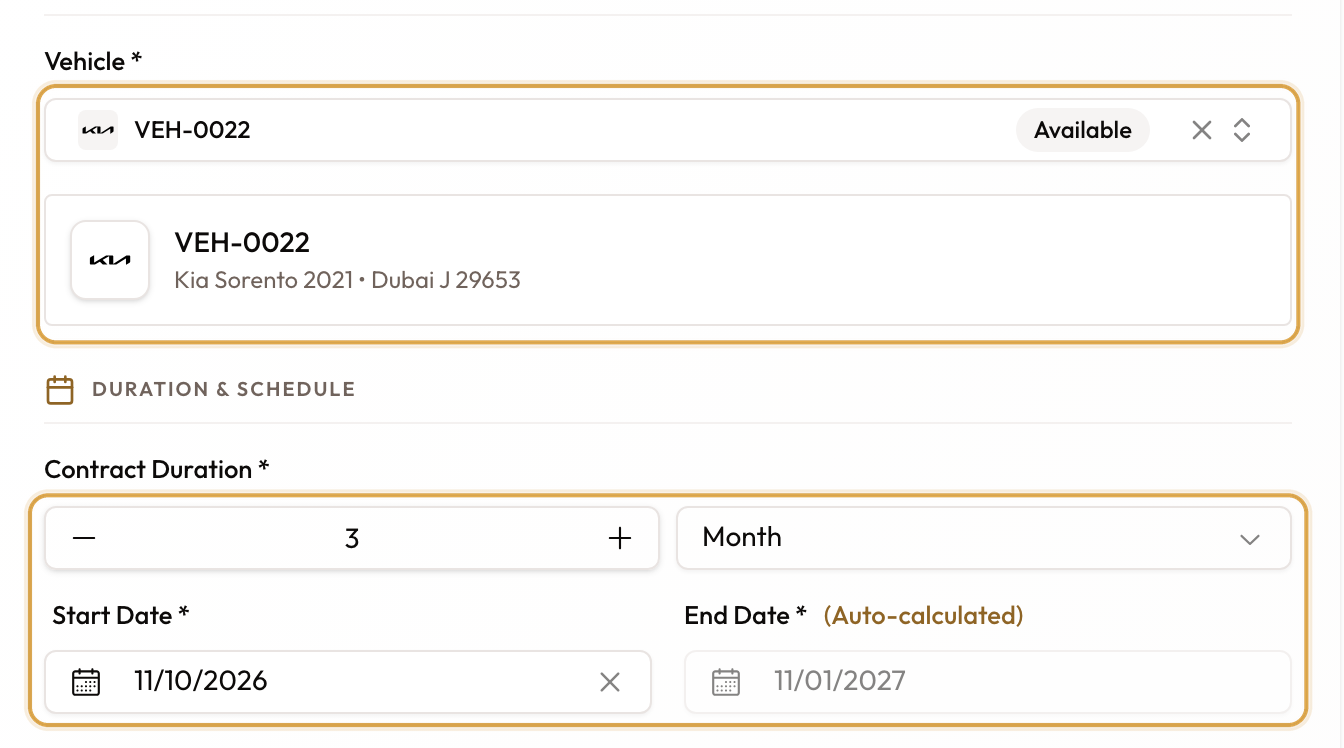
Pick the vehicle, then set Contract Duration and Start Date. End Date fills itself in.
Check that it is long-term
Billing Frequency, just below the dates, is read-only and reads Monthly. The rate field becomes Monthly Rate (AED) and suggests the vehicle's monthly rate; you can override it.
Just below the rate, Rate above is the all-in price is on by default. It tells SpectroNova Express whether the rate you typed already includes VAT:
- Leave it on when the price you agreed with the customer includes VAT. Every month bills exactly that amount (AED 7,500 a month is AED 7,142.86 plus VAT).
- Turn it off when you quoted the rate before VAT. VAT is then added on top (AED 7,500 a month bills AED 7,875).
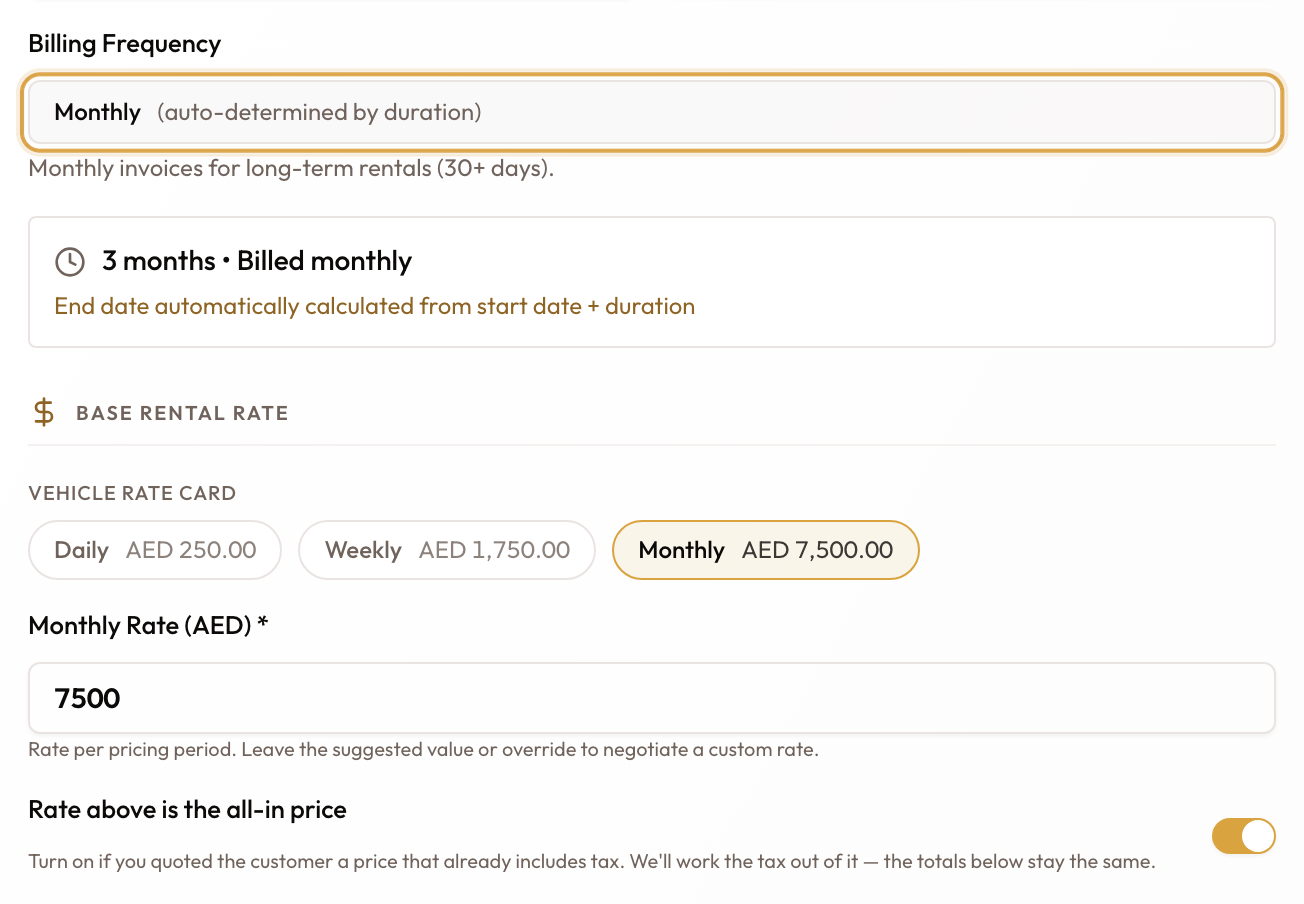
A rental of a month or longer reads Monthly, set from the rental's length.
There is no billing day or first-invoice date to set. Months run from the start date. If the dates run past whole months, the extra days are charged at the daily rate.
Add the customer and deposit, then create
Pick the customer, set the Security Deposit on Terms, and click Create Agreement on Review. The agreement opens as a draft.
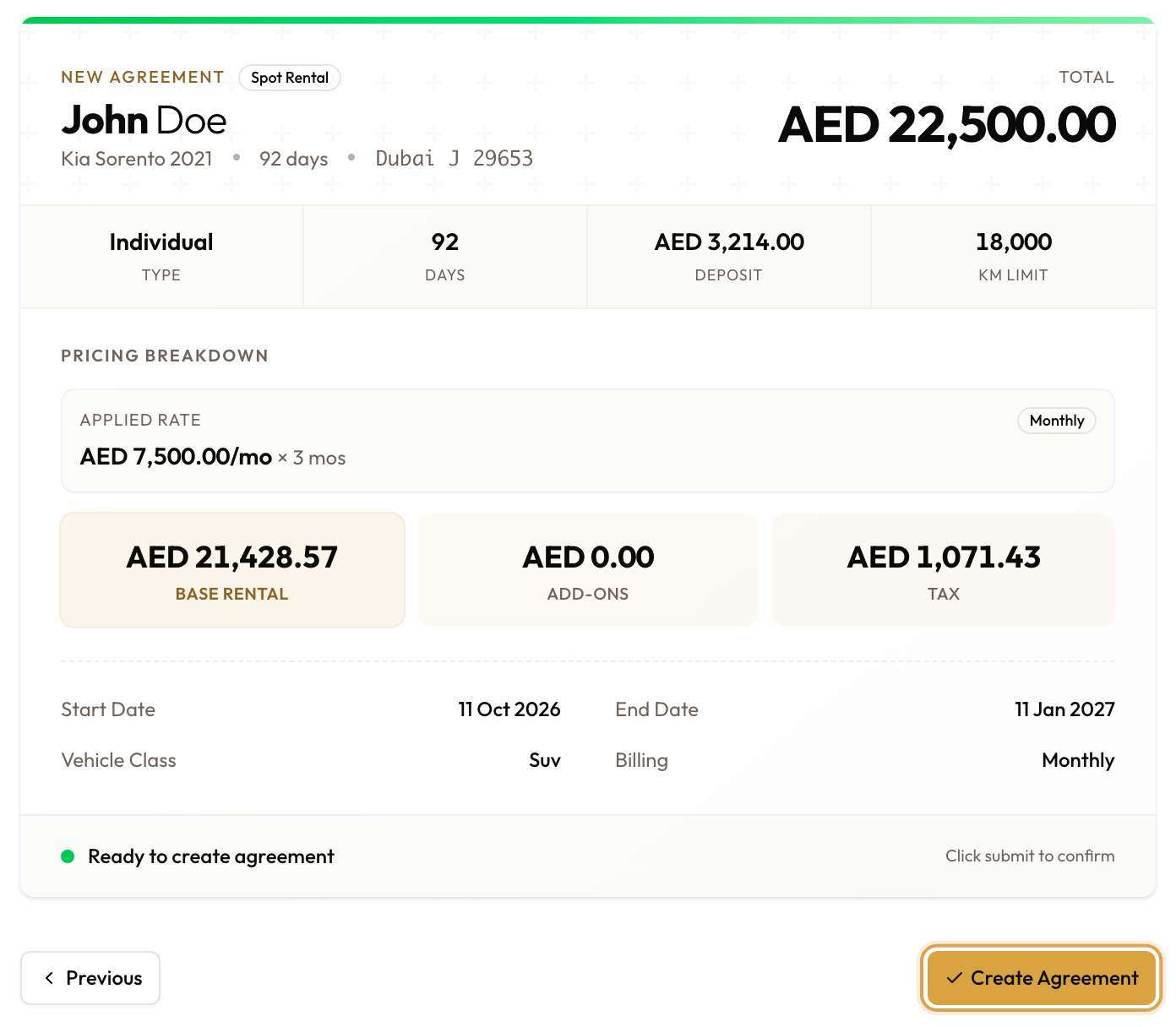
Check the totals on Review, then click Create Agreement.
The full wizard is covered in Creating a New Agreement.
2. Lock and sign
Lock the agreement
In the sidebar under Workflow Actions, click Lock & Prepare for Signature. The terms can no longer be edited; Unlock & Edit reverses it if you spot a mistake.
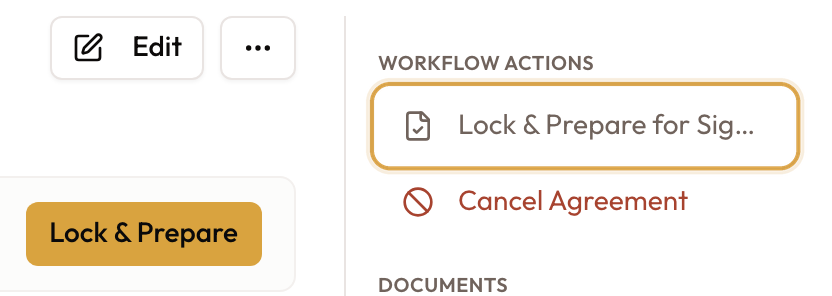
Lock & Prepare for Signature is the first of the Workflow Actions.
Get the signature
Click Sign on Tablet for an in-person signature, or Signed on Paper if the customer signed a printed copy. The status becomes Pending Checkout and Start Vehicle Checkout appears.
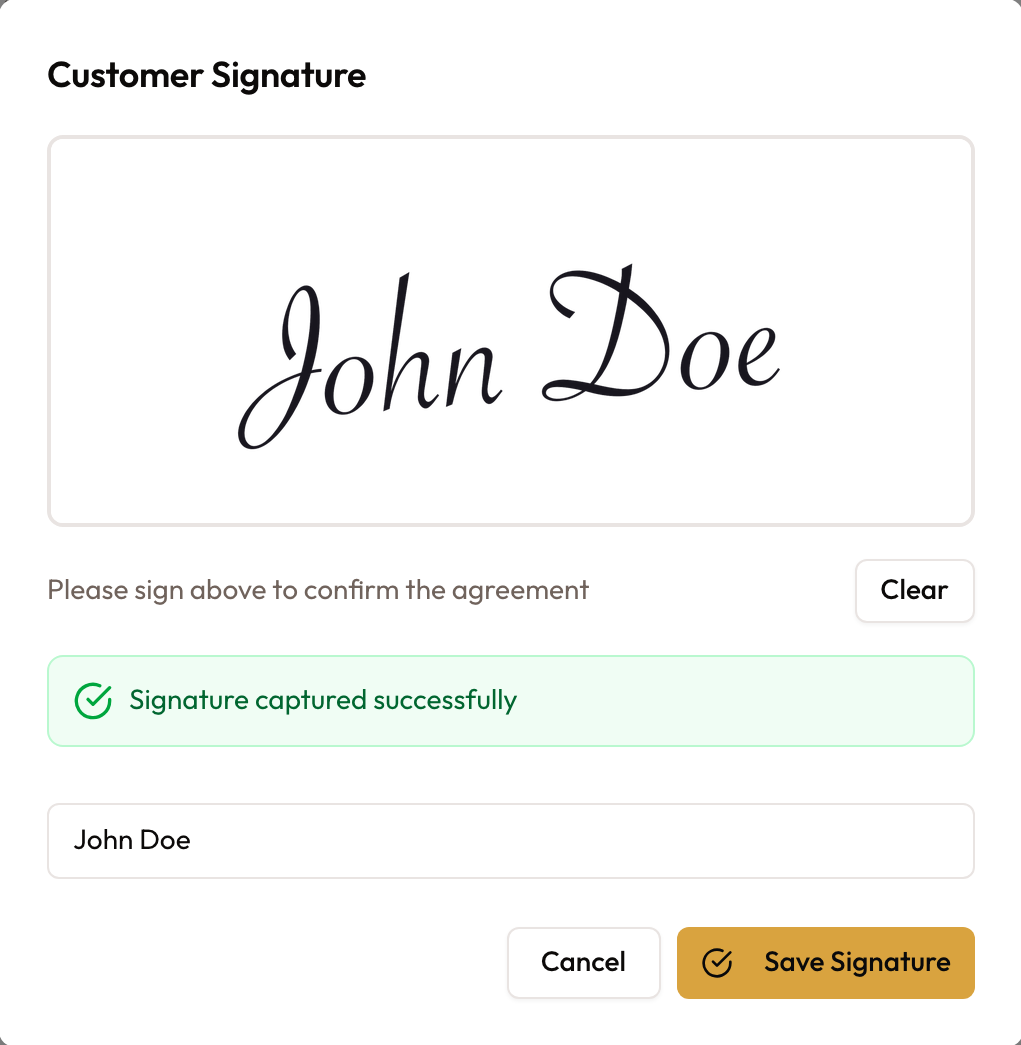
The customer signs, then click Save Signature.
Details: Locking & Signing an Agreement.
3. Hand the vehicle over
Do the handover inspection
Click Start Vehicle Checkout. On Vehicle Inspection, work through your inspection template (photos, damages, Mileage Reading, Fuel Level), set Overall Condition, capture the Customer Signature, and click Next Step. If your workspace sets a minimum number of photos, Next Step waits until it is met; Add more photo under the grid adds shots the template doesn't list.
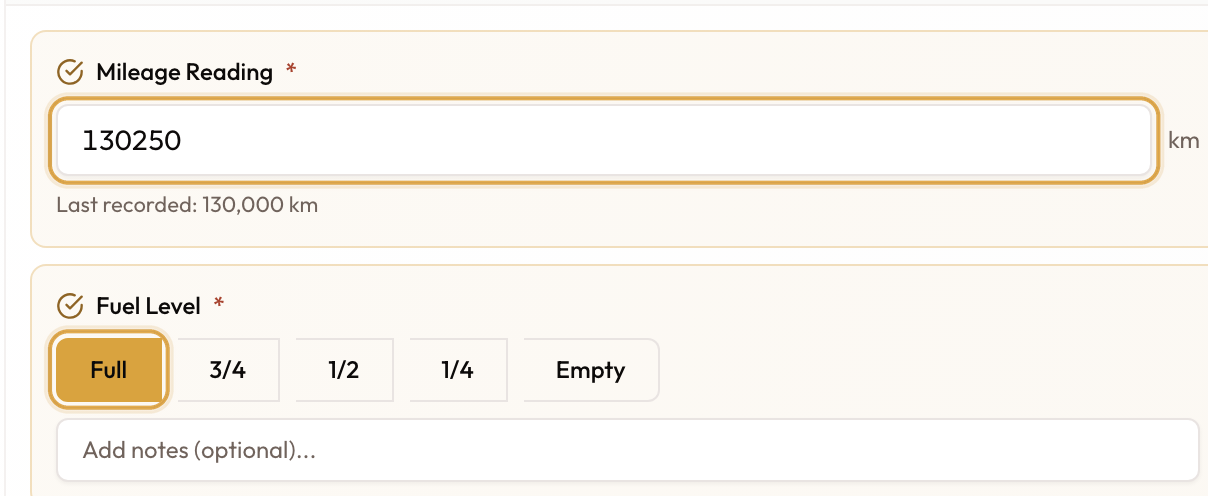
Record the Mileage Reading and Fuel Level at handover.
Complete the checkout
On Checkout Review, check the summary. Vehicle handed over at defaults to now; set it earlier if the car left earlier. Click Complete Checkout. The agreement becomes Active.
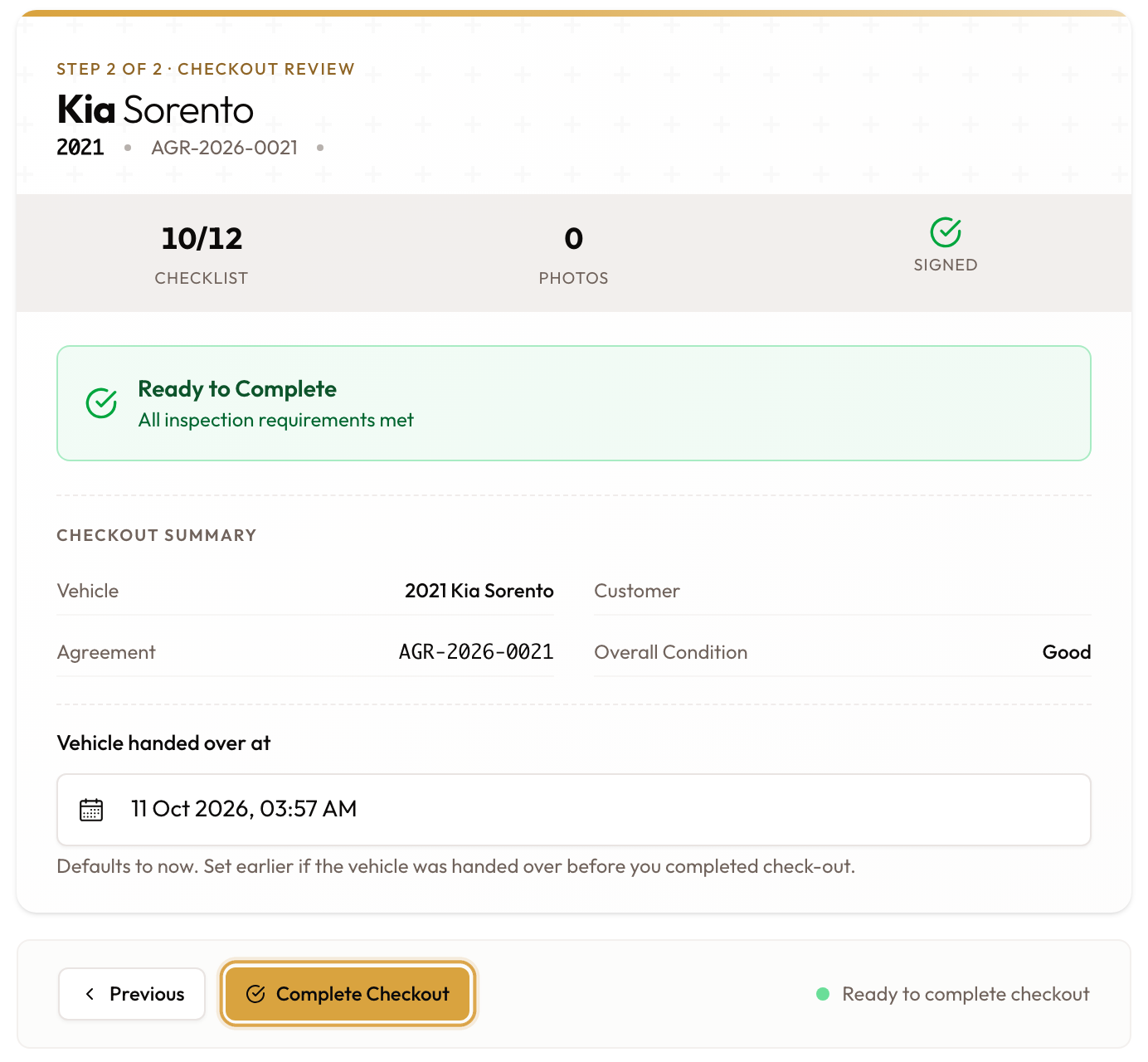
Check Checkout Review, then click Complete Checkout.
Details: Vehicle Checkout & Handover Inspection.
What checkout does to the money on a monthly rental:
- The payment schedule is built: one row per month from the start date, each due on the first day of its month. A shorter final month is prorated.
- The deposit invoice is always raised at checkout, if the deposit is taken by invoice.
- Raise invoices automatically on: the first month is invoiced straight away. Off: nothing is invoiced yet, and the first month waits for you on the schedule. Either way, the later months are left for you to generate.
4. Invoice month by month
Open the agreement's Overview tab. A monthly rental shows Agreement Information, the pricing, the Security Deposit, the Payment Schedule and Addon Invoices.
Read the payment schedule
The Payment Schedule lists one row per month with its Due Date,
Amount, Paid, Outstanding and Status. A month with no invoice yet
reads scheduled; once invoiced, the row shows the invoice's status, such as
sent, overdue or paid. An icon marks a prorated month. The footer totals
everything.
While the last month has no invoice, its row also shows Edit rate, to change that month's price at a daily rate. See Correcting a Wrong Rate.
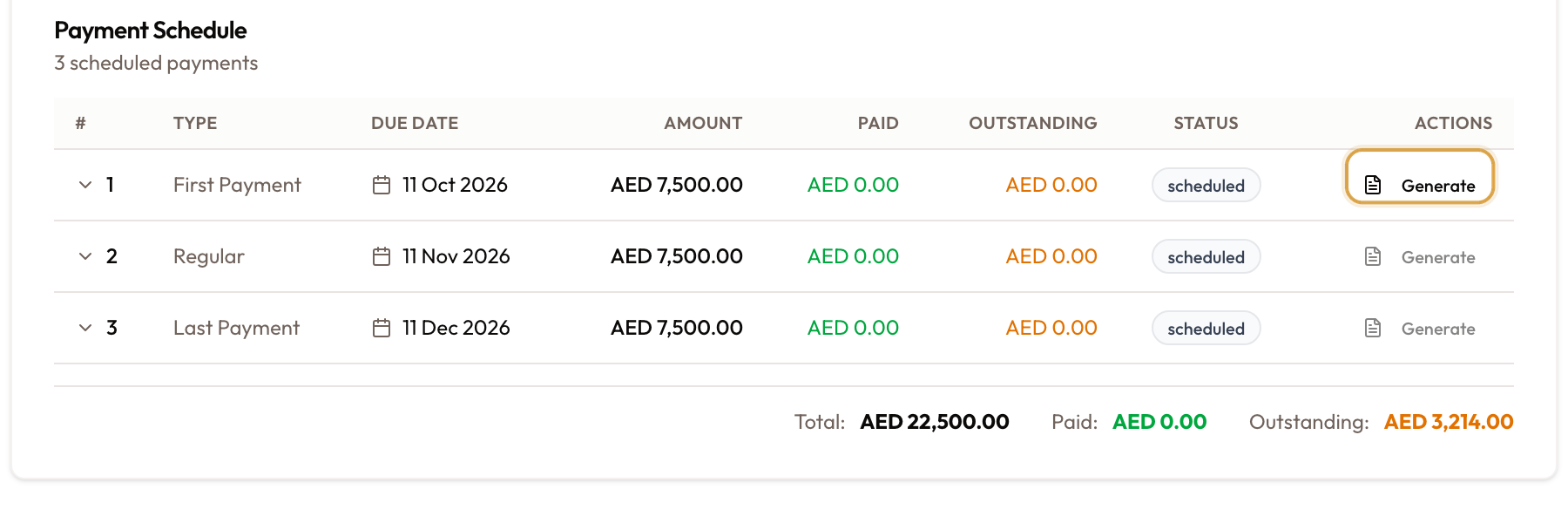
Only the earliest month without an invoice has a live Generate.
Generate the month that is due
Only the earliest month without an invoice has a live Generate button. Later rows show it greyed out, with the tooltip Generate the previous payment first.
Click Generate. Generate this invoice? explains: "This creates an active invoice posted to accounts receivable — not a draft. Reversing it later requires a void or write-off." On the first payment it adds that a separate security deposit invoice will also be generated. Click Generate invoice.
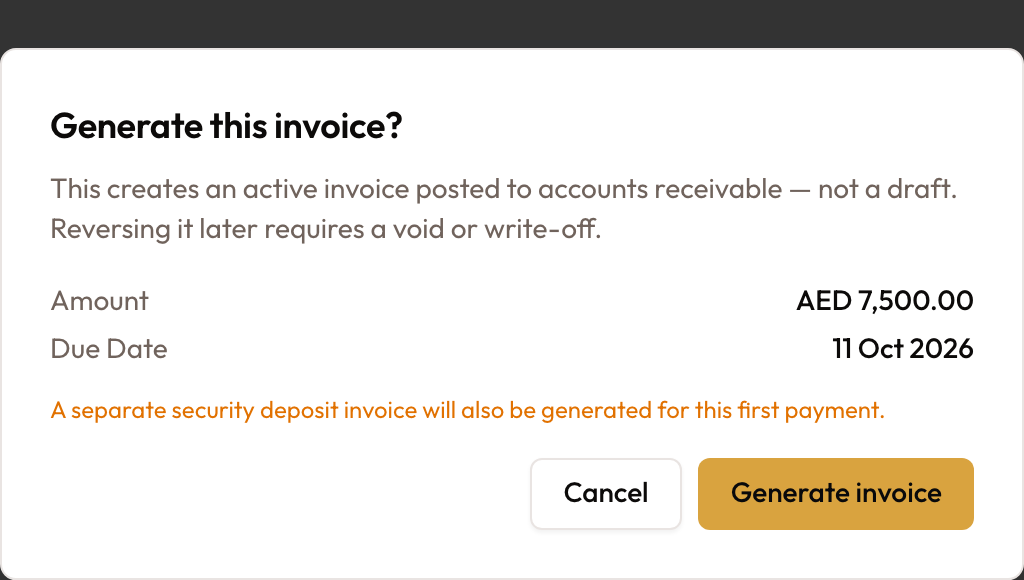
Generate invoice posts a real invoice, not a draft.
The row now has View, which opens the invoice. To take the payment, see Recording Payments.
Repeat every month
Come back when the next month is due and generate the next row, in order.
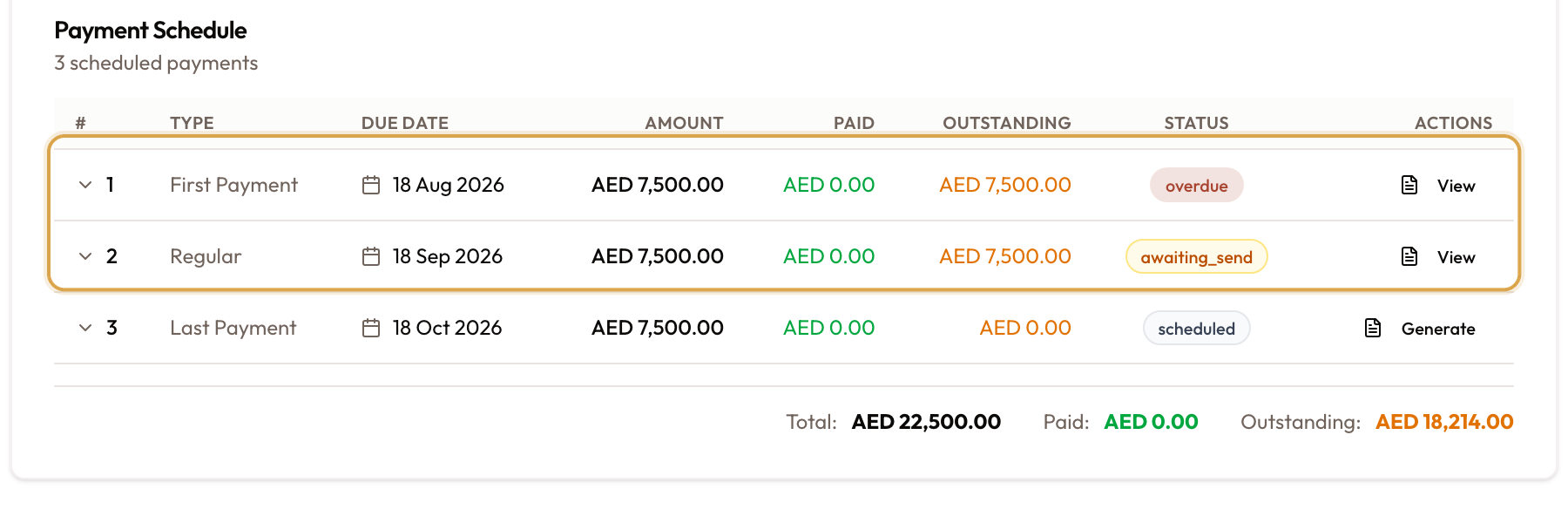
Invoiced months show their status and View; the next month waits for Generate.
More on reading the schedule: Agreement Details & Timeline.
- Extra charges: a monthly rental has no Add item. Use Create Addon Invoice (sidebar, or the Addon Invoices card) for damage and other one-off charges. See Adding Damage & Extra Charges to a Rental.
- Tolls and fines are never added to the monthly invoices on their own. Bill them from the agreement's Tolls and Fines tab. See Billing Tolls, Fines & Parking to Customers.
- Extending: Extend Agreement adds months to the schedule. With automatic invoicing on, the first new month is invoiced straight away; otherwise you generate it like any other row. See Extending Agreement Duration.
- Wrong rate: Correct Rate is only offered while nothing on the schedule has been invoiced. After that, void or credit the invoice. See Correcting a Wrong Rate.
5. Check the vehicle in
Do the return inspection
Click Vehicle check-in in the sidebar and do the return inspection, the same template as checkout.
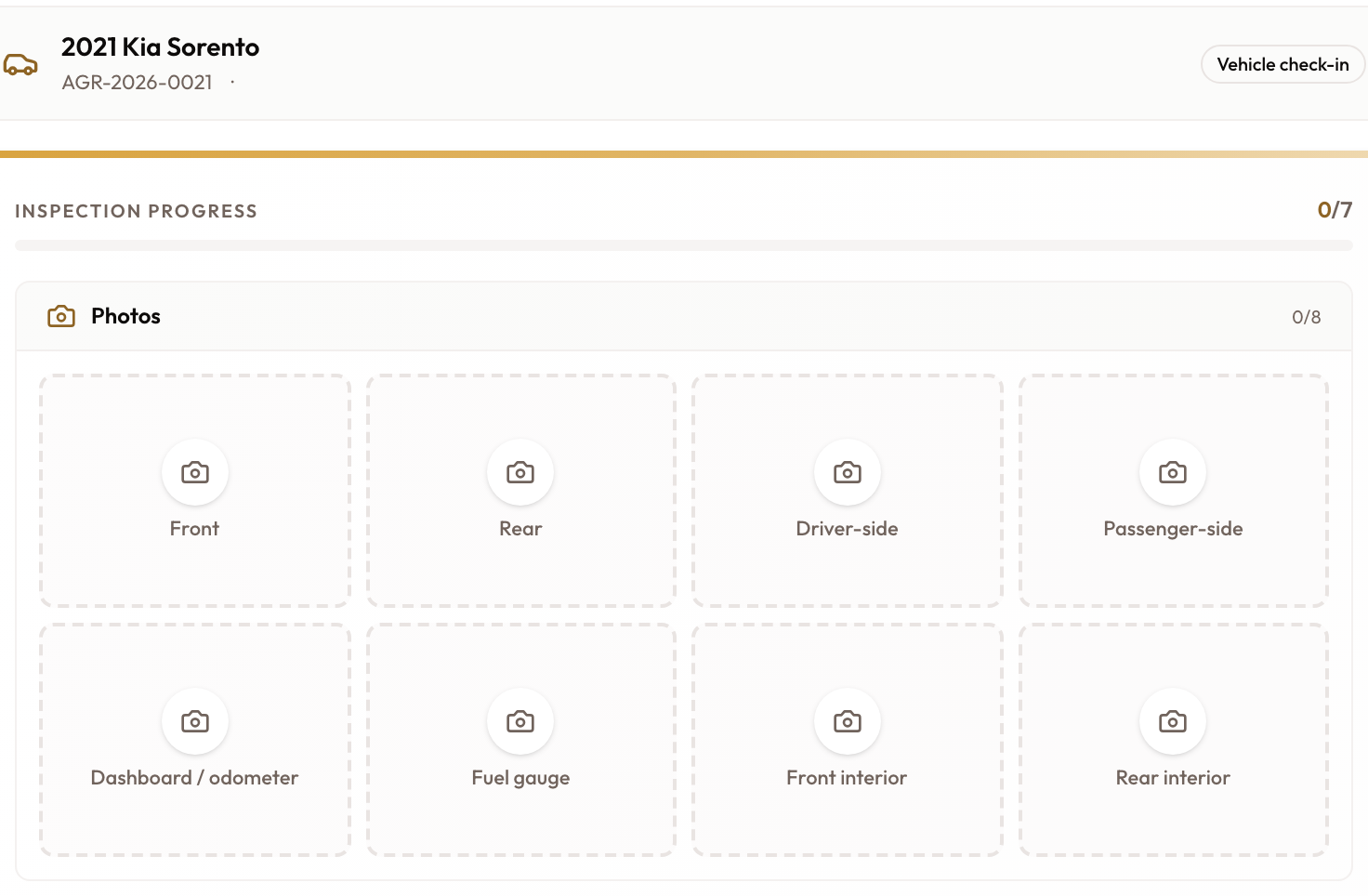
The return inspection: photos and any damage.
Set the return time and complete
Set Vehicle returned at, then click Complete check-in. Close Agreement becomes available. If the car came back before the end date, the agreement says it is ready to be closed early.
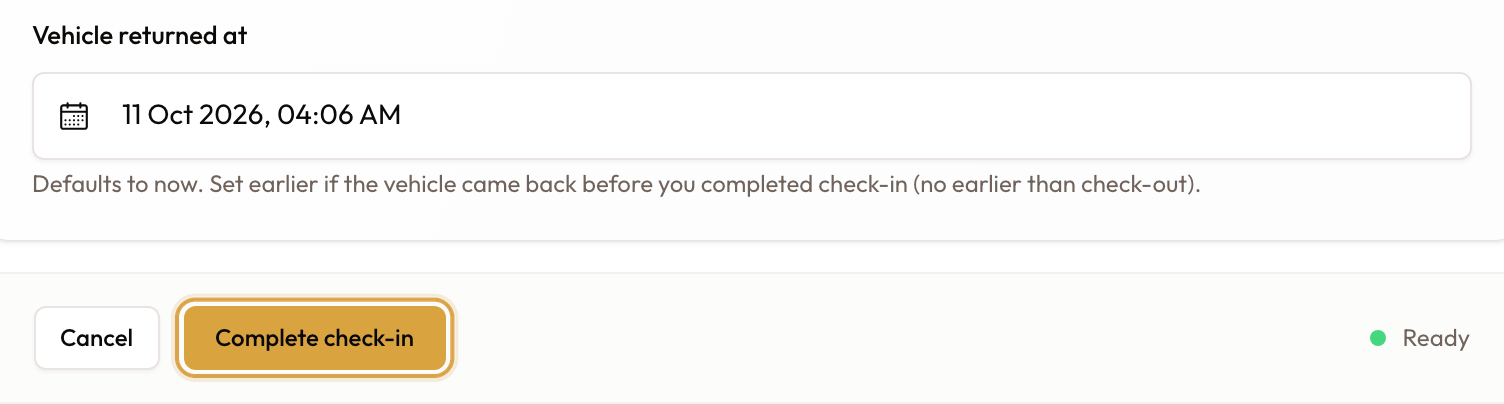
Set Vehicle returned at, then click Complete check-in.
Details: Vehicle Check-In & Return Inspection.
Check-in leaves the schedule as it is. When the car comes back during the last month, end that month on the return day: Edit rate on its row, then Car returned early — shorten this period, priced per day. For any other months you are not charging for, untick them when you close.
6. Close the agreement
Check for late tolls and fines
Click Close Agreement, then Check for new tolls & fines. Fines can arrive up to two weeks after the return.
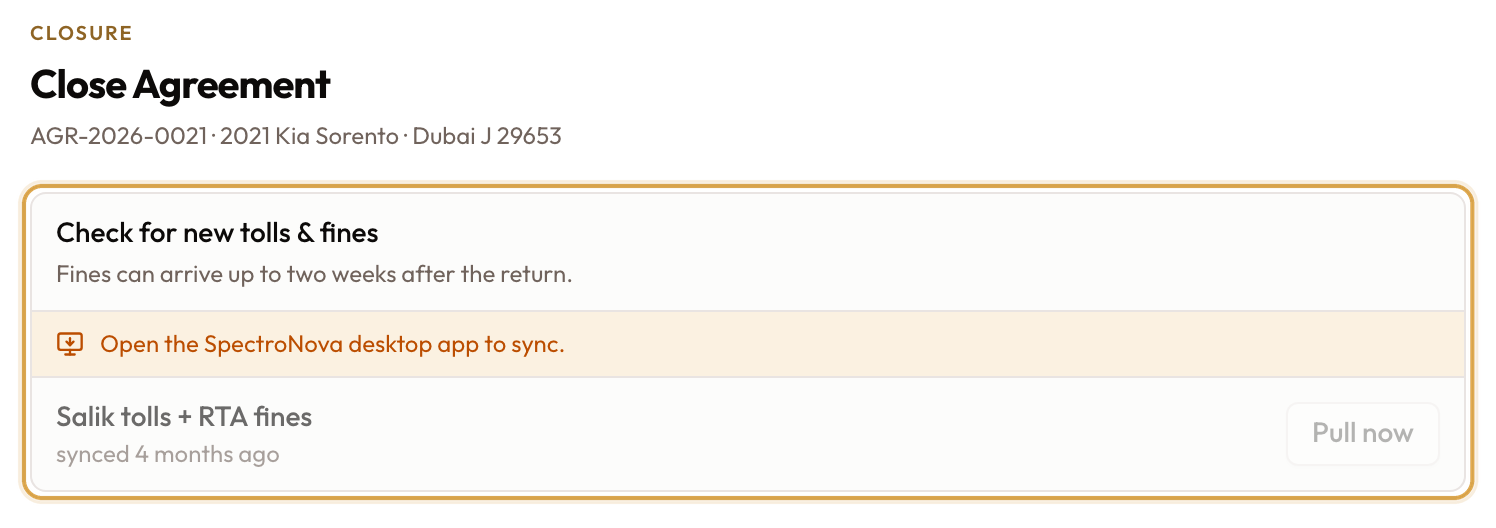
Run Check for new tolls & fines before you close.
Untick the months you are not charging for
Not billed yet lists every month without an invoice under Rental, one line per month by its dates, plus any items and tolls. On a monthly rental this includes months after the return date, and everything is ticked. Click Edit, untick every month you are not charging for, and check the total.
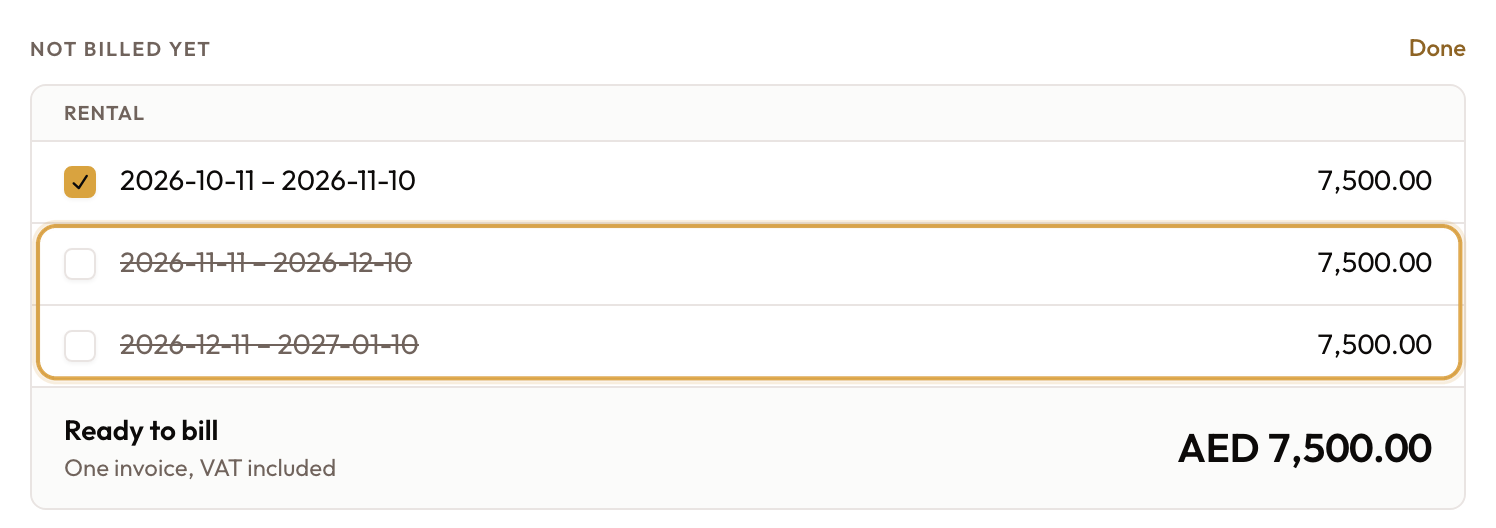
Untick the months you are not charging for. The total updates.
Bill, then close
Free {vehicle} for the next rental is ticked by default, so the car goes back into the fleet as soon as the agreement closes. Untick it if the car needs work before its next rental, and release it later with Release Vehicle in the closed agreement's sidebar, or Release on the Not released yet line shown on the agreement, the vehicle page and the fleet calendar. The deposit stays held: closing never returns it.
- Bill and close raises one invoice for what is ticked, then closes.
- Close without billing closes with nothing invoiced.
Confirm with Yes, close agreement, and the agreement is Closed.
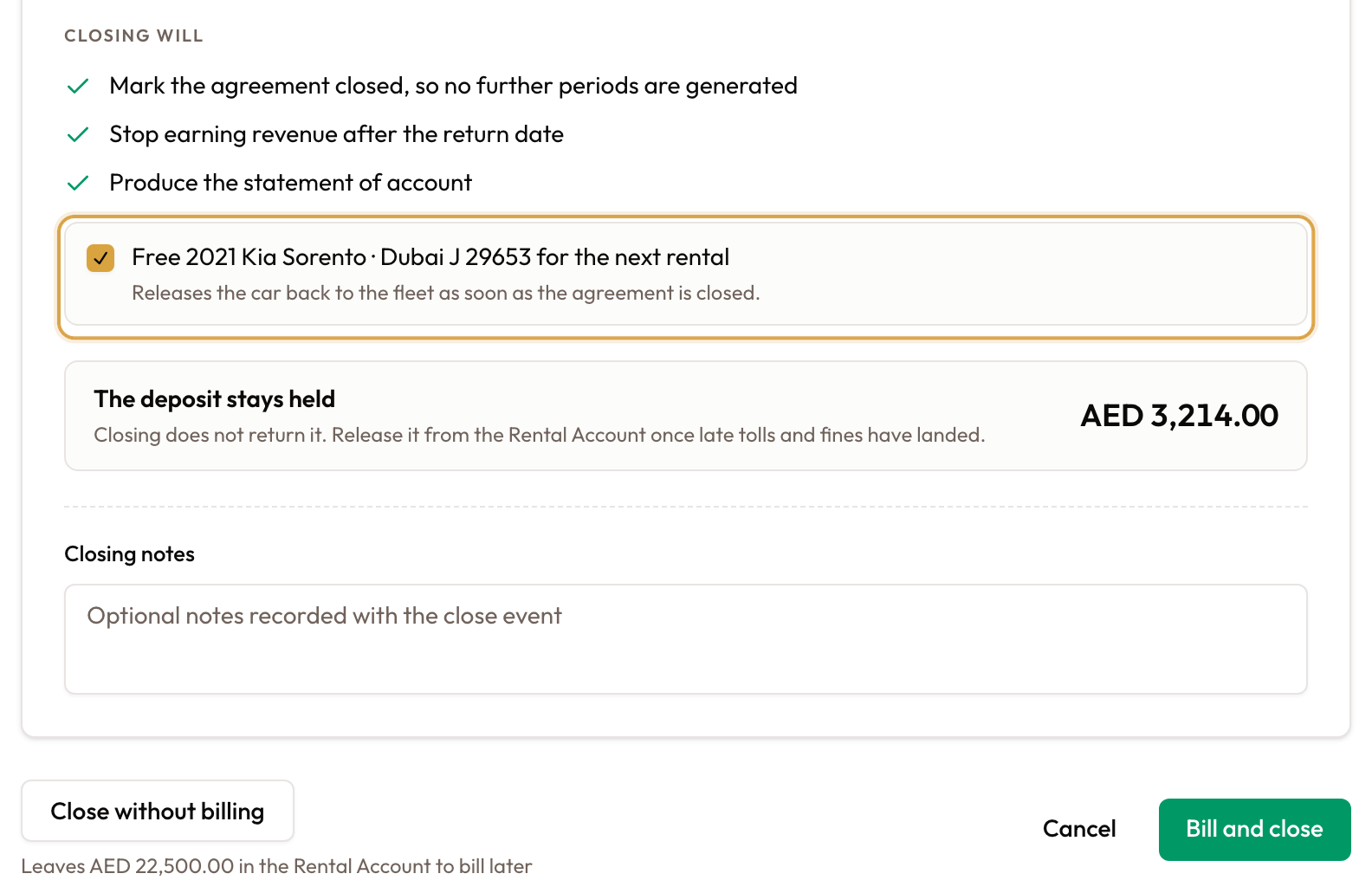
Leave Free … for the next rental ticked unless the car needs work, then bill and close.
Months left unbilled can still be billed after the close. On a closed monthly rental, the first unbilled month in the Payment Schedule shows Bill, which opens Bill Rental with that month ticked. Months are billed in order.
Details: Closing an Agreement.
7. After closing
- Release the deposit. Once late tolls and fines have had time to arrive, click Release deposit on the Security Deposit card on the Overview tab. A deposit invoice that was never paid is voided automatically when you close.
- Late tolls and fines can still be billed from the Tolls and Fines tab, and Create Addon Invoice still works on a closed agreement.
- Months left unbilled are billed with Bill on the first unbilled month of the Payment Schedule.

Release the deposit from the Security Deposit card once late charges have landed.
Troubleshooting
| Situation | What to do |
|---|---|
| Billing Frequency says Single Invoice | The dates are shorter than a full month. Change the dates; the field can't be set by hand. |
| No invoice after checkout | Raise invoices automatically is off. Click Generate on the first row. |
| The second month wasn't invoiced | That's expected: later months are never raised automatically. Click Generate on the next row. |
| Generate is greyed out | An earlier month has no invoice yet. Generate that one first. |
| Generate is missing on every row | The agreement is closed. Use Bill on the first unbilled month. |
| Generating fails with a permission error | You need permission to create invoices. |
| Correct Rate is missing | A month has already been invoiced. Use Edit rate on the last month while it is unbilled, or void or credit the invoice. |
| There's no Add item | That's the short-term Rental Account. Use Create Addon Invoice. |
| Tolls aren't on the monthly invoice | They are never added automatically. Bill them from the Tolls and Fines tab. |
| Bill and close total is too big | Future months are ticked. Click Edit and untick them. |
| Close Agreement is missing | Check the vehicle in first. |
| The car isn't available after closing | Free {vehicle} for the next rental was unticked. Click Release Vehicle in the closed agreement's sidebar. |
Short-Term Rental Workflow
A short-term rental from start to finish: create, sign, hand over, bill from the Rental Account, check in, close, free the car and release the deposit.
Creating a New Agreement
Build a rental or lease agreement from scratch — vehicle, customer, duration, pricing, and add-ons.