

Vehicle Check-In & Return Inspection
Record the vehicle coming back — inspection, condition, non-rental time, signature and return time. Closing happens afterwards.
Check-in is what you do when the customer brings the vehicle back. You record its condition, decide whether it needs time off the fleet before it can go out again, capture the customer's signature, and set when it actually came back.
Check-in is not closing the agreement. It records the return and moves the vehicle to maintenance. Closing the agreement — and billing anything still unbilled — comes afterwards.
Before you start
- The agreement is Active or Expired.
- The vehicle has been checked out, and has not already been checked in.
- You have permission to update agreements.
No check-in option in the sidebar? Either the vehicle was never checked out, or check-in is already done. On a monthly agreement the metric cards will tell you which — Awaiting vehicle return means checkout is complete and you can go ahead. A short-term rental has no metric cards (its Overview leads with the Rental Account), so go by the sidebar.
Checking the vehicle in
Start the check-in
On the agreement, in the sidebar under Workflow Actions, select Vehicle check-in.
An expired agreement also shows an amber banner — "Vehicle has not been returned. Complete check-in to release the car back to inventory and close this agreement." — with a Do check-in button. Both routes lead to the same page.
Photograph the vehicle
The inspection form is built from your workspace's active checklist template, and an Inspection Progress counter at the top tracks the required items.
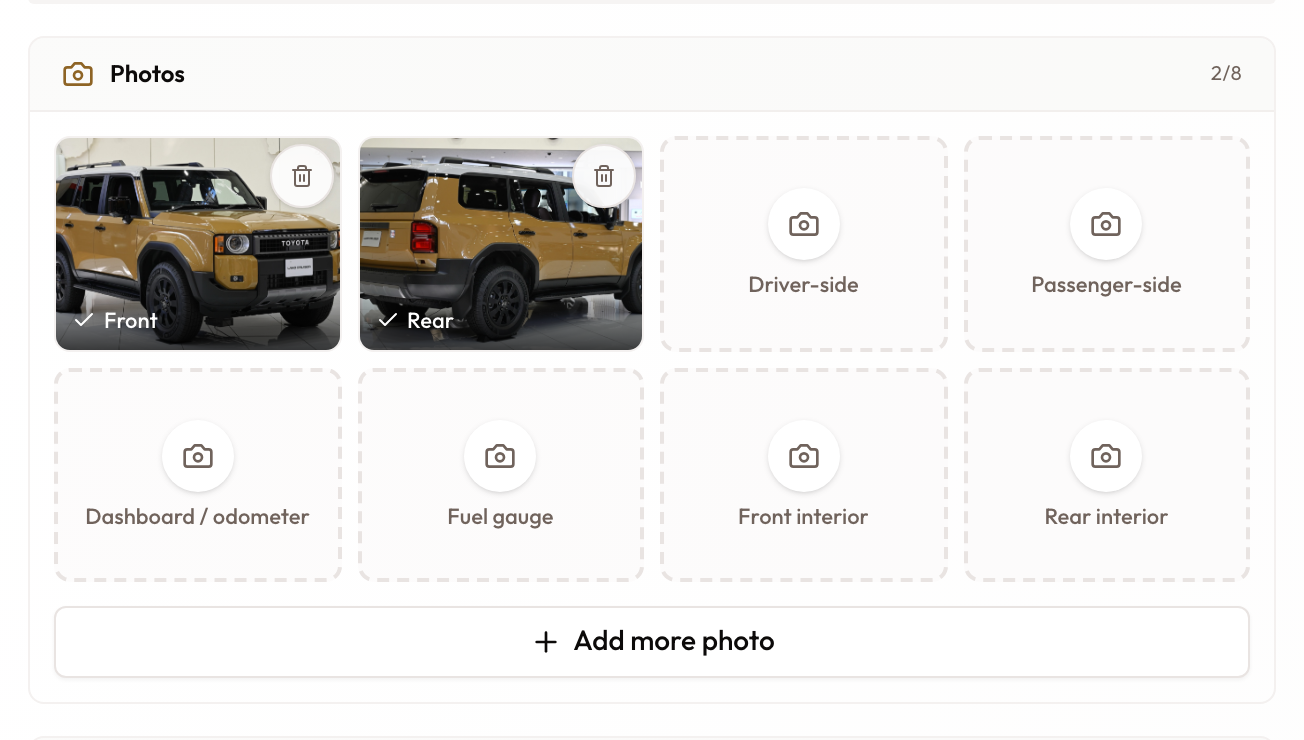
Each photo section shows one camera button per required angle. Capture Photo takes a picture, Upload from Gallery picks an existing one, and Retake replaces a bad shot.
For a shot the template doesn't list, tap Add more photo under the grid, type a Photo label (for example Roof or Spare tyre), and tap Take photo. The label is kept with this inspection only.
If your workspace sets a Check-In photo minimum (Settings → Inspection Templates → Minimum Required Photos), the section header shows … of … minimum, and Complete check-in stays disabled until it is met. Extra photos count toward it.
These photos are the evidence in a damage dispute. Shoot every required angle properly — a vehicle returned with damage you cannot show wasn't there at handover is a cost you absorb.
Log any damage
Add damage opens an entry for each piece of damage found: Type (dent, scratch, scuff, crack or other), Severity (minor, moderate or major), Location, Description, and at least one photo — the photo is required before the entry can be saved.
Work through the checklist
Sections come from your template — mileage and fuel, functional checks, and so on. Items are rated, marked pass or fail, or filled in with a value.
A mileage reading shows the last recorded figure beneath it, and cannot go backwards: enter something lower and it is refused.
Set the overall condition
Pick one of Excellent, Good, Fair, Poor or Damaged. This is required.
Decide on non-rental time
Requires Non-Rental Time? asks whether the vehicle needs time off the fleet before it can be rented again. Answer Yes and you also give the NRT Type — cleaning, repair, maintenance or repositioning — an estimated duration in hours, and notes describing the work.
Capture the signature
If your template asks for one, the customer signs on the device. Once captured it shows as Signed, with the signer's name.
If the customer is not there, tick Customer not present (no-show) and fill in the No-show reason.
The no-show reason is required. It blocks submission the same way any other missing field does. Skipping the signature is allowed — an after-hours key drop is a real thing — but it has to be explained. An unexplained gap here is exactly the record you would want in a dispute, and it would read "no signature, no reason given".
Looking for the handover checkboxes? The old customer-orientation, keys and documents checkboxes were removed. They blocked the button but were never stored, so there was nothing to point at in a dispute. If you want those prompts, add them as checklist items on your inspection template — those responses are recorded.
Set when the vehicle actually came back
Vehicle returned at defaults to now. If the vehicle came back this morning and you are doing the paperwork this afternoon, set it back — you can go as far as the checkout time, no further.
This time drives toll and fine attribution. Leaving it at "now" when the vehicle came back hours earlier attributes charges to the renter that they did not incur.
Submit
The footer shows Ready when everything required is done, or Complete all required items with a list of what is still missing.
Select Complete check-in. A Vehicle checked in confirmation appears and you land back on the agreement.
What happens next
- The vehicle moves to maintenance status and is off the available fleet until cleared.
- The agreement shows a green banner offering Close Agreement — either because the term ended, or because the vehicle came back early.
- A car that came back early can be charged to the return day: shorten the last unbilled period with Edit rate. On a short-term rental it is in the Rental Account; see Edit rate. On a monthly agreement it is on the last period of the Payment Schedule, priced per day; see Correcting a Wrong Rate.
- The Vehicle tab now shows checkout and check-in inspections side by side.
- Check-in documents go to the customer automatically, and Resend check-in documents appears in the sidebar.
The toll and fine check is not part of check-in. It is the first panel of the close screen, Check for new tolls & fines, with a sync for each provider — Salik, RTA and Darb. Fines can arrive up to two weeks after the return. From there you Bill and close or Close without billing; see Closing an Agreement.
Marked the vehicle for non-rental time? When you close, untick Free {vehicle} for the next rental. It is ticked by default, and releasing the vehicle from the close screen treats the non-rental time as done.
When something looks wrong
| What you see | What it means |
|---|---|
| Vehicle check-in is not in the sidebar | The vehicle was never checked out, or check-in is already complete |
| "This agreement is not eligible for check-in" | The agreement is not Active or Expired |
| "Vehicle check-in is already complete for this agreement" | It has been done — you are redirected back |
| A mileage reading is refused | It is below the last recorded figure. Odometers do not run backwards; re-read it |
| Complete check-in stays disabled | Something required is missing. The footer lists what |
| The no-show reason will not let you submit | It is required whenever you tick Customer not present |
| "Only image files are allowed" / "Image must be smaller than 10MB" | The photo is the wrong type or too large |
| A damage entry will not save | Each one needs at least one photo |
| "Please upload at least … photos before completing Check-In (… so far)." | Your workspace sets a Check-In photo minimum. Add photos, using Add more photo if the template's angles are not enough |
What to read next
- Vehicle Checkout & Handover Inspection — the other half of the pair, when the vehicle goes out
- Modifying an Active Agreement — what can still be changed while the agreement runs
- Closing an Agreement — the step after this one: check for late tolls and fines, then bill and close or close without billing
- Viewing Agreement Details & Timeline — where the return appears afterwards
Vehicle Replacement Mid-Agreement
Swap the vehicle on a running agreement — temporarily or permanently — and bring the original back when the swap was temporary.
Closing an Agreement
End a rental: check for late tolls and fines, bill what is left or leave it for later, free the vehicle, and keep the deposit until you release it.