

Vehicle Replacement Mid-Agreement
Swap the vehicle on a running agreement — temporarily or permanently — and bring the original back when the swap was temporary.
A vehicle breaks down, goes in for service, or the customer asks for something different. Replacing the vehicle keeps the agreement running and swaps what is underneath it — either temporarily, with the original coming back later, or permanently.
Both vehicles are inspected as part of the swap, so the condition of each is on record at the moment it changed hands.
Before you start
- The agreement is Active.
- The vehicle has not been checked in. Once a check-in is complete, the replacement route closes.
- You have permission to update agreements.
- The replacement vehicle is marked available in the fleet.
Replacing the vehicle
Open Replace Vehicle
On the agreement detail page, in the sidebar under Workflow Actions, select Replace Vehicle.
A badge near the heading will read Inspection Required or Inspection Optional once you pick a reason — which of the two depends on the reason itself.
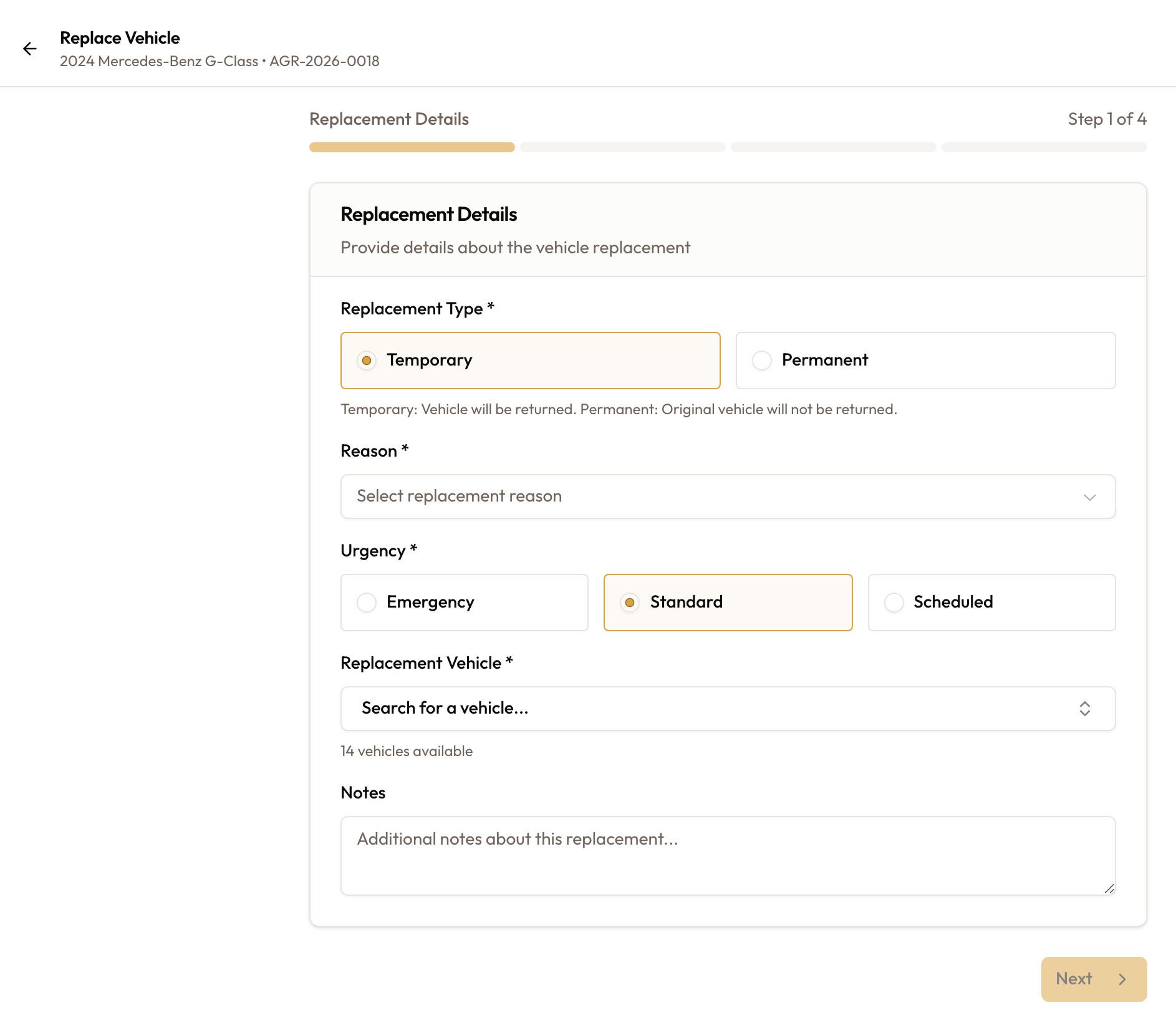
Describe the replacement
Under Replacement Details:
- Replacement Type — Temporary if the original is coming back, Permanent if it is not.
- Reason — Breakdown, Accident, Scheduled Maintenance, Customer Request, or Upgrade.
- Urgency — Emergency, Standard, or Scheduled.
- Replacement Vehicle — search the fleet. Only vehicles marked available appear.
- Notes — optional.
Accident and Customer Request make inspections mandatory. For those two reasons you will see "vehicle inspections are required for documentation and compliance. You cannot skip these inspections." Every other reason lets you skip them, and a Skip Inspections button appears beside Next.
Inspect the vehicle going back
Skipped if you chose to skip inspections.
Inspect Original Vehicle documents the condition of the vehicle being replaced. This is a check-in style inspection, so it includes the non-rental time section and has no handover checklist or signature.
Inspect the vehicle going out
Also skipped if inspections were skipped.
Inspect Replacement Vehicle is a handover-style inspection, so alongside mileage, photos and damage it captures the customer's signature.
The two inspections are deliberately different. One records what came back; the other records what went out, and it is the signature on this second one that ties the customer to the replacement vehicle's condition.
Looking for the handover checkboxes? The old customer-orientation, keys and documents checkboxes were removed. They blocked the button but were never stored, so there was nothing to point at in a dispute. If you want those prompts, add them as checklist items on your inspection template — those responses are recorded.
If the customer is not present, tick Customer not present (no-show) and give a No-show reason. The reason is required — it blocks submission the same way any other missing field does.
Review and complete
Review & Confirm shows the replacement details, the original vehicle, and the inspections — or a Skipped badge where they were skipped.
Select Complete Replacement. A success message confirms the swap, and Return to Agreement takes you back.
Bringing the original back
Only for a temporary replacement. Once one is active, the sidebar carries a second action.
Open Return to Original Vehicle
In the sidebar under Workflow Actions, select Return to Original Vehicle. It appears only while a temporary replacement is active.
Return Details summarises the swap — which vehicle replaced which, when, and why — and takes optional Return Notes.
Inspect the replacement coming back (required)
Inspect Replacement Vehicle carries a Required badge. This one cannot be skipped: it is the record of the condition the replacement came back in.
Inspect the original going out (optional)
Inspect Original Vehicle carries an Optional badge, and a Skip original vehicle inspection checkbox.
Skip it and you must still enter a Mileage Reading, which cannot be below the previous recorded figure. Leave it unchecked and you get the full handover inspection, signature included.
Review and complete
Review & Confirm shows what is returning to what, and the inspection results. Select Complete Return.
When something looks wrong
| What you see | What it means |
|---|---|
| Replace Vehicle is not in the sidebar | The agreement is not Active, the vehicle has already been checked in, or your role cannot update agreements |
| Return to Original Vehicle is not in the sidebar | There is no active temporary replacement. A permanent swap has no return |
| "No vehicles with 'available' status found" | Nothing in the fleet is marked available. Free one up, or change its status |
| "This vehicle was just assigned to another agreement" | Someone took it between your search and your confirmation. The wizard returns to the first step so you can pick another |
| "Reading cannot be below the previous recorded mileage" | The mileage entered when skipping the original's inspection is lower than the last reading on file |
| An upgrade prompt instead of the wizard | Vehicle replacement is not included on your plan |
What to read next
- Modifying an Active Agreement — what else can be changed once an agreement is running
- Viewing Agreement Details & Timeline — where the swap and its adjustment invoice appear afterwards
Extending Agreement Duration
Move the end date, decide what the extra period is billed at, and confirm — whether an invoice is raised and sent follows your billing settings.
Vehicle Check-In & Return Inspection
Record the vehicle coming back — inspection, condition, non-rental time, signature and return time. Closing happens afterwards.