

Correcting a Wrong Rate Before Billing
Fix a wrong rate: Edit rate on an unbilled short-term period or on a monthly agreement's last unbilled period, Void & Reissue once it is billed, Correct Rate while nothing is invoiced, or a void or credit note.
An agreement is active, the vehicle has gone out, and the rate on it is wrong — a daily figure typed into a box that was pricing per week, or a tax-inclusive number entered as though it were net. Which tool fixes it depends on two things: what kind of agreement it is, and whether the wrong figure has been invoiced.
Which fix applies
Short-term rentals bill as a Single Invoice — rentals priced by the hour, day or week, plus every express walk-up and public booking. They have a Rental Account at the top of the Overview tab. Monthly agreements — leases and rentals priced at the monthly rate — keep the payment schedule. See Viewing Agreement Details & Timeline if you're not sure which one you have.
| Agreement | The wrong rate is… | Fix |
|---|---|---|
| Short-term | on a period that is not yet billed | Edit rate on that period in the Rental Account |
| Short-term | on a period that is already invoiced | Void the invoice, then Edit rate |
| Monthly | and nothing on the agreement is invoiced | Correct Rate in the sidebar |
| Monthly | on the last period, still unbilled, or the car came back early | Edit rate on that period in the Payment Schedule |
| Monthly | and an invoice has been raised | Void the invoice or issue a credit note |
On a short-term rental where nothing at all has been invoiced, Correct Rate also appears in the sidebar and re-prices the whole rental, and it can fix a wrong end date at the same time. Edit rate is the lighter tool — it changes only the periods you choose.
Short-term rental: Edit rate
Use this while the period is still in the Rental Account's Not yet billed list. It works on Active, Expired, Closed and Terminated short-term rentals, and you need permission to update agreements.
Open Edit Rate on the period
On the agreement's Overview tab, in the Not yet billed list, find the Rental or Extension row with the wrong amount and select Edit rate. Every unbilled period has it.
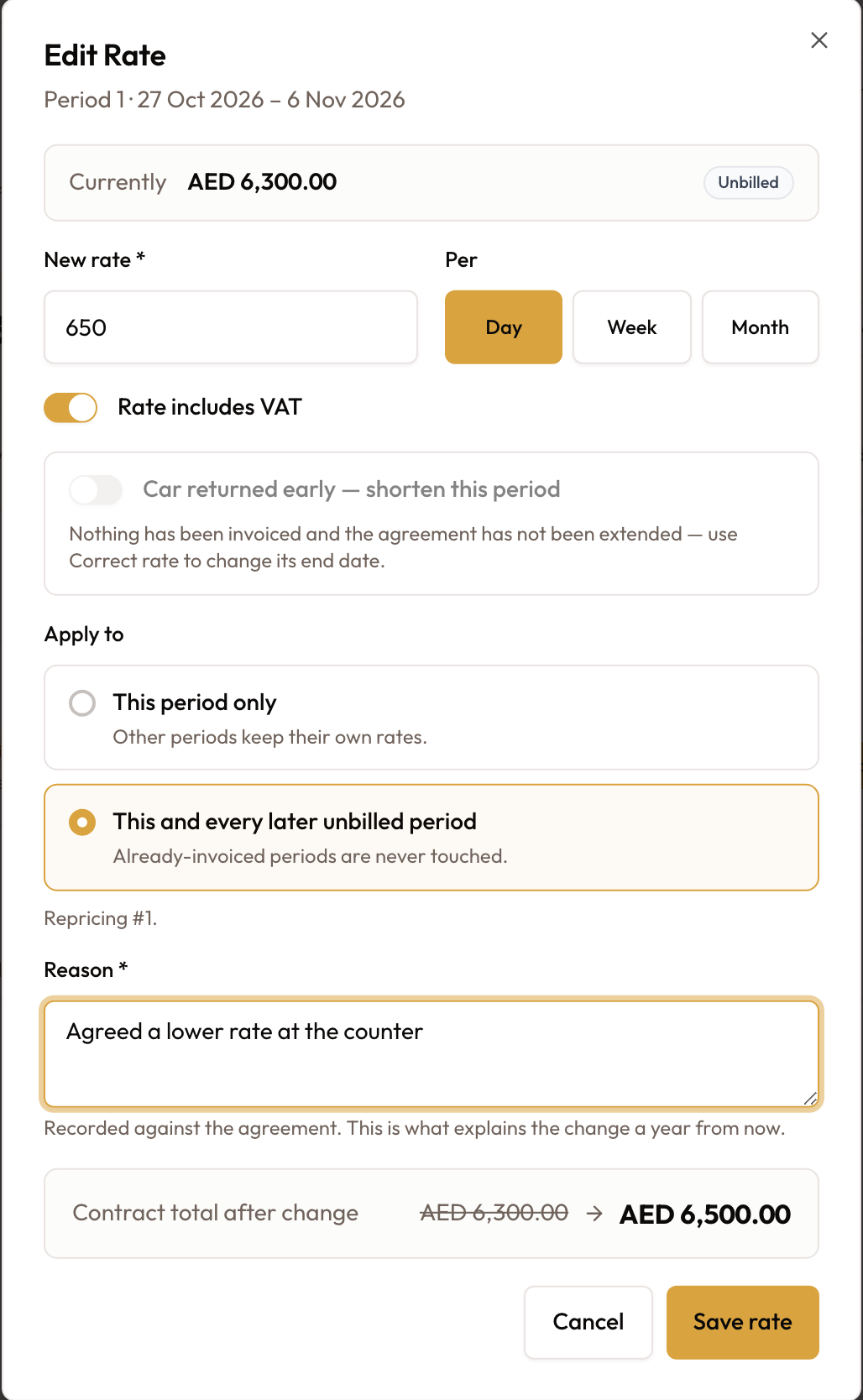
The Edit Rate dialog opens for that period. It shows the period's number and dates, what it costs Currently, and an Unbilled badge.
Enter the new rate
Type the figure in New rate and choose its unit under Per — Day, Week or Month (it starts on Day). Each period is priced from its own length. Rate includes VAT starts on, for the all-in price the customer pays. Turn it off if the figure is a rate before VAT.
Choose which periods it applies to
Under Apply to:
- This period only (the default) — other periods keep their own rates.
- This and every later unbilled period — already-invoiced periods are never touched.
A line below lists the periods being re-priced, for example "Repricing #2, #3."
Give a reason and save
Reason is required and is recorded against the agreement. Check the box at the bottom of the dialog, then select Save rate. It shows:
- Period with its number (for example Period 2): the period's price now, struck through, and its new price
- the period's dates and days, shown as
{start} → {end} · {days} days - Contract total: the old total, struck through, and the new one
A "Rate updated on … period(s)" message confirms it, and the Rental Account shows the new amounts. Nothing is voided and no credit note is issued.
Short-term rental: the period is already invoiced
An invoiced period can't be edited in place. Void its invoice first — that puts the period back in Not yet billed — then edit the rate. You need permission to void invoices.
Open Void & Reissue
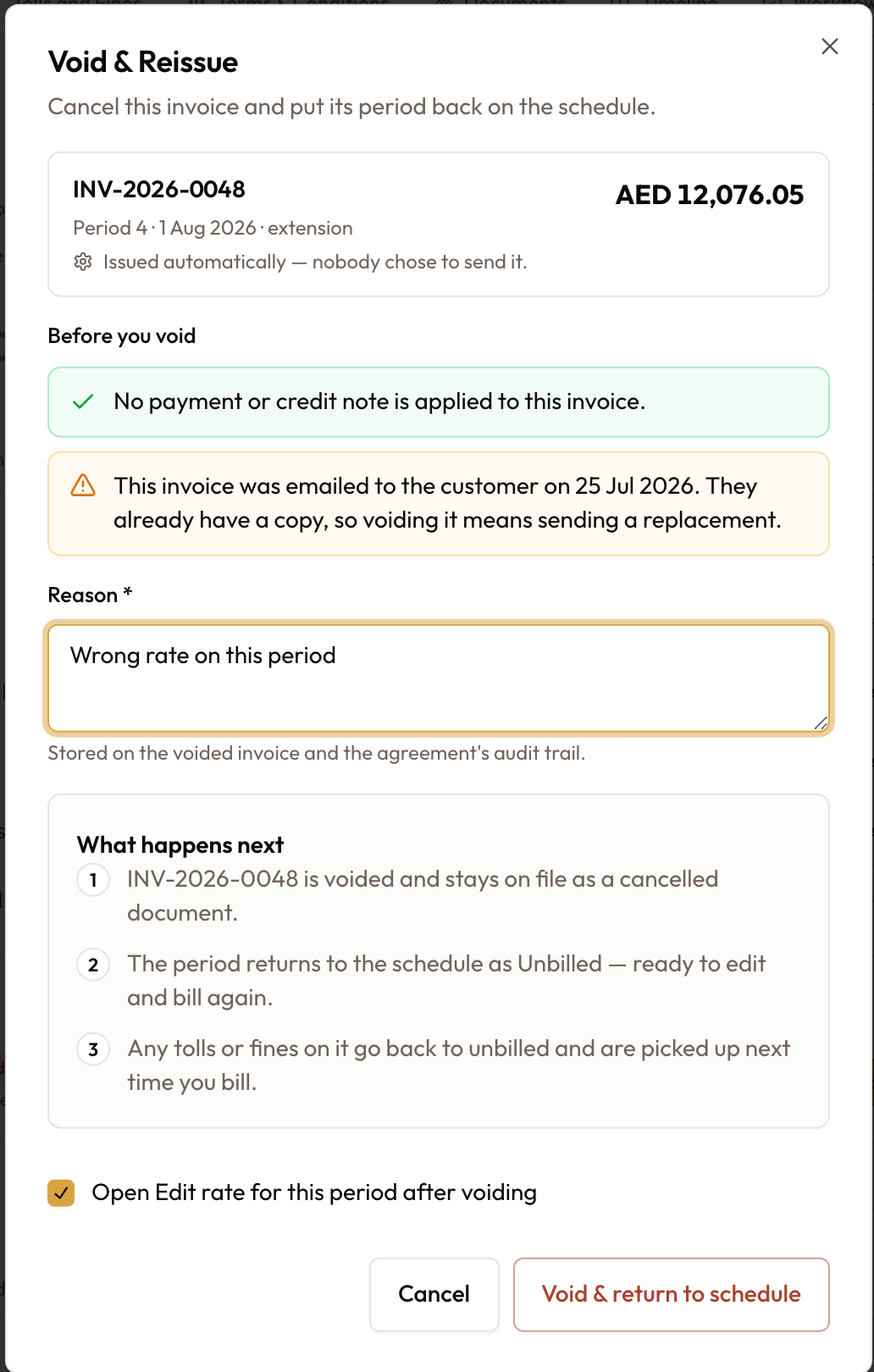
In the Rental Account's Invoices list, select Void on the invoice row. The Void & Reissue dialog opens, showing the period the invoice covers and whether it was issued automatically or created by hand.
Check what will happen
Before you void confirms no payment or credit note is applied, and warns if the invoice was already emailed to the customer. Enter a Reason.
What happens next lists the outcome: the invoice is voided and stays on file as a cancelled document, the period returns to the schedule as Unbilled, and any tolls or fines on the invoice go back to unbilled.
Void and edit the rate
Leave Open Edit rate for this period after voiding ticked (it is on by default) and select Void & return to schedule. The Edit Rate dialog opens for the period — follow Edit rate above, then bill the period again with Bill this period or Bill rental.
If the customer has paid, the invoice can't be voided. The dialog says "This invoice has been paid, so it cannot be cancelled." Choose Issue a credit note — the invoice stands and a credit note reverses what was wrong — or Unlink the payment first, only if the payment was applied to the wrong invoice. See Creating Credit Notes & Deposit Refunds.
Monthly agreement: Edit rate on the last period
A monthly agreement's Payment Schedule shows Edit rate on its last period while that period has no invoice. Use it to re-price the last month, or to end it on the day the car came back. It works on the same statuses as on a short-term rental, and you need permission to update agreements.
Open Edit Rate on the last period
On the agreement's Overview tab, in the Payment Schedule, select Edit rate on the last row. The Edit Rate dialog opens for that period.
Enter the new daily rate
Type the figure in New rate. The last month is priced per day, so Per stays on Day: the period costs the daily rate times its days. Rate includes VAT starts on; turn it off for a rate before VAT.
If the car came back early, shorten the month
After check-in, turn on Car returned early — shorten this period and pick Period ends on (return day). The last month is charged for the days the car was out, and the agreement's end date moves to match. When the switch is greyed out, the reason is shown beneath it.
For example, a car on a three-month agreement comes back on day 12 of month 3: Edit rate on period 3, shorten it to the return day, and enter the daily rate. The dialog shows the shortened dates and the number of days charged.
Give a reason and save
Enter the Reason and check the box at the bottom: Period 3 (or the period's number) old and new price, the new dates and days, and the Contract total. Select Save rate. The new amount shows on the schedule row, ready to bill.
The change applies to that period, and earlier invoiced months keep their amounts. After Edit rate, use it again for a further change to the last period; Correct Rate leaves the sidebar.
Nothing invoiced yet: Correct Rate
Correct Rate re-prices the whole agreement and rebuilds its payment schedule. Use it while nothing on the agreement has been invoiced. It can also fix a wrong end date or mileage limit in the same step.
Before you start
You need:
- An agreement in Active or Expired status.
- Permission to update agreements.
- Nothing invoiced yet. Every entry on the payment schedule is still without an invoice. (A security-deposit invoice doesn't count.)
- The agreement as it was created: not extended, and no Edit rate on any period. After either of those, use Edit rate on the period instead.
- Any temporary replacement vehicle returned first.
- To know which unit the rate was agreed in — per day, per week, or per month.
"Unbilled" is about invoices, not status. An Active agreement can be on either side of that line, and Correct Rate leaves the sidebar the moment the first invoice is raised.
Open Correct Rate
Open the agreement, and in the sidebar under Agreement Management select Correct Rate. The Correct the rate dialog opens.
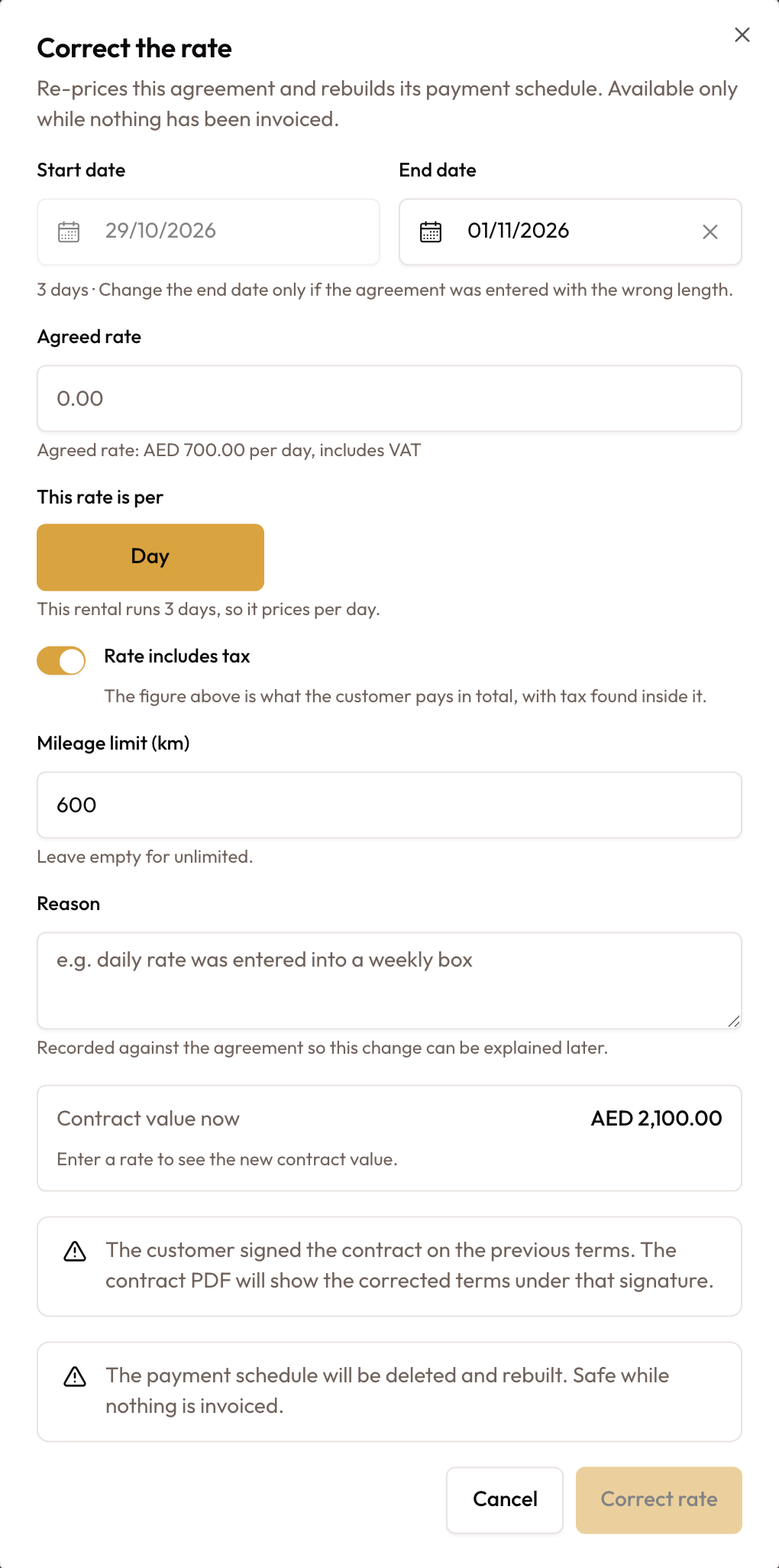
The Correct the rate dialog: Start date and End date, Agreed rate with the current agreed rate below it, the This rate is per unit buttons, Rate includes tax, Mileage limit (km), Reason, and the contract-value preview.
Check the dates
Start date shows the agreement's start for reference. End date shows its current end, and a line below gives the rental's length in days.
Change the end date only if the agreement was entered with the wrong length. The rental's length decides which units the rate can be in, so the unit buttons follow the end date. On a lease, keep the end date as it is.
Enter the agreed rate
In Agreed rate, type the figure that was actually agreed with the customer. The field starts empty; the line below it shows the rate on the agreement now, for example "Agreed rate: 200.00 per day, includes VAT".
Choose the unit
This rate is per shows the units this rental can be priced in. It starts on the unit the agreement is charged in today. A hint below tells you what the rental is: "This rental runs {days} days, so it prices per {unit}."
| The rental prices on | Units offered |
|---|---|
| Daily | Day |
| Weekly | Day, Week |
| Monthly (and leases) | Month |
Day works on a weekly rental too. A weekly rental takes a per-day rate; a monthly one is priced per month.
Set the tax treatment
Rate includes tax starts on how this agreement's rates are stored now. Turn it on when the figure you entered is the all-in amount the customer pays, with tax inside it. Turn it off when the rate is net and tax goes on top.
Check the mileage limit
Mileage limit (km) shows the agreement's limit. Leave it empty for unlimited. If you changed the end date, a shortcut may offer the standard limit for the new length: Use {km} km (standard for {days} days).
Give a reason
Reason is required, and is recorded against the agreement so the change can be explained later. The placeholder shows the shape expected: "e.g. daily rate was entered into a weekly box".
Check the preview, then save
The preview shows:
- Contract value now and Contract value after, with a Net + tax breakdown (and Includes add-ons when there are any).
- How it will be billed: "Billed as one invoice." or "Billed as {count} monthly invoices of {amount}."
- How much the contract value increases or decreases by.
- When leftover days are charged at the car's standard daily rate, an amber line says how many.
Below it, "The payment schedule will be deleted and rebuilt. Safe while nothing is invoiced." is always shown. Other notes appear when they apply:
| Note | When it shows |
|---|---|
| "This end date has passed. Bill and close the agreement as usual." | The end date is before today |
| "The car was checked in before this end date. Days after the return will be billed." | The car came back before the end date |
| "The customer signed the contract on the previous terms. The contract PDF will show the corrected terms under that signature." | The agreement is already signed |
Select Correct rate. It becomes available once the preview has priced your figures. A Rate corrected and payment schedule rebuilt confirmation appears and the agreement reloads with its new figures.
"Contract value" is not "what the customer owes". What is owed also counts payments, credit notes, refunds and write-offs. This preview moves the contract's value only.
What happens when you save
- The agreement is re-priced from the rate, the unit and the dates.
- The payment schedule is rebuilt to match, and the contract total is taken from it. On a short-term rental, the Rental Account's Rate line shows the new rate.
- A new end date is saved. If it changes the rental's length enough, the agreement moves between one invoice and monthly invoices. An Expired agreement whose new end date is today or later becomes Active again. A longer end date must be free on the vehicle's calendar.
- The mileage limit is saved if you changed it.
- The correction goes on the agreement's activity log — before and after figures, the rate and unit you entered, and your reason.
The deposit stays as it is. You can run Correct Rate again while nothing is invoiced.
Monthly agreement: already invoiced
Once an invoice exists, fix the rate on the invoice itself:
- Nothing has been paid against the invoice: open it and use Void Invoice. Any rental periods it billed return to unbilled on the agreement, ready to bill again. If that was the only invoice on the agreement, Correct Rate is offered again.
- The customer has paid, or other periods are invoiced too: issue a credit note against the invoice for the difference — see Creating Credit Notes & Deposit Refunds.
When it will not let you
| What you see | What it means |
|---|---|
| Correct Rate is not in the sidebar | An invoice has been raised, the agreement was extended or had a period's rate edited, a temporary replacement is out, or your role can't update agreements. On a short-term rental, use Edit rate on any period still unbilled |
| Edit rate is missing from a period | On a monthly agreement it is on the last period while that period has no invoice. Your role also needs permission to update agreements. Invoiced periods show Void on their invoice instead |
| "Cannot edit rate: a monthly period is re-priced per day — choose "per day"." | On a monthly agreement, enter the rate per day |
| Void is missing from an invoice row | The invoice is paid or already void, or your role can't void invoices |
| "Cannot edit rate: payment #… has already been invoiced…" | The period was billed between opening Edit Rate and saving |
| "…has already been invoiced. Correcting a billed agreement requires voiding the invoice or issuing a credit note." | An invoice was raised between opening the dialog and saving |
| "…has been extended or modified since activation… Use Edit rate on the period instead." | The agreement was extended or a period's rate was edited |
| "…a replacement vehicle is out on… Return the replacement first, then correct the agreement." | A temporary replacement vehicle is out |
| "…the vehicle is not available until… Choose an earlier end date." | The longer end date runs into another booking for the car |
| "…the end date of a lease cannot be changed here." | A different end date was entered on a lease |
| "…the end date must be after the start date…" | The end date is on or before the start date |
| "…changed while this correction was being prepared. Reopen it and try again." | Someone else changed the agreement while the dialog was open |
| "…status is '{status}'. Only active or expired agreements can be corrected." | The agreement is not Active or Expired |
| "Could not price this rate. Check the rate and unit, or try again." | The preview could not be worked out; Correct rate becomes available once it can |
| The Correct rate button stays greyed out | A rate, a unit or the reason is missing, or the preview is still calculating |
A rate of 0 is accepted — a courtesy vehicle or a goodwill period is a legitimate rate. A negative rate is not.
What to read next
- Modifying an Active Agreement — the map of what else can be changed once an agreement is running
- Security Deposits — the same idea applied to the deposit
- Viewing Agreement Details & Timeline — the Rental Account and the payment schedule
- Extending Agreement Duration — pricing an extension, as opposed to fixing the original rate
- Creating Credit Notes & Deposit Refunds — the route once an invoice has been paid
Modifying an Active Agreement
What you can change once an agreement is running, where each change lives, and why an action you expected is missing.
Extending Agreement Duration
Move the end date, decide what the extra period is billed at, and confirm — whether an invoice is raised and sent follows your billing settings.