

Viewing Agreement Details & Timeline
Read an agreement at a glance: the next action, the tabs, the Overview for monthly agreements and short-term rentals, the deposit, the timeline and the sidebar.
The agreement detail page in SpectroNova Express is where you check where an agreement stands and act on it. This page walks through it from top to bottom:
- the header and the WHAT'S NEXT? banner
- the tabs
- the Overview tab, which looks different for monthly agreements and short-term rentals
- the security deposit, credits & refunds
- the Workflow, Vehicle, Terms & Conditions, Documents and Timeline tabs
- the actions in the sidebar
Walking through the page
Open the agreement
Open Agreements and click any agreement. The header shows:
- the agreement number and a status dot
- the customer, the vehicle, and the start and end dates
On the right of the header:
- Edit appears only on a draft, and only if your role can update agreements.
- The ⋯ menu holds View Customer, View Vehicle (when a vehicle is assigned), Download Contract and Copy Agreement ID.
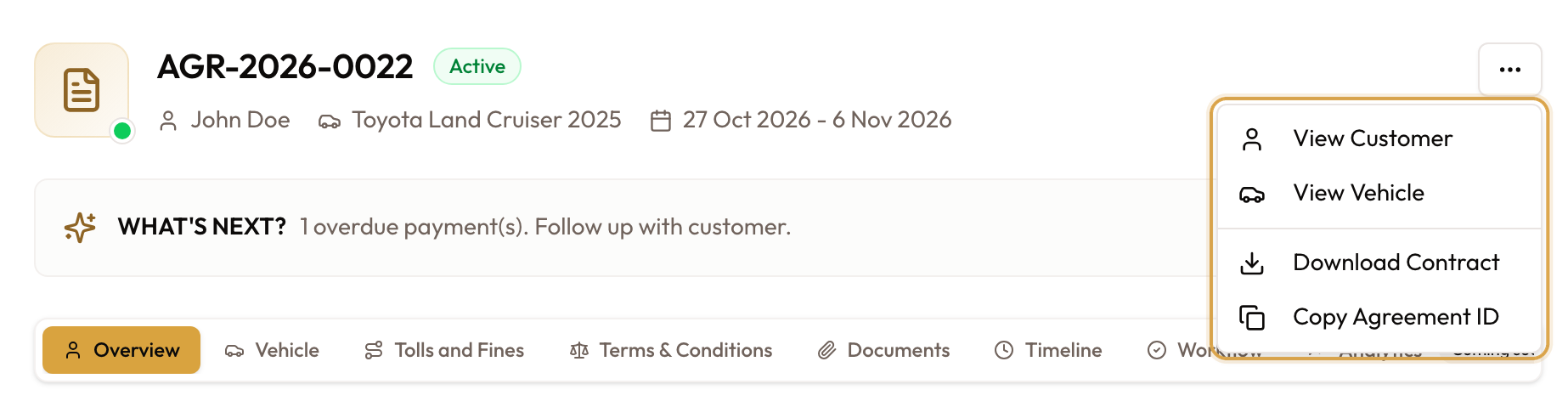
Read the WHAT'S NEXT? banner
A WHAT'S NEXT? banner sits above the tabs and names the next action for the agreement's status. Click its button to do it.
| Status | What it says | Button |
|---|---|---|
| Draft | "Review agreement terms and lock the document when ready for signature." | Lock & Prepare |
| Locked | "Document is locked and ready. Choose how the customer will sign." | Sign on Tablet |
| Awaiting signature | "Document is awaiting signature. Capture it now or open the workflow tab to choose method." | Sign on Tablet |
| Signed | "Customer signed! Complete vehicle checkout to activate the agreement." | Start Checkout |
| Pending checkout | "Agreement signed and ready. Complete vehicle checkout to activate." | Start Checkout |
| Active, with overdue payments | "{N} overdue payment(s). Follow up with customer." | View Overview |
An active agreement with nothing overdue hides the banner.
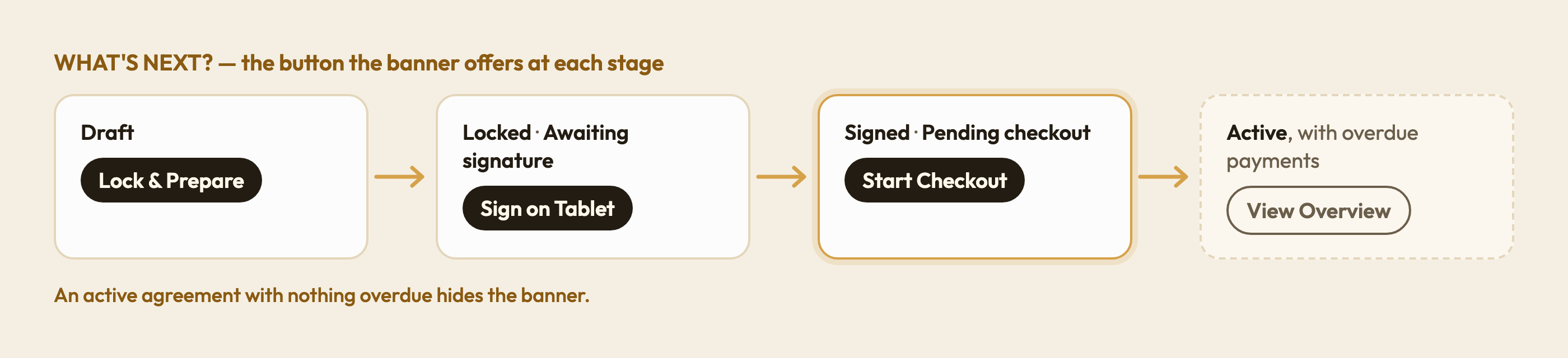

The WHAT'S NEXT? banner on an agreement awaiting checkout, with its Start Checkout button.
Near the end of a rental, two more banners can appear under it:
- Amber, when the end date has passed and the vehicle is not back: "Vehicle has not been returned. Complete check-in to release the car back to inventory and close this agreement." Click Do check-in.
- Green, when the agreement is ready to close, either because it reached its end date with the vehicle back, or because the vehicle came back early. Click Close Agreement. See Closing an Agreement.
Pick a tab
There are eight tabs. Their order changes with the agreement's stage:
- Draft and signing: Overview, Workflow, Vehicle, Tolls and Fines, Terms & Conditions, Documents, Timeline, Analytics.
- Active onwards (active, expired, closed, terminated): Overview, Vehicle, Tolls and Fines, Terms & Conditions, Documents, Timeline, Workflow, Analytics.
Tolls and Fines shows a crown when toll management is not on your plan. Analytics carries a Coming soon badge and has no content yet. On a phone, the tabs become a dropdown.

The tab bar on an active agreement.
Check which Overview you have
The Overview tab opens first. It has two layouts, and which one you get depends on how the agreement bills (see Agreement Types Explained):
| Short-term rental | Monthly agreement | |
|---|---|---|
| Billing Frequency | Single Invoice | Monthly |
| Leads with | Rental Account | Key Performance Metrics and Agreement Information |
| How it bills | One invoice for the rental, raised with Bill rental | One invoice per month, raised in order with Generate |
| Then | Security Deposit, Pricing Calculation, Credits & refunds | Pricing Calculation, Security Deposit, Payment Schedule, Addon Invoices, Credits & refunds |
Express walk-up rentals and bookings from your public booking site are always short-term.
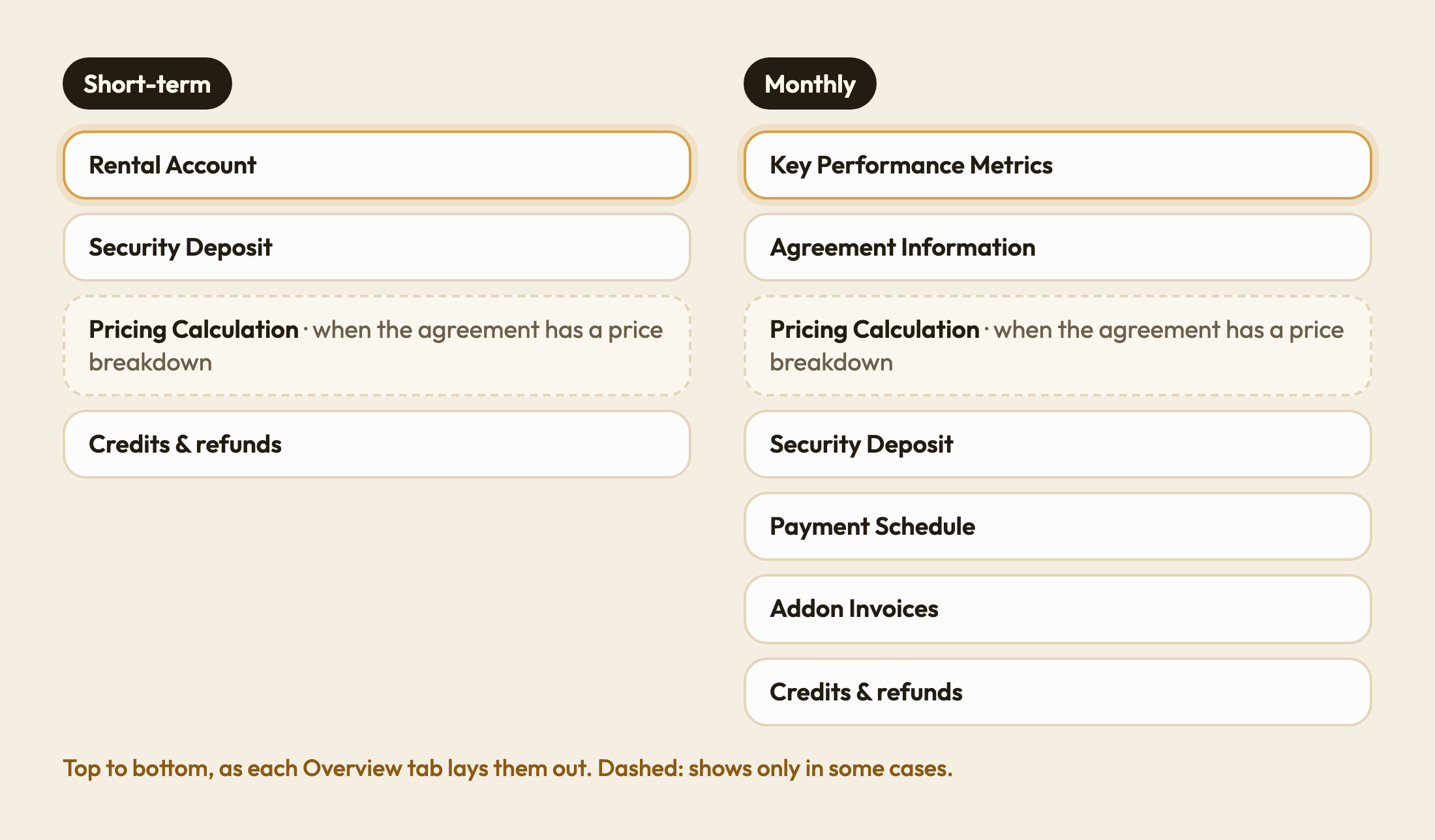
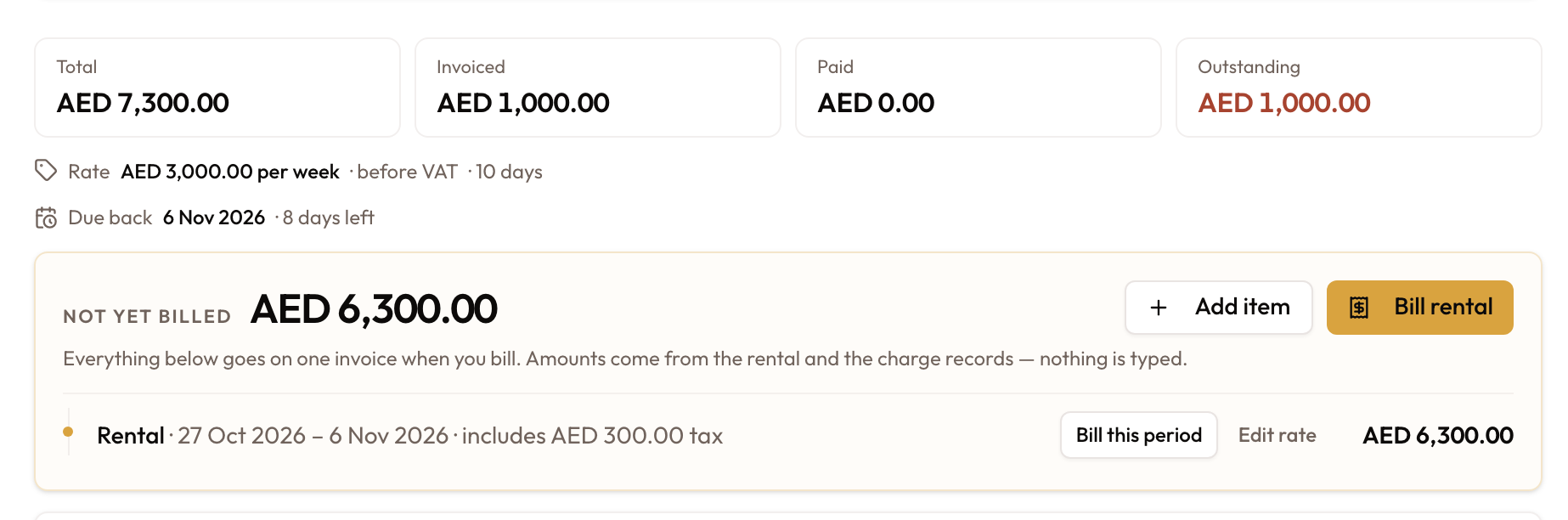
Short-term: read the Rental Account
A short-term rental opens on the Rental Account, which puts the rental's money in one place:
- Total, Net billed, Net received and Outstanding across the top. Net billed is the invoices less any credit notes, and Net received is the payments less any refunds. Outstanding turns red while anything is owed, and reads In credit, in green, when the customer is owed money back.
- Rate: the rate the rental is charged at, whether it includes VAT, and the number of days.
- Due back: the return date, with the days left or, in amber, the days overdue.
- Not yet billed: everything the rental has run up that is not on an invoice yet, such as rental periods, tolls, fines and items you added.
- Invoices: one row per invoice raised for the rental. View opens it.
You bill from here too: Bill rental, Add item, Bill this period and Edit rate. The Rental Account & Bill Rental covers each of them.
Monthly: read the metrics and Agreement Information
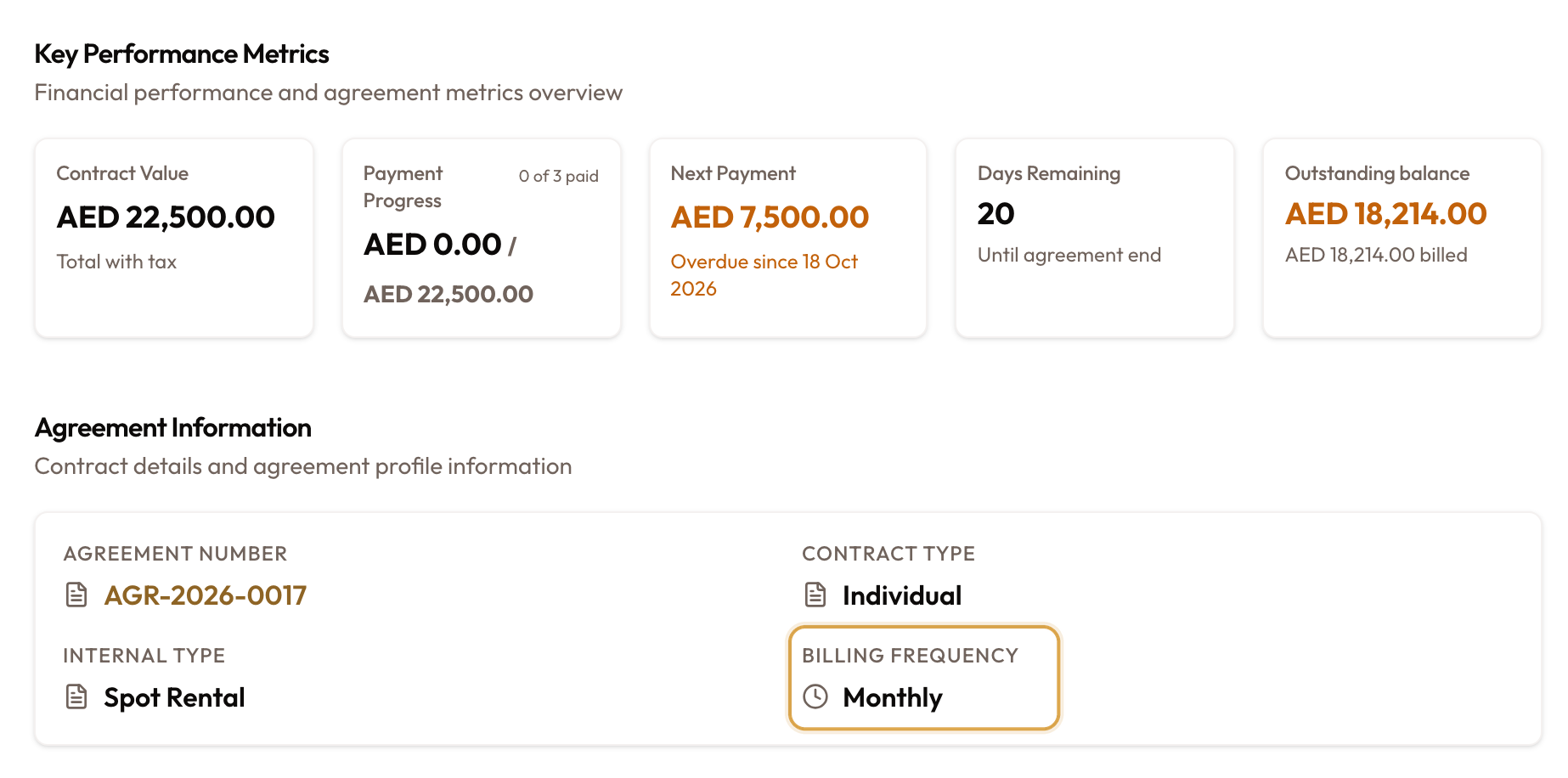
A monthly agreement opens on Key Performance Metrics. The cards change with the status:
| Status | Cards |
|---|---|
| Active | Total, Net billed, Net received, Outstanding |
| Draft or locked | Contract Value, Period, Days until start, Activation blockers |
| Expired | Contract Value, Outstanding balance, Days overdue for closure, Vehicle check-in |
| Closed | Total Collected, Deposit Refund, Period, Closed on |
Awaiting signature shows a Signature card, awaiting checkout a Handover card, and a terminated agreement shows Terminated on.
An active agreement shows the same four figures as a short-term Rental Account, so both kinds of agreement read alike. Outstanding reads In credit, in green, when the customer is owed money back. Under the cards:
- Next Payment: the amount, then Due with a date, or Overdue since when a period fell due without being invoiced. The line goes once every period is billed.
- Due back: the end date, with the days left or, in amber, the days overdue.
- Credited, Refunded and Written off, only when the agreement has any.
Below the cards, Agreement Information lists the Agreement Number, Contract Type, Internal Type and Billing Frequency.
Monthly: work down the payment schedule
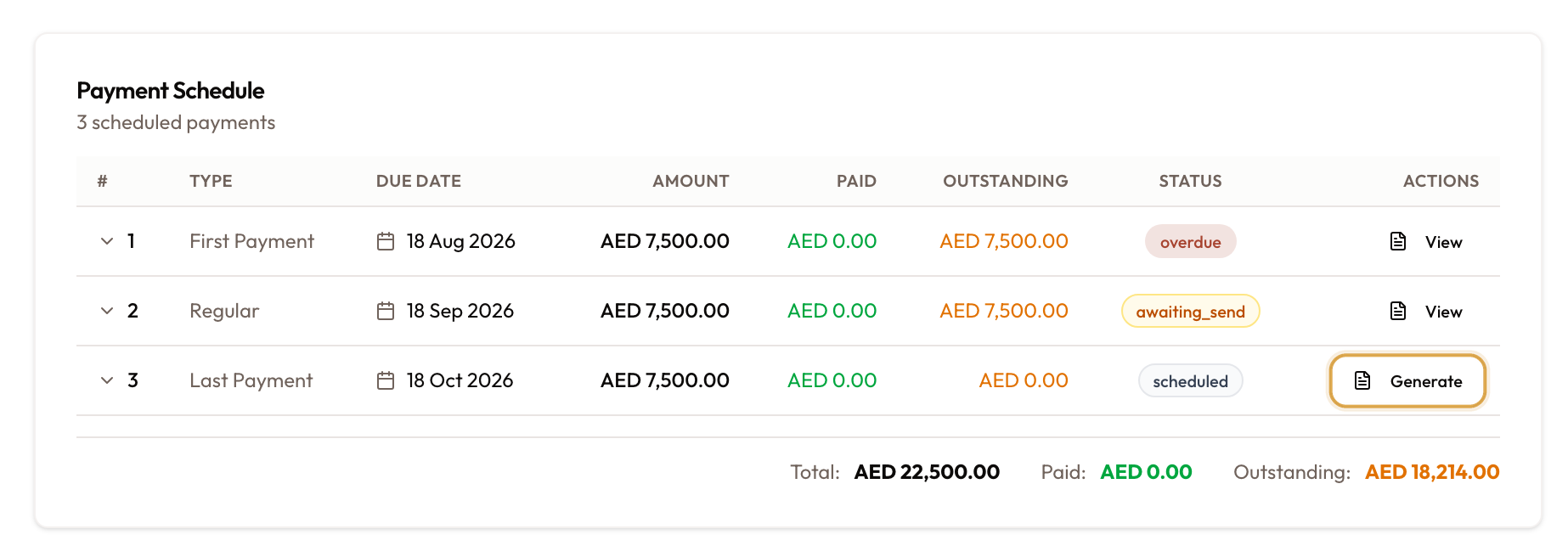
The Payment Schedule lists every monthly payment with its type, due date, amount, what has been paid, what is outstanding, and a status. Extension periods sit under an Extension divider.
The Actions column shows:
- Generate when the payment has no invoice yet
- View once it has one
- Collect as well, while that invoice is unpaid
- Edit rate on the last payment, while it has no invoice. It re-prices that month at a daily rate. If the car came back early, it can also shorten the month to the return day. See Correcting a Wrong Rate.
Generate works in order. Only the earliest payment without an invoice has a live Generate button. Later rows show it greyed out, with the tooltip Generate the previous payment first.
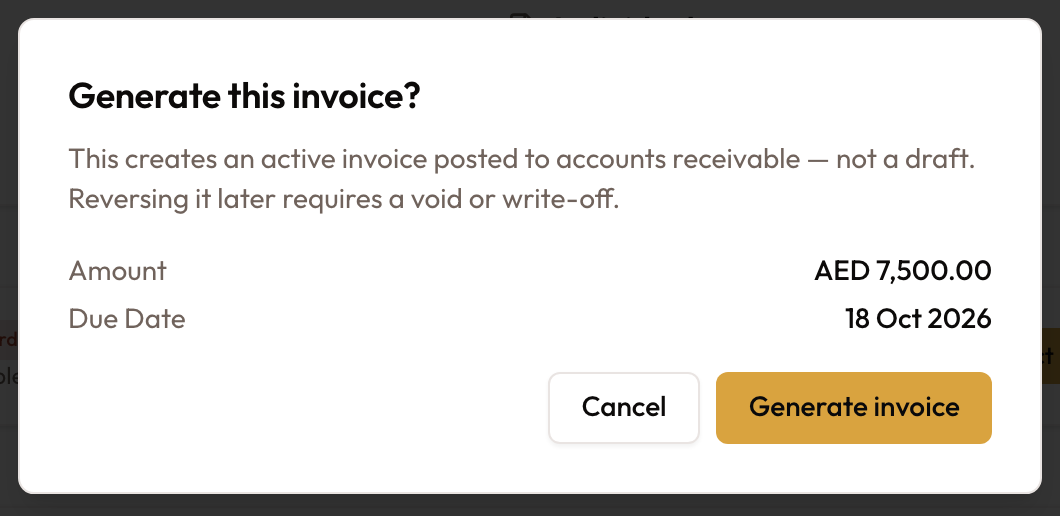
Clicking Generate asks Generate this invoice? and shows the amount and due date. The invoice it creates is live, not a draft: undoing it later takes a void or a write-off. Click Generate invoice to go ahead.
Payment #1 may have no invoice yet, and that is not a fault. Whether checkout bills the first month depends on Raise invoices automatically under Settings → Billing. When it is off, payment #1 carries the live Generate button. The security deposit invoice is raised at checkout either way. See Vehicle Checkout & Handover.
On a closed or terminated agreement, the earliest payment without an invoice shows Bill in place of Generate. Bill opens Bill Rental with that payment ticked, so you can still invoice a month left unbilled at closing.
Extra charges outside the schedule, such as damage or late fees, go on the Addon Invoices card below, with Create Addon Invoice. A short-term rental has no such card: extra charges go on the rental with Add item.
Check the security deposit
The Security Deposit card appears on both layouts:
| What the card shows | What it means | What you can do |
|---|---|---|
| Waived | No deposit is invoiced or collected. | Nothing |
| Pre-Auth | Held on your POS terminal; no deposit invoice. | Nothing |
| None agreed | No deposit was agreed on this rental. | Add deposit |
| Not invoiced | A deposit was agreed but never invoiced. | Raise deposit invoice |
| The deposit invoice, marked Refundable | The deposit has been invoiced. | Collect while unpaid, otherwise View |
Add deposit and Raise deposit invoice are offered on active and expired agreements.

Once money goes back to the customer, the card shows Released or Partially released, and how much is still held. Release deposit issues the refund.

A partly released deposit: the Partially released badge, the still-held figure, and Correct deposit beside Release deposit.
The deposit stays held until you release it. Closing an agreement never applies or refunds the deposit. Release it from this card once late tolls and fines have arrived.
If the deposit was keyed wrong, use Correct deposit (or Re-issue deposit when the deposit invoice was already voided). A greyed-out button is blocked, not broken: hover over it to see why. See Correct a deposit that was keyed wrong.
Review credits & refunds
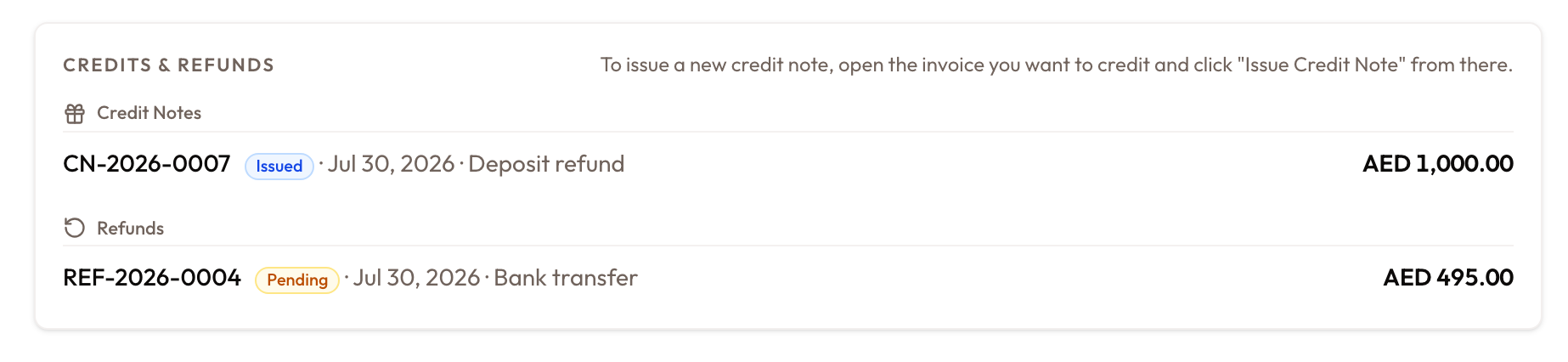
The Credits & refunds card, on both layouts, lists the credit notes and refunds for the agreement's customer. Each row shows the number, status, date and amount, and a credit note shows how much is still unapplied. Click a row to open it.
To issue a new credit note, open the invoice you want to credit and click Issue under Credit in its sidebar. See Creating Credit Notes & Deposit Refunds.
Follow progress on the Workflow tab
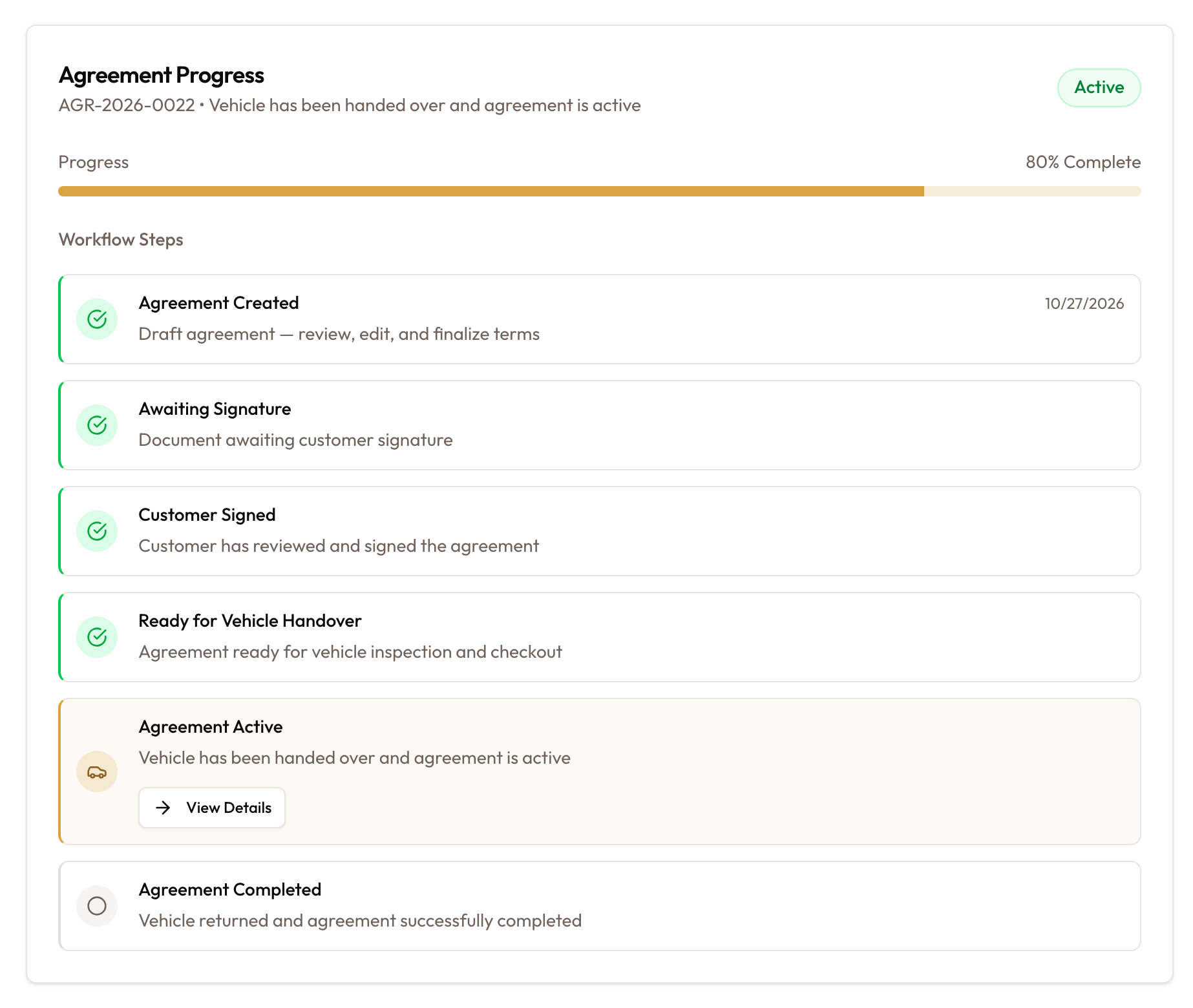
The Workflow tab shows Agreement Progress with a percentage complete, and the steps the agreement moves through:
- Agreement Created (or Document Locked)
- Awaiting Signature
- Customer Signed
- Ready for Vehicle Handover
- Agreement Active
- Agreement Completed (or the final status, such as terminated or cancelled)
While the agreement is being signed, the current step carries its buttons, such as Sign on Tablet. See Locking & Signing.
Check the vehicle and inspections
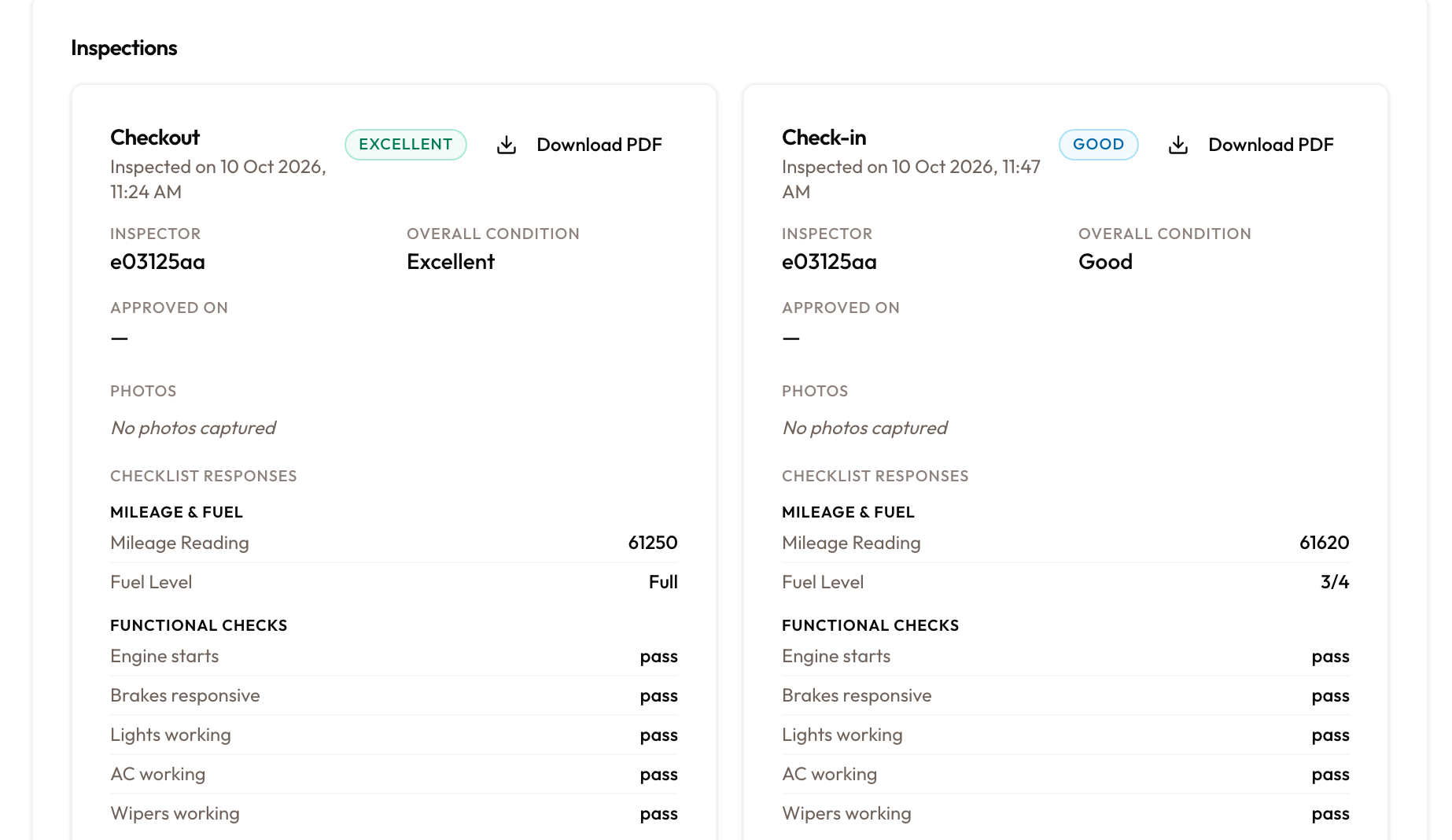
The Vehicle tab shows the vehicle with its plate and status, then Category, Transmission, Fuel, Condition, Mileage, Value, Purchased and VIN. Below that:
- Inspections: once checkout or check-in is done, a Checkout and a Check-in panel side by side, with photos, damages and signatures. Click a photo to compare the same angle before and after.
- Vehicle Movement: pickup, swap and return events.
- Replacement History: any vehicle replacements. See Vehicle Replacement.
Review terms and documents
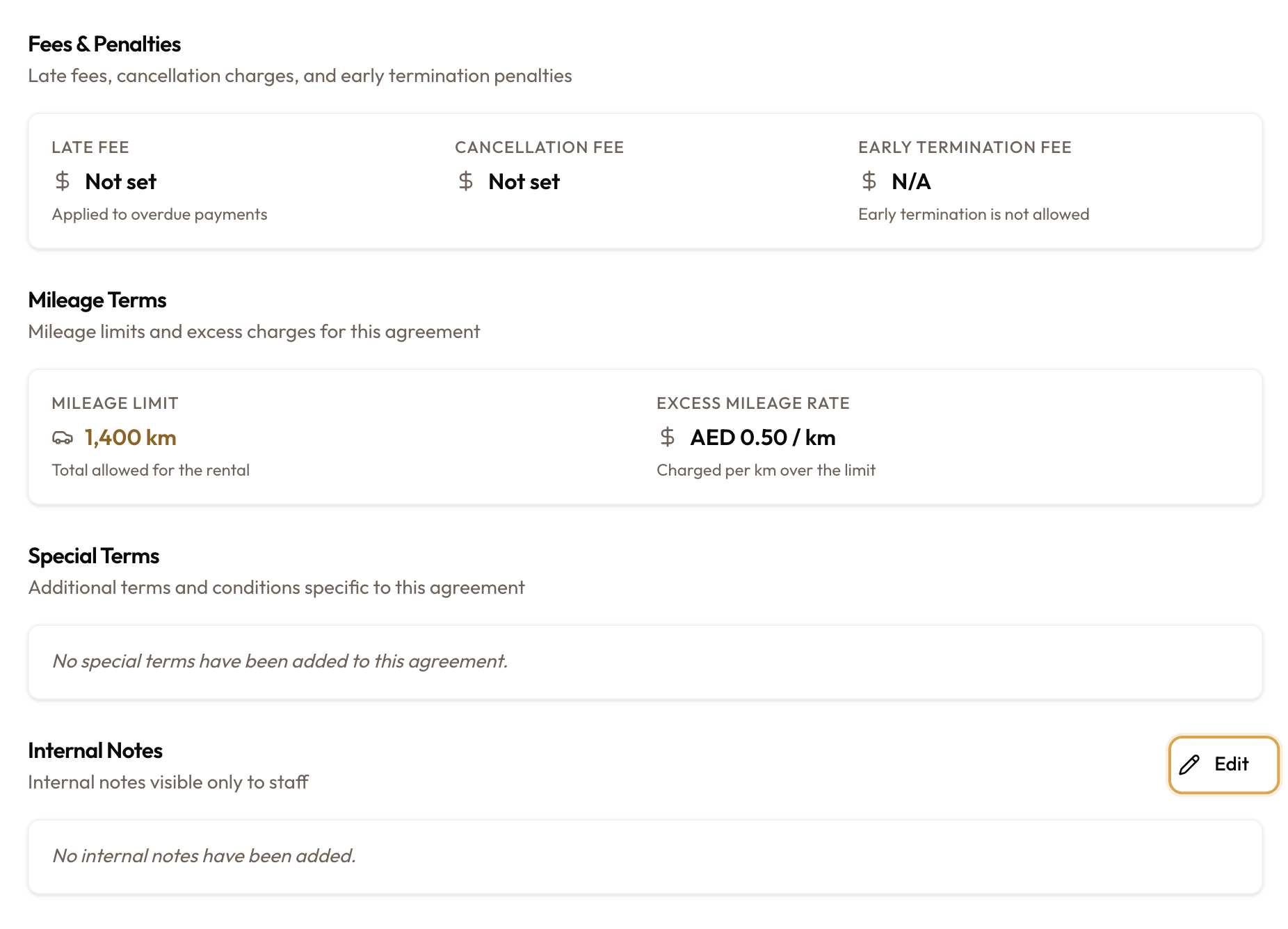
The Terms & Conditions tab shows:
- Fees & Penalties: Late Fee, Cancellation Fee and Early Termination Fee (N/A when early termination is not allowed)
- Mileage Terms: Mileage Limit (Unlimited when there is none) and Excess Mileage Rate
- Special Terms: editable only on a draft
- Internal Notes: for staff only, editable at any status
To change either text, click Edit, then save. Both need a role that can update agreements.
The Documents tab keeps the agreement's files by category: signed contract, amendments, handover, return, invoices, receipts and other.
Read the timeline
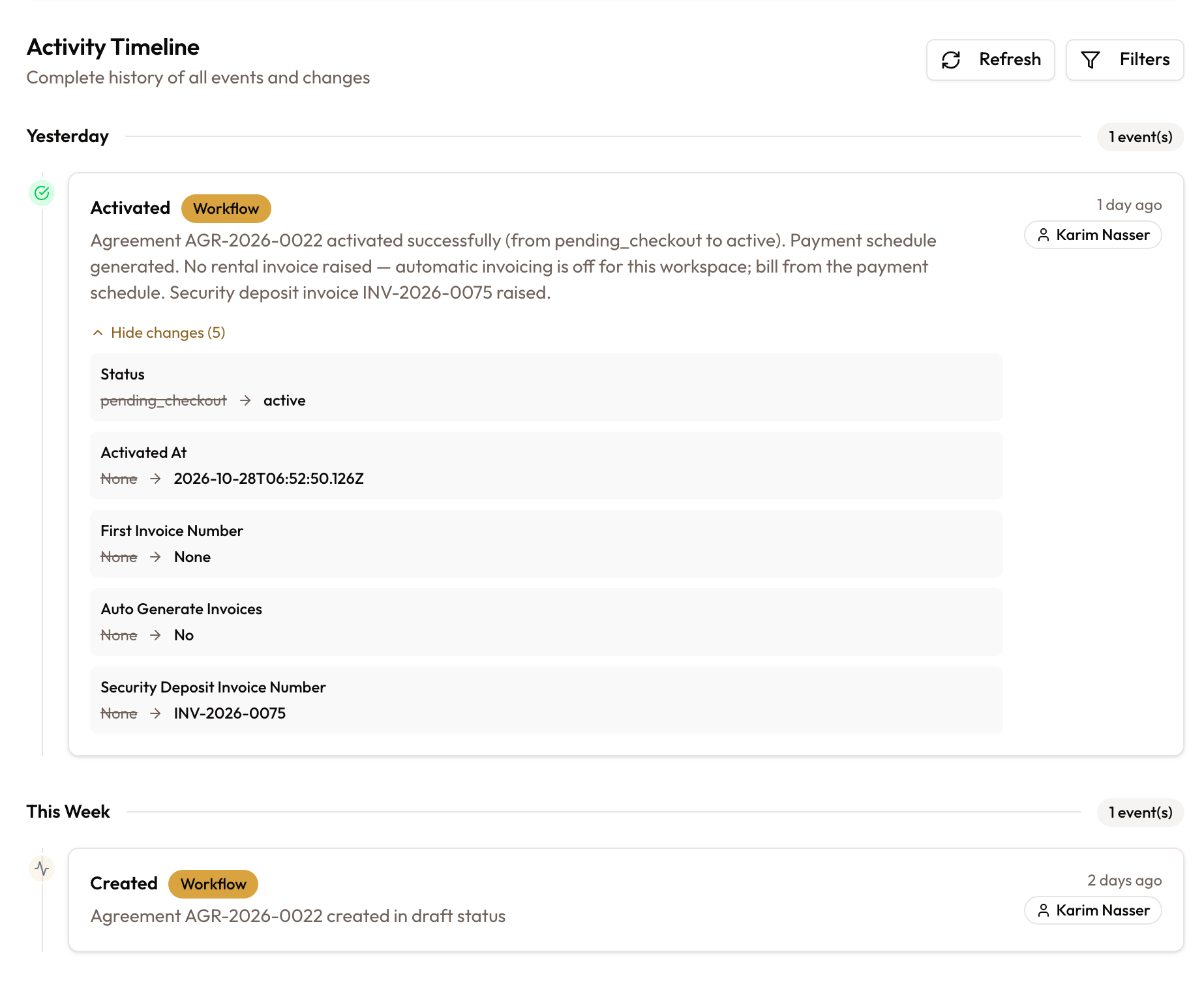
The Timeline tab holds the Activity Timeline, the full history of the agreement: status changes, signing, checkout and check-in, invoices, payments, documents and edits.
- Events are grouped under Today, Yesterday, This Week, This Month, then by month, most recent first.
- Each event shows what happened, a category badge such as Workflow or Financial, when it happened, and who did it.
- An event that changed fields has Show changes, which lists each field's old and new value.
- Refresh pulls in anything new. The list ends with End of timeline.
A brand-new agreement shows No activities yet.
Act from the sidebar
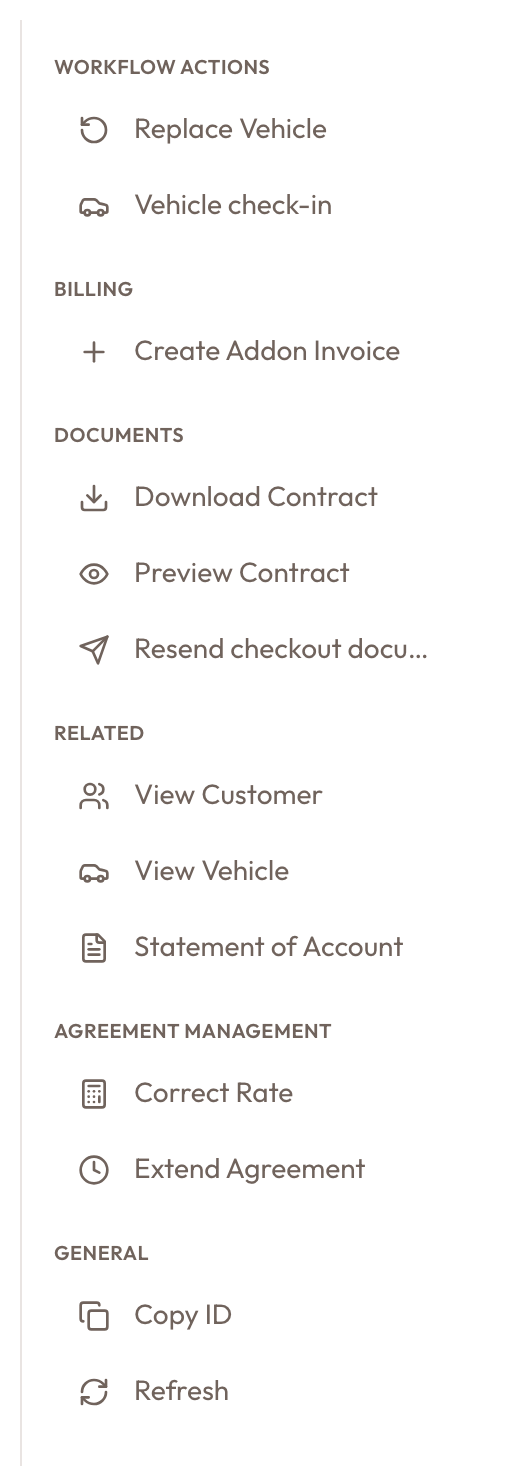
The sidebar on the right (an action drawer on a phone) groups what you can do. What appears depends on the status and your role:
- Workflow Actions: the next step for the agreement, such as Lock & Prepare for Signature, Sign on Tablet, Start Vehicle Checkout, Replace Vehicle, Vehicle check-in or Close Agreement
- Billing: Create Addon Invoice
- Documents: Download Contract, Email Agreement and Preview Contract; Send for Signature while the agreement is being signed; and after checkout or check-in, Resend checkout documents / Resend check-in documents
- Related: View Customer, View Vehicle, Statement of Account
- Agreement Management: Edit Draft, Correct Rate, Extend Agreement
- General: Copy ID, Refresh
On a closed or terminated agreement whose vehicle has not been released yet, Release Vehicle appears at the top, and the page shows a Not released yet line with the return date and a Release button.
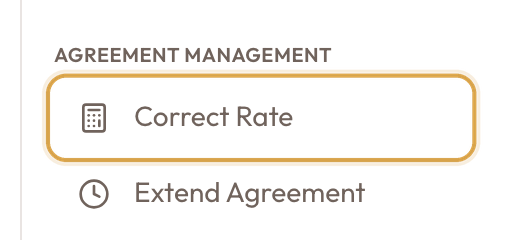
Correct Rate is there only while the rate can still be corrected in place. It appears on an active or expired agreement when nothing has been invoiced yet, the agreement has not been extended or changed since checkout, and no replacement vehicle is out. Once the first invoice is raised the fix is a void or a credit note instead.
You can still change the rate of a period not yet billed with Edit rate: on a short-term rental, on any such period in the Rental Account; on a monthly agreement, on the last payment in the Payment Schedule. Correcting a Wrong Rate Before Billing covers both.
Modifying an Active Agreement lists what can be changed once an agreement is running.
Common problems
No metric cards, Payment Schedule or Addon Invoices. The agreement is a short-term rental. Its Overview opens on the Rental Account instead.
The Generate button is greyed out. An earlier payment has no invoice yet. Generate in order, from the top.
Payment #1 has no invoice. Expected when Raise invoices automatically is off under Settings → Billing. Generate it when you are ready.
The Workflow tab moved. From active onwards it sits near the end, before Analytics.
The deposit card says Not invoiced or None agreed. A deposit was agreed but never invoiced, or none was agreed. Use Raise deposit invoice or Add deposit.
The deposit is still held after closing. That is expected: closing never moves the deposit. Release it from the deposit card.
Correct Rate is missing. Something has been invoiced, the agreement was extended or changed since checkout, a replacement vehicle is out, or your role cannot update agreements. Use Edit rate instead: on a short-term rental, on a period not yet billed; on a monthly agreement, on the last payment while it has no invoice.
Credits & refunds shows a document from another rental. The card lists everything for the agreement's customer, so other rentals by the same customer can appear.
Special Terms has no Edit button. Special Terms can only be changed on a draft. Use Internal Notes for anything staff need to know later.
Vehicle Checkout & Handover Inspection
Set up the inspection template, inspect the vehicle, capture the customer's signature and hand over, and what gets invoiced when you do.
The Rental Account & Bill Rental
The money view of a short-term rental: what is billed and not yet billed, adding items, Bill rental, Edit rate, Void & Reissue, and billing after the close.