

Extending Agreement Duration
Move the end date, decide what the extra period is billed at, and confirm — whether an invoice is raised and sent follows your billing settings.
Extending keeps a running — or just-expired — agreement going for longer. You set the new end date, decide what the extra period is billed at, and confirm. The agreement's end date moves and the extra period is added to the schedule. Whether an invoice is raised for it, and whether the customer is emailed, follows your workspace's billing settings.
The quote is priced by SpectroNova Express as you build it. The summary you approve is the same calculation that gets saved.
Before you start
- The agreement is Active or Expired — no other status offers the action.
- You have permission to update agreements.
Extending
Open the extension page
On the agreement detail page, in the sidebar under Agreement Management, select Extend Agreement.
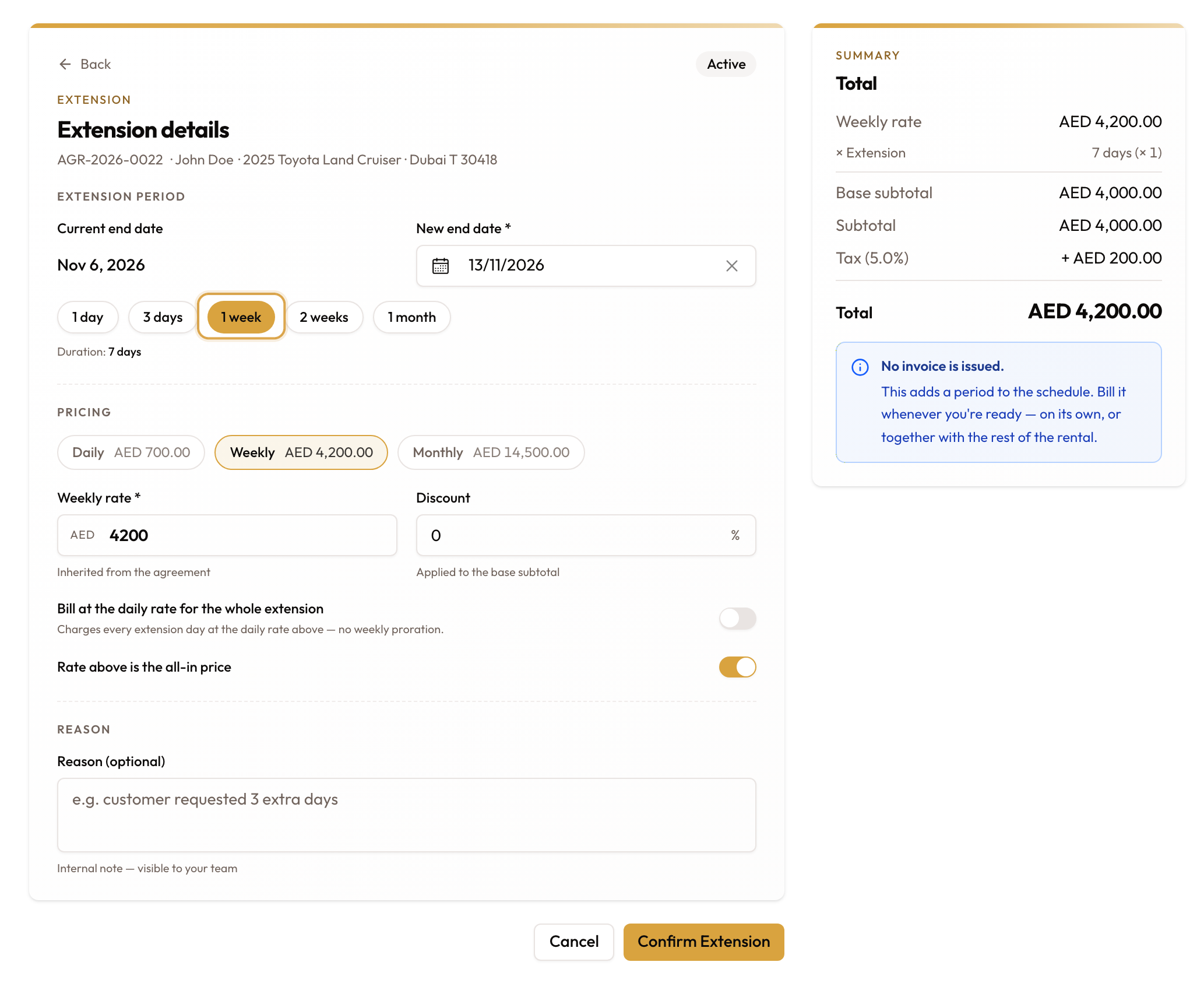
The page opens with a status badge reading Active or Expired, and the heading Extension details above the agreement number, customer and vehicle.
Set the new end date
Under Extension period, Current end date is read-only and New end date is a date picker, starting one day past the current end. You cannot pick a date on or before the current end date.
Quick-pick chips sit below — 1 day, 3 days, 1 week, 2 weeks, 1 month. A Duration line then shows how long the extension runs.
Set the rate
Under Pricing, three read-only indicators show the vehicle's card rates — Daily, Weekly, Monthly — with the one matching this extension's length highlighted.
The rate field below is labelled for the unit the extension is actually being priced in, and comes pre-filled from the card. Type over it to negotiate a different figure; a rate card: {amount} badge then shows what the card said.
Discount takes a percentage from 0 to 100, applied to the base subtotal before tax.
Decide how the extension is billed
Two switches sit under the rate, and both change the quote.
Rate above is the all-in price is always shown and is on by default. On, the figure you entered is what the customer pays in total and the tax is found inside it. Off, the rate is net and tax is added on top.
Check this one before you confirm. Because it defaults to on, a rate typed as a net figure will be treated as tax-inclusive unless you turn it off — and the total will not be what you expected.
Bill at the daily rate for the whole extension appears only when the extension would otherwise be priced per week, on an agreement that is not billed monthly, where the vehicle has a daily rate. It charges every day of the extension at the daily rate instead of prorating the weekly one.
If you change the dates and the extension stops being priced weekly, this switch disappears and turns itself off, so a control you can no longer see cannot keep steering the quote. Re-check the summary when that happens.
Add a reason
Reason (optional) takes an internal note, visible to your team — "e.g. customer requested 3 extra days". Nothing is blocked if you leave it empty.
Check the summary and confirm
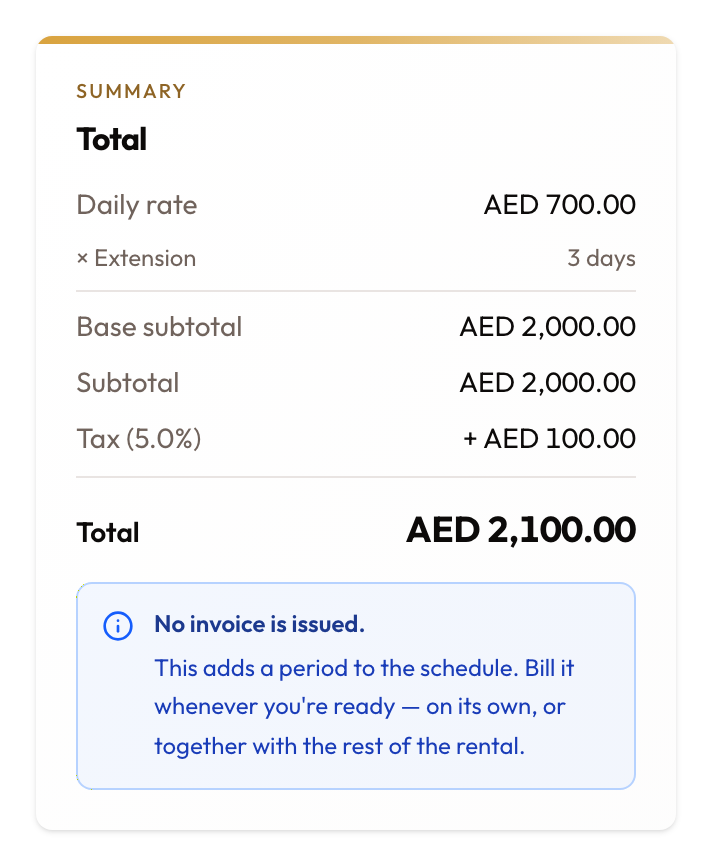
The Summary panel re-prices a moment after each change, showing the rate and its unit, the extension length with any part-period proration (of a week, of a month), Base subtotal, any Discount, Subtotal, Tax and Total. While it recalculates it reads Calculating….
If your workspace has Raise invoices automatically switched off, a blue note under the total reads No invoice is issued. — the extension adds a period to the schedule, and you bill it whenever you're ready, on its own or with the rest of the rental.
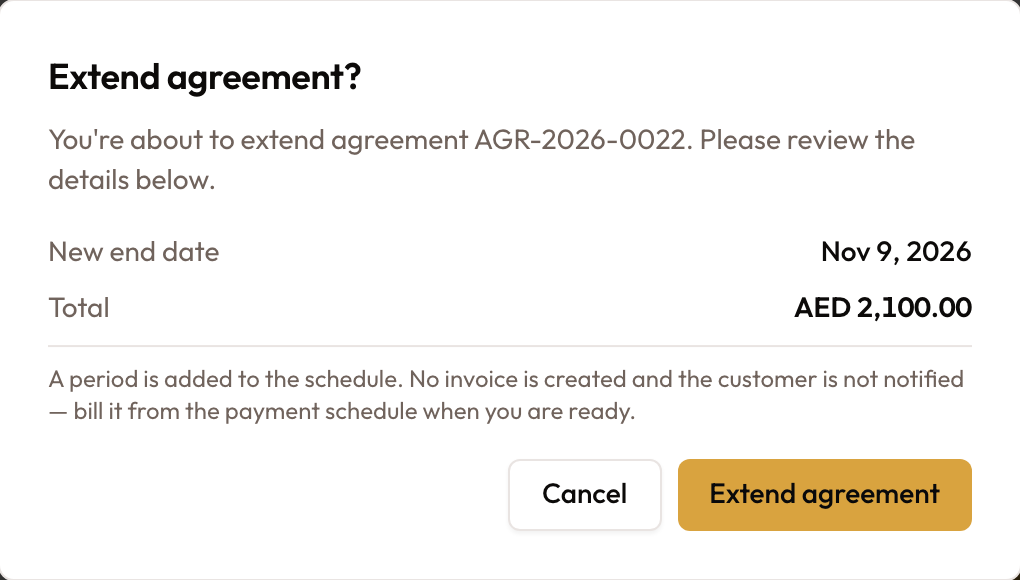
Select Confirm Extension. A dialog headed Extend agreement? repeats the New end date and Total, then tells you what will happen next. The notice depends on your billing settings:
| Raise invoices automatically | Email the invoice to the customer | The dialog says |
|---|---|---|
| Off | — | "A period is added to the schedule. No invoice is created and the customer is not notified — bill it from the payment schedule when you are ready." |
| On | Off | "An invoice will be created for this extension. The customer is not emailed automatically — send it from the invoice when you are ready." |
| On | On | "An invoice will be created for this extension and the customer will be notified." |
Select Extend agreement to go ahead.
What happens on confirmation
- The agreement's end date moves. On the first extension the original end date is kept, so the agreement's original term is not lost.
- An Expired agreement returns to Active.
- The extra period is added to the schedule, whatever your billing settings say.
- With Raise invoices automatically on, an invoice is raised for the extension. It is emailed to the customer only if Email the invoice to the customer is also on; otherwise send it from the invoice when you're ready.
- With Raise invoices automatically off, nothing is invoiced or
emailed. The period waits to be billed:
- On a short-term rental, it appears in the Rental Account's Not yet billed list as an Extension row. Bill it with Bill this period or Bill rental, alone or with the rest of the rental.
- On a monthly agreement, it appears in the payment schedule and is raised from there.
Both switches live under Settings → Billing Settings, in Invoicing at handover. The dialog's "off" notice mentions the payment schedule even on a short-term rental — there, look in the Rental Account instead.
Cancel an unused extension
If the customer doesn't use an extension — they bring the car back by the original end date, or change their mind while it is still out — take it back with Cancel extension. It voids the extension's invoice, removes its periods from the agreement and puts the end date back.
Find Cancel extension
- On a monthly agreement, the extension's first row on the payment schedule is marked Extension, with the Cancel extension button.
- On a short-term rental, Cancel extension sits next to Bill rental on the Rental Account.
Only the latest extension can be cancelled. With two extensions, cancel the newer one first. Your role needs permission to update agreements and to void invoices.
Check what will change
The Cancel extension dialog shows:
- Extension: the extra period and its amount
- Due back and Checked in: when the car was due, and when it came back, with how early or late — or Car still out
- End date and Contract value, before and after
- Will be voided: each invoice the extension raised. An invoice that was already sent says "Emailed — tell the customer it is cancelled"
Add a reason and confirm
Type why the extension is being cancelled in Reason (it is required), then click Cancel extension. "Extension cancelled" confirms it, and the change is recorded on the agreement's activity log.
When the extension can't be cancelled, the dialog says "This extension cannot be cancelled" and names the next step:
| The dialog says | What to do |
|---|---|
| "The car came back on …, after the original end date …, so the extension was used. Void the invoice, then use Shorten last period." | The customer used part of it. Void the invoice, then shorten the period to the days they had |
| "The extension is in use: the car is still out after …" | The original end date has passed. Wait for the return, then void and shorten |
| "… has money on it. Refund or credit the payment first." | A payment is applied to the extension's invoice. Refund or credit it, then cancel |
| "… has a credit note. Remove it first." | Remove the credit note from the invoice, then cancel |
| "… also bills period #…; void and re-raise it by hand first." | One invoice covers the extension and an earlier period. Void it and bill the earlier period again |
| "… this needs a data fix." | The agreement's records don't line up. Contact support |
When something looks wrong
| What you see | What it means |
|---|---|
| Extend Agreement is not in the sidebar | The agreement is not Active or Expired, or your role cannot update agreements |
| Confirm Extension stays disabled | The duration is not at least a day, the rate is not a valid number, or the discount is outside 0–100 |
| The total is higher than the rate implies | Rate above is the all-in price is on by default — turn it off if you entered a net rate |
| The daily-rate switch vanished | The duration moved out of the weekly tier. The override reset itself off, so re-check the summary |
| The daily-rate switch never appeared | The agreement bills monthly, the extension is not priced weekly, or the vehicle has no daily rate |
| No invoice appeared after extending | Raise invoices automatically is off. The period is waiting in the Rental Account (short-term) or the payment schedule (monthly) |
| The invoice was raised but the customer hasn't received it | Email the invoice to the customer is off. Send it from the invoice |
| "Failed to extend agreement" | The extension could not be saved — nothing was changed |
| Cancel extension is missing | It shows only on the latest extension, and your role needs permission to update agreements and to void invoices. Whether that extension can still be cancelled is checked when the dialog opens |
What to read next
- Modifying an Active Agreement — what else can be changed once an agreement is running
- Viewing Agreement Details & Timeline — reading the extended payment schedule
- Correcting a Wrong Rate Before Billing — fixing the original rate, as opposed to pricing an extension
Correcting a Wrong Rate Before Billing
Fix a wrong rate: Edit rate on an unbilled short-term period or on a monthly agreement's last unbilled period, Void & Reissue once it is billed, Correct Rate while nothing is invoiced, or a void or credit note.
Vehicle Replacement Mid-Agreement
Swap the vehicle on a running agreement — temporarily or permanently — and bring the original back when the swap was temporary.