

Pricing & Rates
How SpectroNova Express prices a rental — 24-hour days, rate tiers, overriding the rate, all-in prices, daily billing and discounts.
When you build an agreement in the Create Agreement wizard, SpectroNova Express suggests the rental price for you. This page explains how that price is worked out — how days are counted and which rate tier applies — and the four ways you can change it: your own rate, an all-in (tax-inclusive) figure, daily billing, and a discount or premium.
Add-ons are priced from the product catalog. For the deposit, see Security Deposits.
Before you start: the vehicle needs its daily, weekly and monthly rental rates. This page describes simple pricing, the default. With Advanced pricing turned on in Agreement Settings, a few extras apply — see the note under the discount step.
How the rental is priced
Days are counted in 24-hour periods
The return day is not billed, like a hotel checkout. A rental from 16 June to 19 June is 3 days. A same-day rental counts as 1 day, so the shortest rental is always one day.
The length decides the tier
| Rental length | Tier | How it is charged |
|---|---|---|
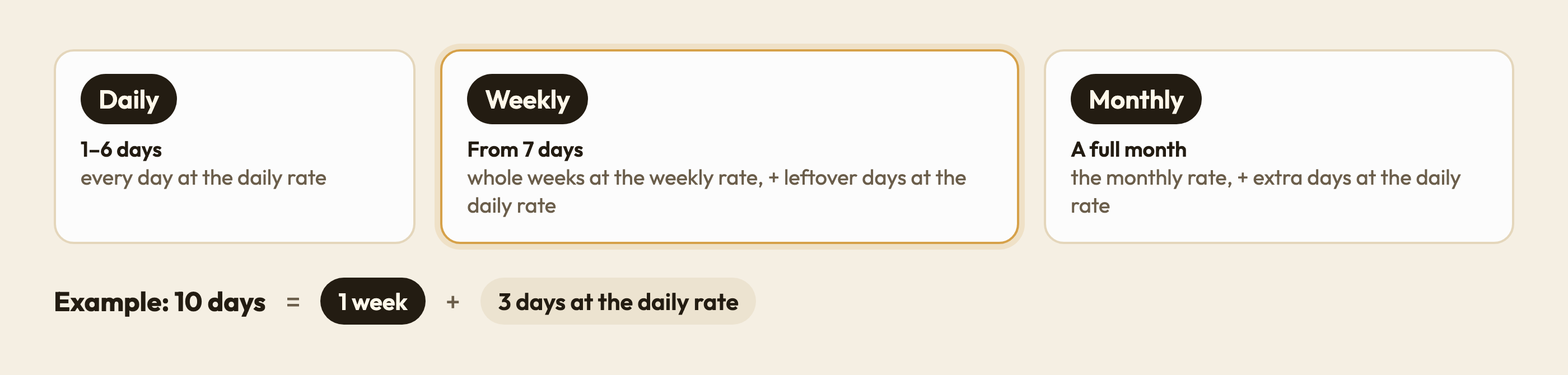
| 1–6 days | Daily | days × daily rate |
| 7–29 days | Weekly | full weeks × weekly rate, plus any leftover days × daily rate |
| A full month (to the same date next month) | Monthly | months × monthly rate |
| 30 days or more, not whole months | Monthly | full months × monthly rate, plus extra days × daily rate |
For example, 10 days is 1 week at the weekly rate plus 3 days at the daily rate, and 14 days is 2 weeks. 1 – 28 February (in a non-leap year) is a full calendar month, so it is monthly even though it is only 28 days.
The tiers are fixed. The Pricing Tier Thresholds fields in Agreement Settings are saved, but they don't change when a rental moves from daily to weekly or monthly.
Set the rate
Check the suggested rate
On Step 1 of the wizard, pick the vehicle and set the Contract Duration and Start Date — the End Date is calculated for you. Until both are set, Base Rental Rate reads "Pick a vehicle and set the duration to see the suggested rate."
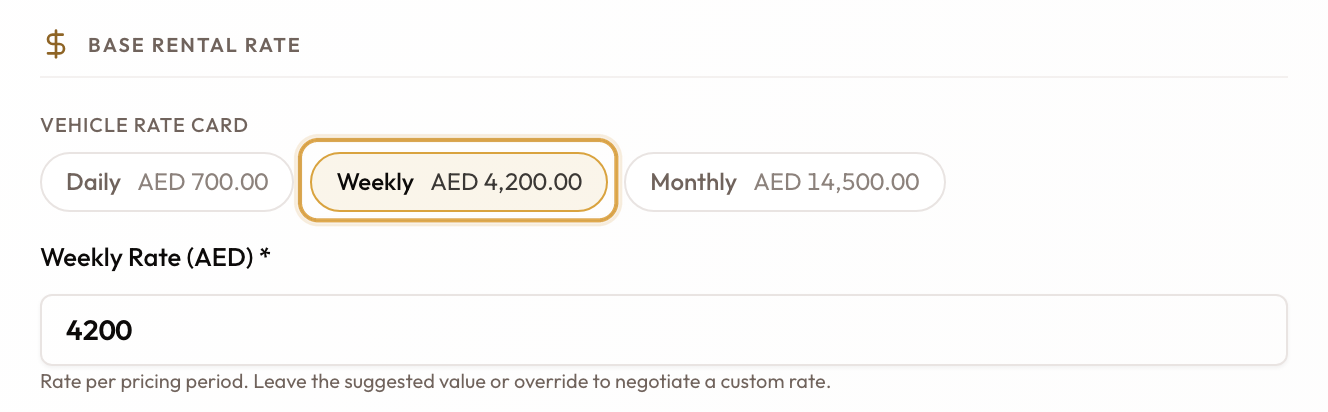
Then the Vehicle rate card shows the vehicle's daily, weekly and monthly rates, with the tier that applies highlighted. The rate field is labelled for that tier — Daily Rate (AED), Weekly Rate (AED) or Monthly Rate (AED) — and is filled in from the rate card.
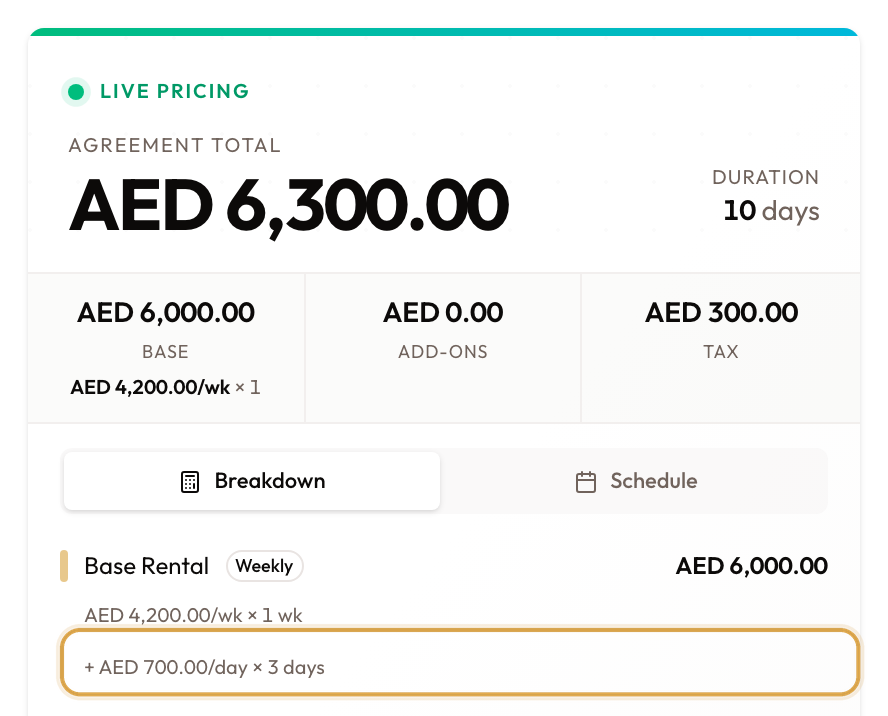
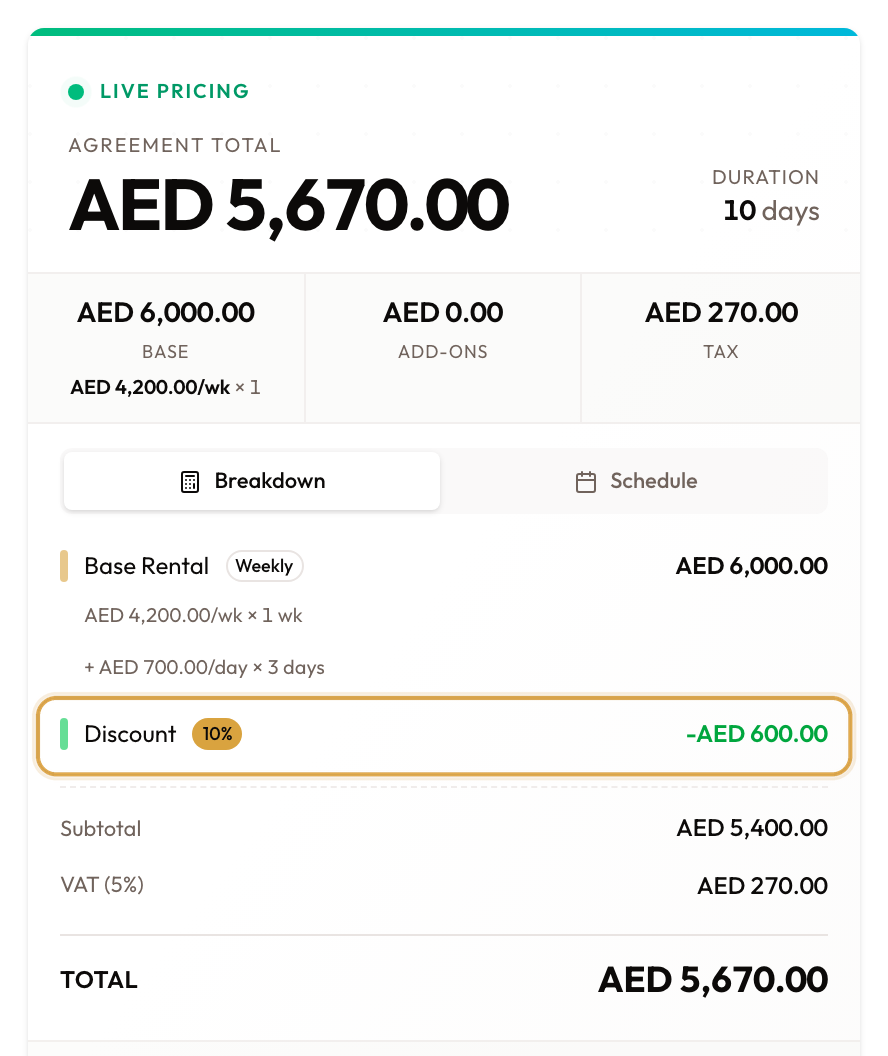
The Live Pricing sidebar shows Base Rental as the rate × the number of periods, with an extra line for any leftover days.
Override the rate (optional)
Type a different figure to charge a negotiated rate. A suggested: badge appears beside the label with the original figure, and the sidebar marks Base Rental as Overridden. Once you have typed a rate, changing the duration no longer overwrites it.
On a weekly rental with leftover days, your figure replaces the weekly rate only. The leftover days are still charged at the vehicle's daily rate from the rate card.

Choose whether the rate includes tax
Rate above is the all-in price is on by default. When it is on, the figure you typed is what the customer pays for the rental: the tax is worked out of it, not added on top. Turn it off to add tax on top of the rate. It applies to every tier, monthly included.
Add-ons are never affected by this switch — their catalog prices always have tax added on top.

Bill at the daily rate (optional, short rentals only)
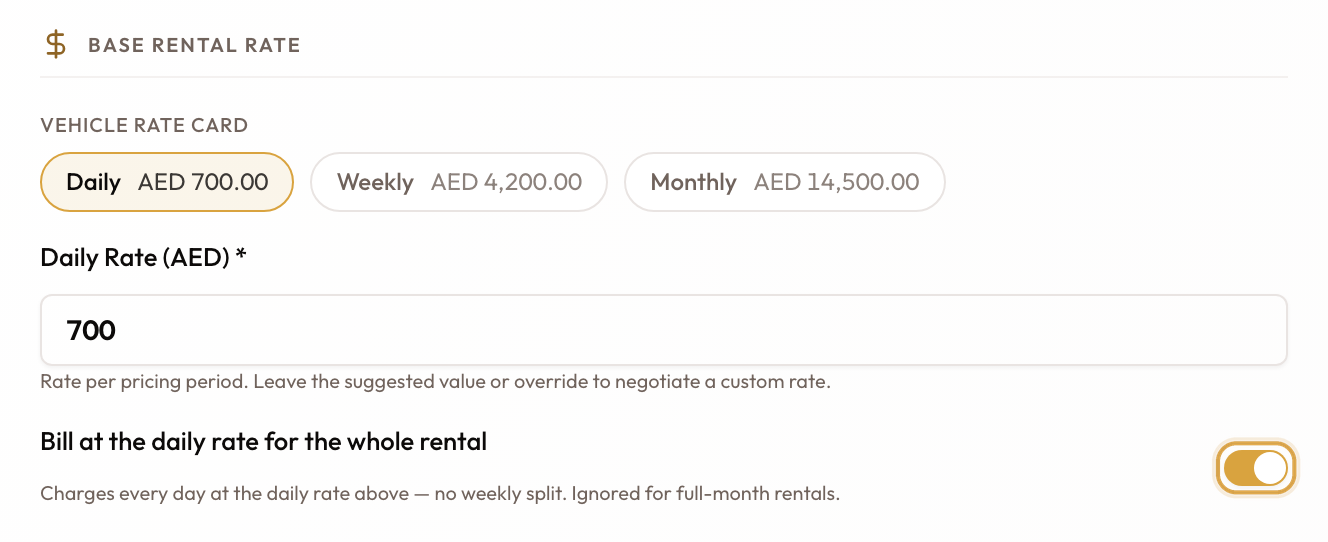
Turn on Bill at the daily rate for the whole rental to charge every day at the daily rate, with no weekly split — a 10-day rental becomes 10 days at the daily rate instead of 1 week + 3 days. The rate field becomes Daily Rate (AED). The switch appears on rentals shorter than a month.
Discount or premium
Enter a discount or premium (optional)
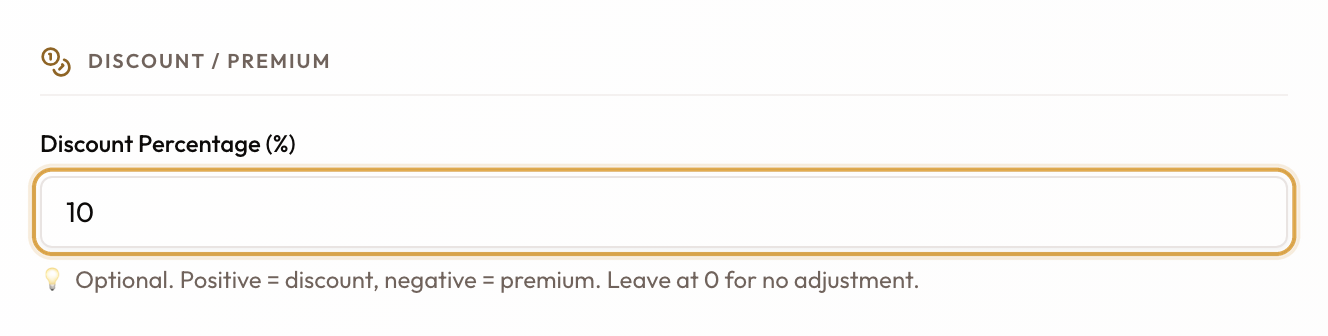
Click Next to reach Terms & Conditions. Under Discount / Premium, enter a Discount Percentage (%): a positive number is a discount, a negative number is a premium.
The percentage applies to the base rental only, not to add-ons. Tax is then worked out on the reduced amount. A discount above the Absolute Max (%) in your Agreement Settings is refused; premiums have no limit.
With Advanced pricing on, choosing a customer fills the discount in from that customer type, and you can still change it. In simple mode nothing is filled in and the discount starts at 0.
Read the total
The Live Pricing sidebar now shows the whole price: Agreement Total and Duration, Base Rental, the Discount or Premium line, Subtotal, and the tax line. The price is fixed on the agreement when you click Create Agreement.
Common mistakes
| What you see | What it means |
|---|---|
"Vehicle … does not have a tier rate configured…" | The vehicle has no rate for this rental's tier. Add it to the vehicle's rental rates. |
| The rate field reads "Pick a vehicle and set the duration…" | Pick the vehicle and set the duration and start date first. |
| A 10-day rental isn't 10 × the daily rate | It's weekly: 1 week + 3 days. Turn on Bill at the daily rate for the whole rental to charge every day at the daily rate. |
| Changing the weekly rate didn't change the leftover days | Leftover days always use the vehicle's daily rate. |
| The total didn't go up by the tax | Rate above is the all-in price is on, so the tax is inside your figure. Turn it off to add tax on top. |
| Bill at the daily rate… is missing | The rental is monthly. The switch only shows for shorter rentals. |
| "Discount of X% exceeds the maximum allowed discount…" | The discount is above Absolute Max (%) under Discount Limits in Agreement Settings. |
| The discount didn't reduce the add-ons | The discount applies to the base rental only. |
What happens next
The agreement keeps the price you set. If the rate turns out to be wrong after the agreement is created, see Correcting a Wrong Rate Before Billing.
Agreement Types Explained
The two kinds of rental — short-term and long-term — and how the length of the rental decides which one you get.
Vehicle Checkout & Handover Inspection
Set up the inspection template, inspect the vehicle, capture the customer's signature and hand over, and what gets invoiced when you do.