

Locking & Signing an Agreement
Lock the contract, capture the customer's signature on a tablet, and get the agreement ready for checkout — or cancel it before signature.
Once an agreement is configured, you lock it so nothing changes while the customer reads it, then capture their signature on a tablet. Signing makes the agreement ready for the vehicle handover.
The status badge on the agreement moves:
- Draft — you can still edit everything
- Draft Locked — frozen, waiting for the signature
- Pending Checkout — signed, ready to hand over the vehicle
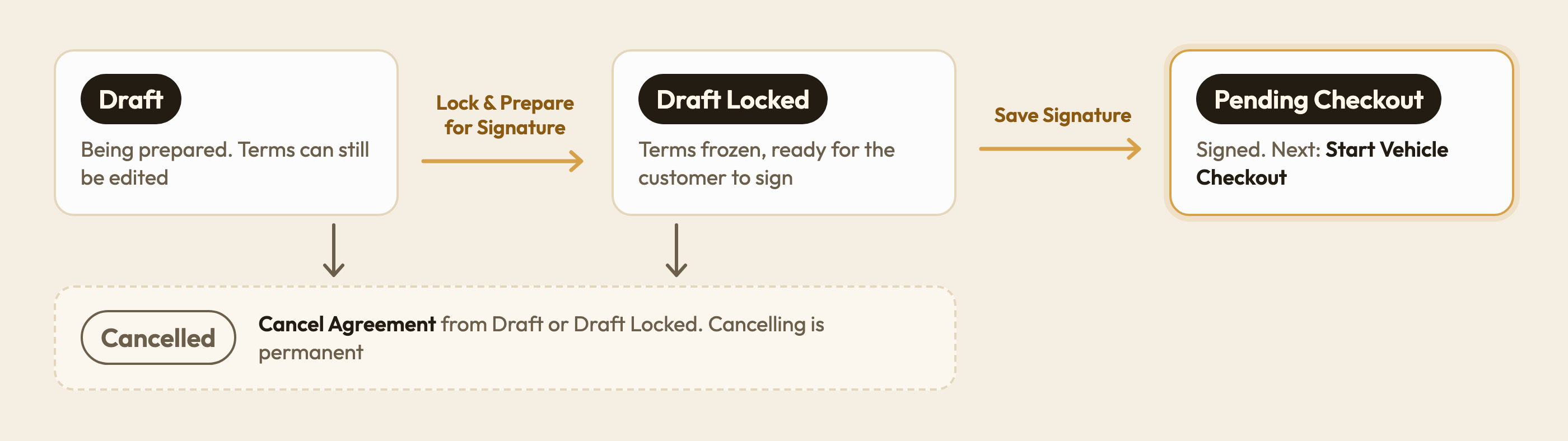
Before you start you need an agreement in Draft status with the vehicle, customer, dates and pricing filled in — see Creating a New Agreement. Locking, signing and cancelling all need permission to update agreements; without it the buttons don't appear.
Lock the agreement
Open the draft
Open the agreement from the agreements list. Check that:
- the badge next to the agreement number reads Draft
- the WHAT'S NEXT? banner says "Review agreement terms and lock the document when ready for signature."
This is your last chance to change anything without unlocking. Edit is still in the header.

Lock it
In the right-hand sidebar, under Workflow Actions, click Lock & Prepare for Signature. The Lock & Prepare button on the banner does the same thing.
You'll see "Document locked - choose signature method".

Check it's locked
- The badge now reads Draft Locked.
- The banner says "Document is locked and ready. Choose how the customer will sign."
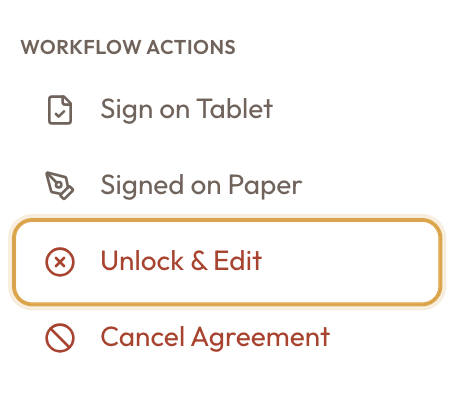
- Workflow Actions now offers Sign on Tablet, Signed on Paper, Unlock & Edit and Cancel Agreement.
- Edit is gone. A locked agreement can't be edited.

Need a change? Unlock first
Unlock & Edit
If something is wrong after locking, click Unlock & Edit in the sidebar and confirm "Unlock document for editing?".
You'll see "Document unlocked - you can now edit". The agreement is back in Draft: make your change, then lock it again.
Unlocking is only possible before the customer signs. Once signed, the agreement can't be unlocked or edited.
Sign on a tablet
Open the signature pad
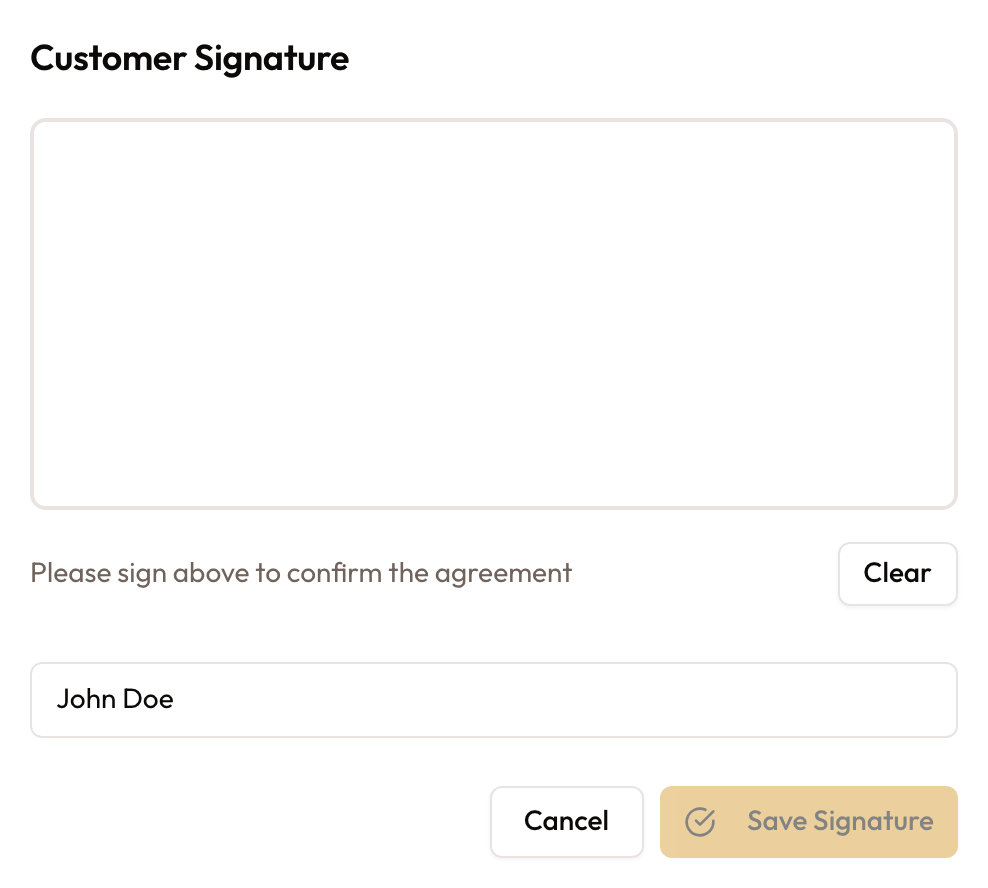
Click Sign on Tablet, in the sidebar or on the banner. The Customer Signature window opens with a white signing area.
On a phone or tablet, the sidebar's actions sit behind the round Actions button — see Mobile & Tablet Access. The banner's Sign on Tablet button works on any screen.
Let the customer sign
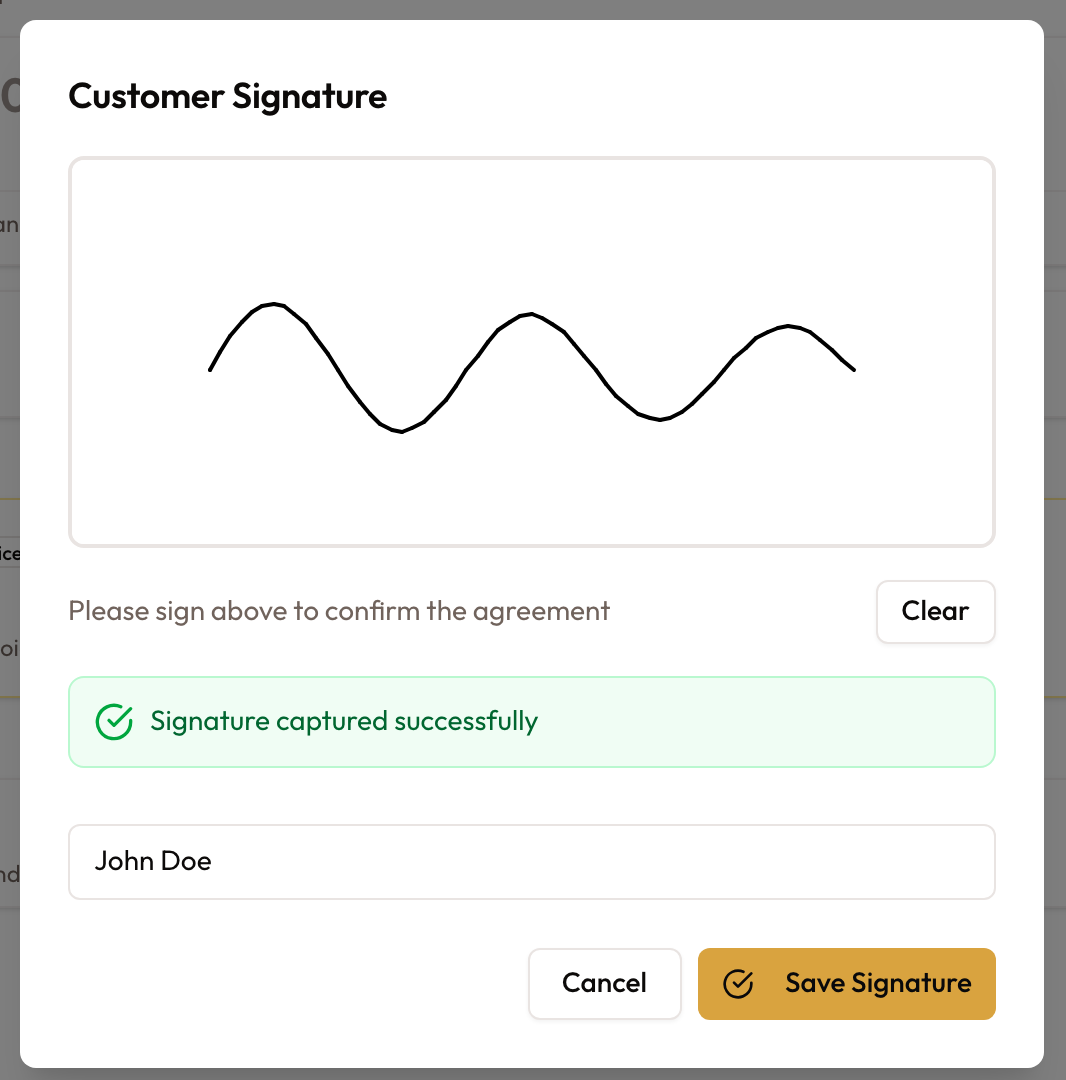
Hand the device to the customer. They sign with a finger or stylus (a mouse works too). Clear wipes the area if they want another go.
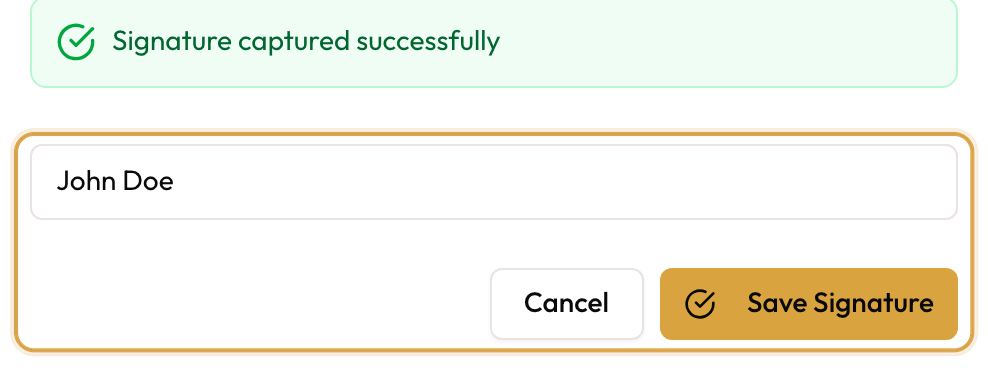
Once there's a signature you'll see "Signature captured successfully".
Check the name and save
The name field is already filled with the customer's name. Change it if someone else is signing, such as the person signing for a company. Then click Save Signature.
You'll see "Signature saved successfully" and the window closes.
Save Signature stays greyed out until there's a signature and the name isn't blank.
Ready for checkout
After saving:
- the badge reads Pending Checkout
- the banner says "Agreement signed and ready. Complete vehicle checkout to activate." with a Start Checkout button
- the sidebar offers Start Vehicle Checkout
- Unlock & Edit and Cancel Agreement are gone
If the customer has an email address, they're also sent a confirmation that they signed.
Next comes the handover — see Vehicle Checkout & Handover Inspection.

Cancel instead of signing
If the deal falls through before the customer signs, cancel the agreement rather than leaving it parked in Draft.
Start the cancellation
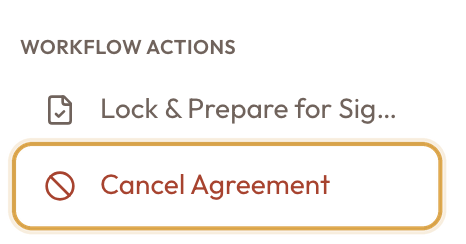
Click Cancel Agreement in the sidebar. It's there while the agreement is Draft or Draft Locked — never after signing.
Give a reason and confirm
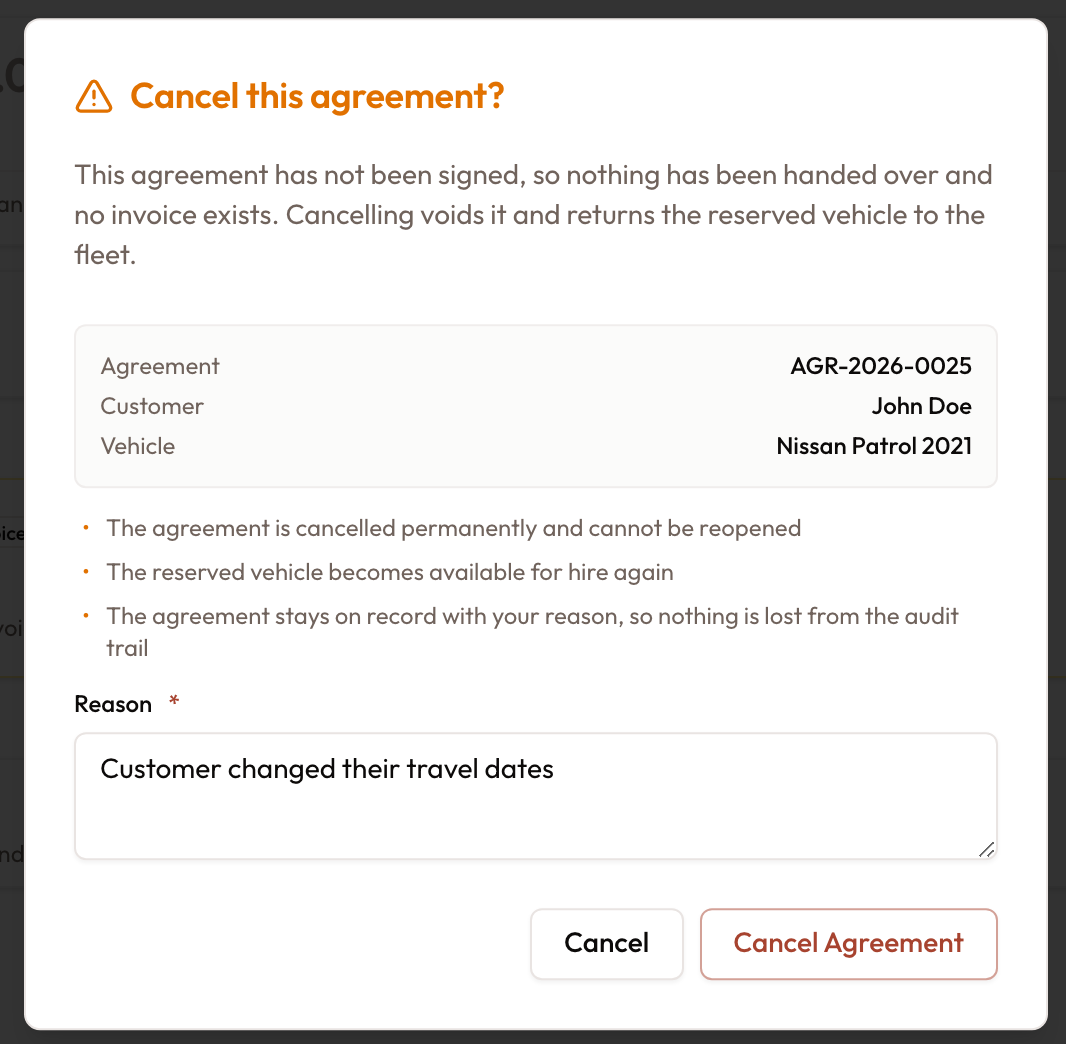
The Cancel this agreement? dialog shows the agreement, customer and vehicle, and spells out what happens:
- The agreement is cancelled permanently and cannot be reopened
- The reserved vehicle becomes available for hire again
- The agreement stays on record with your reason, so nothing is lost from the audit trail
- Type a reason under Reason — "Why is this agreement being cancelled?". It's required (at least 3 characters).
- Click Cancel Agreement. (The plain Cancel button just closes the dialog.)
You'll see "Agreement cancelled — the vehicle is available again".
Cancelling is permanent — there is no reopen. If you only need to change details, use Unlock & Edit instead. If you see "Agreement cancelled, but the vehicle was not released" with a reason, the agreement is still cancelled — check the vehicle's status before promising it to someone else.
Common problems
| What you see | What it means |
|---|---|
| "This document is already locked for signatures" | The agreement is already locked. Refresh the page. |
| Save Signature stays greyed out | The signing area is empty or the name is blank. Both are needed. |
| A field is wrong after locking | Use Unlock & Edit, fix it, then lock again. |
| A field is wrong after signing | It can't be edited any more. If it's the rate: once the vehicle is checked out and before anything is invoiced, use Correct Rate — see correcting a wrong rate. |
| Signed on Paper clicked by mistake | It records the agreement as signed straight away, with no confirmation, and it can't be unlocked or cancelled afterwards. Only use it when the customer has signed a paper copy. |
| Cancel Agreement is missing | The agreement is already signed. Cancelling is only possible before signature. |