

Mobile & Tablet Access
Use SpectroNova Express on your phone or tablet: what works the same, what's in a different place, taking photos with the camera, and adding it to your home screen.
SpectroNova Express works on your phone and tablet. Open it in the browser and sign in with the same account you use on your computer. It runs in the browser you already have, and your day-to-day work — agreements, handovers, returns and customers — works the same way.
That makes it handy away from the desk: a vehicle handover in the car park, a return at the customer's door, or a quick check on a booking.
What's different from a computer
The screens are the same; a few things move to fit a smaller screen.
- On a phone, the main menu is a bar at the bottom. More opens the full menu.
- A record's actions sit behind an Actions button. On a computer they're in a panel on the right.
- The settings menu sits behind a Settings button.
- Photos come straight from the camera. Inspections and ID photos open the camera instead of a file picker.
On a tablet you keep the side menu, as on a computer, and use the Actions and Settings buttons.
The bottom bar on a phone
The bar stays at the bottom of every screen:
- Home — your dashboard
- Vehicles — the vehicle list
- + — start a new agreement from anywhere
- Agreements — the agreement list
- More — everything else
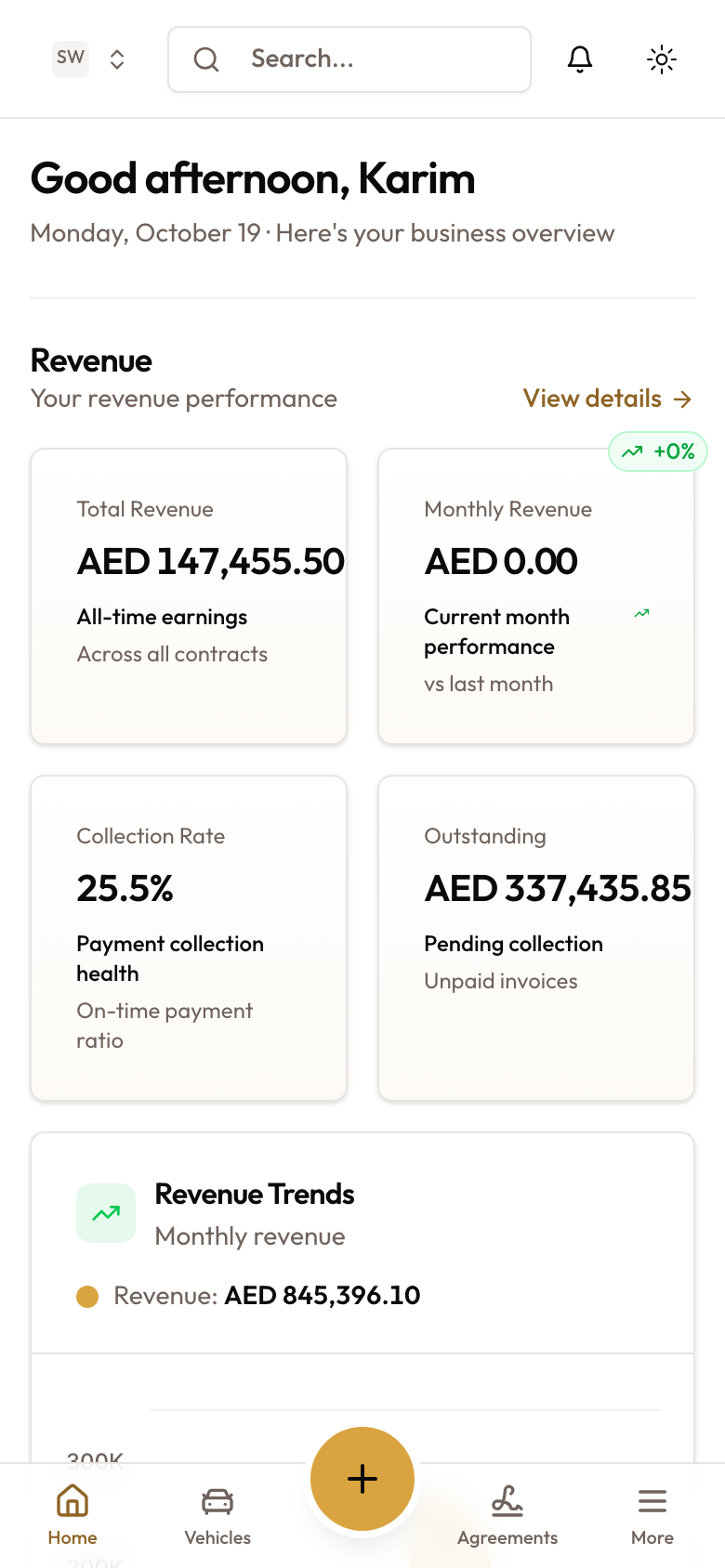
The bottom bar on a phone: Home, Vehicles, the + button, Agreements and More.
The + appears for roles that can create agreements; for other roles, that spot on the bar shows Customers.
A record's actions
On an agreement, vehicle, customer or invoice, tap the round Actions button in the bottom corner. A drawer opens with everything you can do with that record.
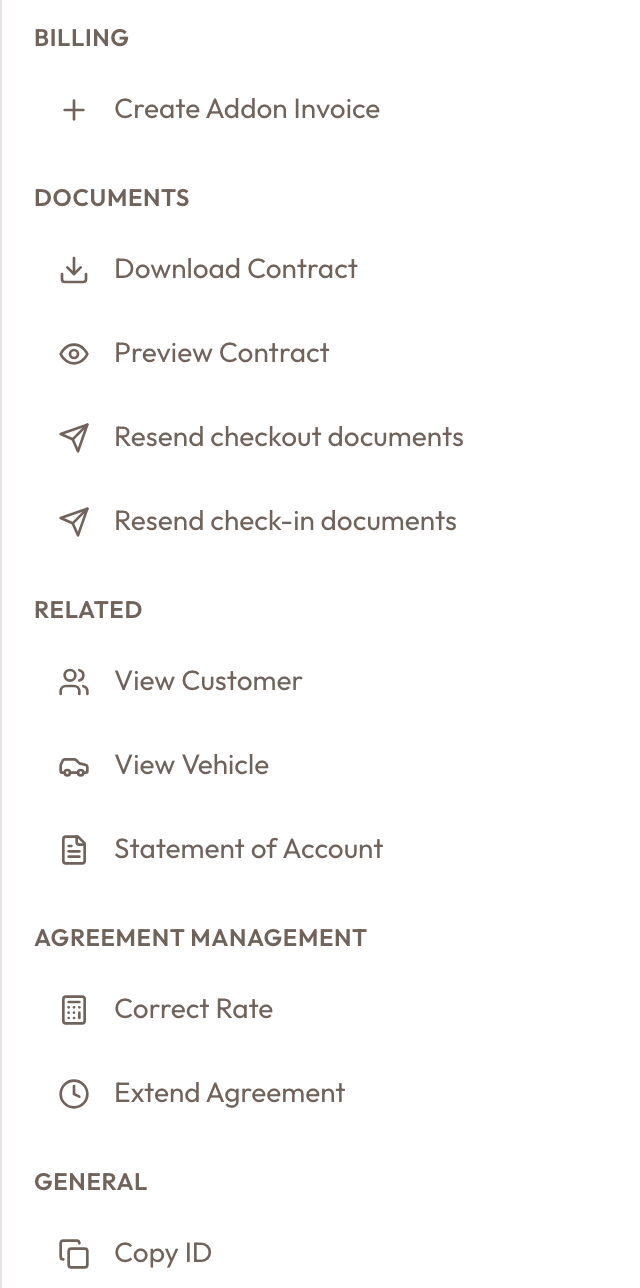
On a phone, Actions on an agreement opens a drawer of everything you can do with it.
Settings
- Tap More, then Settings.
- Tap the round Settings button in the bottom corner.
- Pick a page from the drawer.
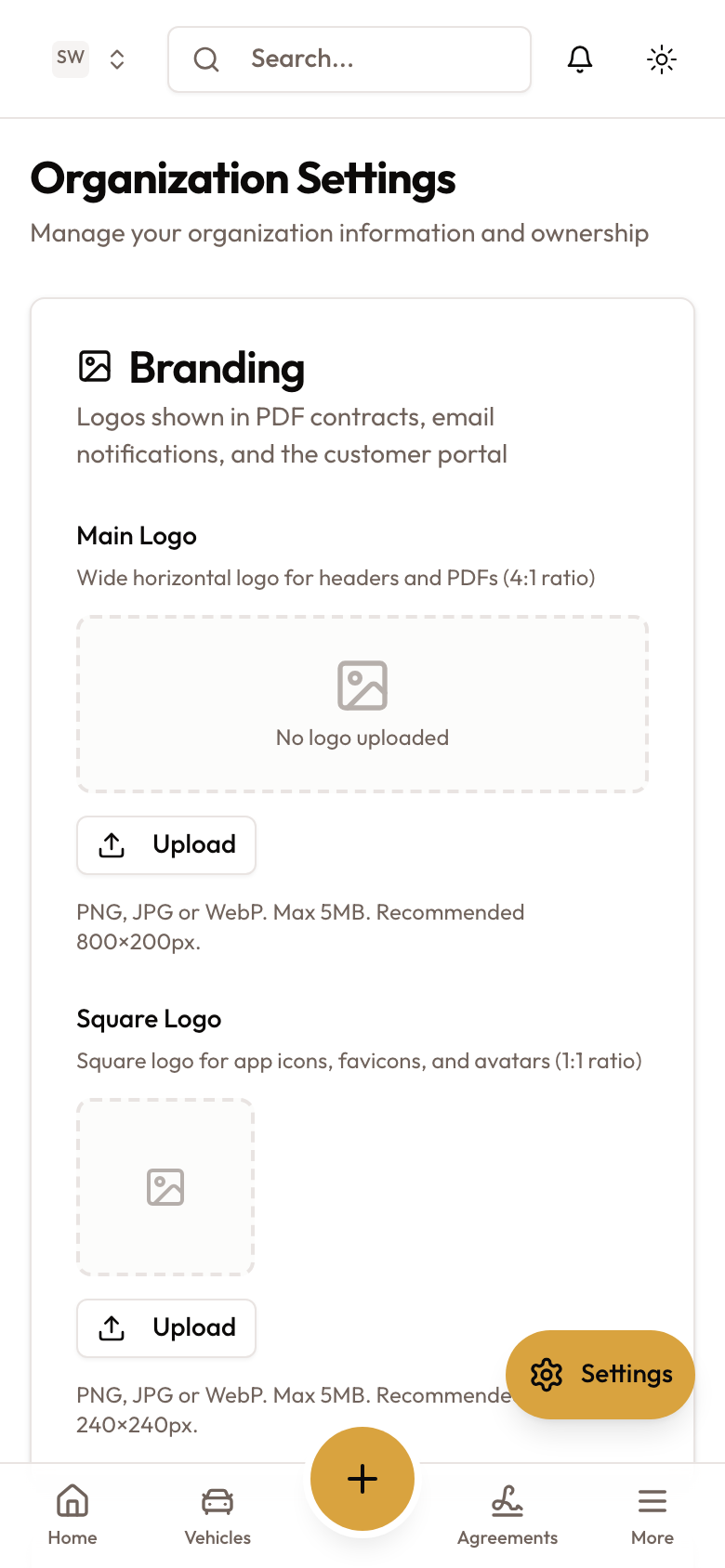
The floating Settings button above the bottom bar.
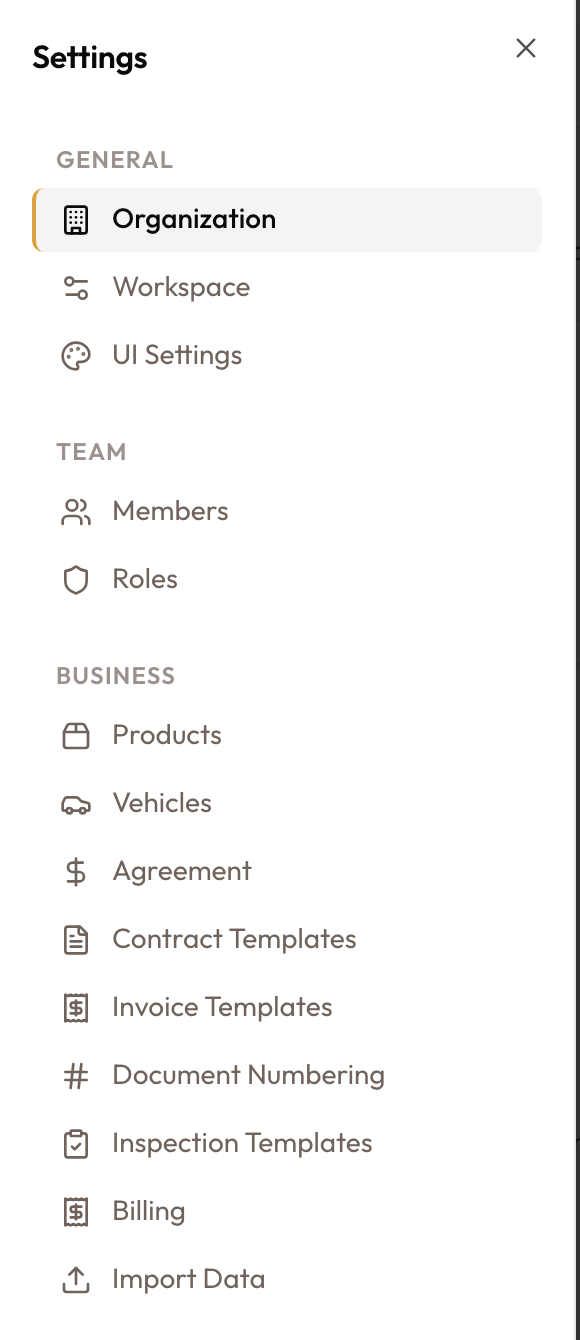
The Settings drawer, grouped like the desktop settings menu.
Taking photos
Where SpectroNova Express asks for a photo, your phone or tablet opens its camera:
- Vehicle inspections at checkout and check-in — Capture Photo for each angle, Retake to try again, or Upload from Gallery. See Vehicle Checkout & Handover Inspection.
- Express Rental — Tap to photograph the ID to fill in the renter's details. See Express Rental (Walk-Up).
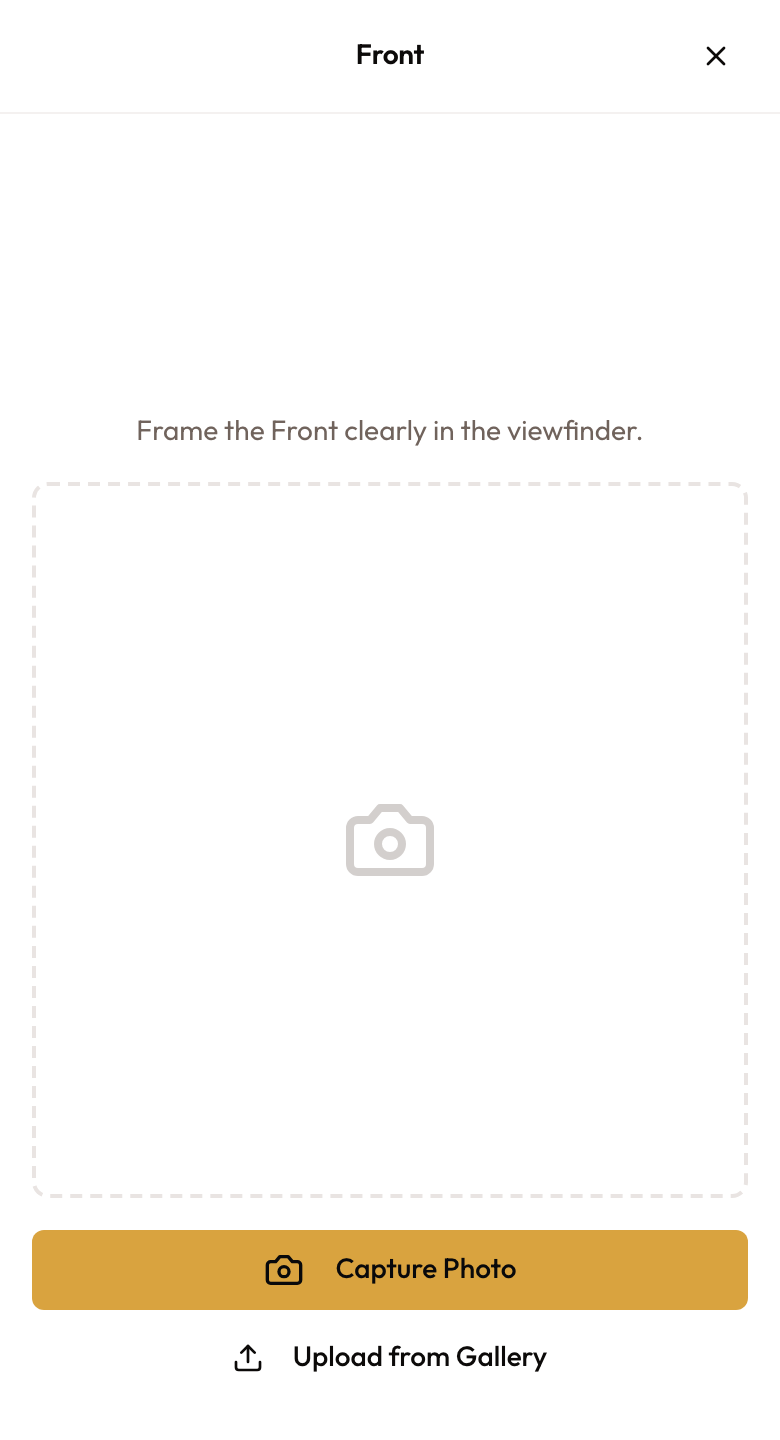
At checkout on a phone, each angle opens with Capture Photo and Upload from Gallery.
Add it to your home screen (optional)
To open SpectroNova Express like an app:
- Open it in your phone or tablet browser and sign in.
- Use your browser's Add to Home Screen or Install app option.
- Open it from the new icon. It opens full screen and updates itself.
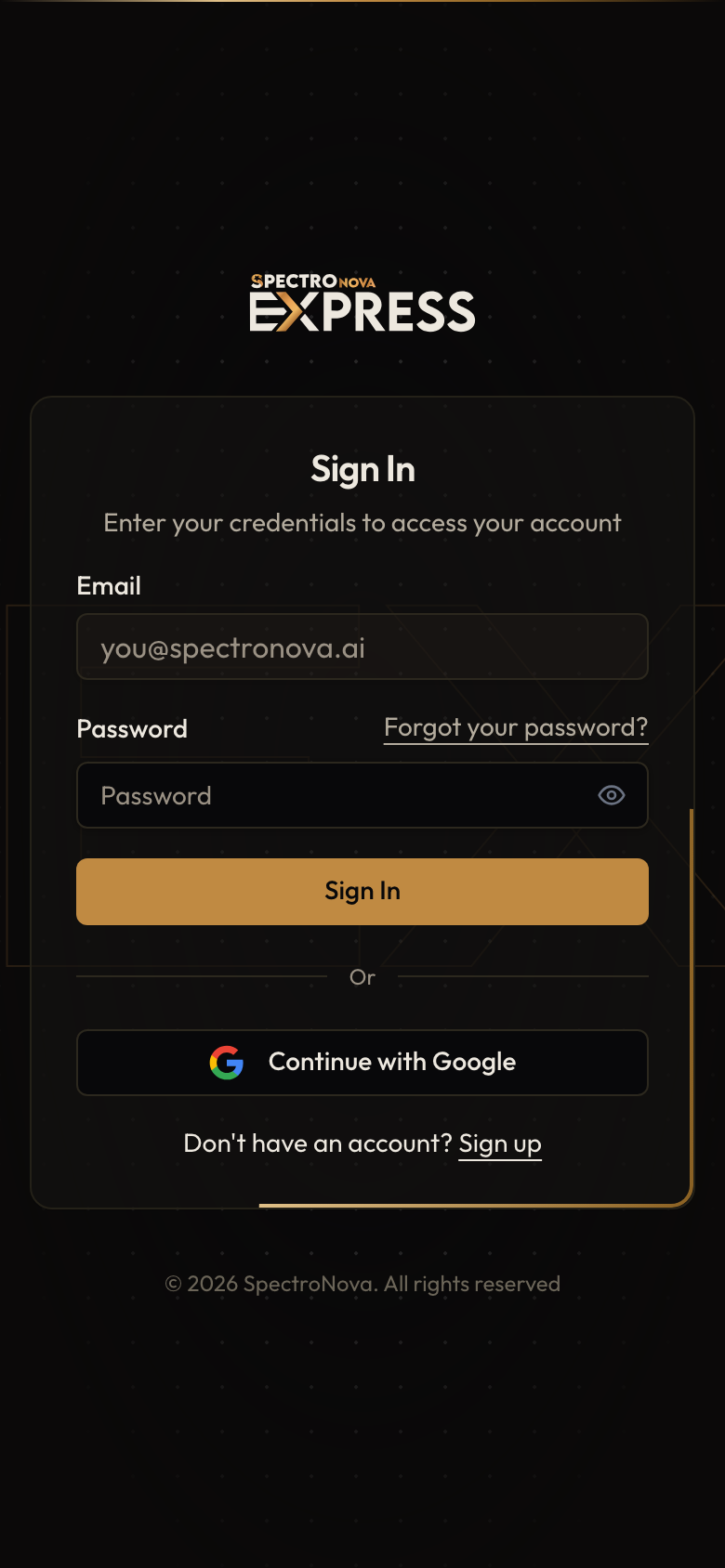
The Sign In page on a phone.
Good to know
- You need a connection. Nothing is stored on the device. If you lose signal, you'll see You're offline; tap Try again once you're back.
- Can't find a button? Look for the round Actions or Settings button in the bottom corner.
What's next
Set up your own details and preferences in Managing Your Profile.
Understanding the Dashboard
Your Home page in SpectroNova Express: the top bar (search, notifications, plan, theme), the Get Started card, keyboard shortcuts, and what each dashboard section measures.
Managing Your Profile & User Settings
Your personal settings in SpectroNova Express: profile and photo, language, theme and colour palette, notification switches, and password. Plus how the workspace-wide UI Settings differ.