

Understanding the Dashboard
Your Home page in SpectroNova Express: the top bar (search, notifications, plan, theme), the Get Started card, keyboard shortcuts, and what each dashboard section measures.
Home is the page you land on after signing in. It has two parts:
- The top bar runs across every page. It holds search, notifications, your plan and the theme switch.
- The dashboard fills the page. It shows the figures your role is allowed to see.
You can open Home in two ways:
- Home at the top of the sidebar
- Operations Overview in the Analytics group
Both open the same page, so both are highlighted while you're on it.
Two people can see different dashboards. The sections come from your role and your plan. A Fleet Manager and a Collections Agent each get a different set. Roles are covered in Inviting Team Members & Assigning Roles.
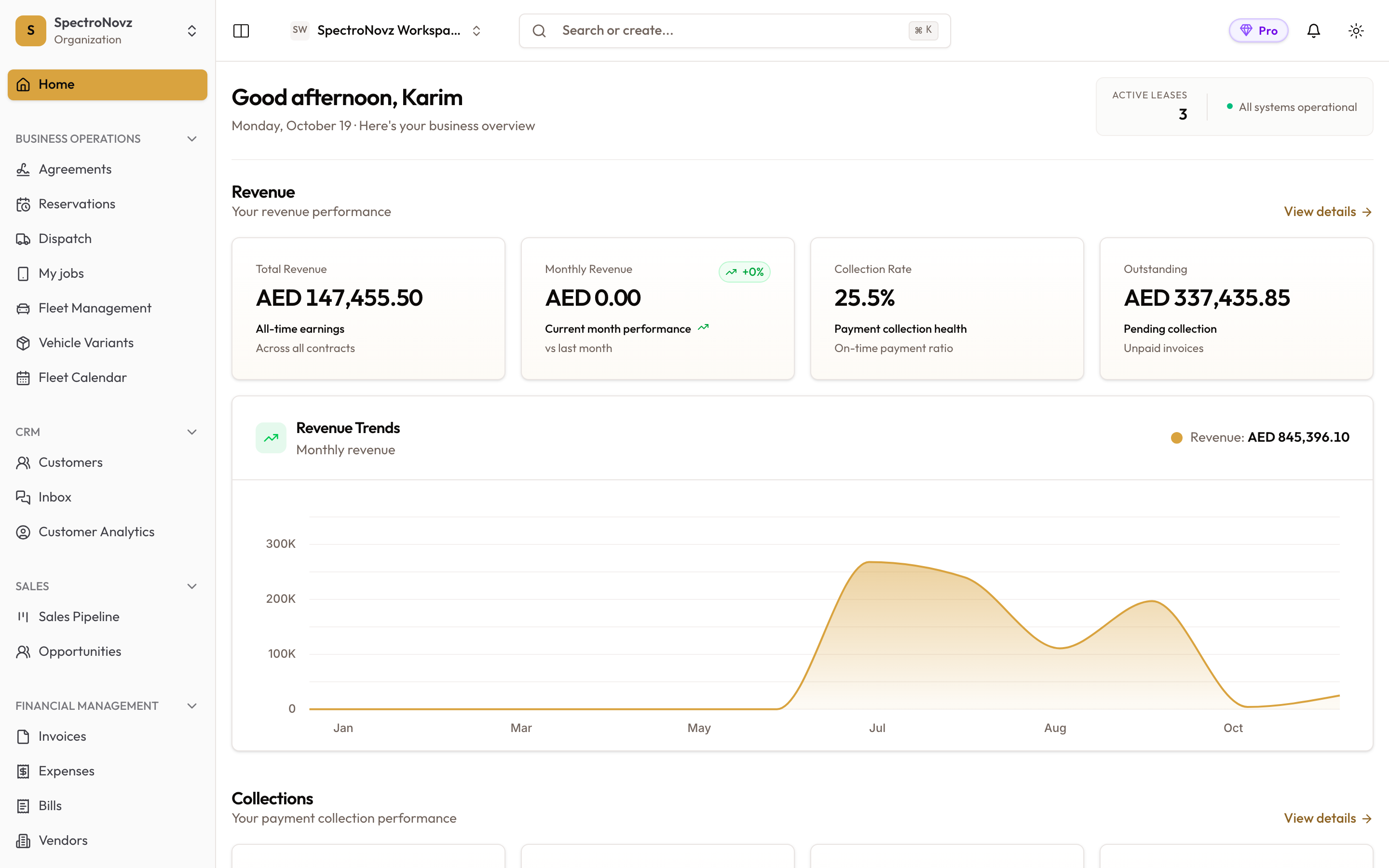
The Home dashboard: the greeting with the Active Leases count, then the Revenue section, with the main menu on the left.
The top bar
From left to right:
| Item | What it does |
|---|---|
| Workspace name | Switches between your workspaces. See Creating & Configuring Workspaces. |
| Search or create... | Opens the command palette (below). Shortcut: ⌘K on a Mac, Ctrl+K on Windows. |
| Get Started progress pill | Shown while your setup checklist is open. Click it to expand the Get Started card. |
| Plan badge | Your current plan. |
| Bell | Your notifications. A red number shows how many are unread. |
| Sun / moon icon | The colour theme: Light, Dark or System (follows your device). Your choice is saved to your account. |

The top bar: workspace name, Search or create..., the plan badge, notifications and the theme switch.
Search or create (command palette)
Open the palette
Click Search or create... or press ⌘K (Ctrl+K). Before you type, it lists:
- Quick Actions: New Agreement, New Vehicle, New Customer, New Invoice and New Variant. Each opens that create page.
- Navigation: Home, Agreements, Fleet Management, Customers, Invoices and Settings.
- Recent: records you opened lately.
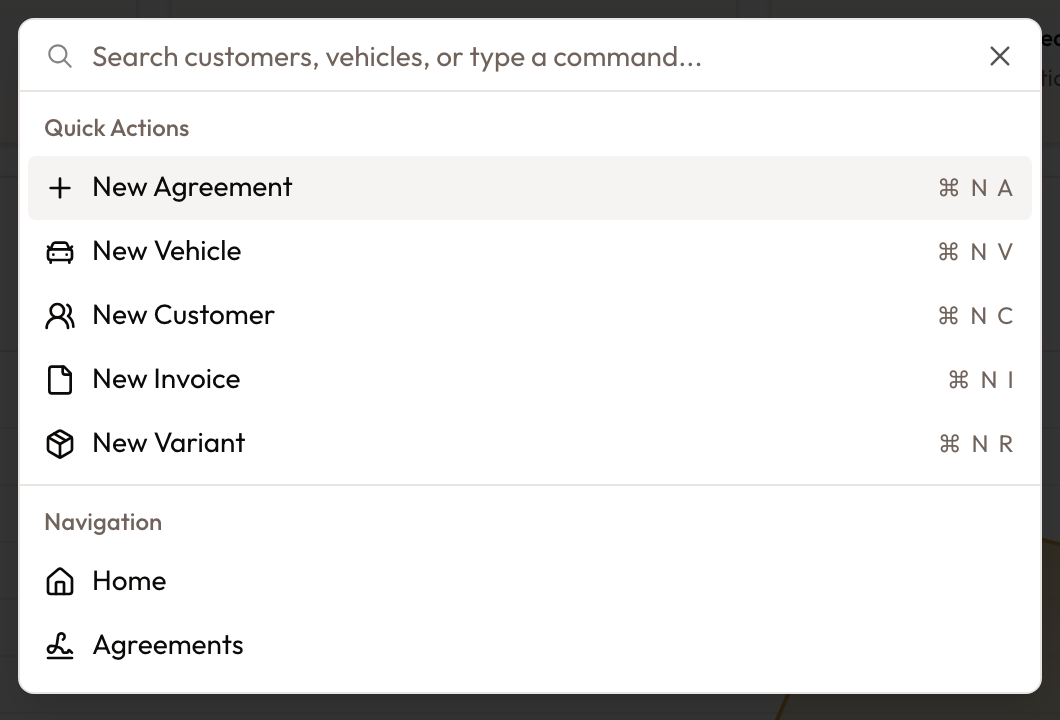
⌘K opens the palette: Quick Actions with their shortcuts, then Navigation.
Search for a record
Type at least two characters. The palette searches four kinds of record and shows up to five of each:
- Customers: by name, company name, phone, email or customer number.
- Vehicles: by plate, VIN, vehicle number, make or model.
- Agreements: by agreement number, customer name or plate.
- Invoices: by invoice number or customer name.
Click a result to open it.
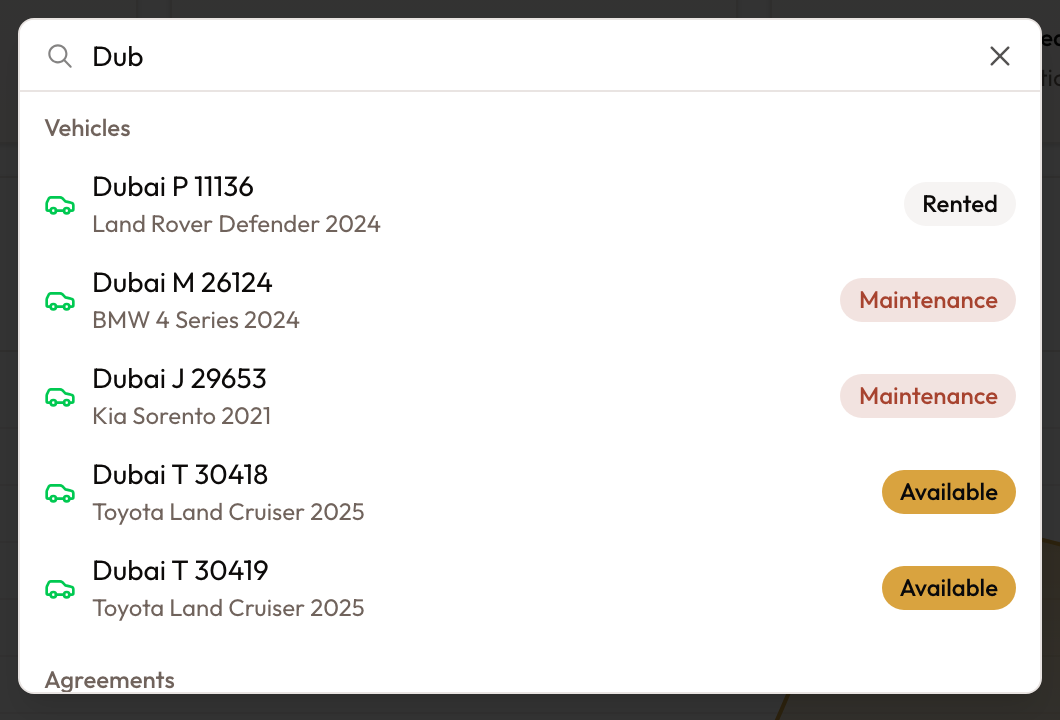
Typing searches as you go: here, vehicles matching "Dub" with their status.
Keyboard shortcuts
| Shortcut (Mac / Windows) | What it does |
|---|---|
| ⌘K / Ctrl+K | Open the command palette |
| ⌘B / Ctrl+B | Collapse or expand the sidebar |
| ⌘N, then A | New agreement |
| ⌘N, then V | New vehicle |
| ⌘N, then C | New customer |
| ⌘N, then I | New invoice |
| ⌘N, then R | New variant |
For the ⌘N shortcuts, press the letter within one second.
Some browsers keep ⌘N / Ctrl+N for opening a new window. If that happens, open the palette with ⌘K and pick the Quick Actions item instead.
Notifications
- Click the bell. The Notifications list shows your latest 10.
- Click a notification to mark it as read, or click Mark all read.
- Click View all notifications to open the full page.
On the full page you can filter by:
- Status: All, Unread or Read.
- Category: Subscription, Billing, Features, System or Onboarding.
- Priority: Urgent, High, Medium or Low.
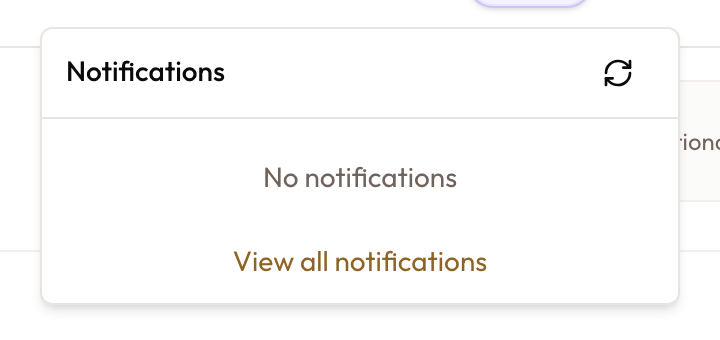
The bell's Notifications list, with View all notifications at the bottom.
The Get Started card
After you finish onboarding, a Get Started card appears in the bottom corner. It is a three-step checklist:
- Add your first customer
- Set up your fleet
- Create your first lease agreement
Each open step has a Create button. Customers and fleet also offer Download Template and Import CSV. Watch the tutorials opens the welcome course.
- Minimise the card and it becomes the progress pill in the top bar.
- Don't show again hides it for good.
- It disappears by itself once all three steps are done.
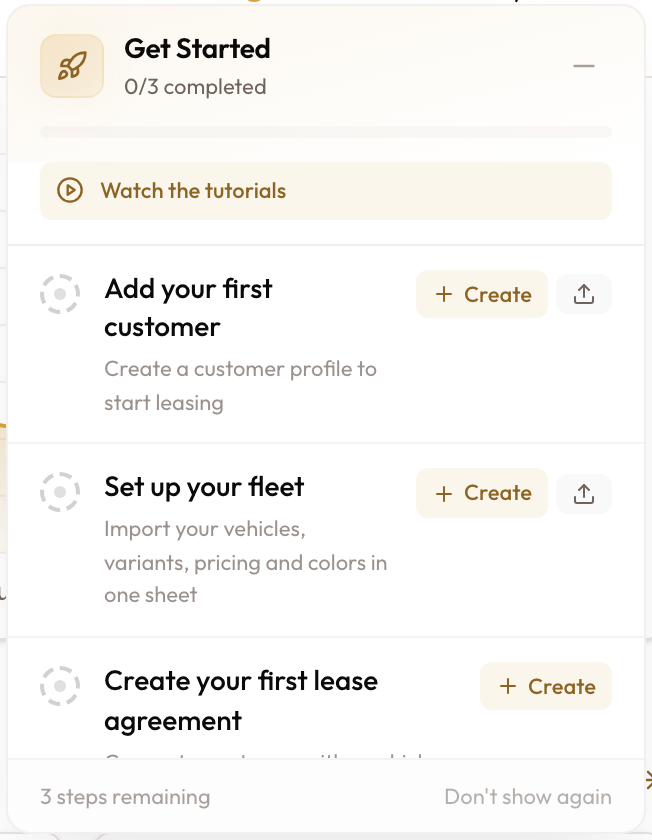
The Get Started card on a new account: Watch the tutorials, the three steps with Create, and Don't show again.
The dashboard, section by section
Greeting
At the top of the page:
- a greeting for the time of day, with your first name
- today's date and Here's your business overview
- on wider screens, a small box on the right with Active Leases (the number of active agreements) and All systems operational
Headline sections
Each section has a row of figures, a chart and a View details link.
| Section | Figures | Chart | View details opens |
|---|---|---|---|
| Revenue | Total Revenue, Monthly Revenue (vs last month), Collection Rate, Outstanding | Revenue Trends | Revenue Analytics |
| Collections | Today's Collections, This Week, This Month, Overdue | Collection Trend (last 30 days) | Payment Analytics |
| Fleet Status | Total Vehicles, Available, In Maintenance, Utilization | Fleet Status (current split) | Fleet Analytics |
| Fleet Performance | Cash Contribution (revenue minus running costs), Avg ROI, Profitable Vehicles, Best Performer | Top Performers by ROI | Fleet Analytics |
| Customers | Total Customers, Active Customers (with agreements), New This Month, Retention (repeat customers) | Customer Growth (12 months) | Customer Analytics |
| Agreements | Active, Expiring Soon (within 30 days), Pending (awaiting activation), Active Value | Status Distribution | the agreements list |
Which sections you see
Your role decides which sections appear. The built-in roles get:
| Role | Sections |
|---|---|
| Workspace Admin | All six |
| Fleet Manager | Fleet Status, Fleet Performance, Agreements |
| Sales Agent | Fleet Status, Customers, Agreements |
| Office Manager | Collections, Fleet Performance, Agreements |
| Collections Agent | Collections, Customers, Agreements |
| Viewer | Fleet Status |
A custom role shows the dashboard sections ticked for it.
Three sections depend on your plan:
- Revenue
- Fleet Performance
- Customers
If your plan doesn't include them, they appear as a Locked preview: a lock, a blurred chart and an upgrade button. A locked preview never shows numbers, real or sample.
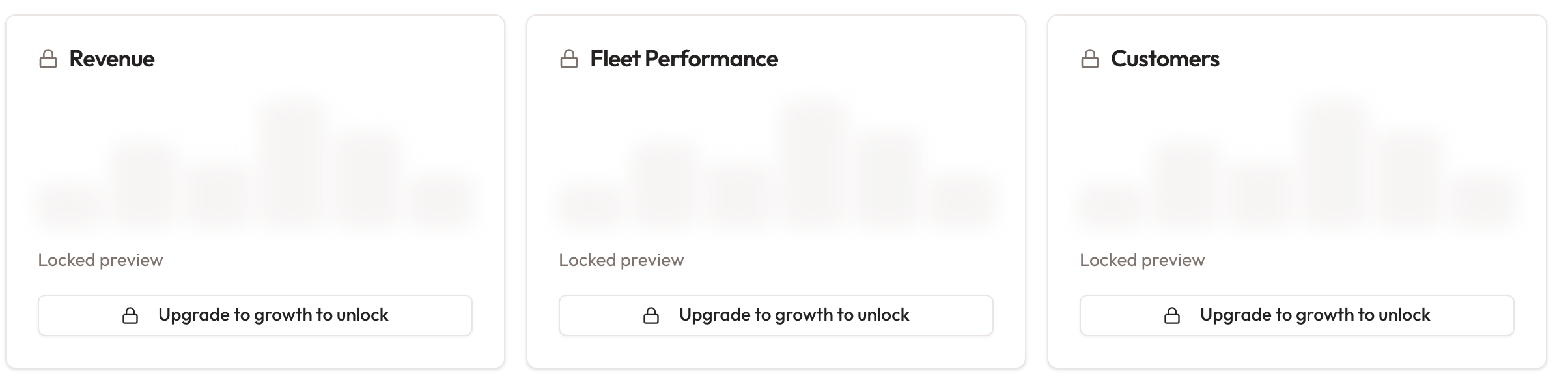
Locked preview cards: a lock, a blurred chart and an upgrade button, with no numbers.
Alerts and Quick Actions
- Alerts flags items that need attention. When there are none it reads All systems operational.
- Quick Actions lists New Agreement, Process Payment, Add Vehicle and Generate Report.
The buttons on the dashboard's Quick Actions card don't open anything yet. Use Search or create... (or ⌘K) to start these tasks.
Good to know
- A different dashboard from a colleague is normal. It follows your role and plan.
- A section with a lock and no numbers is a locked preview, not an error.
- The Active Leases box and the plan badge show on tablets and computers. For the phone layout, see Mobile & Tablet Access.
What's next
Next, see how SpectroNova Express works on a phone or tablet: Mobile & Tablet Access.
Inviting Team Members & Assigning Roles
Invite people to a workspace by email from Settings → Members, choose each person's built-in role, follow up on pending invitations, and change or remove members.
Mobile & Tablet Access
Use SpectroNova Express on your phone or tablet: what works the same, what's in a different place, taking photos with the camera, and adding it to your home screen.