

Setting Up Your Organization
Finish your company profile in Settings → Organization: logos, contact details, timezone, tax registration (TRN and VAT status), and what locks once you start invoicing.
Your organization is your company in SpectroNova Express. Its details are shared by every workspace you run: your name, logos, contact details, timezone and tax registration.
Sign-up already created your organization. This page shows you how to finish its profile in Settings → Organization, ideally before you raise your first invoice.
Haven't signed up yet? See Creating Your Account & First Login.
What sign-up already set for you
When you clicked Start my free trial on Set up your company, SpectroNova Express saved:
- your company name and phone number
- your country: United Arab Emirates
- your currency: AED
- your timezone: Dubai, Abu Dhabi (GST)
- VAT at 5%, applied for you
It also created your first workspace, Main branch. Everything else on this page is up to you.
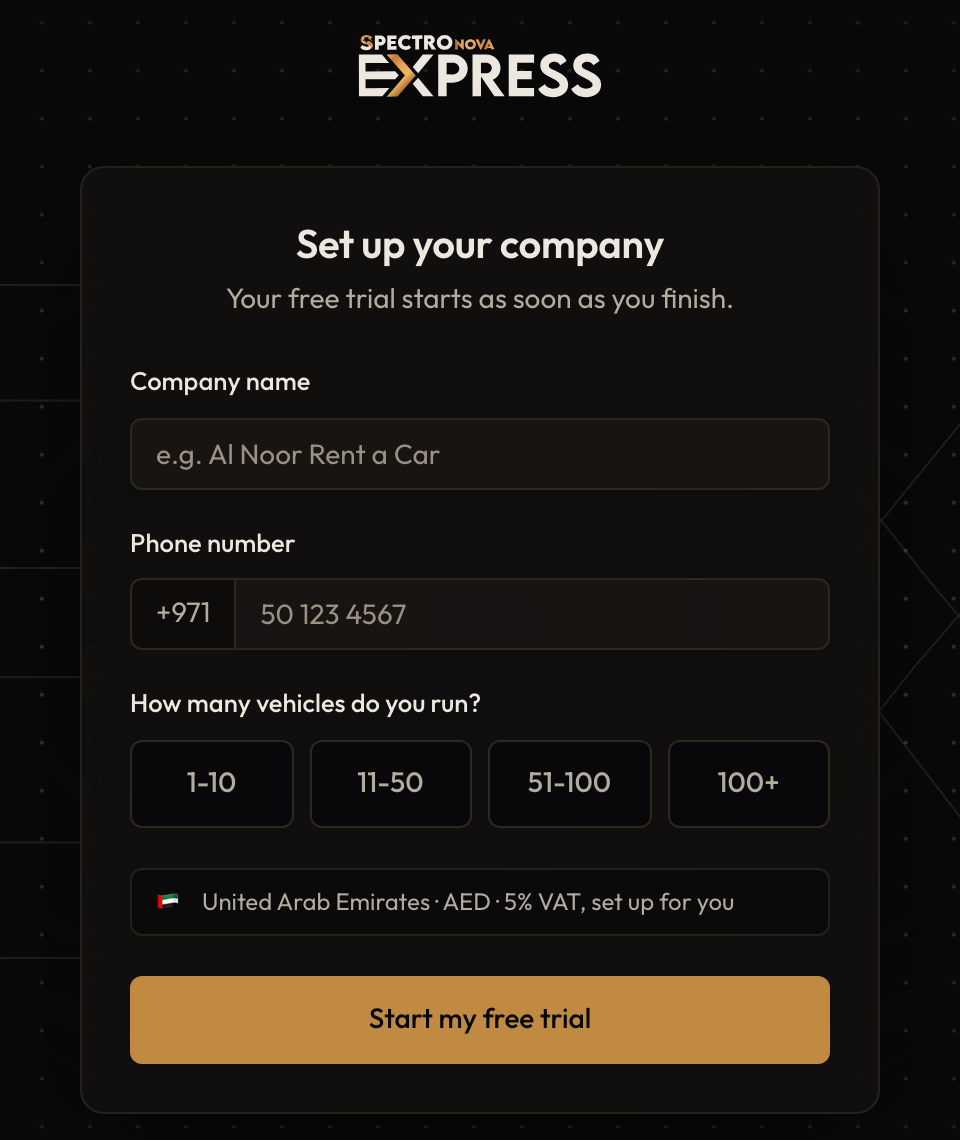
Set up your company, the one screen at sign-up that creates your organization.
Complete your organization profile
Open Organization Settings
Click Settings in the main menu. It opens Organization Settings straight away. You can also reach it from Organization in the settings menu, under General.
The page has three cards: Branding, Organization Information and Organization Ownership.
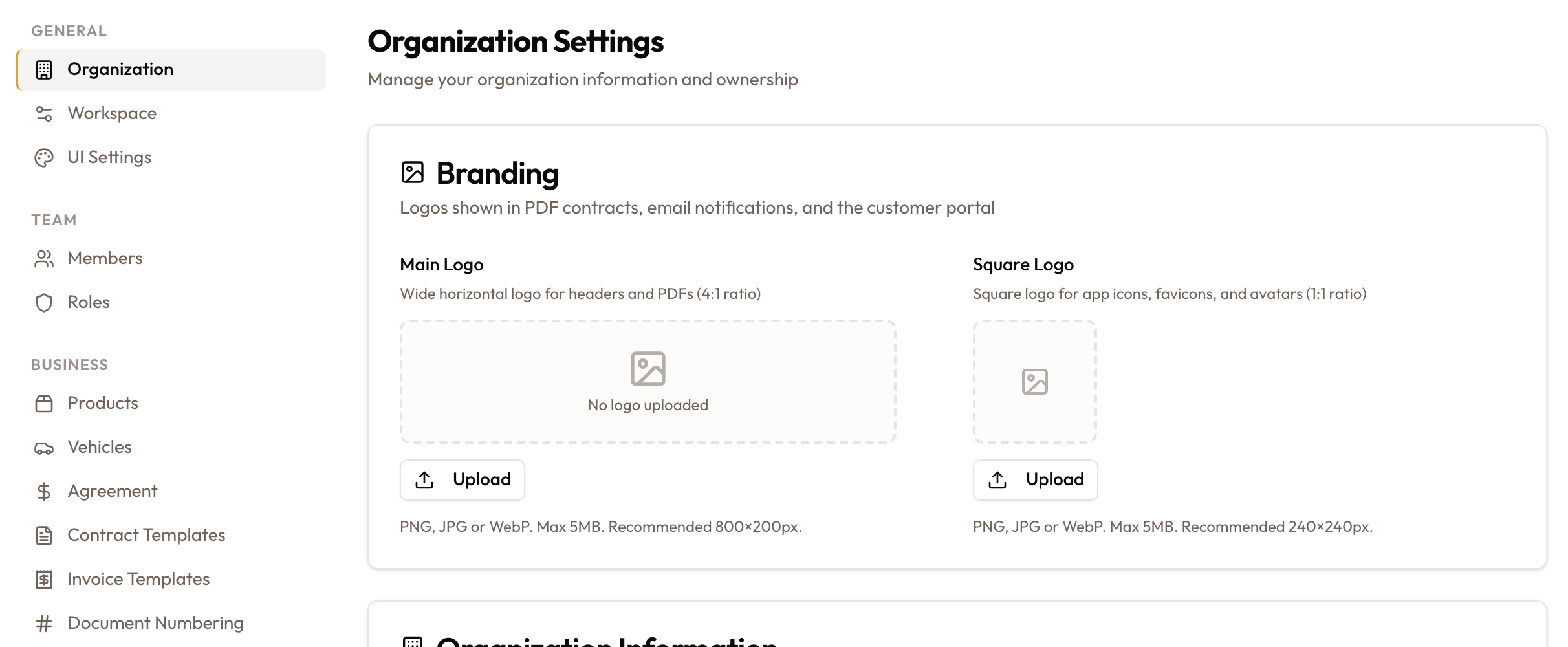
Settings → Organization: the settings menu on the left and Organization Settings with the Branding card.
Add your logos
In the Branding card, add the logos used on PDF contracts, emails and the customer portal.
- Under Main Logo, click Upload and pick a wide logo.
- Use PNG, JPG or WebP, up to 5MB.
- Recommended size: 800×200px (a 4:1 shape).
- Crop it in the Crop Main Logo window, then click Save Main Logo.
- Under Square Logo, click Upload and pick a square logo.
- Same file types and size limit.
- Recommended size: 240×240px.
- Crop it, then click Save Square Logo.
Each logo saves as soon as you crop it. To swap one later, click Change. To remove it, click the bin icon next to it.
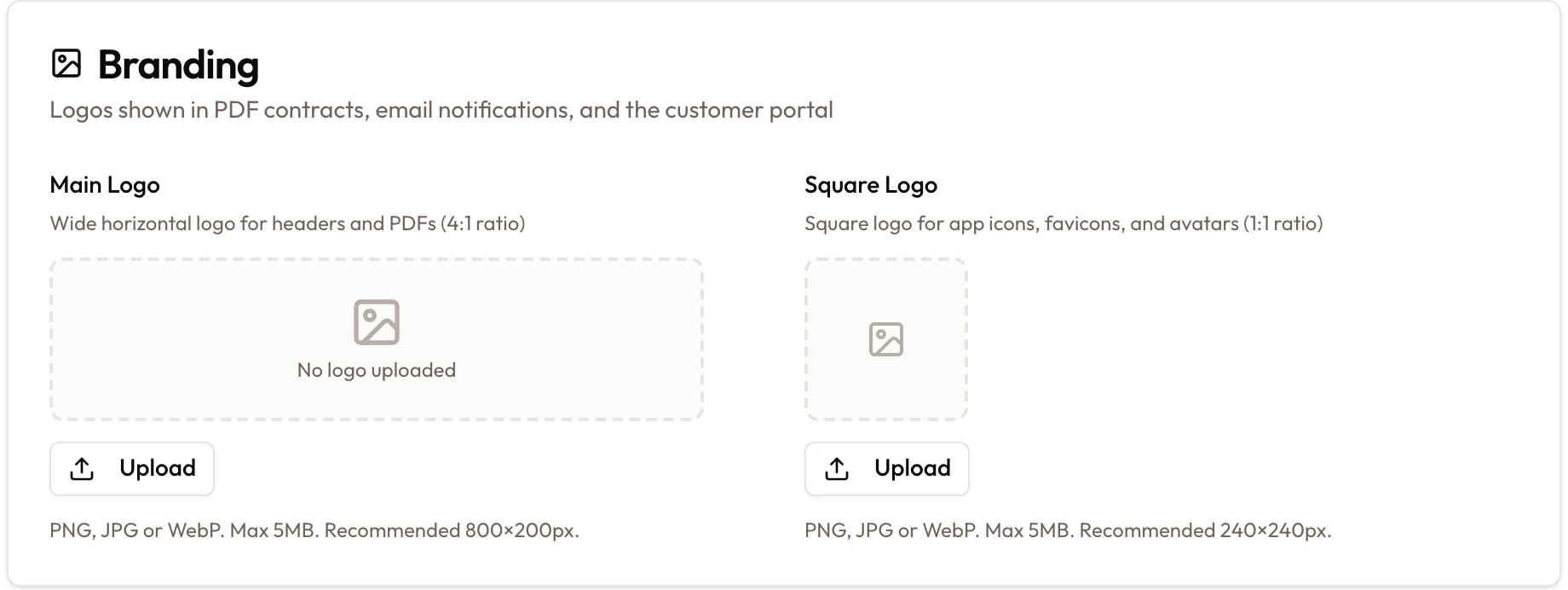
The Branding card: Main Logo and Square Logo, each with Upload.
Check your company details
In the Organization Information card, check or fill in:
- Organization Name: your company name from sign-up. At least 2 characters.
- Location: required. Sign-up fills in AE. You can change it to your city, for example Dubai, UAE.
- Business Address: optional. Sign-up leaves it empty.
- Phone Number: the number you gave at sign-up.
- Business Email: optional, for example info@yourcompany.com.
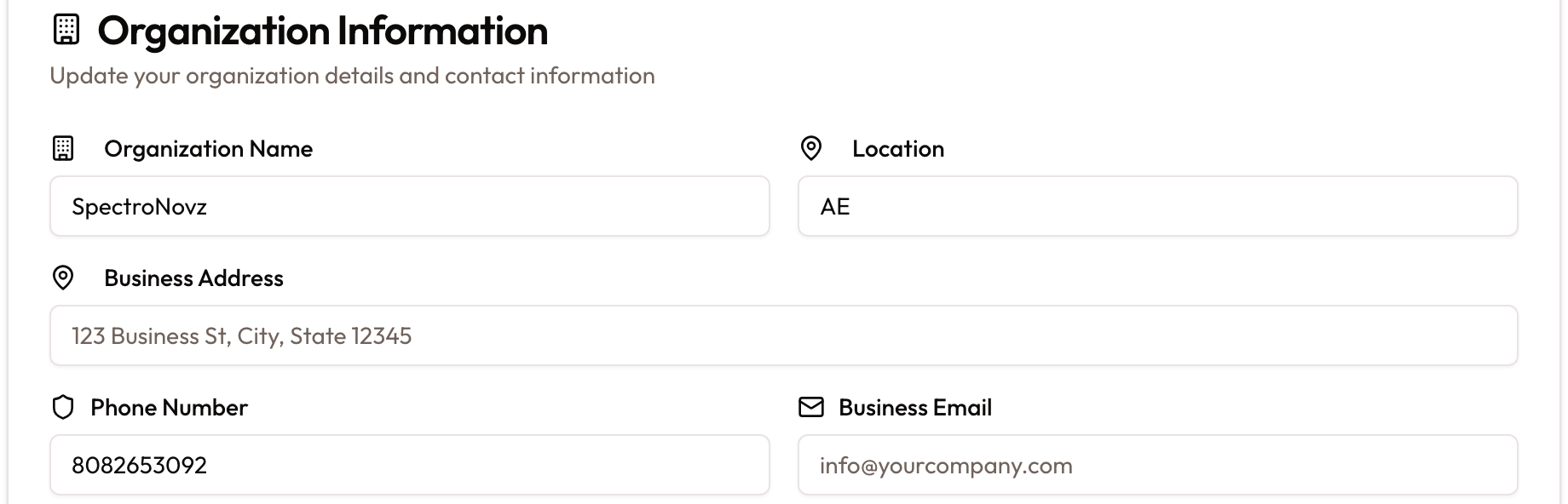
Organization Information: name, location, address, phone and business email.
Check your timezone and regional settings
Lower in the same card:
- Timezone: set to Dubai, Abu Dhabi (GST) for you. It decides which day and month every date belongs to. If your organization is older and this shows UTC (Coordinated Universal Time), change it to Dubai before you start invoicing.
- Country: United Arab Emirates. It drives your tax rules.
- Currency: your base currency for all transactions. Keep AED.
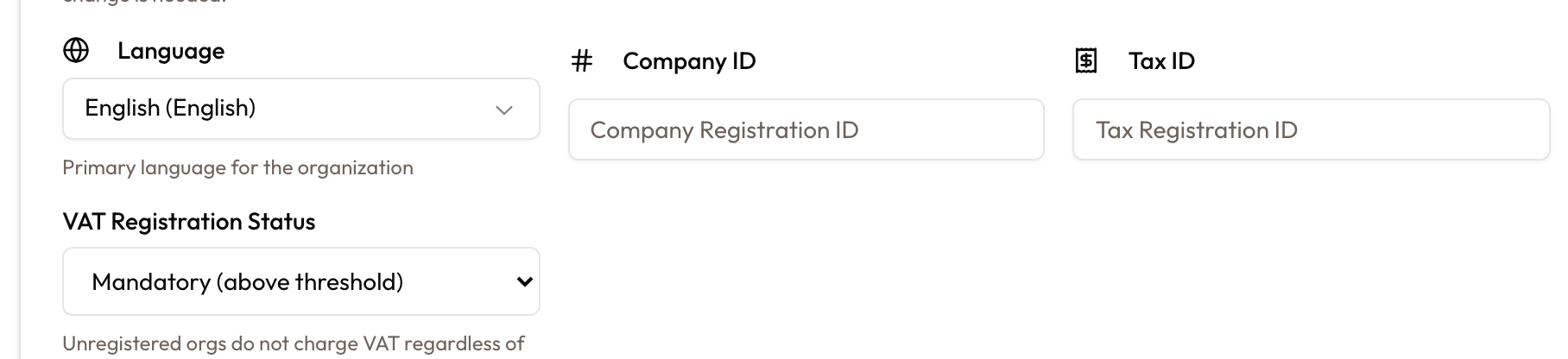
- Language: the main language for your organization.
Timezone and country lock once the books exist. After your first invoice is finalized, both fields are greyed out with a lock icon, and the note under them shows the date they locked. Changing them then would move posted records into different days and months. Check them before you start invoicing. If a real change is needed later, contact SpectroNova Express support.

Timezone and Country locked once the books exist, with the reason under each; Currency beside them.
Set your tax registration
At the bottom of the card, set:
- Company ID: optional. Your company registration number.
- Tax ID: your Tax Registration Number (TRN). Once it's set, your TRN prints on invoices and the invoice title becomes Tax Invoice instead of Invoice.
- VAT Registration Status: pick one.
- Mandatory (above threshold): the default.
- Voluntary (below threshold)
- Unregistered (no VAT charged)
You never enter a VAT rate. UAE VAT is applied for you at 5% where it applies. If an item is taxed differently, set its tax treatment on the product.
Unregistered (no VAT charged) turns VAT off on everything, whatever the tax treatment on each line. Mandatory and voluntary are taxed normally.
Save your changes
Click Save Changes at the bottom of the Organization Information card. A message confirms Organization updated successfully.
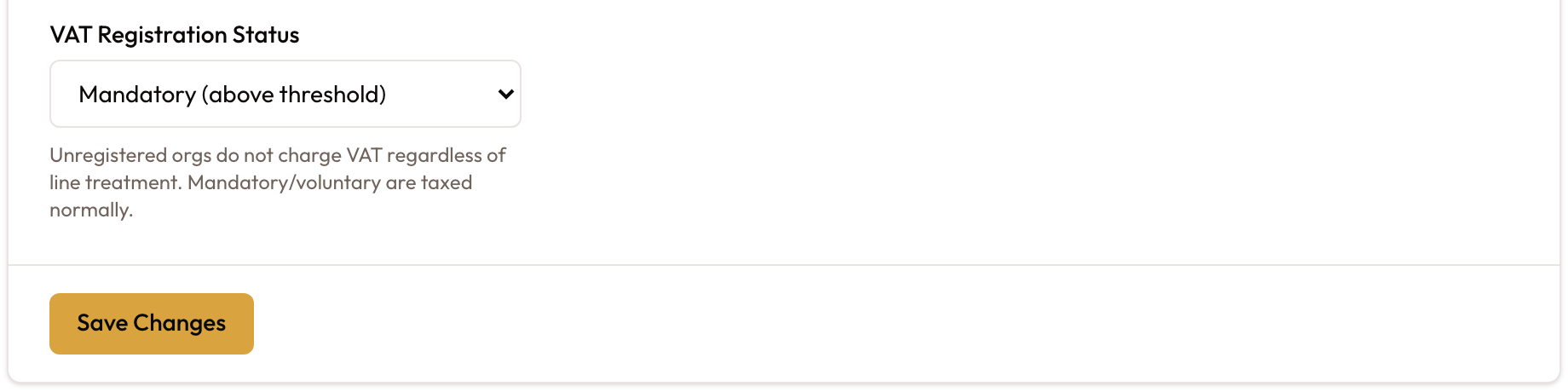
Save Changes at the bottom of Organization Information.
Organization owners
The Organization Ownership card lists the owners of your organization. The person who signed up is the Primary Owner.
To bring more people in, invite them to a workspace: see Inviting Team Members & Assigning Roles.
Things to know
- Logos save on their own. Save Changes saves only the Organization Information card.
- Location is required. Fill it in to save the card.
- Check timezone and country early. They lock once your first invoice is finalized.
- The VAT201 emirate is a workspace setting. It's the workspace's Default Place of Supply. See Creating & Configuring Workspaces.
- You need permission to open this page. If your role can't change settings, you'll see an access-denied page instead. Ask an owner.
What's next
Rename your first workspace and set its place of supply. See Creating & Configuring Workspaces.
Creating Your Account & First Login
Sign up with email or Google, set up your company on one screen, and where SpectroNova Express takes you when you sign in.
Creating & Configuring Workspaces
Your first workspace, Main branch, is created at sign-up. Rename it and give it a code in Settings → Workspace, switch workspaces from the top bar, and see how many your plan includes.