

Creating Your Account & First Login
Sign up with email or Google, set up your company on one screen, and where SpectroNova Express takes you when you sign in.
Creating your account is the first thing you do in SpectroNova Express. You sign up with an email and password or with Google, fill in one short screen about your company, and your free trial starts. You're signed in the whole way through.
Before you start you need an email address (or a Google account) and a UAE phone number for your company.
Sign up
Open the sign-up page
Go to the Create Account page. The card reads Create Account with "Enter your information to get started" under it, and Continue with Google sits below the Or separator.
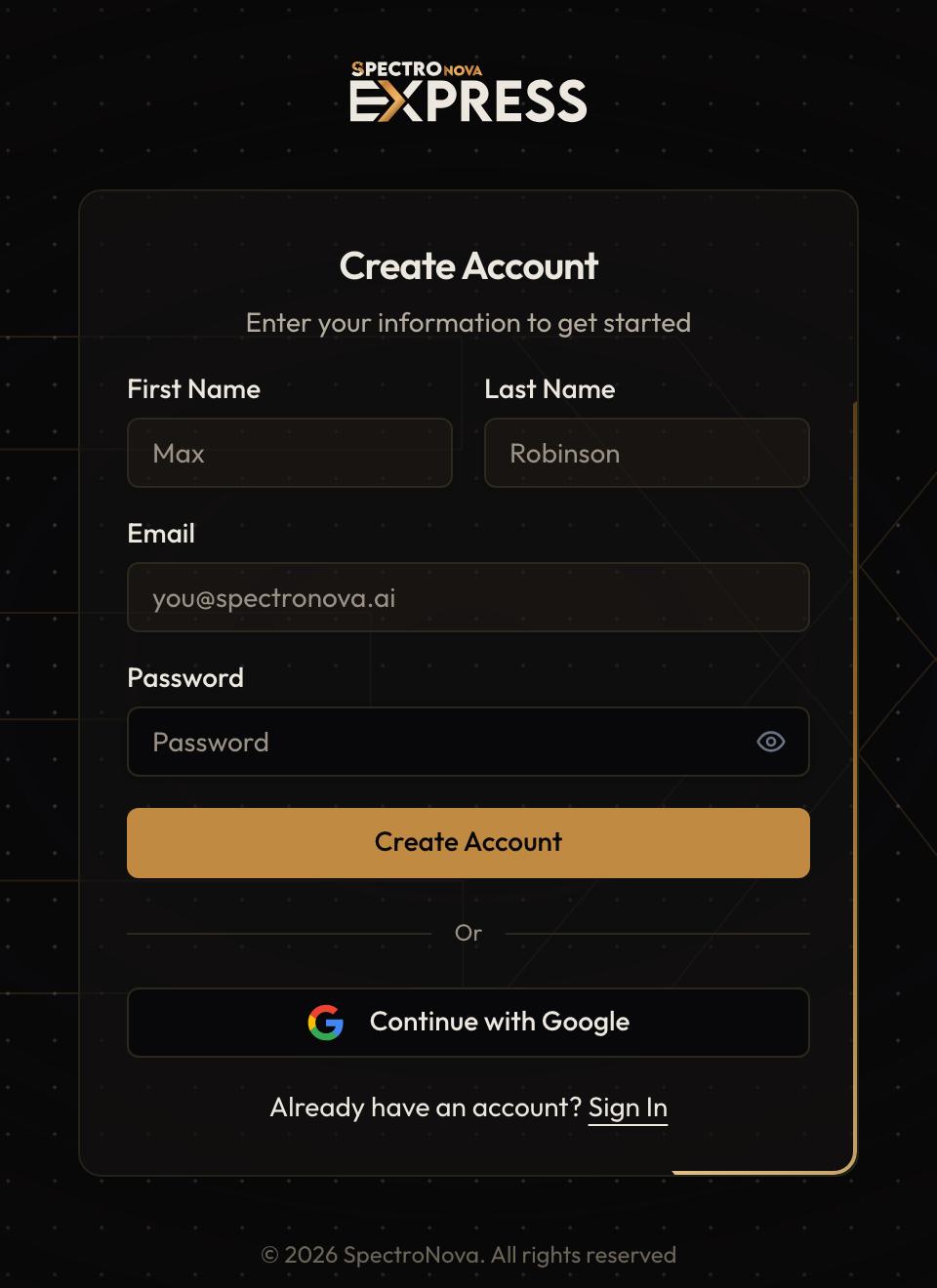
The Create Account page — First Name, Last Name, Email and Password fields, the Create Account button, and Continue with Google below the Or separator.
Enter your details
Fill in First Name, Last Name, Email and Password.
As you type a password, a strength bar fills and reads weak password, moderate password or strong password. The password has to meet every one of these rules:
- At least 8 characters
- An uppercase letter
- A lowercase letter
- A number
- A special character — one of
! @ # $ % ^ & * ( )
The special character is the rule people miss most. Only the characters
! @ # $ % ^ & * ( ) count. If a rule isn't met, a message under the field
names it — for example "Must contain a special character".
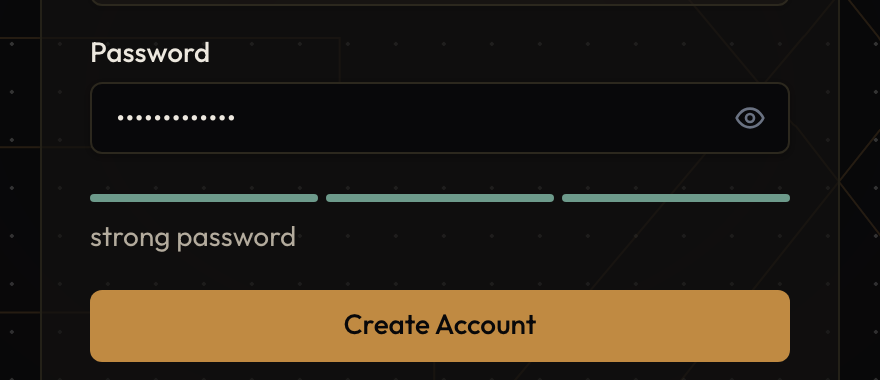
The password strength bar with all rules met.
Create the account
Click Create Account. While it works, the button reads Please wait. "Registration successful! Redirecting to onboarding..." confirms it, and you go straight on to set up your company.
Prefer Google? Click Continue with Google instead of filling in the form, and finish Google's sign-in. You come back to SpectroNova Express signed in and carry on with the next step.
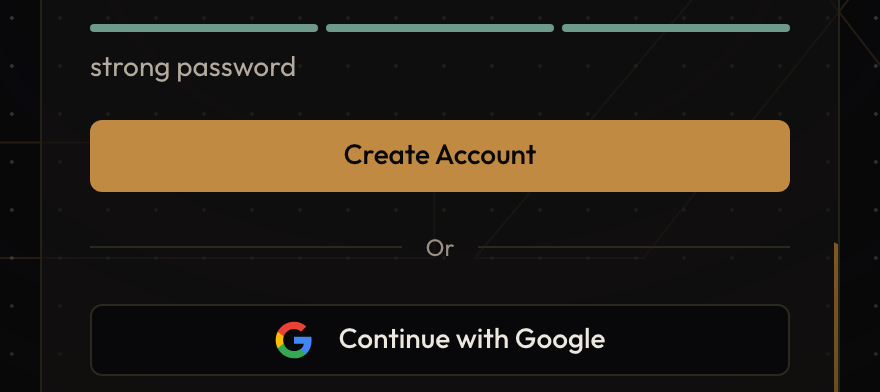
Create Account, or Continue with Google below it.
Set up your company
One screen, Set up your company, asks for three things:
- Company name — for example Al Noor Rent a Car
- Phone number — your UAE number; the +971 is already there, so type the 8 or 9 digits after it
- How many vehicles do you run? — pick 1-10, 11-50, 51-100 or 100+
The country settings are done for you: United Arab Emirates · AED · 5% VAT, set up for you. Click Start my free trial. While it works, the button reads Setting up your account….
SpectroNova Express creates your organization and a first workspace called Main branch, and starts your free trial. No card or plan choice is needed. You can change these details later — see Setting Up Your Organization.
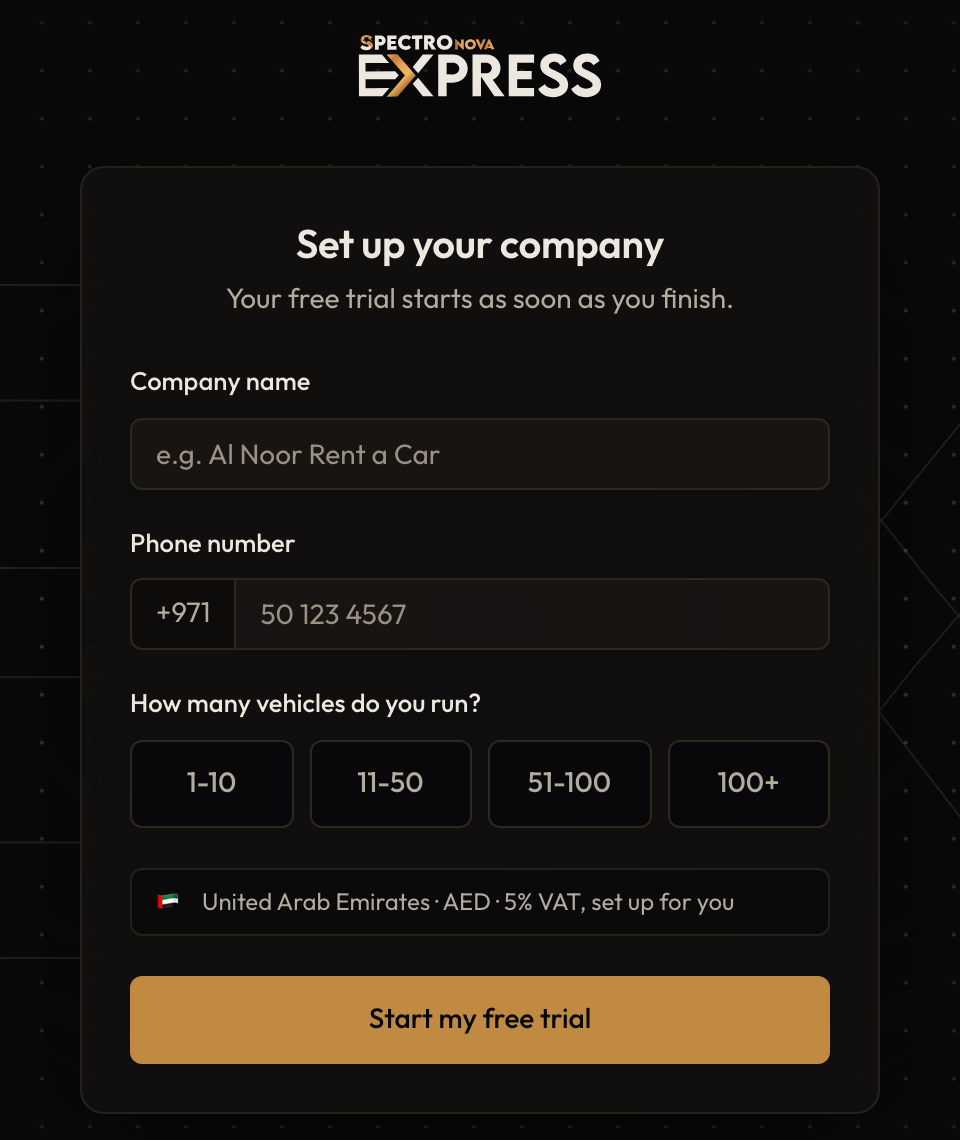
Set up your company: Company name, Phone number (with +971 already filled in), the four fleet-size buttons, and Start my free trial.
Wait for approval, if asked
Some accounts are reviewed before they can be used. If yours is, you'll see We're reviewing your account with a Signed up → Review → Ready progress line. Most accounts are approved within 24 hours, and you're emailed when yours is ready.
- Check my status looks again. Once you're approved, it takes you into the app.
- Sign out lets you leave and come back later.
This screen appears only when an account needs a review; otherwise you go straight in.
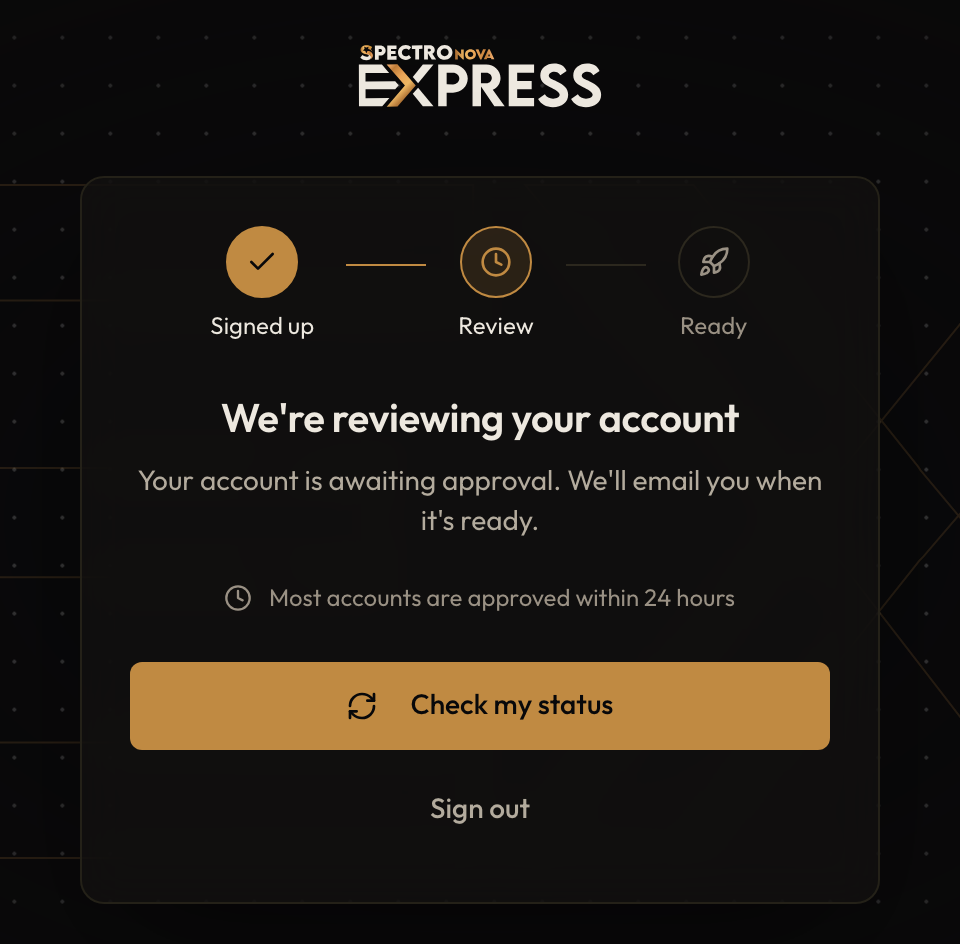
We're reviewing your account, with the Signed up → Review → Ready line, Check my status and Sign out.
Start with the welcome course
When your account is ready, a welcome page opens: Your first rental, start to finish. — five short videos in the order you will do them. Watch them now, or click Go to dashboard. You can come back to the course any time from the Get Started card on your dashboard.
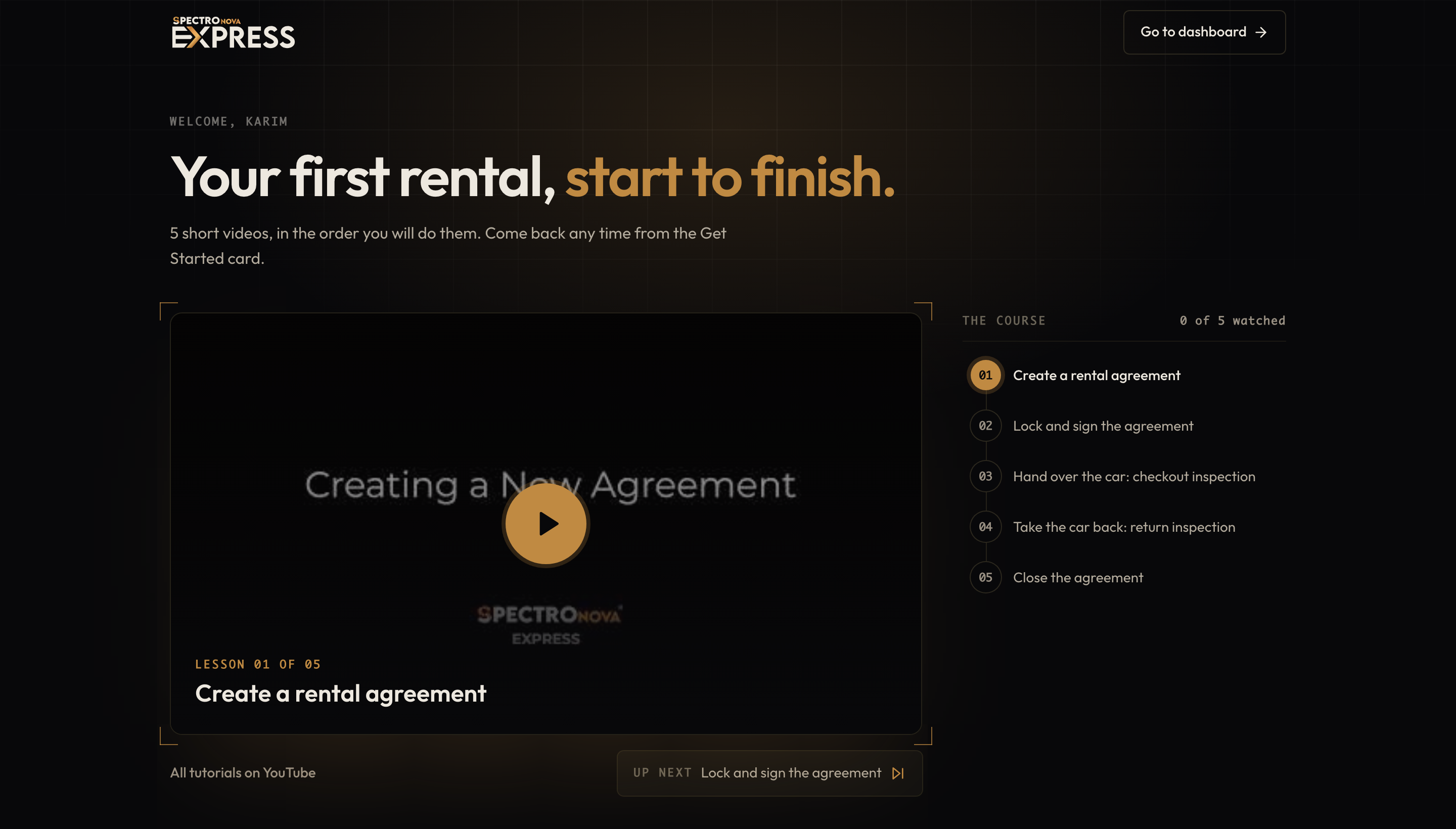
The welcome page: the course list on the right and Go to dashboard at the top.
Sign in
Sign in when you return
Open the Sign In page — "Enter your credentials to access your account". Enter your Email and Password and click Sign In, or use Continue with Google. "Login successful!" confirms it.
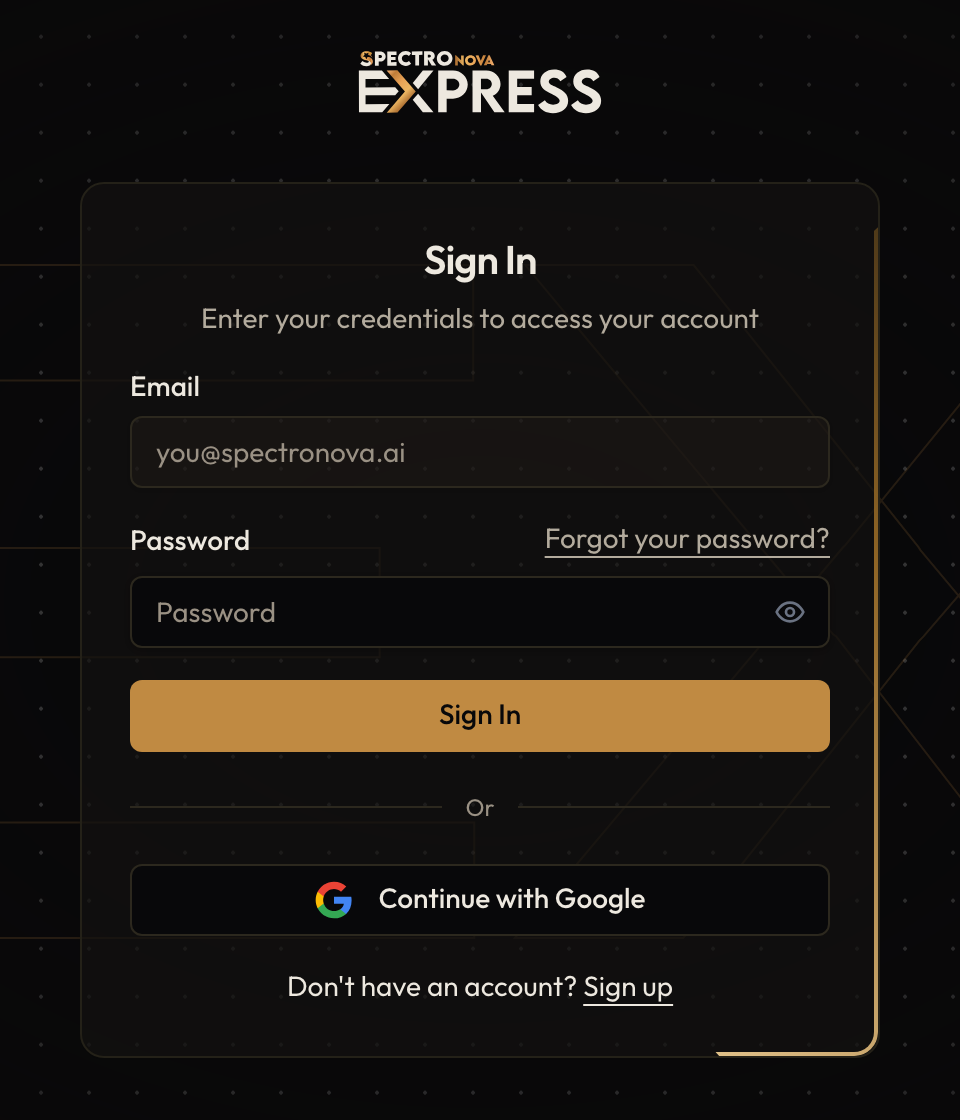
The Sign In page — the Email and Password fields with Forgot your password? beside the password label, and the Sign In button.
Where sign-in takes you
SpectroNova Express sends you to the right place for how far your setup has got:
- You haven't set up your company yet — back to Set up your company.
- Your account is still under review — to We're reviewing your account.
- Everything is set up — to your workspace's Home dashboard.
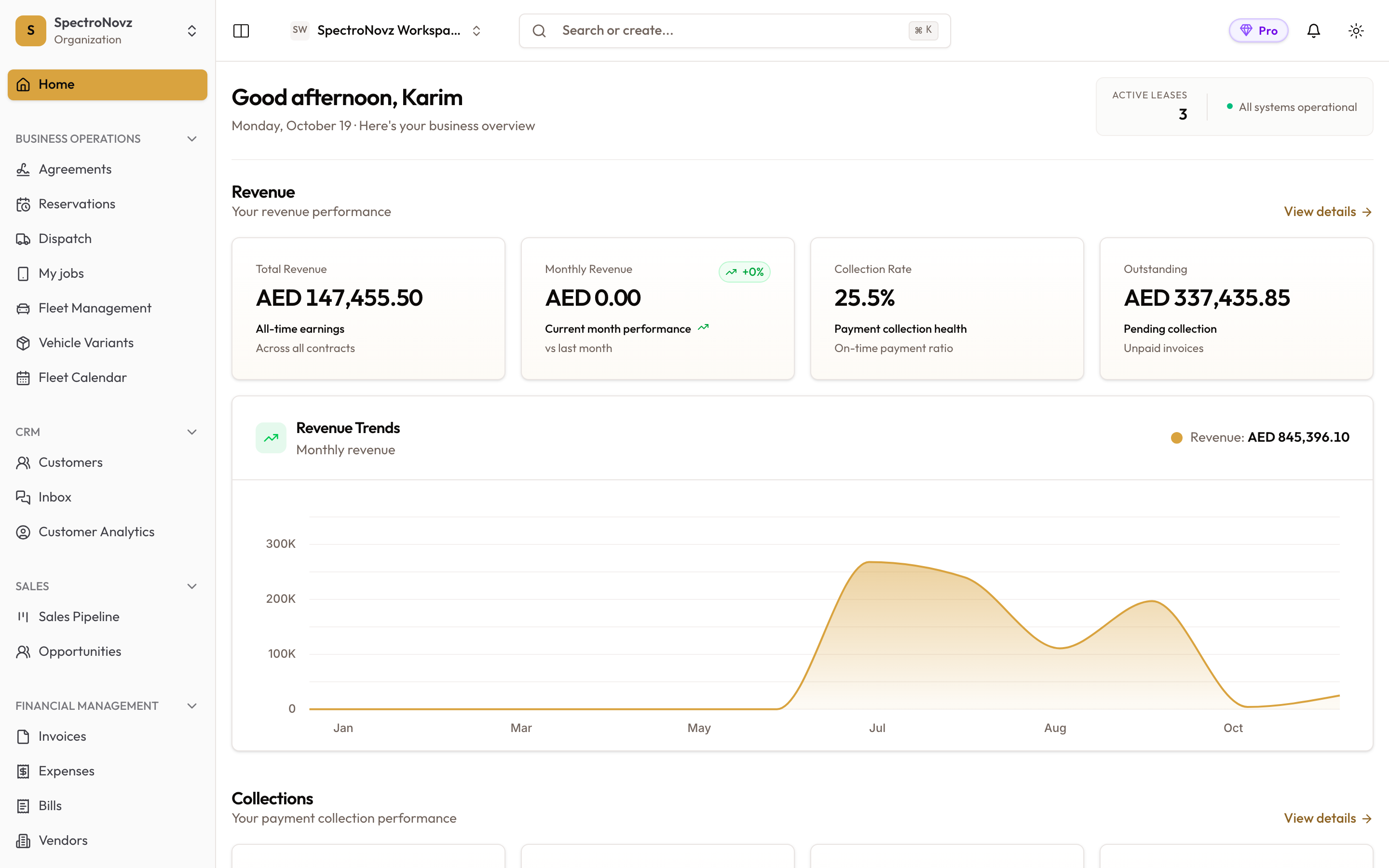
Once everything is set up, sign-in takes you to your workspace's Home dashboard.
Forgot your password?
On the Sign In page, click Forgot your password? beside the Password label. The card changes to Reset Password. Enter your email and click Send Reset Link.
You'll see Reset Link Sent — "If an account exists with this email, a password reset link has been sent" — whether or not the email has an account. That's deliberate: the reset form can't be used to find out who has an account. Click Sign In beside Go back to to return to the sign-in form.
Common problems
| What you see | What it means |
|---|---|
| "Enter your UAE number: 8 or 9 digits after +971" | The number is too short. Spaces and a leading 0 are removed as you type, so enter all 8 or 9 digits after +971 |
| "Choose your fleet size" | Pick one of the four fleet-size buttons |
| "Enter your company name" | The company name needs at least 2 characters |
| "We couldn't finish setting up your account. Please try again." | Setting up the company failed; click Start my free trial again |
| "Registration completed but there was an issue setting up your profile. Please try logging in." | The account exists; sign in from the Sign In page and you'll continue from Set up your company |
What's next
Your account is ready and you're signed in. The Quick Start shows the order to set everything else up in.
Quick Start
The order to set SpectroNova Express up in, from signing up to your first rental and its invoice.
Setting Up Your Organization
Finish your company profile in Settings → Organization: logos, contact details, timezone, tax registration (TRN and VAT status), and what locks once you start invoicing.