

Creating a New Agreement
Build a rental or lease agreement from scratch — vehicle, customer, duration, pricing, and add-ons.
Creating an agreement takes three steps:
- Agreement Details: the vehicle, the duration, the rate and the customer.
- Terms: the deposit, mileage, add-ons and any discount.
- Review: check everything and create it.
The agreement is saved as a Draft, and the vehicle is reserved for it. Locking, signing and handover come afterwards.
Before you start you need:
- at least one customer record
- at least one vehicle in Available status, with its rental rates set
- for add-ons such as insurance or equipment, priced products in your product catalog
Step 1 — Agreement Details
Open the wizard
In the sidebar under Business Operations, click Agreements, then Create Agreement.
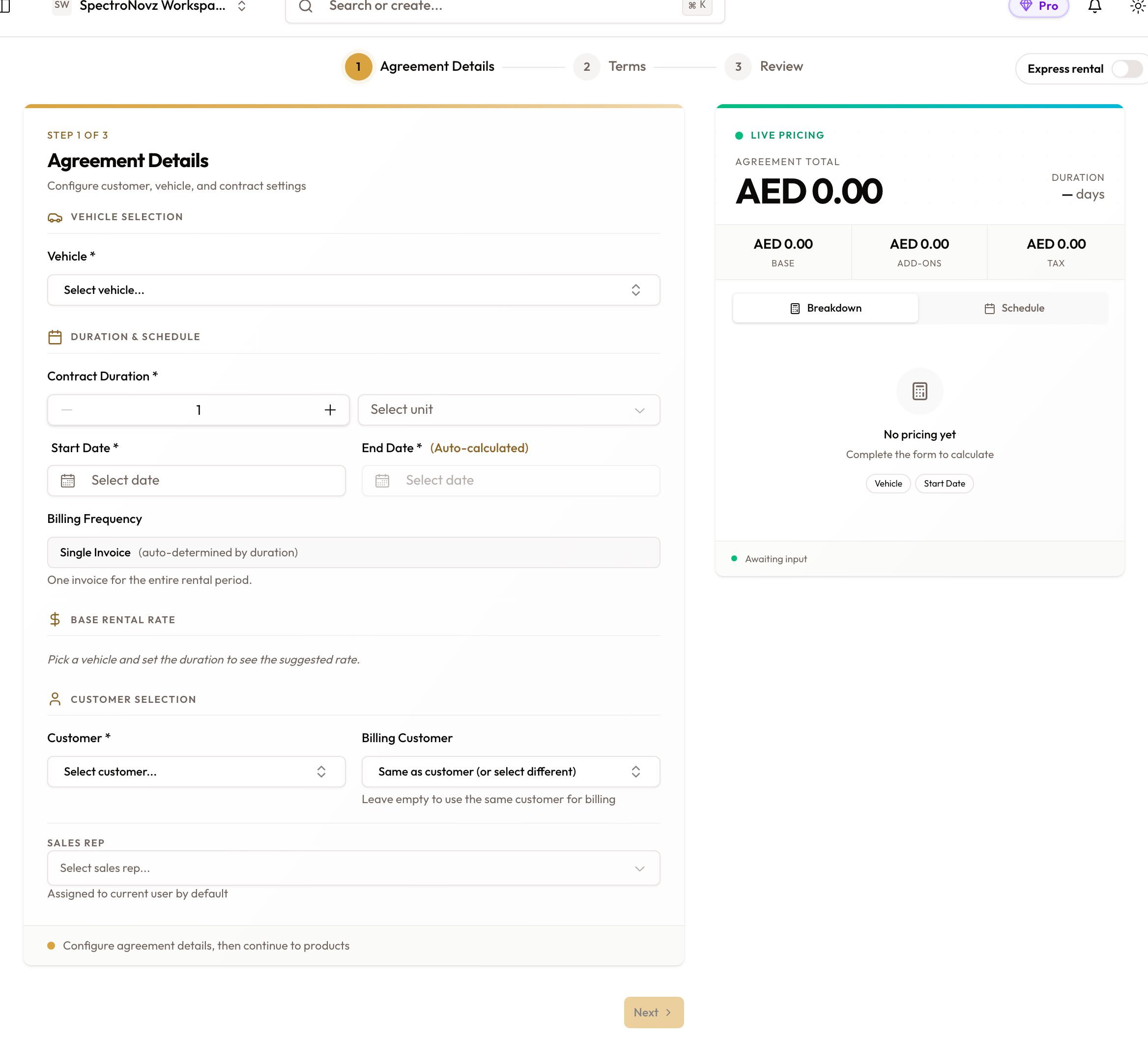
The wizard opens on Agreement Details. The Live Pricing panel on the right reads No pricing yet until you pick a vehicle.
Landed on the Express page instead? Beside the steps there is an Express rental switch. Turning it on opens the Express Rental flow for walk-ups, and this device remembers the choice: next time, Create Agreement goes straight to Express. Turn the switch off there to come back to the full wizard. Other devices are not affected.
Select a vehicle
Under Vehicle Selection, click Select vehicle... and search by make, model, year or plate. Only vehicles in Available status are listed.
Once you pick one:
- a card shows the vehicle, and Vehicle selected! confirms it
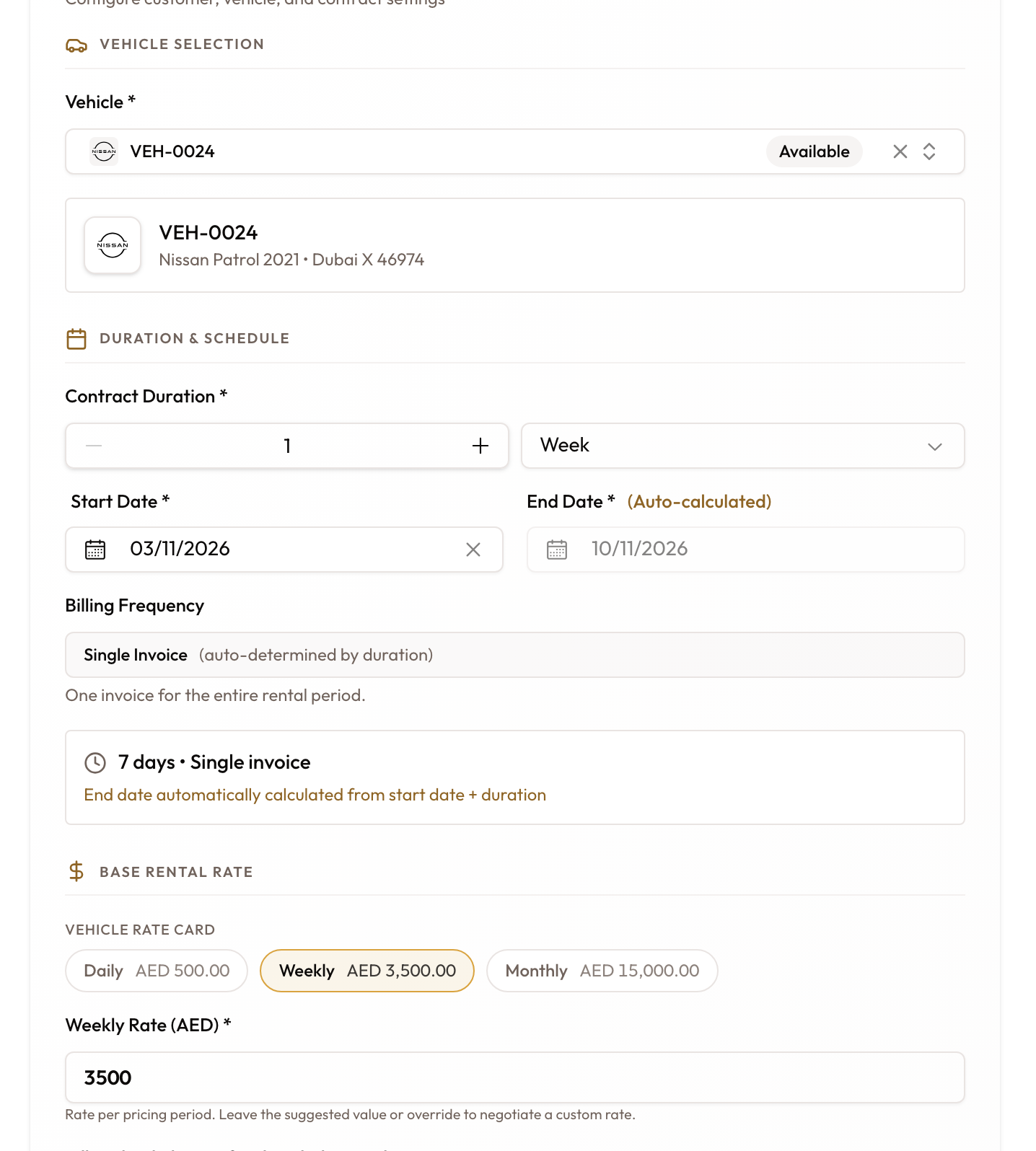
- if you hadn't set dates yet, Start Date is set to today and the duration to 1 Week, ready for you to change
- the Vehicle rate card appears under Base Rental Rate
Set the duration
Under Duration & Schedule:
- Under Contract Duration, enter a number and pick a unit: days, weeks, months, years, or Custom Period.
- Set the Start Date. It can be today, a future date, or up to two days back if the vehicle has already gone out.
The End Date calculates itself. With Custom Period, you pick the end date yourself.
Billing Frequency follows the length and can't be changed: under a full month it reads Single Invoice, a full month or longer reads Monthly. See short-term and long-term rentals.
Set the rate
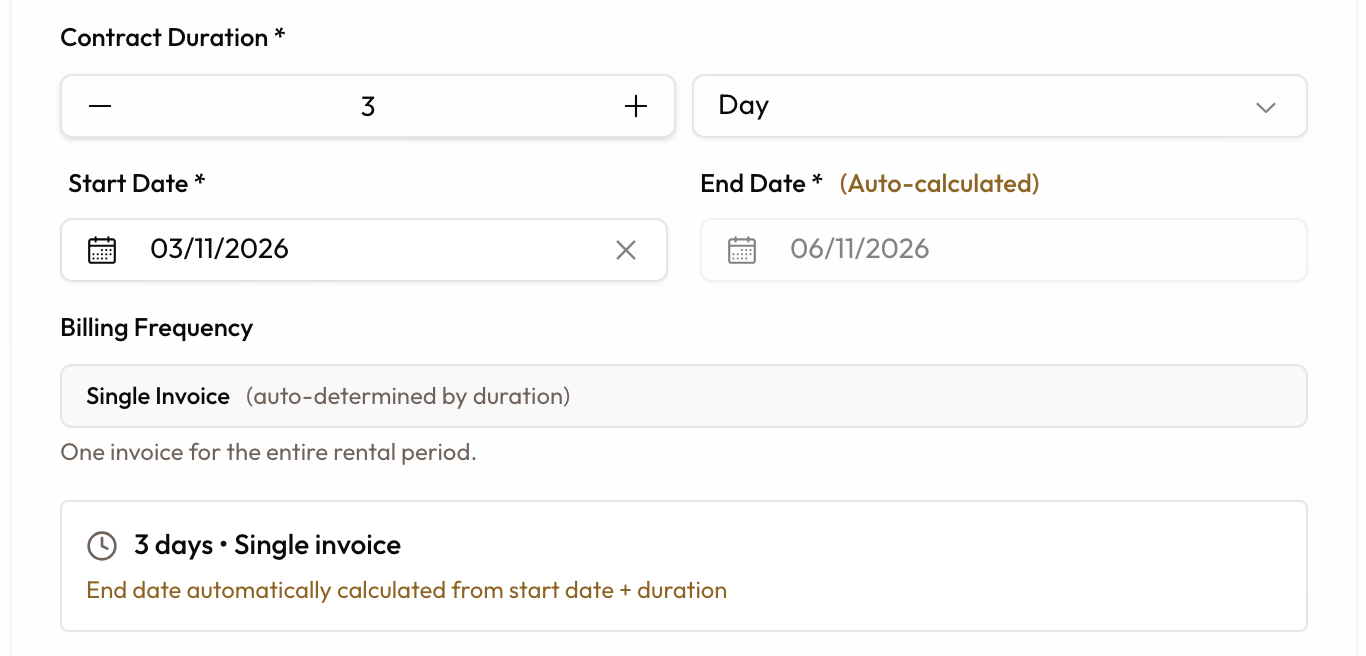
Under Base Rental Rate, the rate is filled in from the vehicle's rate card for the tier that matches the duration. The field is labelled for that tier: Daily Rate (AED), Weekly Rate (AED) or Monthly Rate (AED).
The rate in this field is the rate the customer is invoiced. Type a different figure to charge a negotiated rate. A suggested: badge then shows the original rate beside the field.
Two switches sit under the rate:
- Rate above is the all-in price is on by default: the rate is what the customer pays, and the tax is worked out of it. Turn it off to add tax on top.
- Bill at the daily rate for the whole rental (short rentals only) charges every day at the daily rate, with no weekly split.
For how days are counted and which tier applies, see Pricing & Rates.
Select a customer
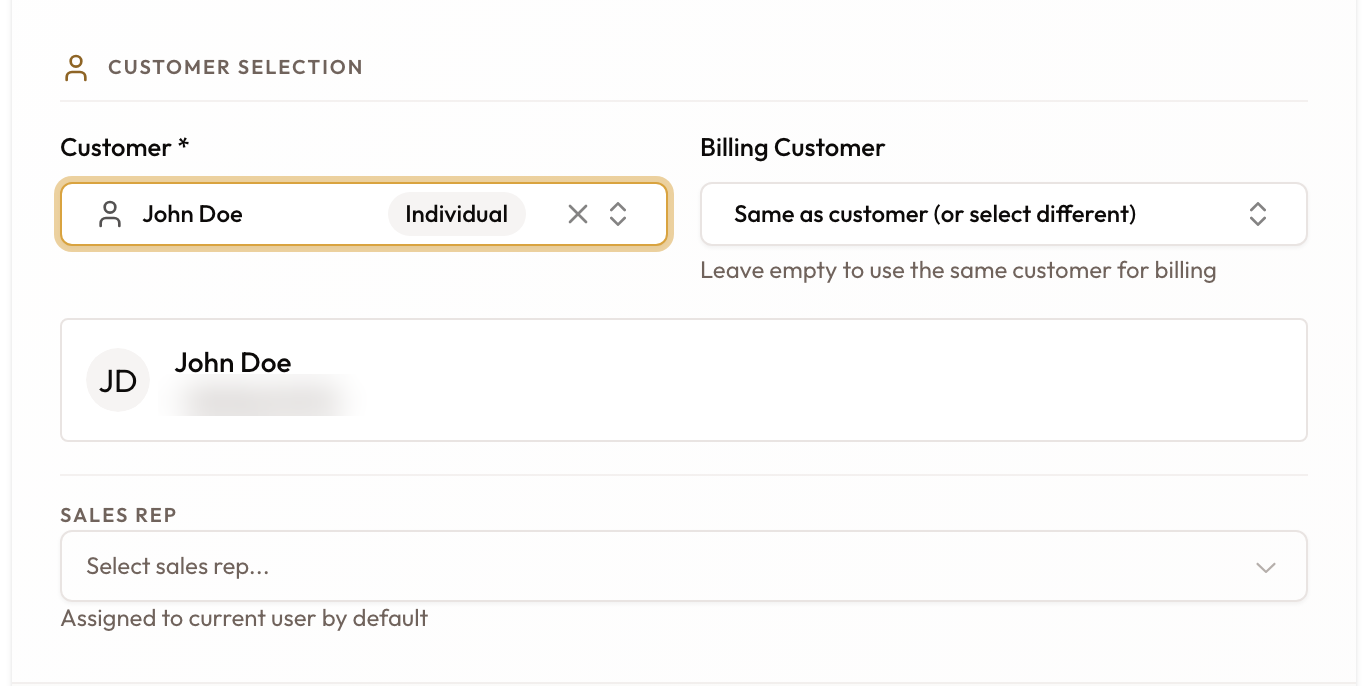
Under Customer Selection, click Select customer... and search for the customer. There is no contract type to set; it comes from the customer's record.
Optional fields:
- Billing Customer: someone else to invoice. Leave it empty to bill the same customer.
- Sales Rep: set to you by default.
Click Next. It stays greyed out until the vehicle, customer and dates are set.
Step 2 — Terms
Security deposit
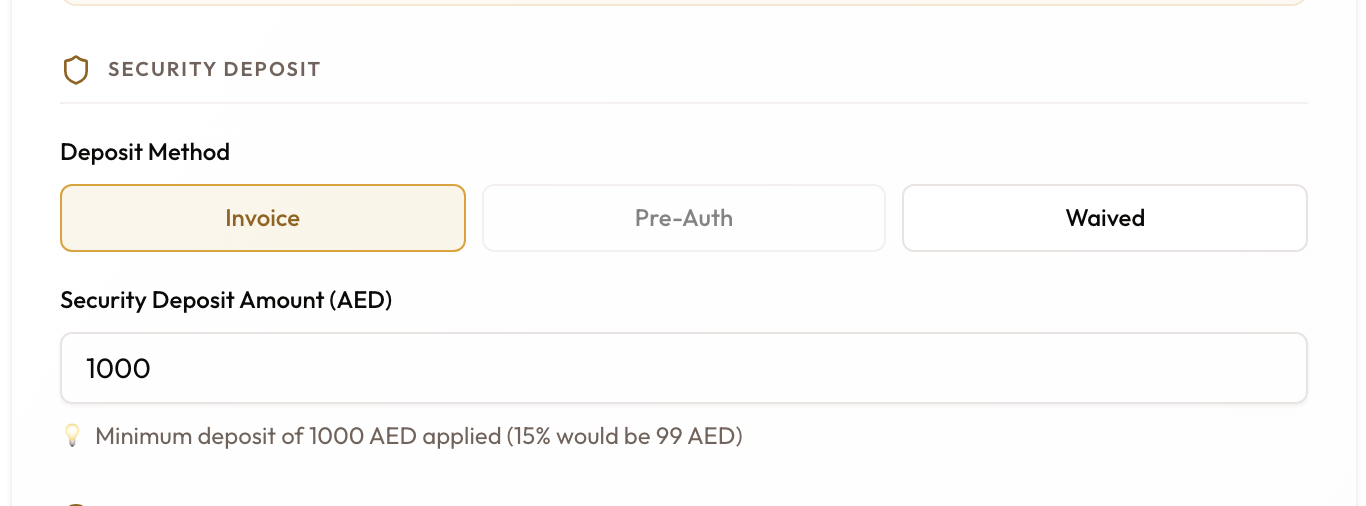
Choose a Deposit Method:
| Method | What it does |
|---|---|
| Invoice | Raises a security deposit invoice. This is the default. |
| Pre-Auth | The deposit is held on your POS, so no deposit invoice is raised. Greyed out if the customer has no pre-authorization on file, or it has expired. |
| Waived | No deposit is invoiced or collected. |
With Invoice, check the Security Deposit Amount (AED). A suggested amount is filled in, and you can change it. Deposits are covered in more depth in Security Deposits.
Mileage terms
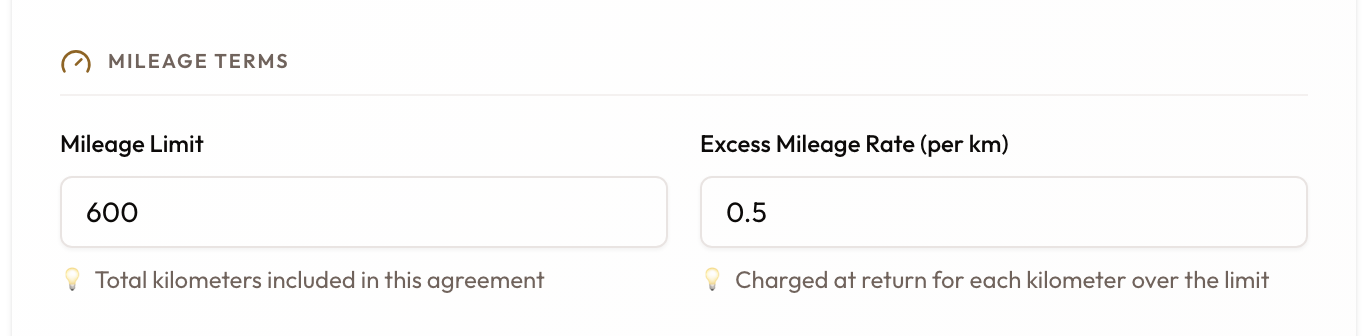
Under Mileage Terms, set:
- Mileage Limit: the total kilometers included in the agreement
- Excess Mileage Rate (per km): charged at return for each kilometer over the limit
Add extras
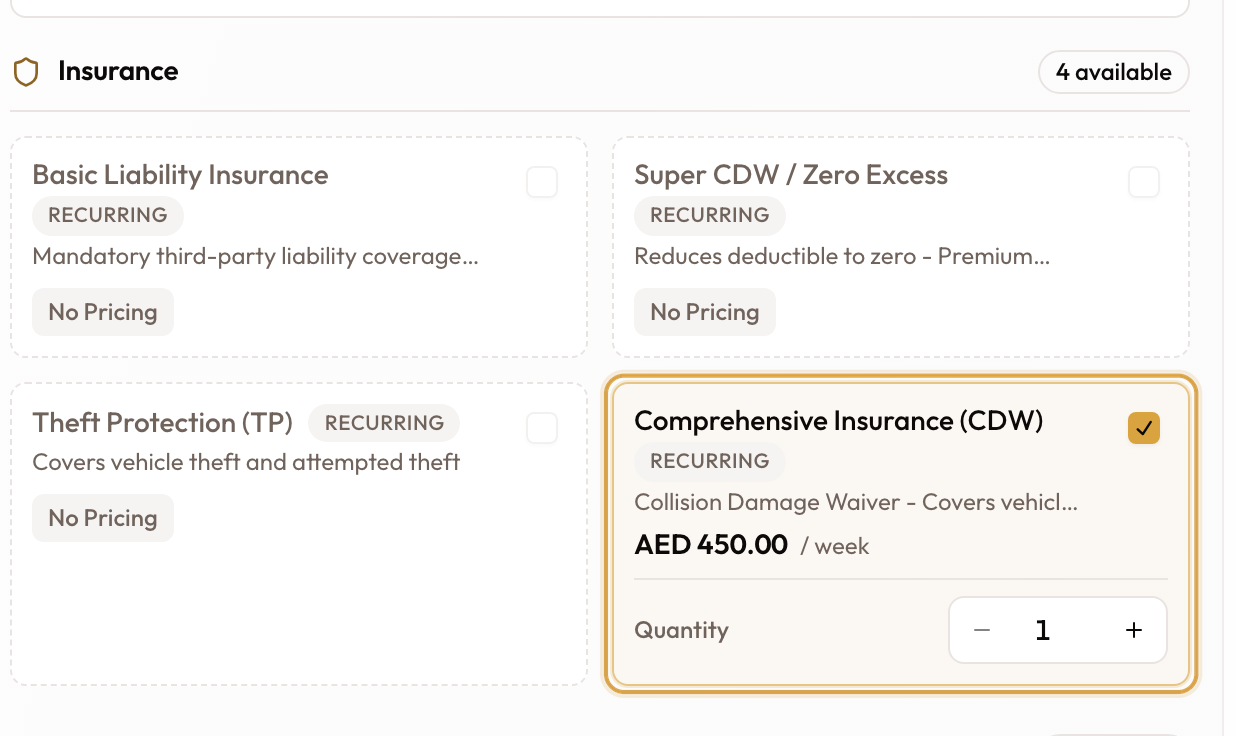
Open Add extras to add insurance, equipment, services or mileage options.
- Click a product card to add it.
- Adjust the Quantity if needed.
Each card shows how it bills and its price for this rental's period. The Live Pricing panel updates as you go. A product with no price for this rental's tier can't be added.
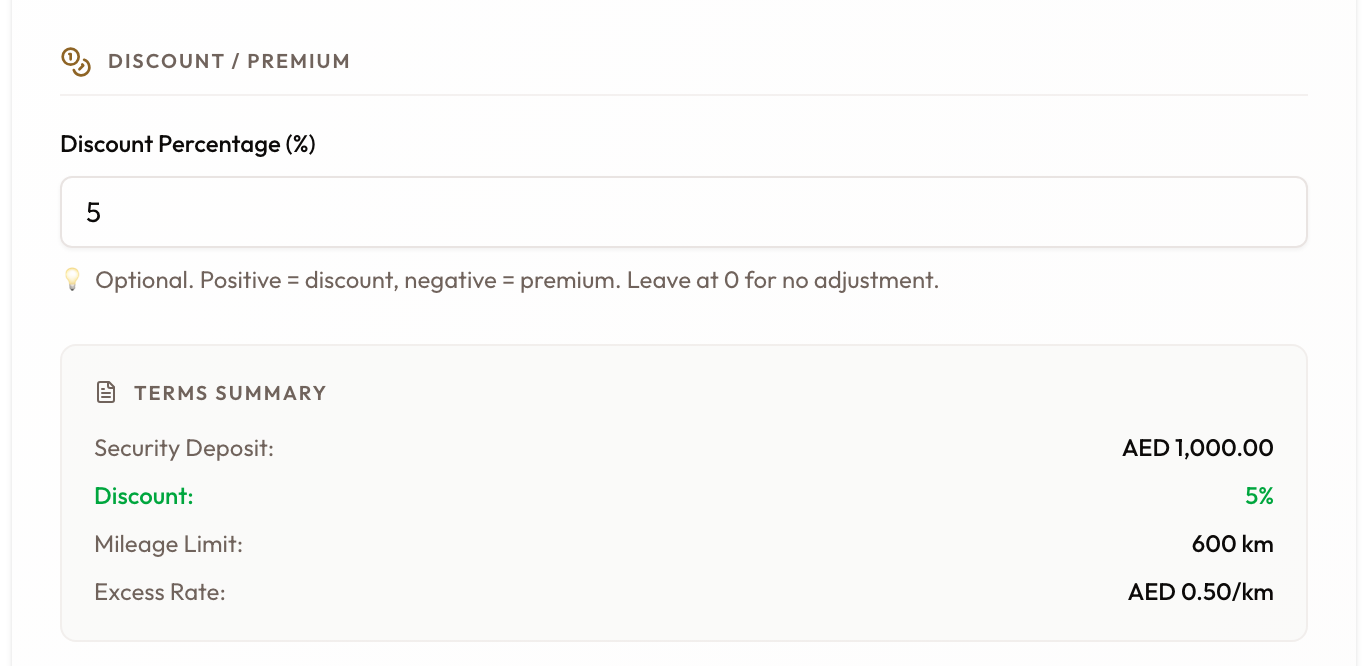
Discount or premium
Under Discount / Premium, enter a Discount Percentage (%) if one applies:
- a positive number is a discount
- a negative number is a premium
- leave it at 0 for no adjustment
Check the Terms Summary at the bottom, then click Next.
Step 3 — Review and create
Check and create
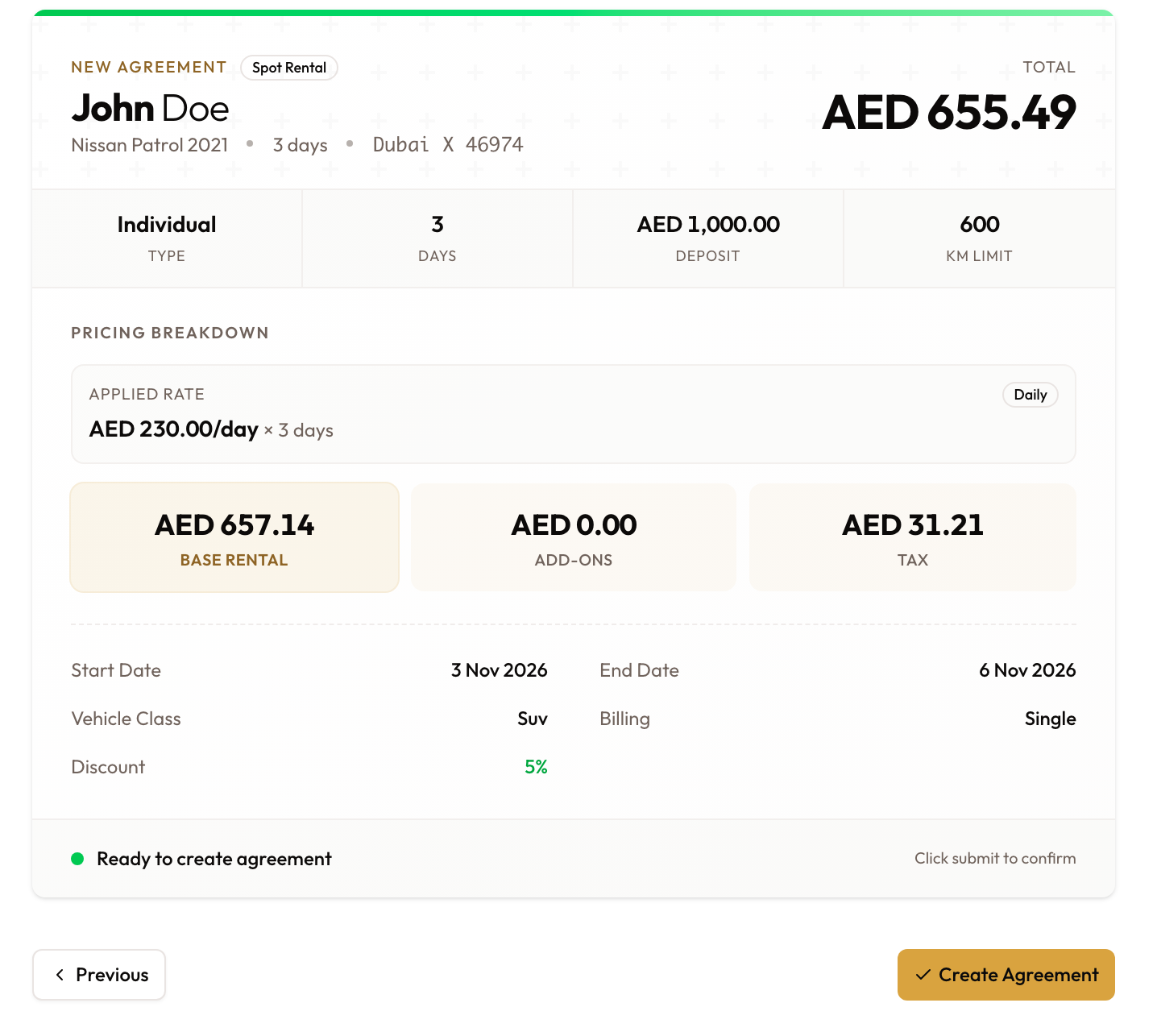
The review page brings everything together:
- the customer, the vehicle and the Total
- the type, days, deposit and kilometer limit
- the Pricing Breakdown: base rental, add-ons and tax
- the dates, billing and any discount
When it looks right, click Create Agreement. You'll see Agreement created successfully! and land on the agreement's page. The agreement is a Draft, and the vehicle is now Reserved.
Common problems
| What you see | What it means |
|---|---|
| "Start date can be backdated at most 2 days" | The start date is too far in the past. One or two days back is fine. |
| Invalid Duration | The end date is before the start date. Next stays greyed out until you fix it. |
| The agreement won't save because of the vehicle | Someone else reserved the vehicle first, or the dates overlap another booking for it. |
| "… does not have a … rate available" | That product has no price for this rental's tier, so it can't be added. |
| "… removed - no … rate available" | You changed the duration into another tier, and an add-on had no price for it. |
| The discount is refused | It is above your workspace's discount limit. |
| Pre-Auth is greyed out | The customer has no pre-authorization, or it has expired. Re-authorize on your POS and update the customer record. |
What happens next
The agreement is a draft. Next you lock the document and collect the signature, then hand the vehicle over.
Got the rate wrong? Until a rental invoice is raised, you can fix it with Correct Rate on the agreement's page. After that, a correction needs a credit note.
By default, handing the vehicle over raises the first invoice. That depends on Raise invoices automatically in Settings → Billing. With it turned off, handover doesn't bill anything, and you raise the invoice from the agreement when you are ready.
Long-Term Rental Workflow
A monthly rental from start to finish: create, sign, hand over, generate each month's invoice from the payment schedule, check in, close, and release the deposit.
Locking & Signing an Agreement
Lock the contract, capture the customer's signature on a tablet, and get the agreement ready for checkout — or cancel it before signature.