

Adding Individual & Company Customers
Register a customer on the New Customer form: type, identity, contact, and company details
Registering a customer in SpectroNova Express is a single form. You choose whether they are an Individual or a Company, enter their identity and contact details, and — for a company — one extra block of company fields. On save, the customer number is generated for you and you land on their detail page.
This guide covers the create form. Uploading documents and photos, and importing many customers at once, are separate flows — see Related guides at the end.
Before you start:
- You need the customers: create permission. With it, Add Customer appears in the Customer Directory. Ask an administrator if you need it.
- Nothing else needs to exist first. A customer can be created on an empty account; only a later agreement also needs a vehicle.
Fill in the form
Open the New Customer form
In the sidebar, under CRM, click Customers. The Customer Directory opens, listing everyone in your workspace. Click Add Customer in the top right.
The New Customer form opens. The header reads Quick Registration → New Customer, with the subtitle "Add personal and contact information." Everything sits in one card titled Customer Details, noting "Required fields marked with *".
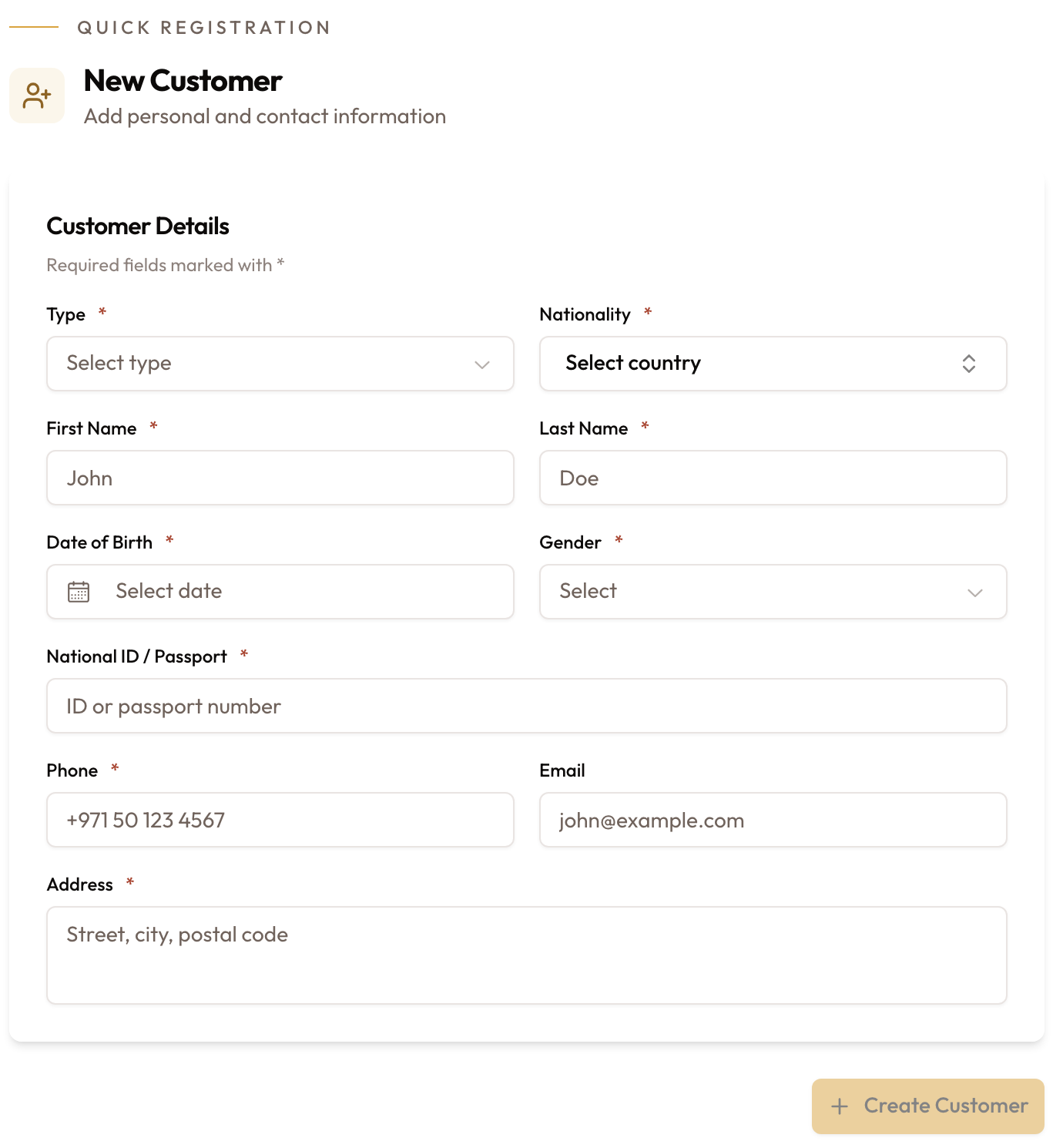
The New Customer form, with every field in the Customer Details card
Choose the customer type
Open the Type dropdown and pick Individual or Company. Choosing Company adds a Company Details section lower down; switching back to Individual clears anything you typed there.
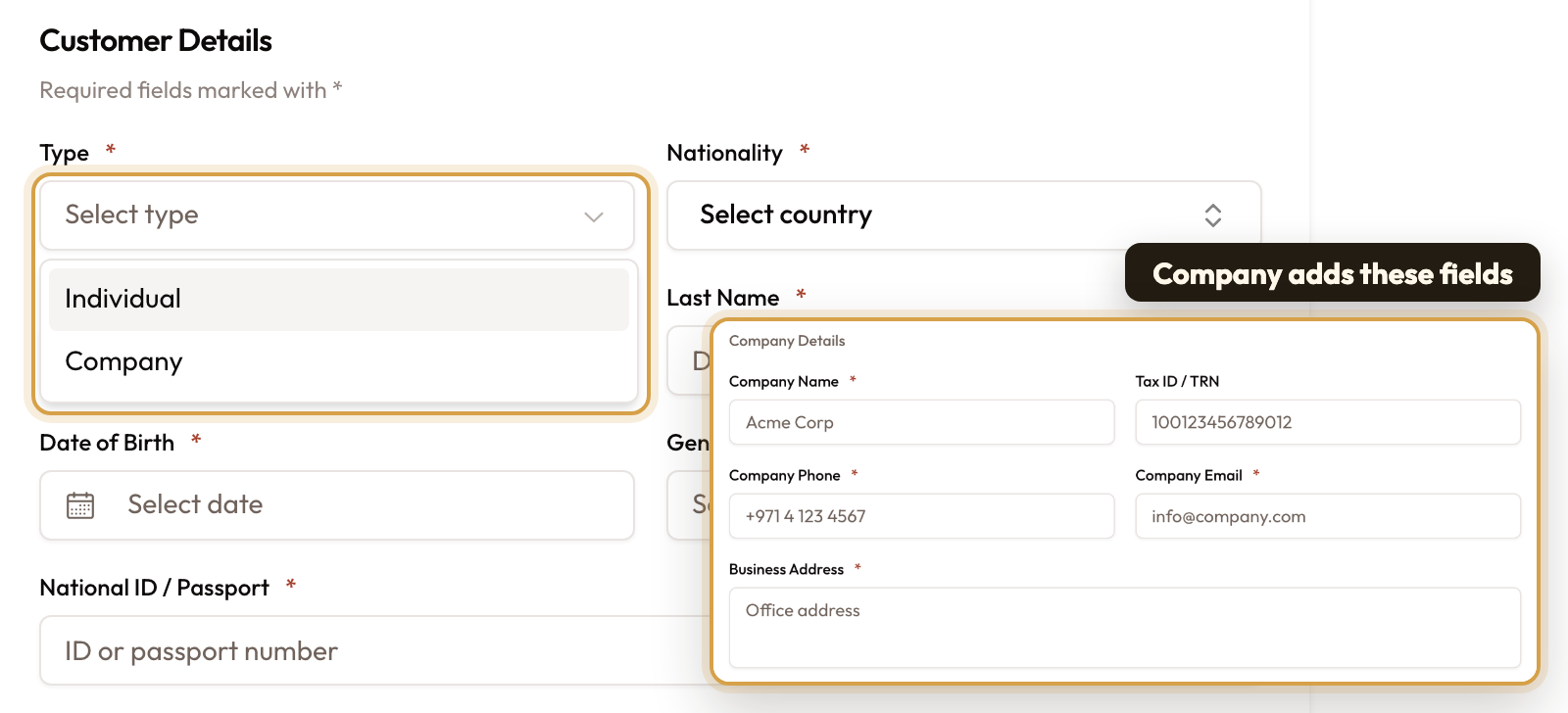
The Type dropdown, and the Company Details block that Company adds
Enter identity details
These are required for both customer types:
- Nationality — pick the country from the combobox.
- First Name and Last Name — up to 100 characters each.
- Date of Birth — the customer must be 18 or older. A younger date shows "Must be 18+ years old" and blocks the save.
- Gender — Male, Female, or Other.
- National ID / Passport — 5 to 50 characters: letters, numbers, spaces or dashes.
A malformed ID shows "Invalid ID format. Use letters, numbers, spaces, or dashes (5-50 characters)" when you leave the field. National ID, email, phone, and Tax ID are each unique within a workspace.
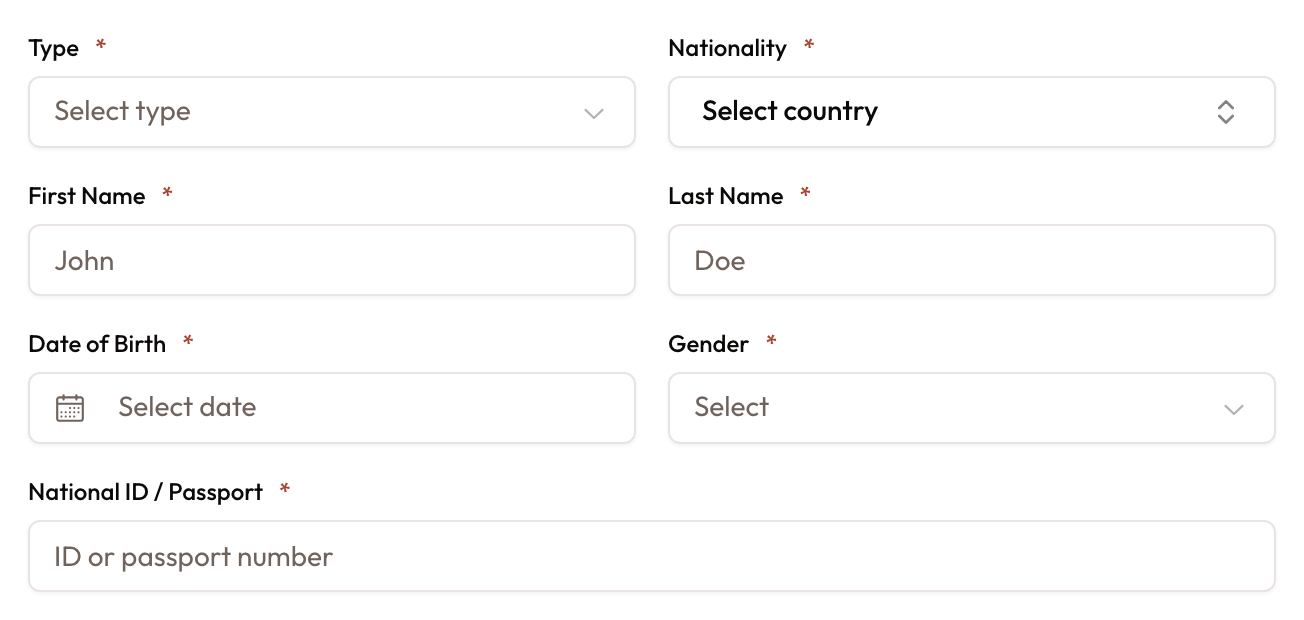
The identity fields, from Type to National ID / Passport
Enter contact details
- Phone — required, in international format, like
+971 50 123 4567. - Email — optional. If you enter one, it must be a valid address.
- Address — required: street, city and postal code.
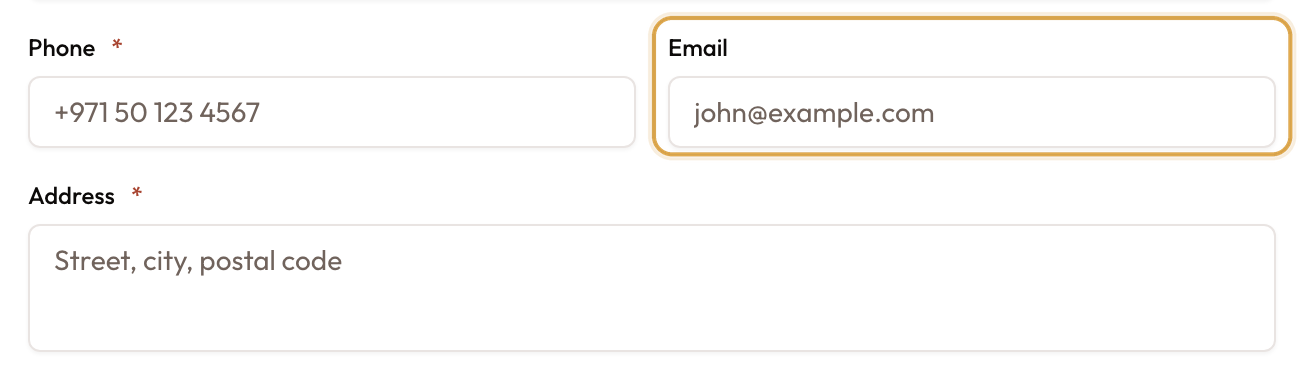
Phone and Address are required; Email is optional
Add company details
For company customers only. If you chose Company, fill the Company Details block:
- Company Name — required.
- Tax ID / TRN — optional, with no format check.
- Company Phone — required.
- Company Email — required, a valid address.
- Business Address — required.
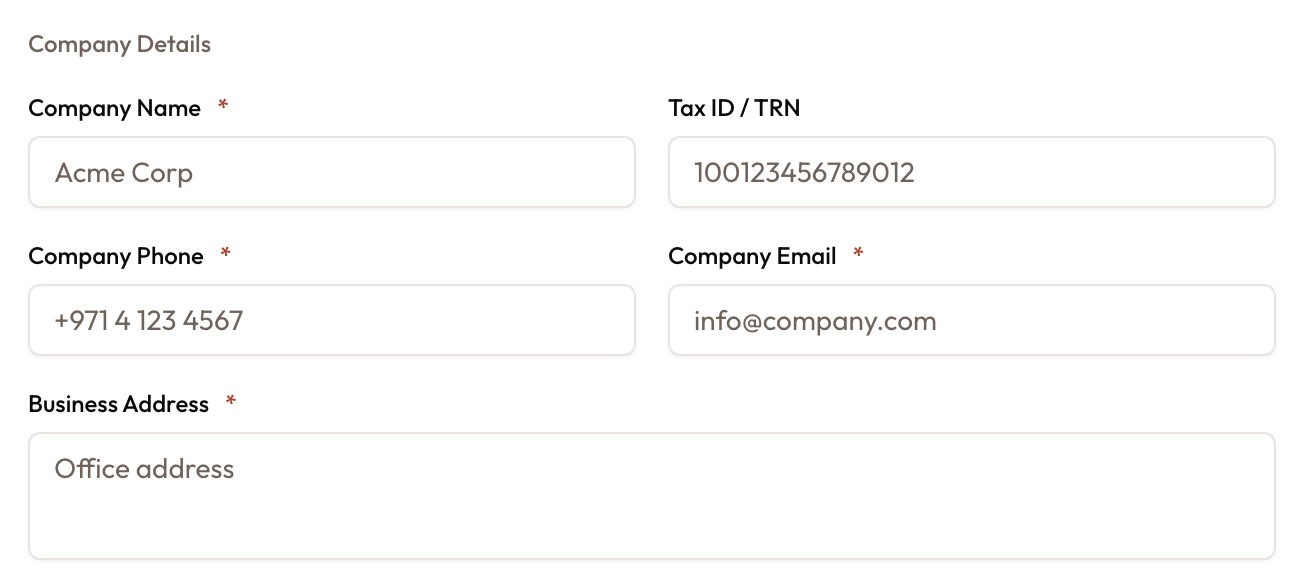
The Company Details block that appears when Type is Company
Create the customer
Click Create Customer — the button reads Creating… while it saves. A success toast, "Customer created successfully", appears and you land on the new customer's detail page. The customer number is assigned automatically.
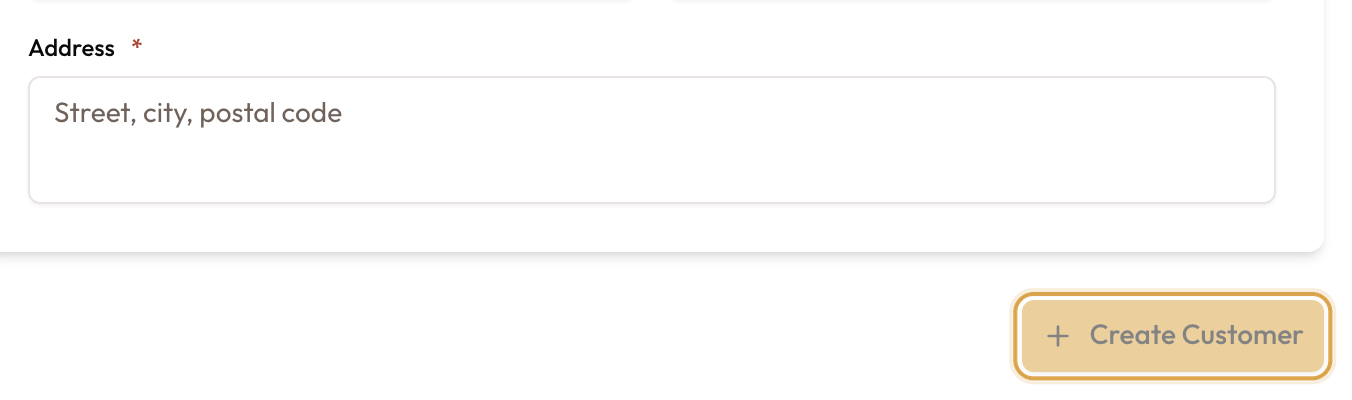
Create Customer switches on once every required field is filled
Changing the type later
You can change the type at any time. On the customer's detail page, click Edit and use the Customer type selector to switch between Individual and Company:
- Switching to Company reveals a Company Details section with Company name, Company phone, Company email, Business address and Tax ID. Fill them in, then Save.
- Switching back to Individual clears those company fields and the Tax ID rather than leaving them on the record.
The change is recorded in the customer's history and drives the contract type on any agreement raised for them afterwards.
Common mistakes and edge cases
- Under-18 date of birth. Leasing requires an adult; a date under 18 shows "Must be 18+ years old" and keeps Create Customer disabled.
- A required field left blank. The button stays disabled until every field marked * is filled, and for a company every company field too. A blocked submit shows "Please complete all required fields", and a format problem shows "Please check the form for errors."
- Duplicate customer. Reusing a National ID, email, phone, or Tax ID that already exists is rejected with a message that the customer already exists in this workspace. Search for the existing record instead of creating a second one.
- Email is optional, but the National ID is not. You can register a customer with no email, but National ID / Passport, phone, and address are mandatory even for the quickest registration.