

Customer Communication History
Read a customer's message history and manage their WhatsApp notification consent
The Communications tab on a customer's page in SpectroNova Express has two cards:
- Notification Preferences, where you see and change whether the customer has agreed to receive WhatsApp notifications.
- Communication History, where you read the messages your workspace has exchanged with them.
Before you start:
- Find the customer in the Customer Directory.
- To change WhatsApp consent you need the customers: update permission, and WhatsApp notifications must be part of your plan. Whether they are depends on your plan.
- The customer needs a phone number on file. Without one, the WhatsApp switch is disabled.
Review and manage communications
Open the Communications tab
- In the sidebar, under CRM, click Customers.
- In the Customer Directory, click the customer to open their page.
- Select the Communications tab, between Credit Notes and Documents.
Two cards appear: Notification Preferences at the top and Communication History below.
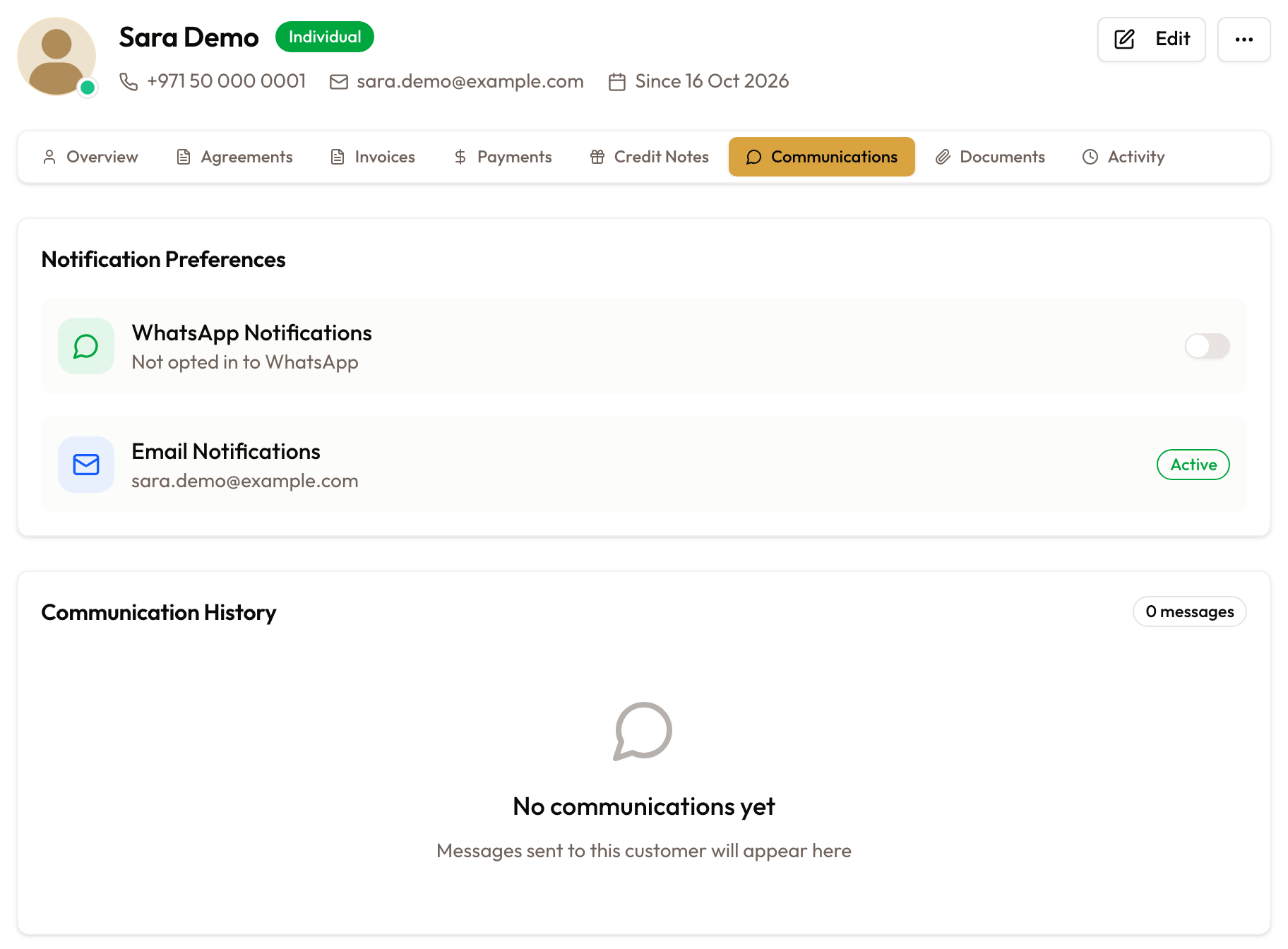
The Communications tab: Notification Preferences and Communication History
Check the customer's WhatsApp consent
In Notification Preferences, the WhatsApp Notifications row shows one of three states:
- Opted in to receive WhatsApp messages: consent is on and the switch is on.
- Not opted in to WhatsApp: consent is off and the switch is off.
- No phone number on file: there is no number to message, so the switch is disabled.

A customer who hasn't opted in to WhatsApp
Turn WhatsApp consent on or off
Click the switch on the WhatsApp Notifications row. Switching it on records that the customer has agreed to WhatsApp notifications. Switching it off records that they have opted out. The change is saved straight away.
You see "Updated successfully", and the row now reads Opted in to receive WhatsApp messages or Not opted in to WhatsApp.
If the change can't be saved, you see "Failed to save changes" and the switch goes back to where it was. This happens when your role lacks the customers: update permission or WhatsApp notifications aren't on your plan.
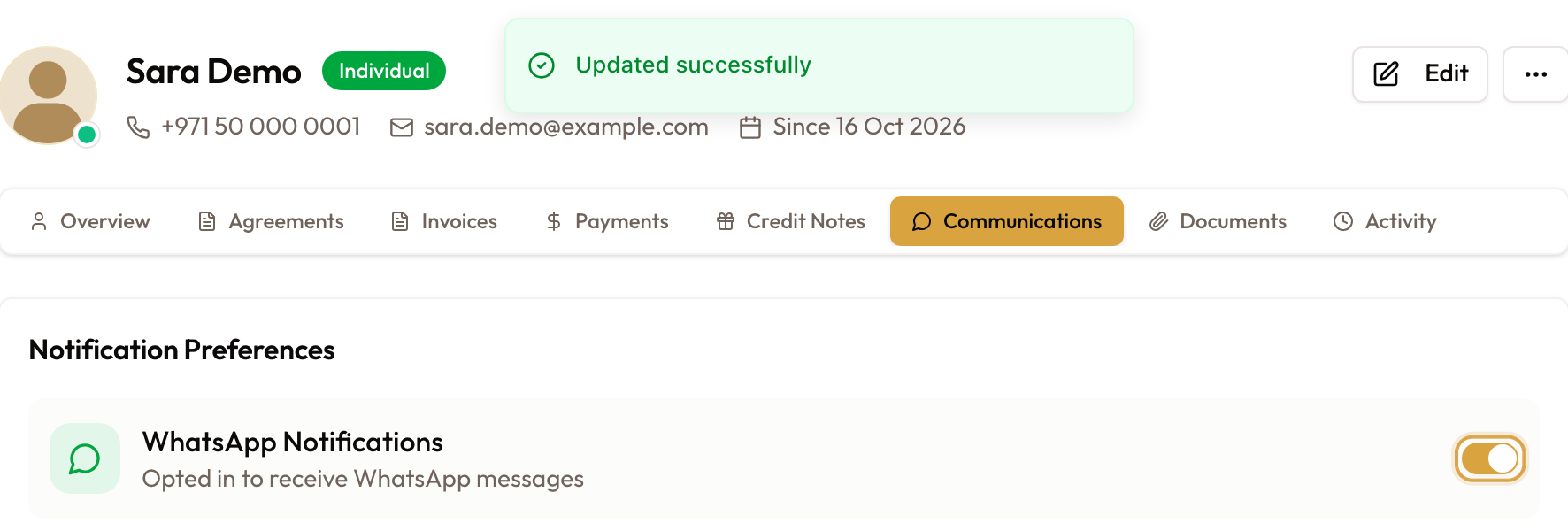
Consent switched on, confirmed by "Updated successfully"
Check the Email Notifications row
The Email Notifications row shows the customer's email address, or No email on file, with an Active badge. It's for information only.

The Email Notifications row shows the address on file
Read the communication history
The Communication History card lists the customer's messages, newest first, with a count badge such as 3 messages. Each message shows:
- The channel, WhatsApp.
- Sent for a message your workspace sent, or Received for one the customer sent.
- A delivery status, such as sent, delivered, read or failed.
- Template: {name} when the message came from a message template.
- The message text, shortened to one line.
- Related to: {record} when the message is tied to a record, such as an invoice or an agreement.
- The date.
If there are no messages yet, the card shows No communications yet with "Messages sent to this customer will appear here".
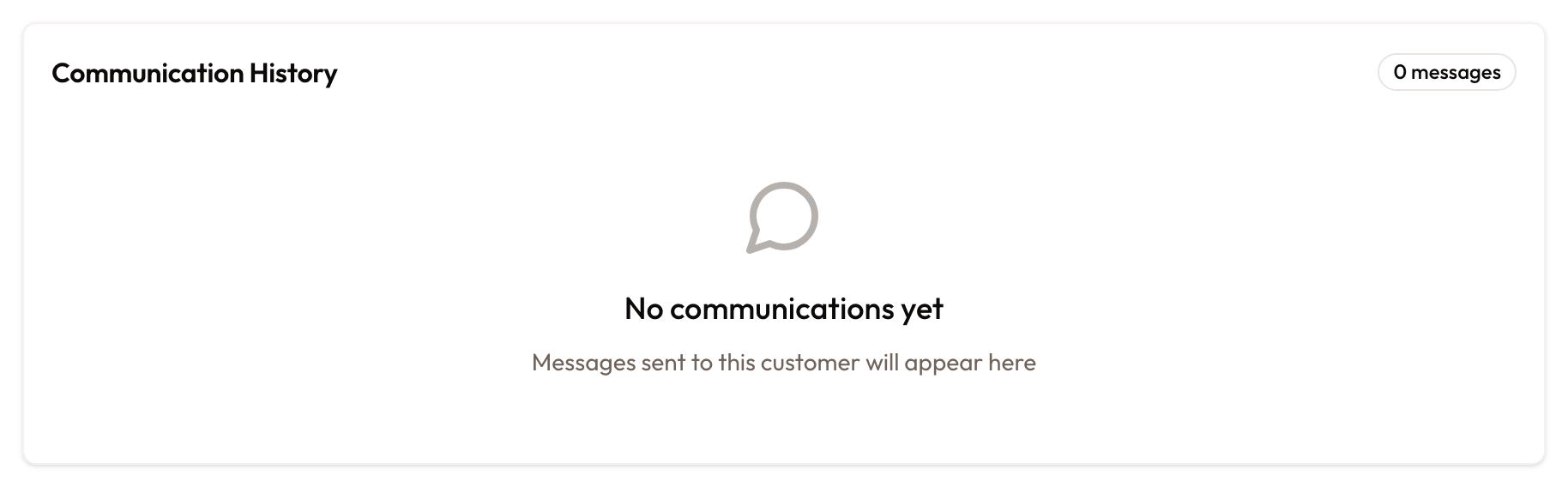
Communication History before any messages are sent
Common mistakes and edge cases
- Only WhatsApp messages appear in the history. Emails sent to the customer are not listed yet, even though the preferences card has an Email Notifications row.
- The Email Notifications row is for information only. It always shows Active and has no switch.
- Messages you send from the sidebar are not logged. The WhatsApp, Call Customer and Email Customer actions in the page's sidebar open WhatsApp, your phone or your email app on your own device. Those messages don't appear in Communication History.
- No phone number, no WhatsApp switch. The switch stays disabled until the customer has a phone number. Add one with Edit on the customer's page, then come back to the tab.
- The tab shows the latest 50 messages, newest first.