

Short-Term Rental Workflow
A short-term rental from start to finish: create, sign, hand over, bill from the Rental Account, check in, close, free the car and release the deposit.
This page follows one short-term rental in SpectroNova Express from start to finish:
- Create the agreement.
- Lock and sign it.
- Hand the vehicle over.
- Bill it from the Rental Account.
- Check the vehicle back in.
- Close the agreement.
- Free the car, release the deposit and bill anything that arrives late.
Each stage is kept short and links to its own page for the detail. The billing part is where short-term rentals differ from monthly ones, so that is where this page spends its time.
Before you start
- A customer record and an available vehicle.
- Permission to create agreements and move them along. Billing from the Rental Account also needs permission to create invoices.
- Know how your workspace is set up under Settings → Billing, in Invoicing at handover. The Raise invoices automatically switch decides whether the rental is invoiced the moment the car leaves, or waits for you to bill it.
What makes a rental short-term
You never choose. A rental shorter than a full month gets the Billing Frequency Single Invoice: "One invoice for the entire rental period." A full month or longer bills Monthly and has a payment schedule instead of a Rental Account. The exact rule is in Agreement Types Explained.
The workflow at a glance
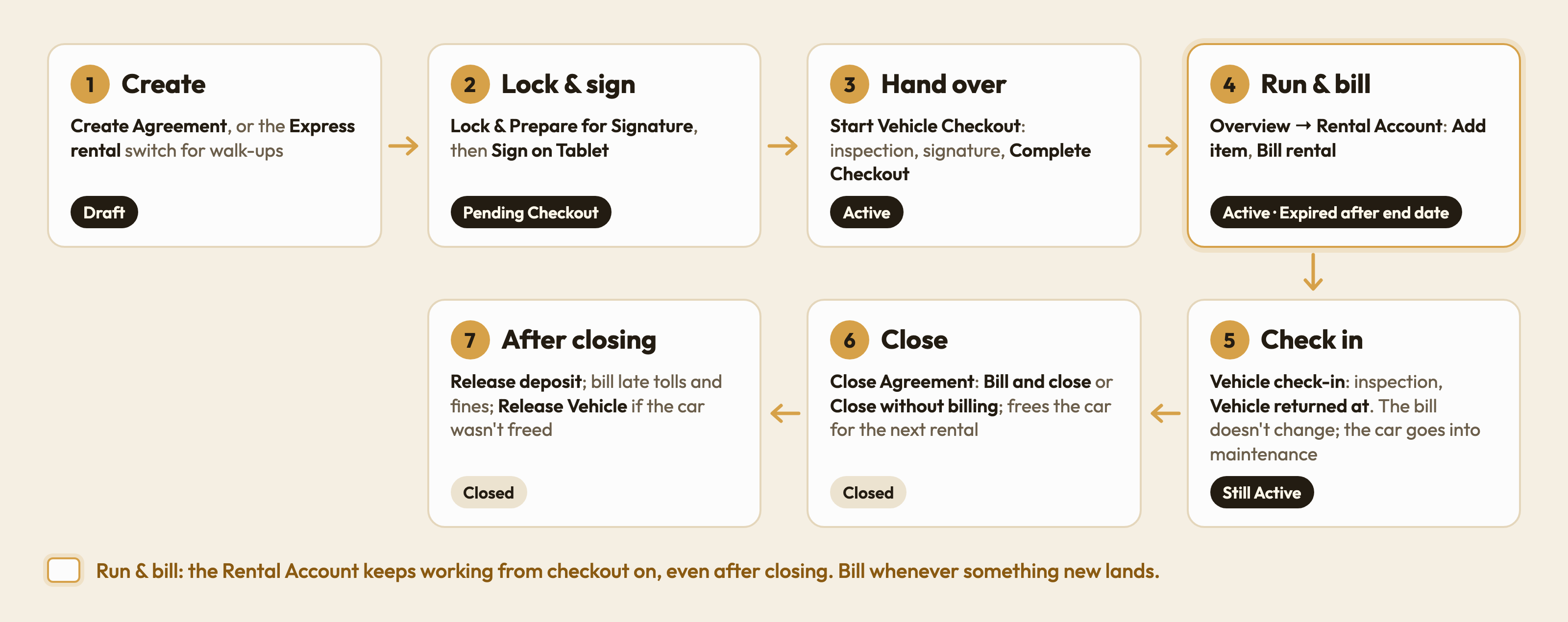
There is no "returned" status. Check-in records the return but leaves the status as it was.
1. Create the agreement
Start a new agreement
- Open Agreements and click Create Agreement.
- On Agreement Details, pick the vehicle.
- Set Contract Duration and Start Date. End Date fills itself in.
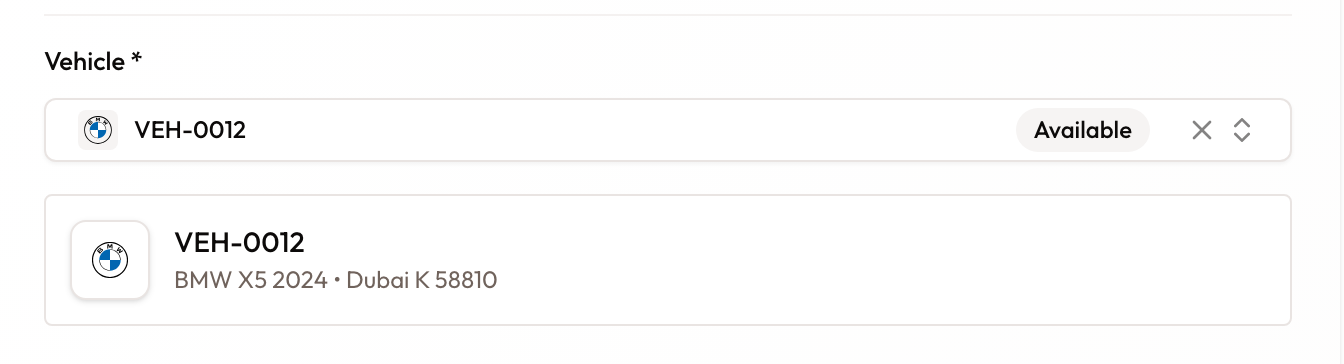
Pick the vehicle on Agreement Details.
Check that it is short-term
- Billing Frequency, just below the dates, is read-only. For a short-term rental it reads Single Invoice.
- Base Rental Rate suggests a daily or weekly rate for the length you entered. You can override it.
- For a 7–29 day rental quoted weekly, Bill at the daily rate for the whole rental charges every day at the daily rate instead.
How the price is worked out is explained in Pricing & Rates.
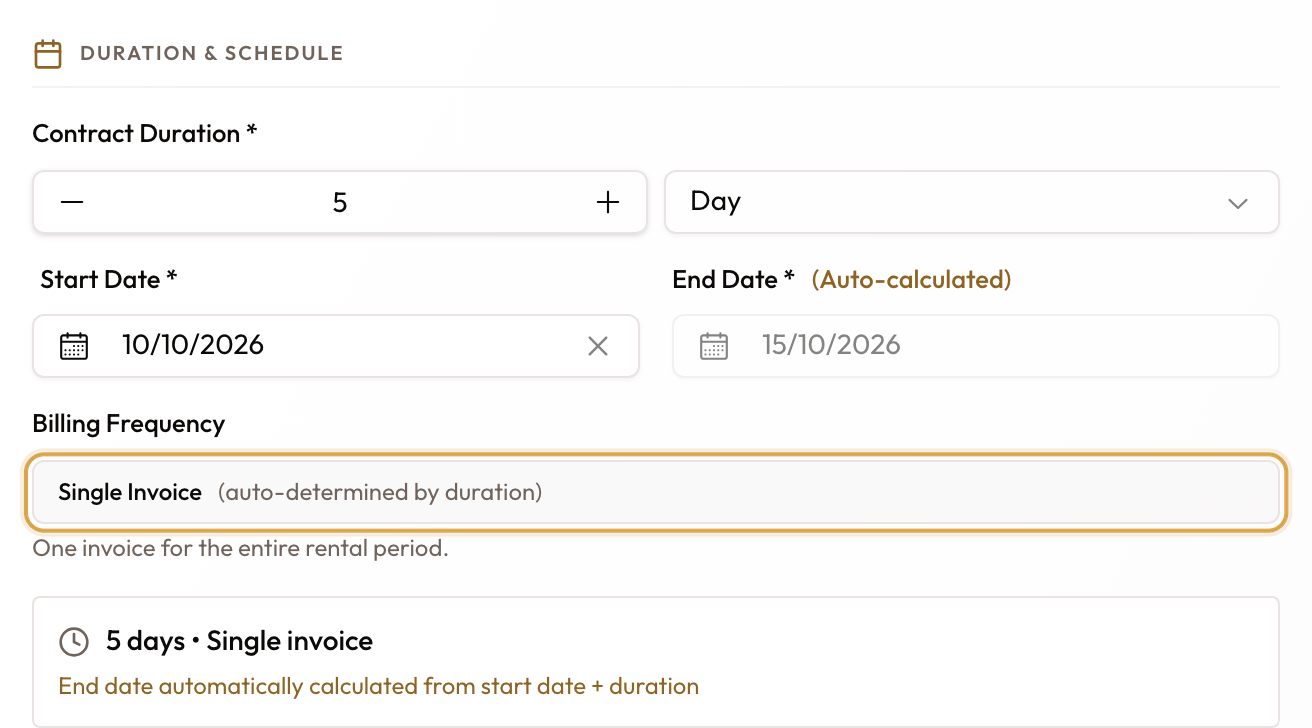
For a 5-day rental, Billing Frequency reads Single Invoice.
Add the customer and deposit, then create
- Pick the customer on Agreement Details.
- On Terms, set the Security Deposit.
- On Review, click Create Agreement.
The agreement opens as a draft.
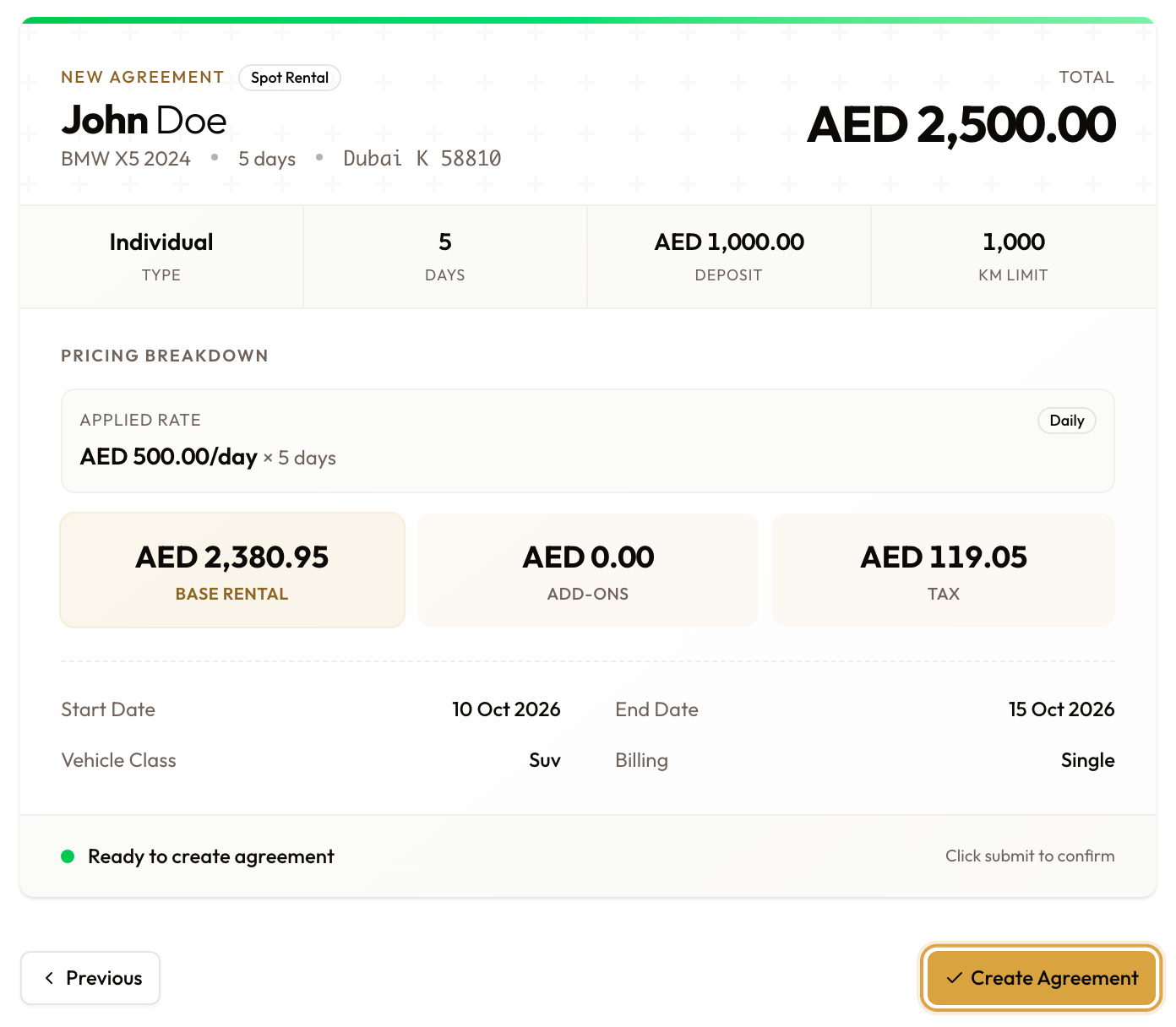
Review sums up the rental before you click Create Agreement.
The full wizard is covered in Creating a New Agreement.
Walk-up customer? Turn on the Express rental switch at the top of the wizard instead. One guided screen takes you through renter, vehicle and terms, condition, signature and review, and Activate & hand over creates, locks, signs and checks out in one pass. You pick up at stage 4. Express rentals are always short-term, up to 14 days. See Express Rental.
2. Lock and sign
Lock the agreement
In the sidebar under Workflow Actions, click Lock & Prepare for Signature. The terms can no longer be edited. Unlock & Edit reverses it if you spot a mistake.
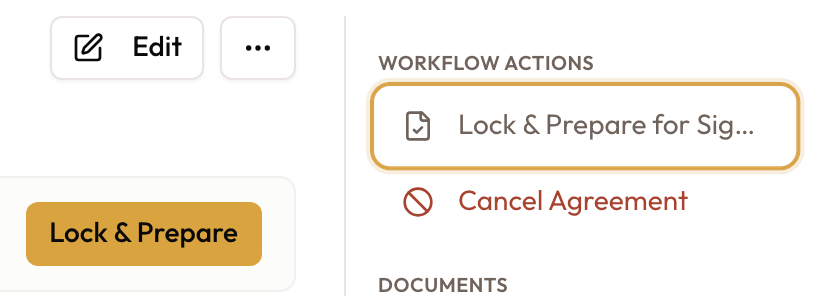
Lock & Prepare for Signature is under Workflow Actions (or Lock & Prepare on the banner).
Get the signature
- Sign on Tablet for an in-person signature.
- Signed on Paper if the customer signed a printed copy.
The status becomes Pending Checkout and Start Vehicle Checkout appears.
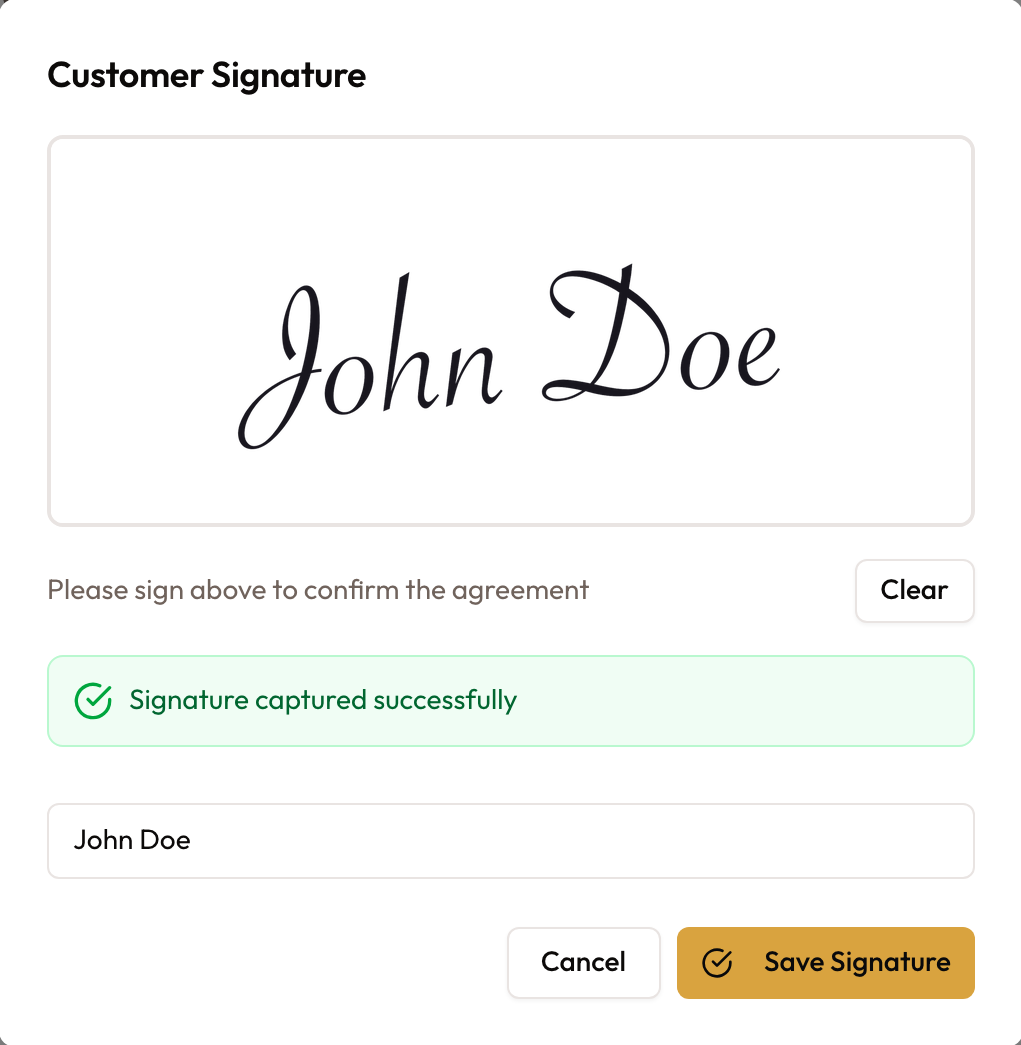
The customer signs on the tablet; then Save Signature.
Details: Locking & Signing an Agreement.
3. Hand the vehicle over
Do the handover inspection
Click Start Vehicle Checkout. On Vehicle Inspection:
- Work through your inspection template: photos, damages, Mileage Reading and Fuel Level.
- Set Overall Condition.
- Capture the Customer Signature.
- Click Next Step.
If your workspace sets a minimum number of photos, Next Step waits until it is met. Add more photo under the photo grid adds shots the template doesn't list.
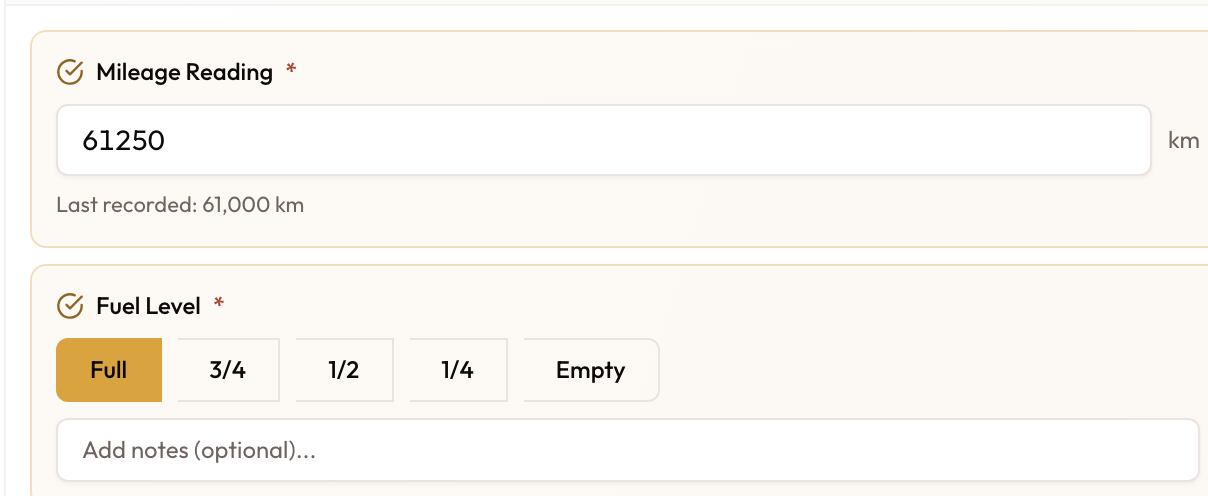
Mileage Reading and Fuel Level are required. The mileage can't be lower than the last reading.
Complete the checkout
- On Checkout Review, check the summary.
- Vehicle handed over at defaults to now. Set it earlier if the car left earlier.
- Click Complete Checkout.
The agreement becomes Active and the vehicle is marked rented.
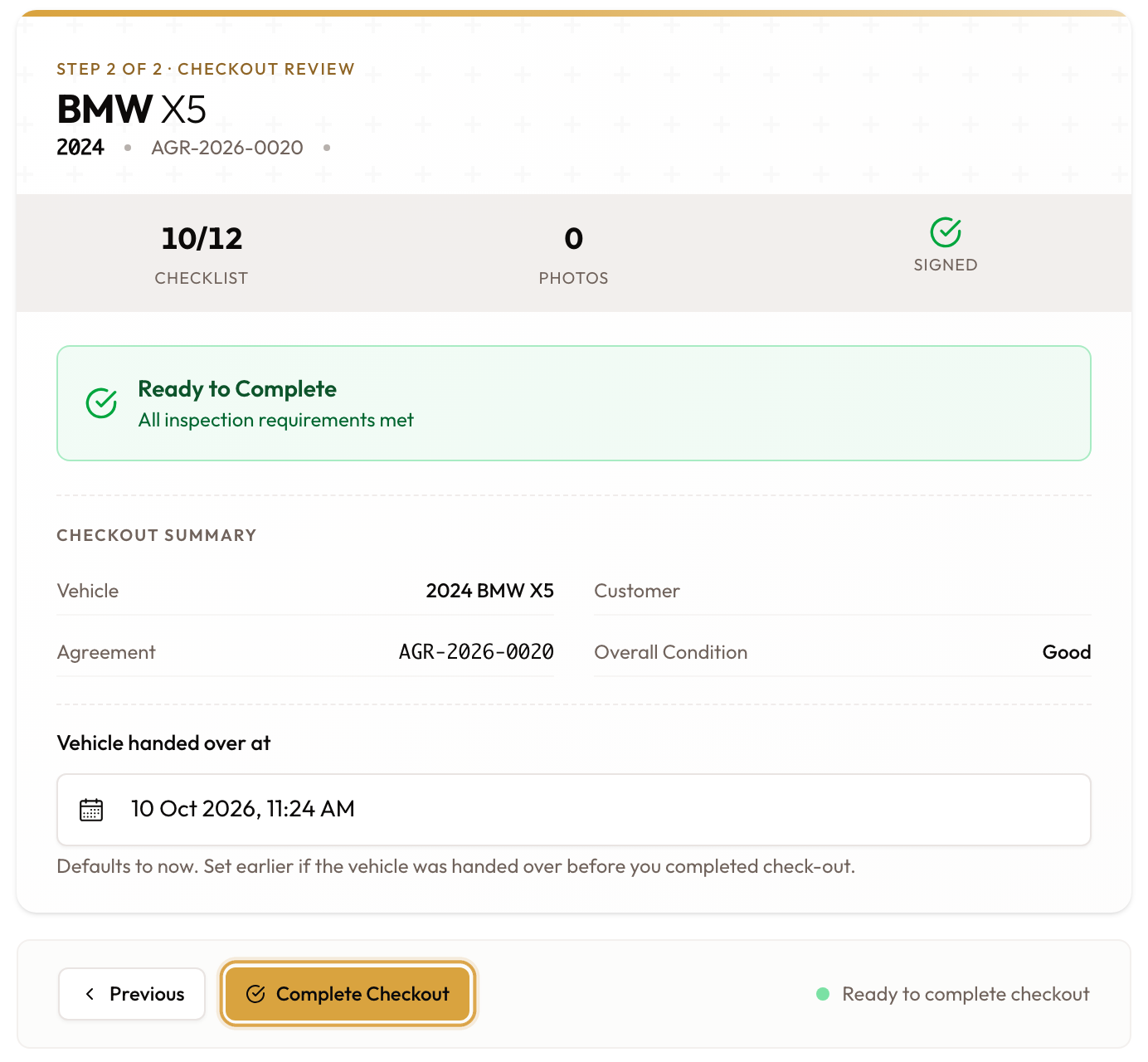
Checkout Review: check the summary and the handover time, then Complete Checkout.
What checkout does to the money:
- The deposit invoice is always raised at checkout, if the deposit is taken by invoice.
- The rental depends on Raise invoices automatically:
- On: the whole rental is invoiced straight away. A short-term rental is a single period, so this one invoice covers it.
- Off: nothing is invoiced yet. The rental waits on the Rental Account until you bill it.
Details: Vehicle Checkout & Handover Inspection.
4. Run and bill the rental
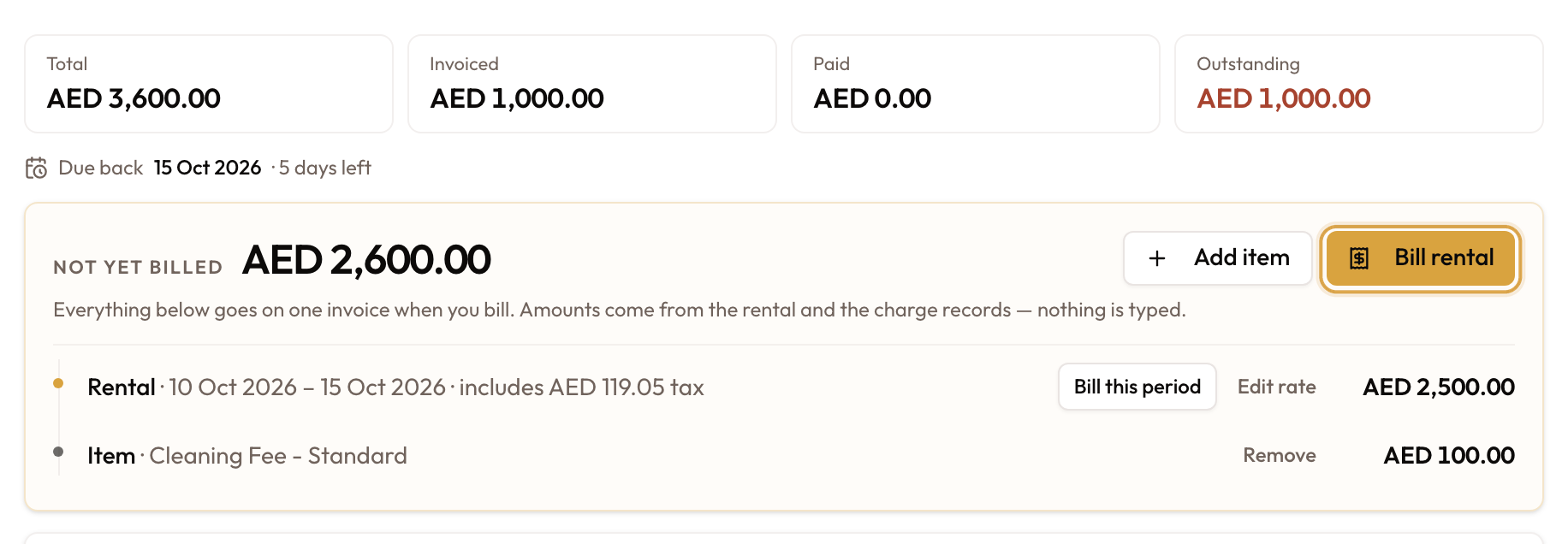
Open the agreement's Overview tab. A short-term rental opens on the Rental Account, where all of its money lives.
Read the account
- Four figures at the top: Total, Net billed, Net received and Outstanding (red while anything is owed, In credit in green when the customer is owed money back).
- Rate: the rate the rental is charged at, for example per day, whether it includes VAT, and the number of days.
- Due back: the days left, or the days overdue once the return date has passed.

See what is waiting
Not yet billed lists everything the rental has run up that is not on an invoice yet:
- the Rental period, and any Extension
- synced Toll, Fine and Parking charges
- any Item you added
Everything listed goes on one invoice when you bill. When nothing is waiting, it says "Everything on this rental is on an invoice."
Add a charge (optional)
- Click Add item.
- Pick a charge type, and enter the description, quantity and price. Prices include VAT.
- Click Add 1 item.
The item joins Not yet billed. Nothing is invoiced yet, and Remove takes it off again.
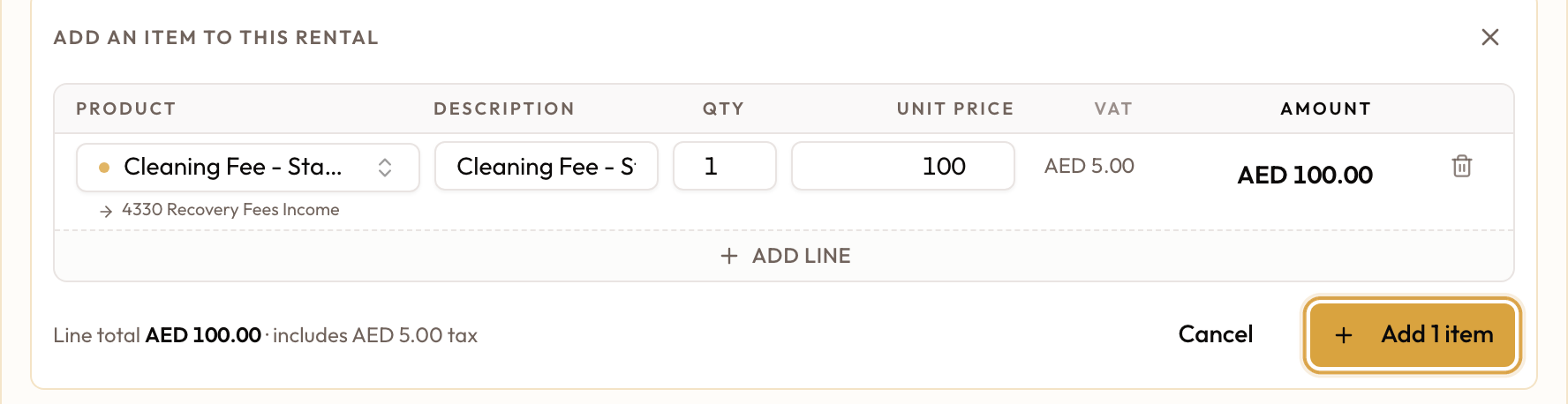
Picking a product fills in the description and price; then Add 1 item.
Bill the rental
- Click Bill rental. The Bill Rental dialog opens with everything ticked, ready to go on one invoice.
- Untick anything you want to leave for later, and check the total.
- Click Create invoice.
The new invoice opens, and it is listed under Invoices on the Rental Account.
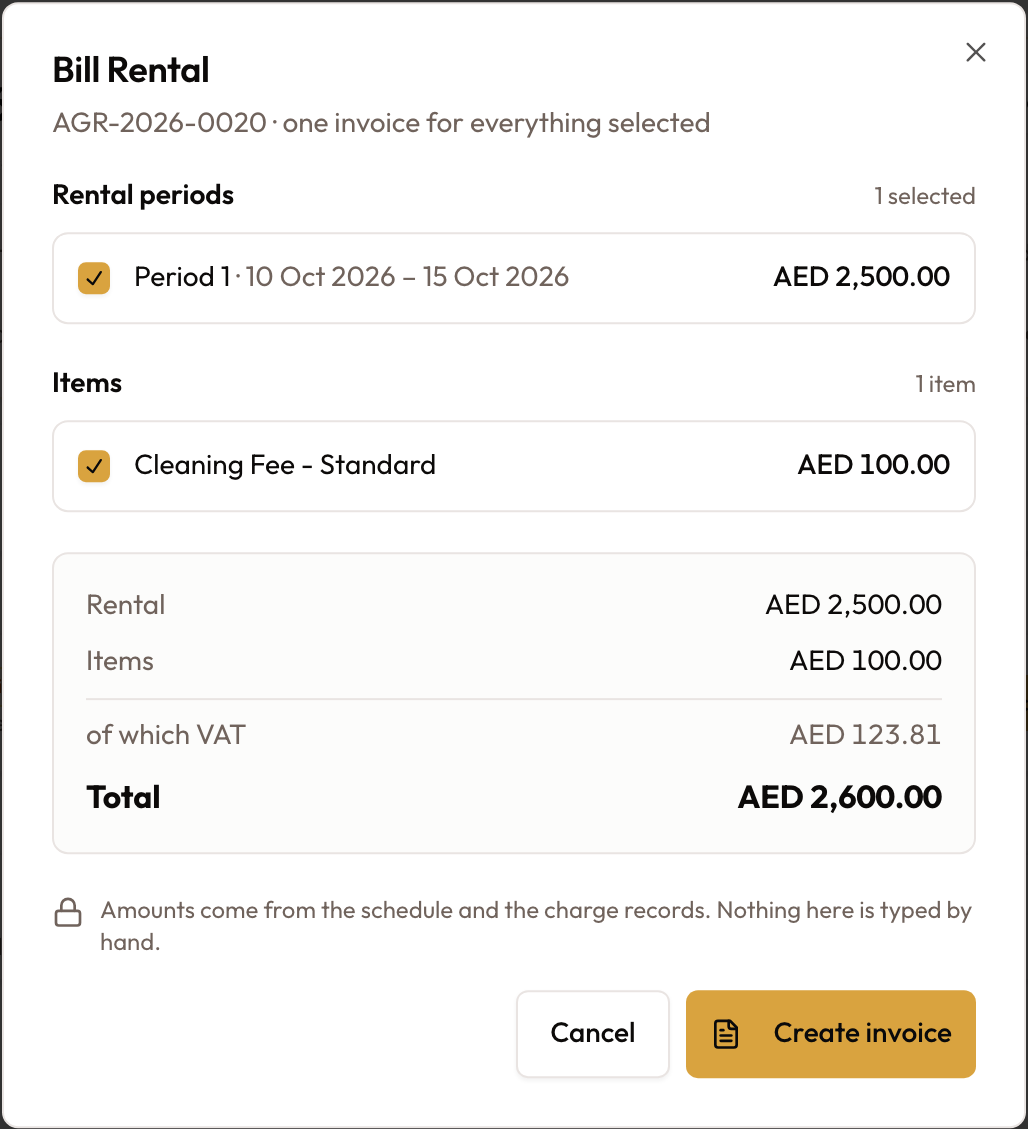
Bill Rental puts everything that is ticked on one invoice.
You can bill as often as you like: once at the start, once at the end, or every time something new arrives. Billing works from checkout onwards, and still works after the agreement is closed.
- Extending the rental: Extend Agreement adds the extra time as its own period. With automatic invoicing on, it is invoiced straight away. Otherwise it joins Not yet billed and can go on the same invoice as the rest. See Extending Agreement Duration.
- Wrong rate: while a period is still under Not yet billed, use Edit rate on its row. Once it is billed, Void the invoice, which puts the period back under Not yet billed, then fix the rate and bill again. A paid invoice needs a credit note instead. See Correcting a Wrong Rate.
Every option on the Rental Account is covered in The Rental Account & Bill Rental.
5. Check the vehicle in
Record the return
- When the car comes back, click Vehicle check-in in the sidebar.
- Do the return inspection, the same template as checkout. If your workspace sets a minimum number of photos for check-in, take at least that many.
- Set Overall Condition.
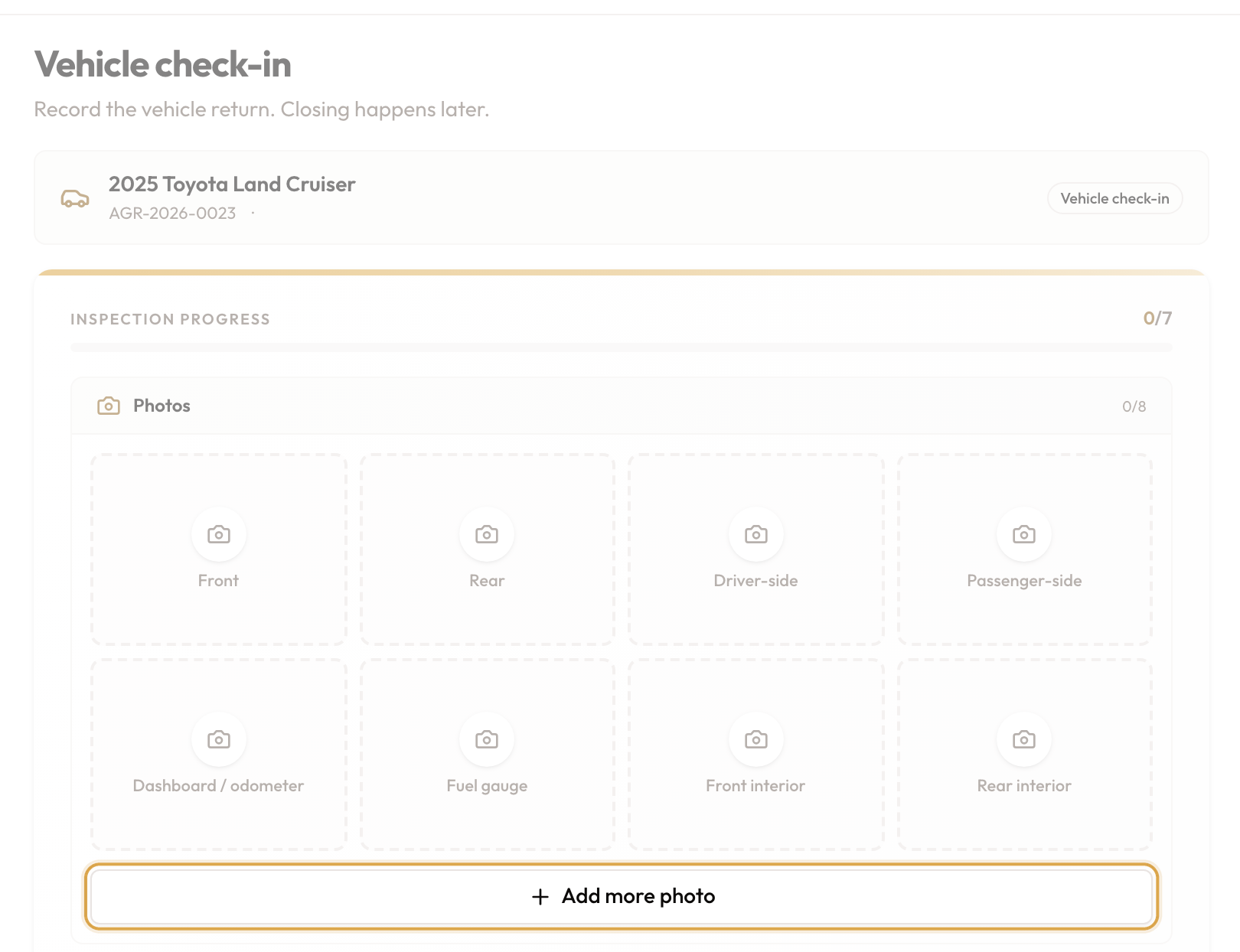
Set the return time and complete
- Vehicle returned at defaults to now. Set it earlier if the car came back before you recorded it.
- Click Complete check-in.
Close Agreement becomes available. The car is now marked as in maintenance: it's back, but not offered for rent until it's freed, which normally happens when you close.
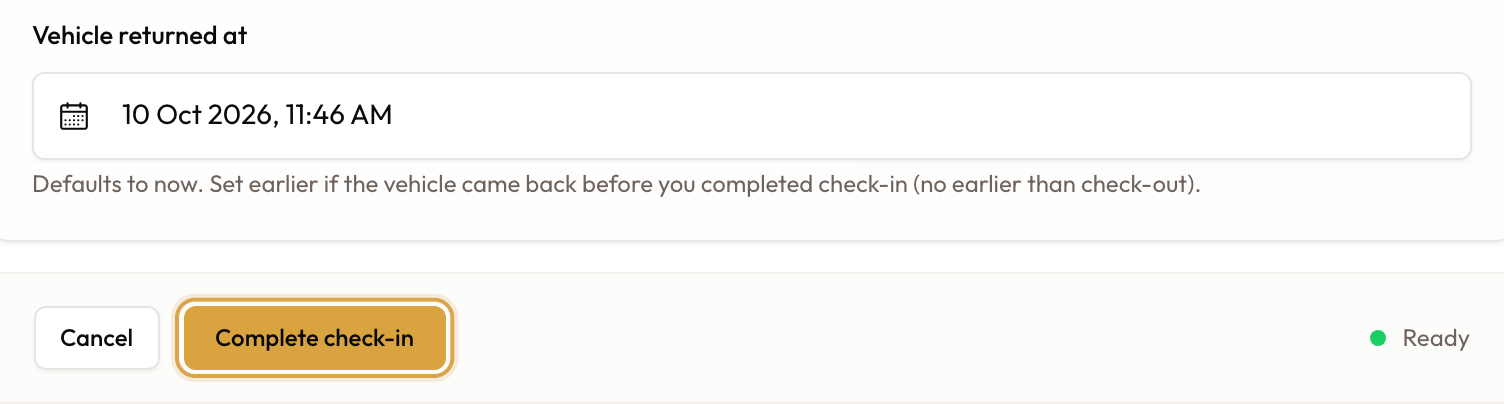
Vehicle returned at defaults to now; then Complete check-in.
Check-in does not change the bill. The return time is not used to re-price the rental or add days. If the car came back late, extend the agreement or add an item for the extra time. For damage found at the return, see Adding Damage & Extra Charges to a Rental.
Details: Vehicle Check-In & Return Inspection.
6. Close the agreement
Check for late tolls and fines
Click Close Agreement, then Check for new tolls & fines. Fines can arrive up to two weeks after the return.
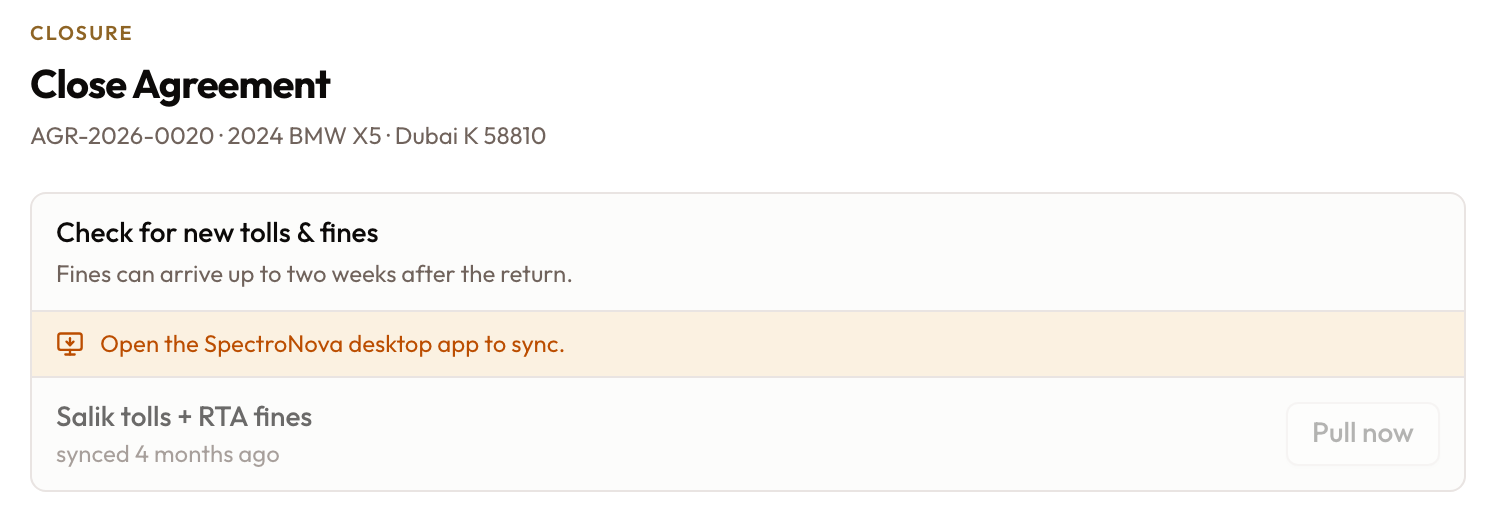
Run Check for new tolls & fines before closing.
Review what is not billed yet
Not billed yet lists what is still unbilled.
- Click Edit to untick anything you are not charging for.
- Click Add an item for a last charge.
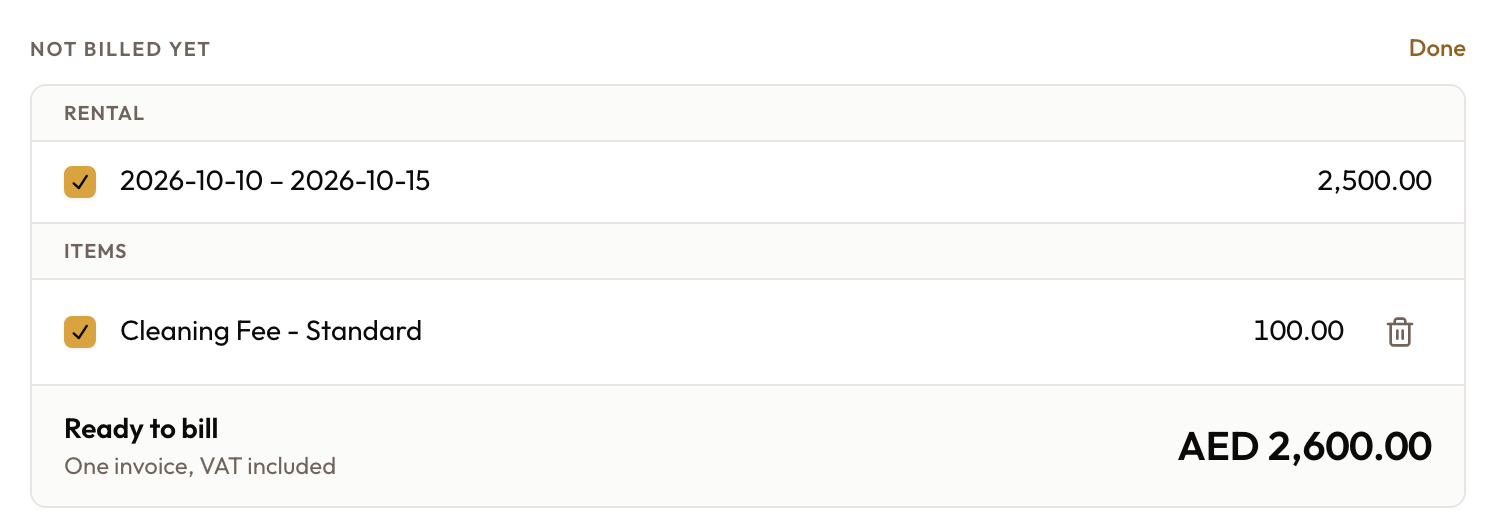
In Edit, untick anything you are not charging for.
Free the car for the next rental
Under Closing will, Free {vehicle} for the next rental is ticked: the car goes back into the fleet as soon as the agreement is closed. Untick it if the car isn't ready yet (cleaning, repairs). You can free it later from the closed agreement.
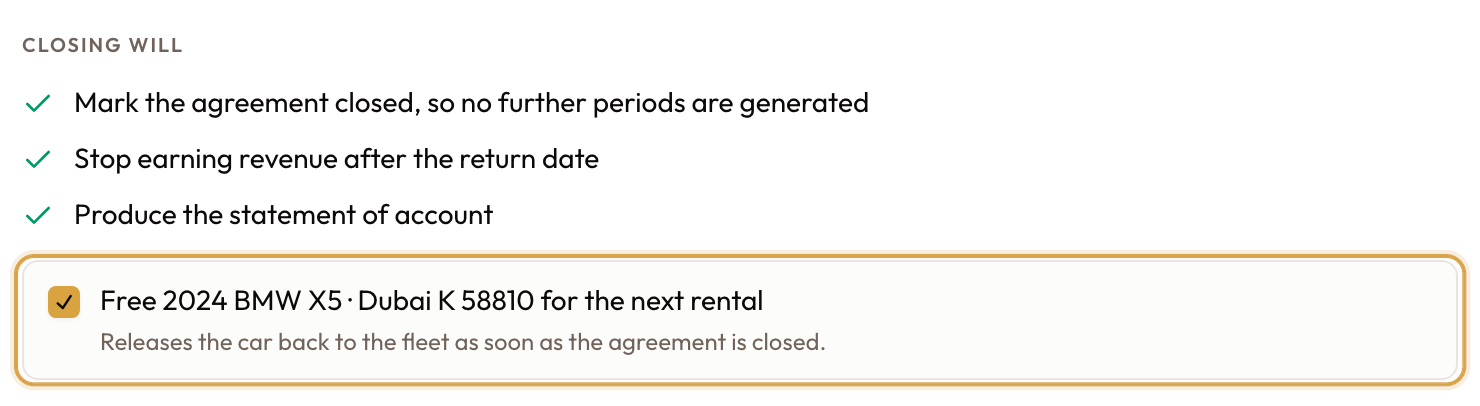
Leave it ticked to put the car back in the fleet when you close.
Choose how to close
- Bill and close raises one invoice for what is ticked, then closes.
- Close without billing closes and leaves the amount on the Rental Account to bill later.
- With nothing left to bill, the single button reads Close Agreement.
Confirm with Yes, close agreement, and the agreement is Closed. Closing never returns the deposit.
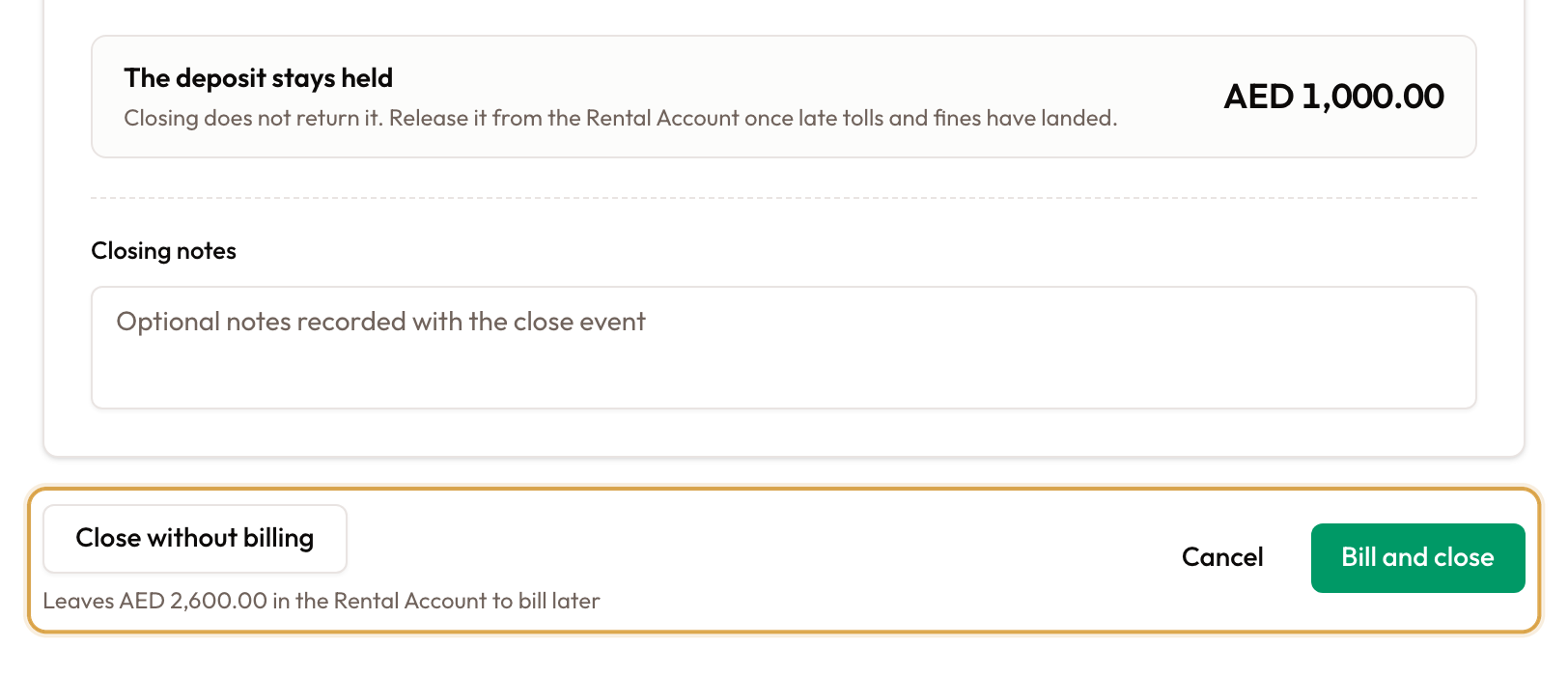
The deposit stays held, and the two ways to close.
Details: Closing an Agreement.
7. After closing
Free the car, if it wasn't
The car stays out of the fleet if:
- you unticked Free {vehicle} for the next rental, or
- the close showed "The agreement closed, but the vehicle could not be released. Release it from the agreement."
When it's ready, open the closed agreement and click Release Vehicle in the sidebar, or Release on the Not released yet line that the agreement page, the vehicle page and the fleet calendar show. It can't be freed while another active or reserved agreement holds the same car.
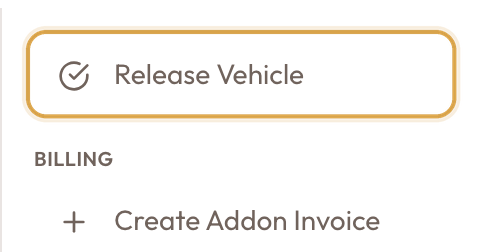
Release Vehicle appears on a closed agreement whose car hasn't been freed.
Release the deposit
Once late tolls and fines have had time to arrive, click Release deposit on the Security Deposit card, just below the Rental Account on the Overview tab. A deposit invoice that was never paid is voided automatically when you close.

Once released, the Security Deposit card reads Released and the deposit is returned to the customer.
Bill late charges
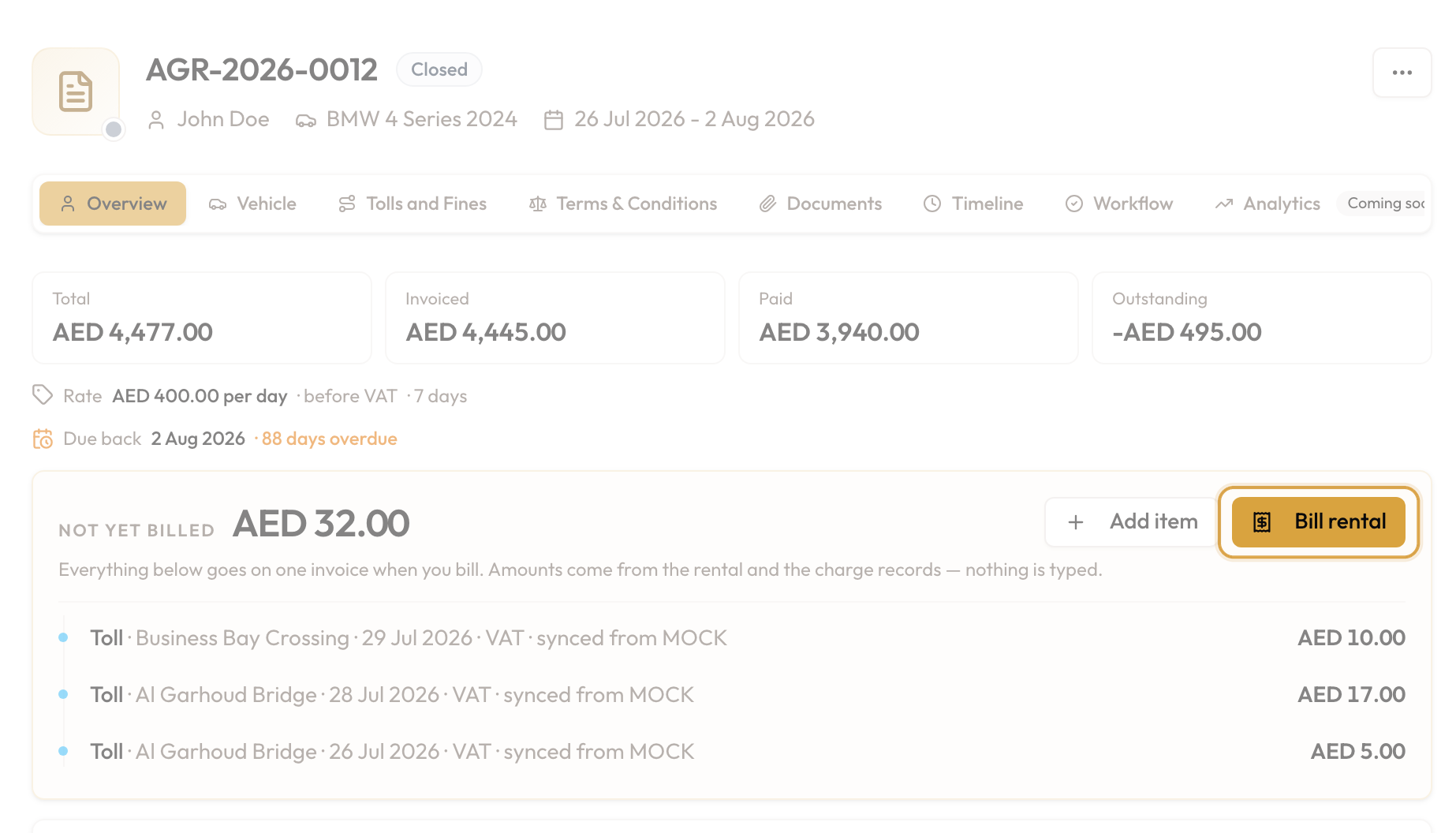
A fine that syncs after the close appears under Not yet billed, and Bill rental still works. Edit rate is still offered on an unbilled period, so a wrong rate can be fixed before you bill. See Billing Tolls, Fines & Parking to Customers.
Troubleshooting
| Situation | What to do |
|---|---|
| Start Vehicle Checkout is missing | The agreement is not signed yet. Lock it and sign it first. |
| No rental invoice after checkout | Raise invoices automatically is off. The rental is under Not yet billed: click Bill rental. Only the deposit invoice is raised at checkout. |
| Bill rental or Add item is missing | You need permission to create invoices, and the vehicle must have been checked out. If both are true and only Bill rental is missing, everything is already billed. |
| Edit rate is missing | You need permission to update agreements, and the period must still be under Not yet billed. If it is on an invoice, void the invoice first. |
| Billing refuses a later period | Periods are billed in order. Include the earlier unbilled period too. |
| Next Step (checkout) or Complete check-in stays disabled | Something required is missing. Often it's the mileage: it can't be lower than the vehicle's last reading. If your workspace sets a photo minimum, a red message under the photo grid says how many more photos are needed. |
| Close Agreement is missing | Check the vehicle in first. |
| The car came back late | Check-in does not add the extra days. Extend the agreement, or add an item. |
| You closed without billing | Nothing is lost. Open Overview → Rental Account and click Bill rental. |
| The close screen says to release the deposit from the Rental Account | The Release deposit button is on the Security Deposit card, directly below it. |
| The car doesn't show as available after closing | It wasn't freed at close. Open the closed agreement and click Release Vehicle. |
| The rental is a full month or longer | It bills monthly and has a payment schedule instead. See Long-Term Rental Workflow. |