

Billing Settings
Decide whether checkout raises and emails the first invoice, what payment terms print on new invoices, and the refund times quoted to customers
Settings → Billing holds three workspace settings:
- Invoicing at handover: whether checking out a vehicle raises the first rental invoice by itself, and whether that invoice is emailed to the customer straight away.
- Payment Terms: the text printed in the Payment Terms section of every new invoice.
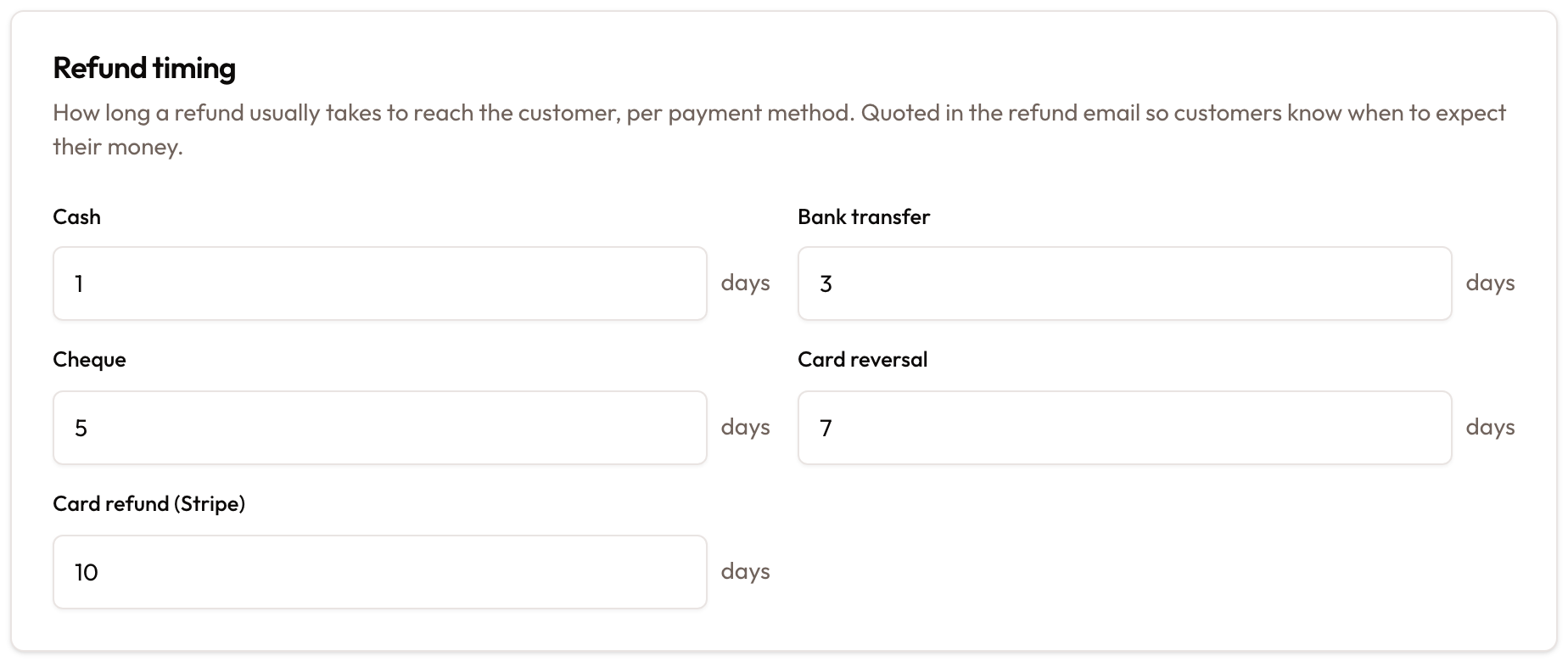
- Refund timing: how long each refund method usually takes, quoted to the customer in the refund email.
This page explains the settings. For what checkout then does at the counter (where an unbilled period waits, and what happens to the deposit invoice), see Vehicle Checkout & Handover Inspection.
Before you start
This page is Workspace Admin only. Members without workspace-settings access are redirected away, and their changes would not be saved.
- Settings are per workspace. Each workspace has its own billing settings.
- Changes apply from now on. Invoices already issued keep their terms and are not re-sent.
Set up billing
Open Billing Settings
In the settings sidebar, under Business, click Billing. The page is headed Billing Settings.
You see three cards: Invoicing at handover, Payment Terms and Refund timing. Reset to defaults is at the top right, and Cancel and Save changes are at the bottom.
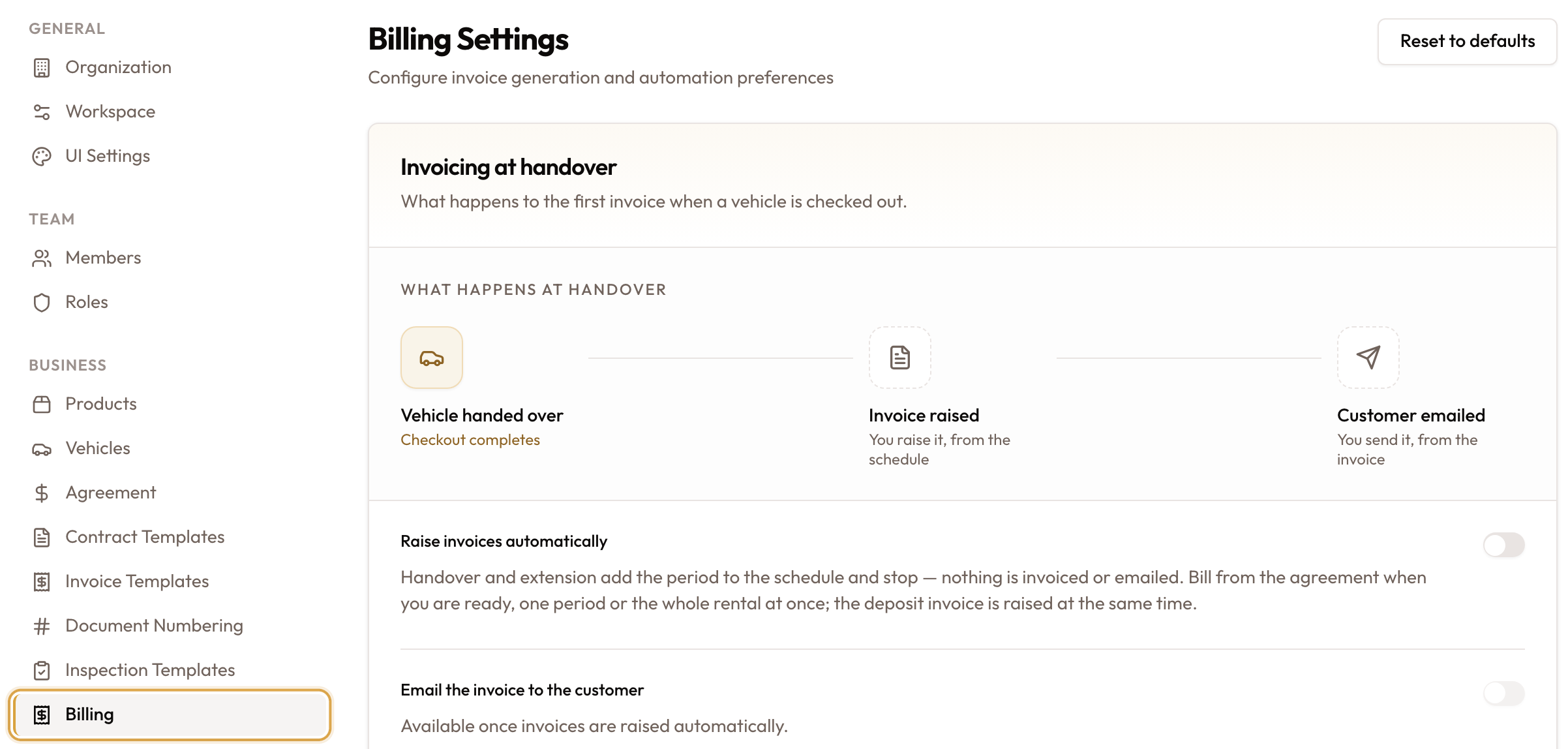
Read the handover picture
At the top of Invoicing at handover ("What happens to the first invoice when a vehicle is checked out."), the What happens at handover diagram shows three steps:
- Vehicle handed over: Checkout completes. Always automatic.
- Invoice raised: Automatically, or You raise it, from the schedule.
- Customer emailed: Immediately, or You send it, from the invoice.
Steps the system does are drawn solid and highlighted. Steps left for you are drawn dashed. The diagram updates as soon as you flip the switches below, before you save.
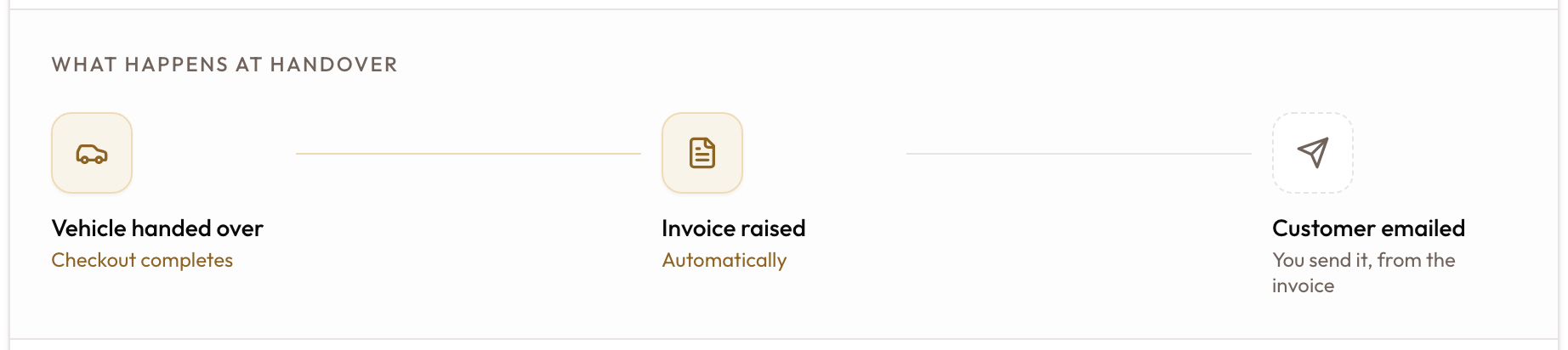
Choose whether checkout raises the invoice
The Raise invoices automatically switch decides whether checkout and extensions raise a rental invoice by themselves.
- On (the default for a new workspace): checking out a vehicle bills the first period straight away, and every extension bills its own period. This applies to short-term rentals and monthly leases alike.
- Off: checkout and extensions add the period to the schedule and stop. Nothing rental is invoiced or emailed. You bill from the agreement when you are ready, one period or the whole rental at once.
The security deposit invoice does not wait. The Off description on screen says the deposit invoice is raised when you bill. It is not: checkout raises the security deposit invoice straight away, whichever way this switch is set. Only the rental invoice waits.
A note under the switches applies in every position: "Later billing periods are never raised automatically. Raise each one from the agreement's payment schedule when it falls due."
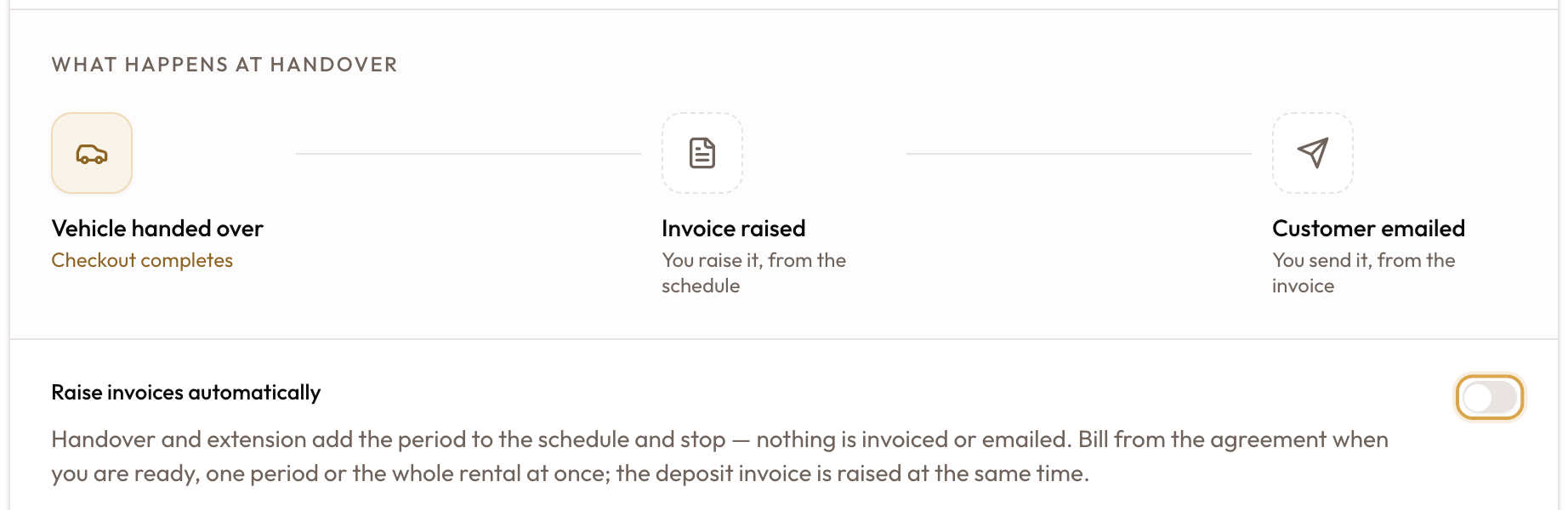
Choose whether the customer is emailed
The Email the invoice to the customer switch decides whether the invoices raised at checkout or extension are emailed to the customer immediately.
- It only works when Raise invoices automatically is on. Otherwise it is greyed out and reads "Available once invoices are raised automatically."
- On: the customer receives the invoice as soon as it is raised. This covers the first rental invoice, the security deposit invoice and each extension invoice.
- Off (the default): the invoice is raised but not sent. You send it from the invoice when you are ready. See Sending Invoices.
When you turn it on, a warning explains the stake: once a customer has the invoice, correcting a wrong rate is no longer an edit and needs a credit note. Leaving emailing off gives you a window to check the rate first.

Set the default payment terms
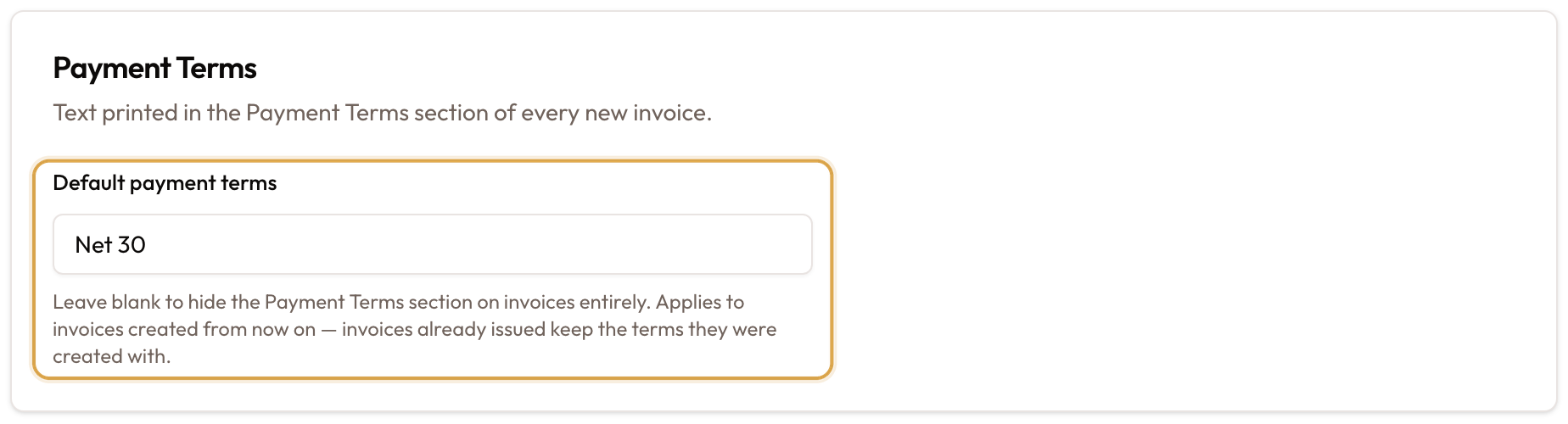
In the Payment Terms card, type the terms you print on invoices in Default payment terms, for example Net 30.
- Leave it blank (the default) to hide the Payment Terms section on invoices entirely.
- It applies to invoices created from now on. Invoices already issued keep the terms they were created with.
- The text is printed on the invoice; the due date itself comes from the payment schedule.
Set refund timing
In the Refund timing card, enter how many days each refund method usually takes to reach the customer:
| Method | Default |
|---|---|
| Cash | 1 |
| Bank transfer | 3 |
| Cheque | 5 |
| Card reversal | 7 |
| Card refund (Stripe) | 10 |
When you issue a refund, the customer's "Refund initiated" email gives this number of business days for the refund's method. See Creating Credit Notes & Deposit Refunds.
Save your changes
Click Save changes. A "Billing settings saved" message confirms it.

Cancel and Save changes at the bottom of the page.
Resetting to defaults
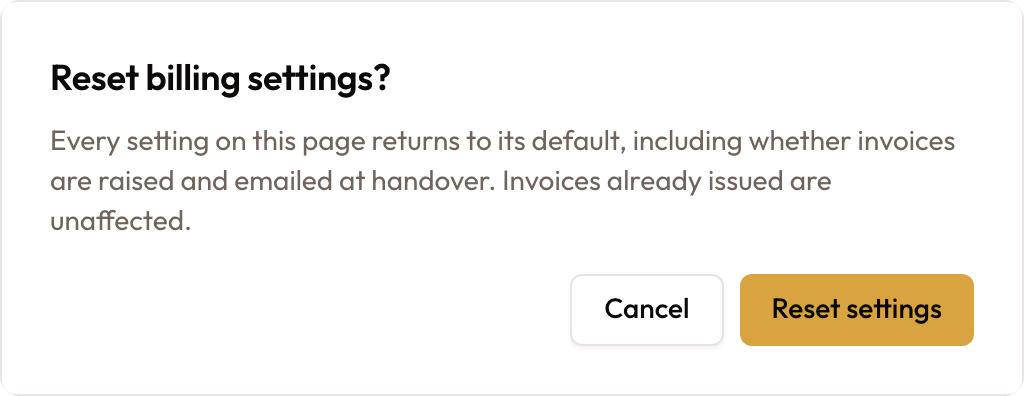
Click Reset to defaults at the top right. The Reset billing settings? dialog warns that every setting returns to its default, including whether invoices are raised and emailed at handover. Invoices already issued are unaffected. Click Reset settings to confirm.
The defaults are:
- Raise invoices automatically: on
- Email the invoice to the customer: off
- Default payment terms: blank
- Refund timing: 1, 3, 5, 7 and 10 days
Common mistakes & edge cases
- Reset turns automatic invoicing back on. If your workspace runs with Raise invoices automatically off, Reset to defaults switches it back on, so the next checkout raises a rental invoice. Turn it off again and save.
- Save before you leave. Cancel, or moving to another page, drops anything you have not saved.
- The email switch works when Raise invoices automatically is on. Saving with invoicing off also saves emailing as off.
- Invoices you raise yourself are never emailed automatically. The email switch covers only invoices raised at checkout or extension. An invoice you raise later from the payment schedule is created and stops there; send it from the invoice.
- Later periods are always yours to raise. On a monthly agreement, only the first period is billed at checkout (when invoicing is on). Later months are raised from the payment schedule when they fall due. See Viewing Agreement Details & Timeline.
- Extensions follow the same switches. With automatic invoicing off, an extension only adds a period to the schedule. See Extending Agreement Duration.
- Security deposit invoices ignore the default terms. They always print "Due on delivery".
- Changing terms never rewrites issued invoices. Each invoice keeps the terms it was created with.