

Invoice Template Customization
Choose an invoice template, set shared branding, and add bank transfer details printed on invoices
Settings → Invoice Templates controls how your invoices look to customers. Three things live here:
- Template: one of three layouts, each previewable full-screen.
- Branding: a primary colour, a signature image and footer text, shared with contracts.
- Bank transfer details: the account printed on invoices so customers know where to pay.
Before you start
This page is Workspace Admin only. Members whose role can't change workspace settings are sent away from it.
Settings are per workspace, and branding is shared with contracts: changing the colour, signature or footer here also changes them on your contract documents.
Where the TRN comes from
There is no TRN or VAT display option on this page. Whether your Tax Registration Number prints on an invoice, and whether the document is titled "Tax Invoice" instead of "Invoice", depends on the Tax ID you set on Settings → Organization. Set it there and every template prints it; leave it blank and none do. Security deposit invoices are the one exception to the title: they are always titled "Security Deposit".
Choose a template
Open Settings → Invoice Templates
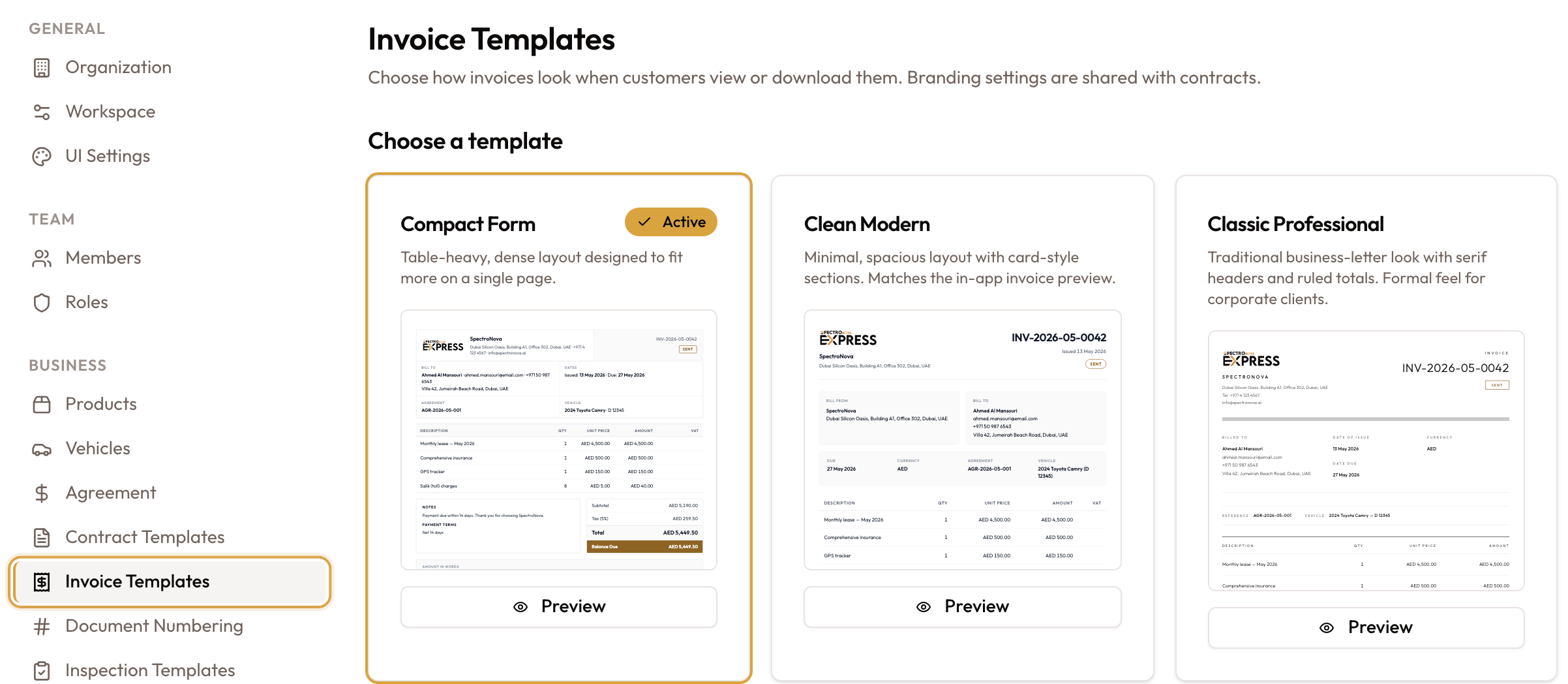
In the settings sidebar, under Business, click Invoice Templates. The page is headed Invoice Templates: "Choose how invoices look when customers view or download them. Branding settings are shared with contracts."
Pick a template
Under Choose a template, click a card to select it. The current one carries an Active badge, and each card shows a live thumbnail.
| Template | Description | Default |
|---|---|---|
| Compact Form | Table-heavy, dense layout designed to fit more on a single page. | Yes |
| Clean Modern | Minimal, spacious layout with card-style sections. Matches the in-app invoice preview. | |
| Classic Professional | Traditional business-letter look with serif headers and ruled totals. Formal feel for corporate clients. |
The badge moves as soon as you click, but your invoices only switch to the new template once you click Save changes.
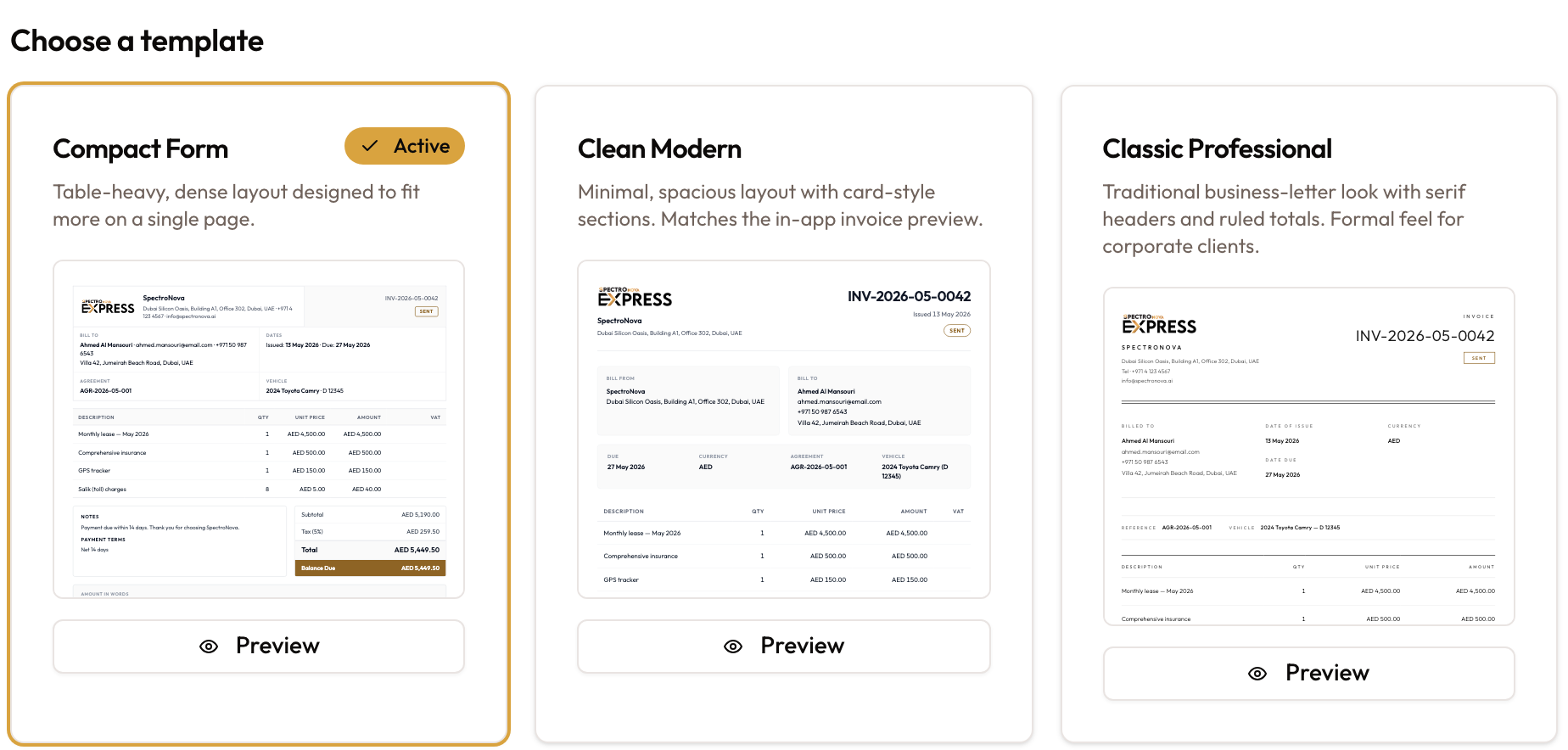
the three template cards (Compact Form, Clean Modern, Classic Professional) with the Active badge and thumbnails
Preview before committing
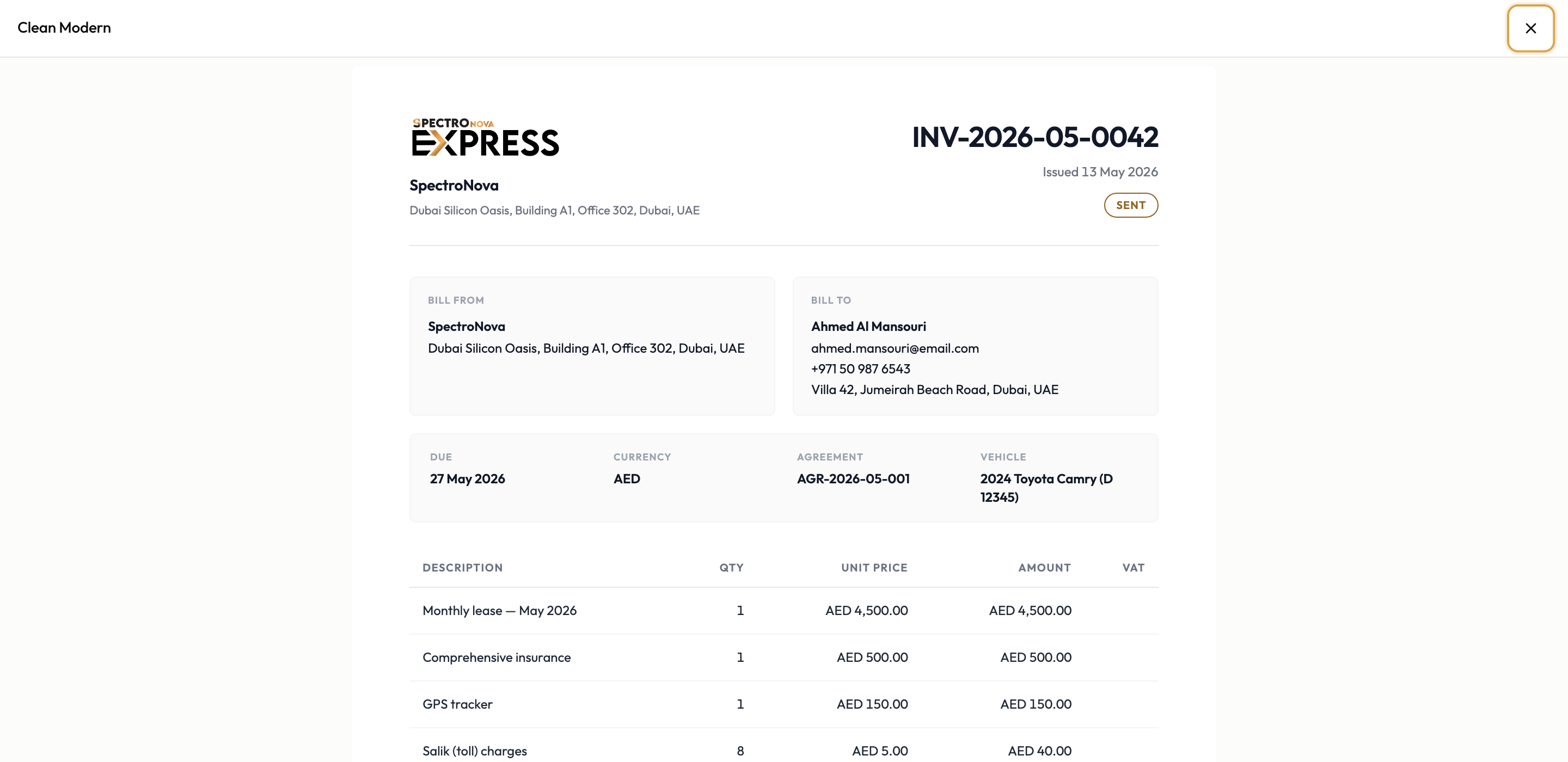
Click Preview on a card to open it full-screen at page size. On a phone, the page shrinks to fit your screen. Close it with the X in the top corner. Previewing and selecting are separate: your active template changes only when you select one.
Set your branding
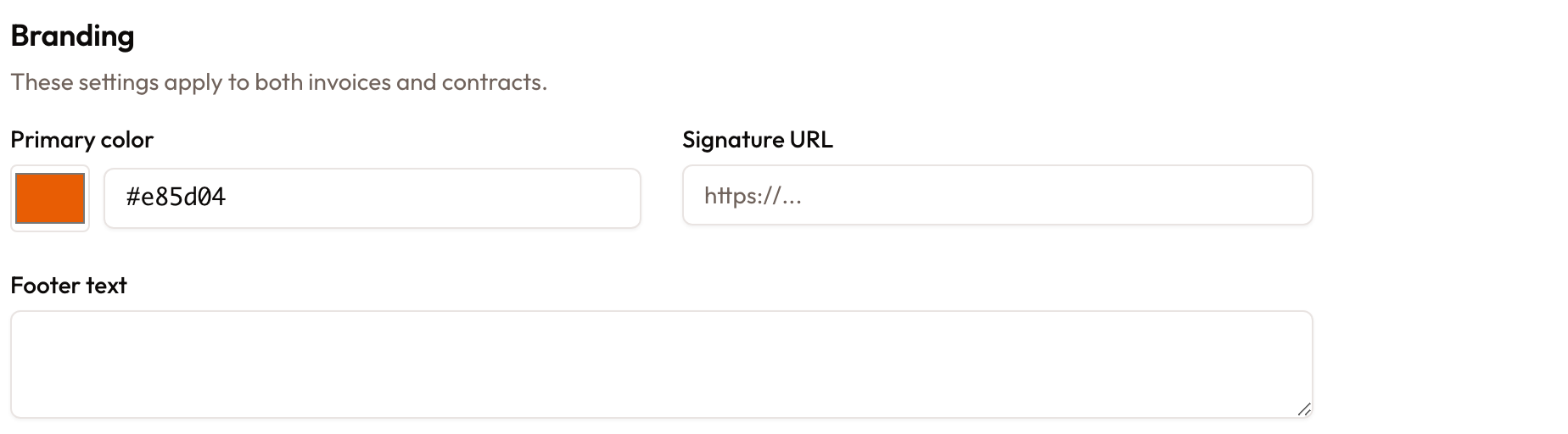
Under Branding ("These settings apply to both invoices and contracts."):
- Primary color: a colour picker plus a hex field (for example,
#e85d04). - Signature URL: a link to a signature image (
https://...). - Footer text: free text shown at the foot of the document.
Add bank transfer details
Under Bank transfer details ("Printed on invoices so customers know where to send payment."):
Fill in the account
- Account holder: the legal name the account is held in.
- Account number / IBAN.
- Bank name and Bank address.
- Account number type: a fixed choice of Account Number or IBAN. This is how the number is labelled on the invoice, not free text.
- Routing code: SWIFT/BIC, sort code or IFSC. Leave it blank if the account has none.
- Payment method: for example SWIFT, FTS or ACH.
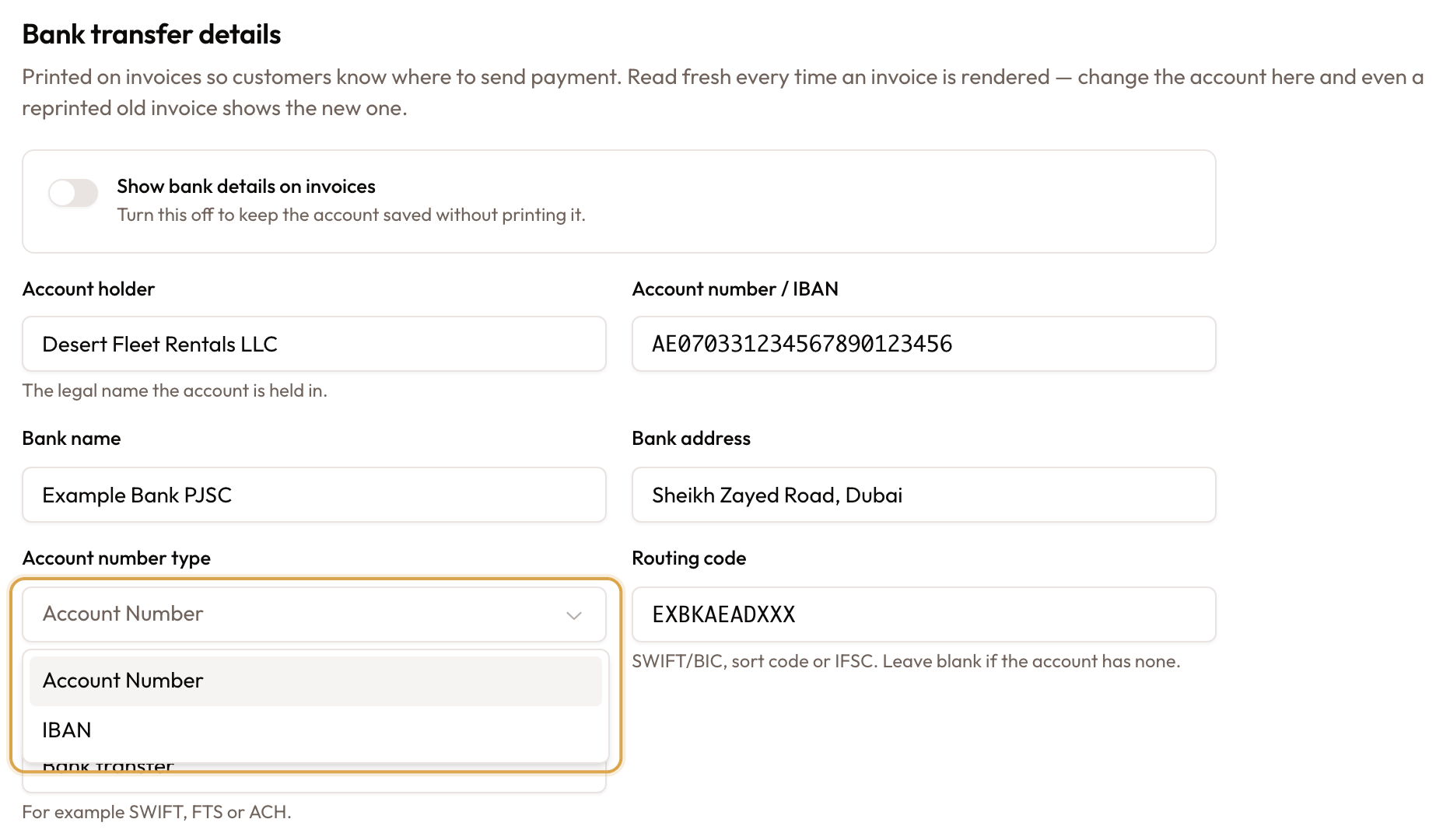
Switch on Show bank details on invoices
Turn on Show bank details on invoices to print the block. It can't be switched on until the account can receive money: fill in at least Account holder and Account number / IBAN first. Until then the hint reads "Add an account holder and an account number before switching this on."
Turning it off keeps the details saved without printing them.

Save changes
Click Save changes. One button saves the template choice, branding and bank details together. Success shows "Invoice template settings updated"; if the save fails you see "Could not update invoice template settings".

Save changes at the bottom of the page. It becomes active once you change something.
Bank details are read fresh every time an invoice is rendered. As the on-screen note says, "change the account here and even a reprinted old invoice shows the new one." Reprinting a past invoice does not reproduce the bank block it was originally sent with.
Common mistakes & edge cases
- Looking for a TRN/VAT toggle: there isn't one. TRN printing and the "Tax Invoice" title come from your Organization Tax ID.
- Clicking a card isn't saving it: the Active badge moves straight away, but invoices keep the old template until you click Save changes.
- Can't turn on "Show bank details": the switch stays disabled until both Account holder and Account number / IBAN are filled.
- Reprints show current bank details, not the ones from when the invoice was issued.
- Branding changes affect contracts too: colour, signature and footer are shared.
- Account number type is a fixed list (Account Number / IBAN), because it prints as the row label on a customer-facing document.
- Save is disabled until you change something.
What's next
Your invoices are styled and payable. See the other Configuration groundwork: Product Catalog Setup, Agreement Settings and Document Numbering. Set your Tax ID on Setting Up Your Organization if you want your TRN on every invoice.