

Refunds & Write-Offs
The two ways an invoice ends in money out or a loss: refund a customer what they paid (one step that writes a credit note and the refund together), or write off an uncollectible balance as bad debt.
Two endings for an invoice that isn't a normal payment: refund the customer money they paid, or write off a balance you'll never collect. Both differ from voiding an invoice (cancelling one with no money on it) and from credit notes (reversing the sale itself).
Separate permissions. Refunding needs refunds.create; writing off needs
billing.invoices.writeOff.
Refund a customer
Open the refund dialog
There are two ways in, and both open the same dialog:
- In the invoice sidebar, under Payments, click Issue Refund.
- Or go to the invoice's Payments tab and, on a payment's row menu, click Issue Refund. The amount starts at that payment, capped at what is still refundable.
Issue Refund is offered on an open, paid or written-off invoice that has received at least one payment and still has something left to refund.
Check what can be refunded
The Issue Refund dialog explains that it returns money against this invoice and "writes a credit note and the refund together."
It shows the Available to refund amount, worked out as Cash collected on this invoice minus Credit notes already raised minus Refunds already issued. A refund that is still pending also holds part of it back, and the dialog says so. If nothing is left, it reads "There is nothing left to refund on this invoice."
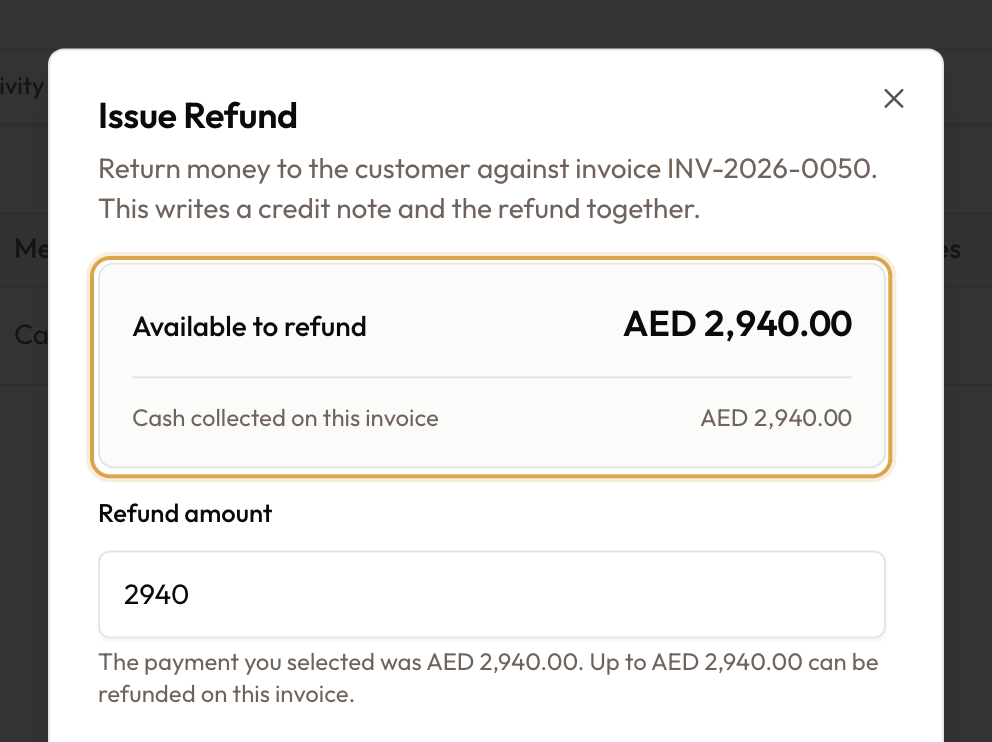
Enter the refund
- Refund amount — up to the available amount.
- How the money goes back — Cash, Bank transfer, Cheque or Card reversal.
- Refund date — dates both the credit note and the refund.
- Has the money gone back yet? — choose Yes, already returned (the default) to record the cash as gone and update the customer's balance now, or No, queue it for transfer to hold the amount until you mark the refund completed.
- Reference (optional) and Notes (optional).
Click Issue refund. You'll see Refund issued., and a credit note is created alongside the refund in the same step. A refund never stands alone; it always has a credit note behind it. The refund then appears in the Refunds list on the invoice's Payments tab.
This is the quick, invoice-side route. To raise a credit note on its own first, start from the credit note instead: Creating Credit Notes. On a security deposit invoice the same button reads Release deposit; see Creating Credit Notes & Deposit Refunds.
Write off an invoice (bad debt)
Write it off
When you accept the customer won't pay, click Write Off in the invoice sidebar under Dangerous Actions (available on an open invoice). The dialog reads Write off this invoice?: "Write-off records the outstanding balance as bad-debt expense. Use this when you accept the customer will not pay." Enter a Reason (required, at least 3 characters; for example "customer bankrupt / uncollectible after collection attempts") and confirm with Yes, Write Off.
What it does
The invoice moves to Written Off (final). The outstanding balance is booked as bad-debt expense; the sale itself stays on the books. The revenue was earned; you simply won't collect it.
If the write-off can't go through (for example, the invoice's period is locked), the dialog stays open and shows why. Nothing is changed.
Which one to use
| The situation | Use |
|---|---|
| The invoice has no money on it and shouldn't exist | Void. See Invoice Types & Automated Generation |
| The invoice is unpaid and uncollectible, and you accept the loss | Write off (this page) |
| The sale was wrong: reverse it (revenue never earned) | Credit note. See Creating Credit Notes |
| The customer paid and you're giving it back | Refund (this page) |
A write-off is not a credit note. A credit note reverses the sale, so the revenue is treated as never earned. A write-off keeps the sale and records the unpaid amount as bad-debt expense. A billing error is a credit note; a customer who simply never paid is a write-off.
Common mistakes & edge cases
- No Issue Refund button. The invoice has no payment yet, nothing is left to
refund, or your role lacks
refunds.create. The row menu on the Payments tab also needs the payment-processing permission. - The balance didn't change after a refund. You chose No, queue it for transfer. The refund is pending; the balance changes once it is marked completed.
- No Write Off button. It only appears on an open invoice; a draft, paid or void invoice doesn't offer it.
What to read next
Creating Credit Notes & Deposit Refunds
Raise a credit note against an invoice, apply it to reduce a balance, or refund it as cash — including deposit refunds, which are a credit note with the Deposit refund reason.
Sending Invoices
Finalise an invoice, then email it to the customer with a permanent payment link — plus resending, reminders, and what the customer sees.