

AI Assistant
Ask the AI Assistant about your fleet, agreements, customers and balances in plain language, follow up in the same chat, and find or delete past chats.
The AI Assistant answers questions about your workspace in plain language: which agreements end this month, what a customer owes, which vehicles are free. It looks the answer up in your data, so you don't have to open several pages to find it. The assistant is in Beta.
The assistant can see only what you can see. It checks your role for every lookup. If your role can't view invoices, for example, it can't tell you a customer's balance either. To use the assistant at all, your role needs the AI Chat permission. Every built-in role has it except Viewer. See Roles & Permissions.
Open the AI Assistant
In the main menu, under System, click AI Assistant.
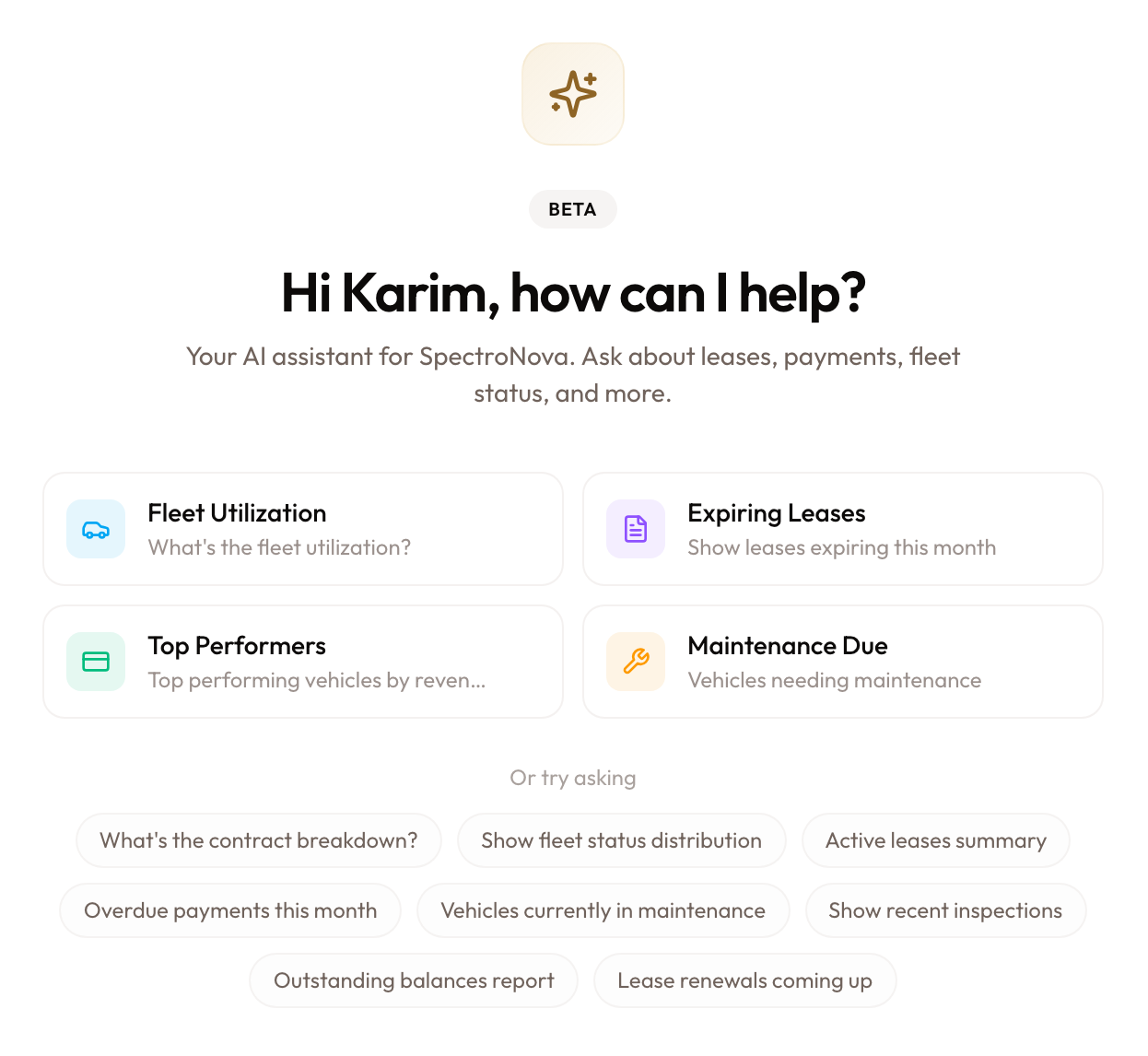
The first screen greets you and offers suggestions: four cards, such as Fleet Utilization and Expiring Leases, and more questions under Or try asking. Click one to ask it straight away, or type your own question.
If you see Access Denied instead, your role doesn't include AI Chat. Ask a Workspace Admin.
Ask a question
Type and send
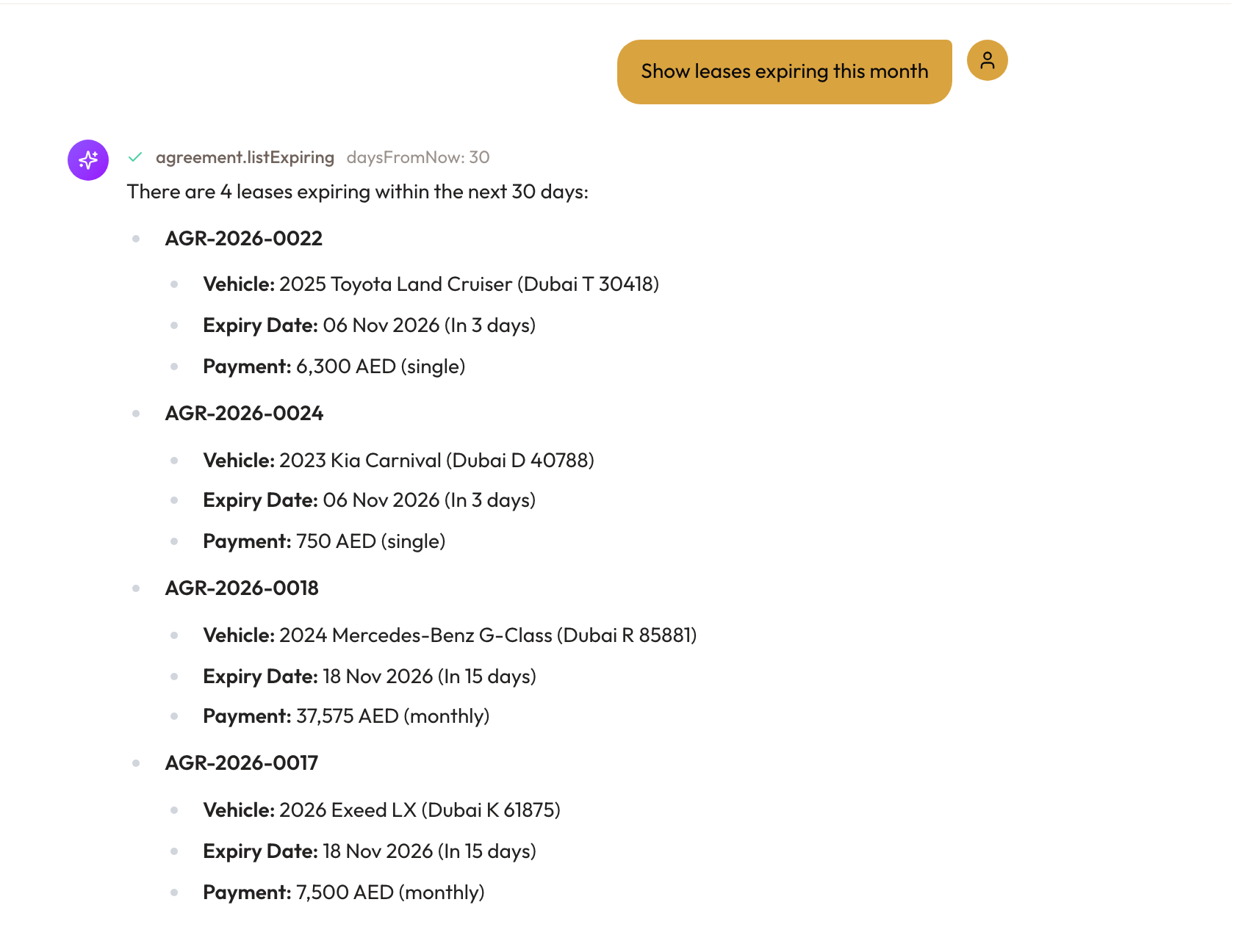
- Type your question in the box at the bottom, for example "Show leases expiring this month".
- Press Enter to send. Press Shift + Enter for a new line.
While it works, the assistant shows Thinking. Each record it looks up appears as a short line in the reply; click a line to see what it Asked for and the Result. To stop a long answer, click Stop.
Ask a follow-up
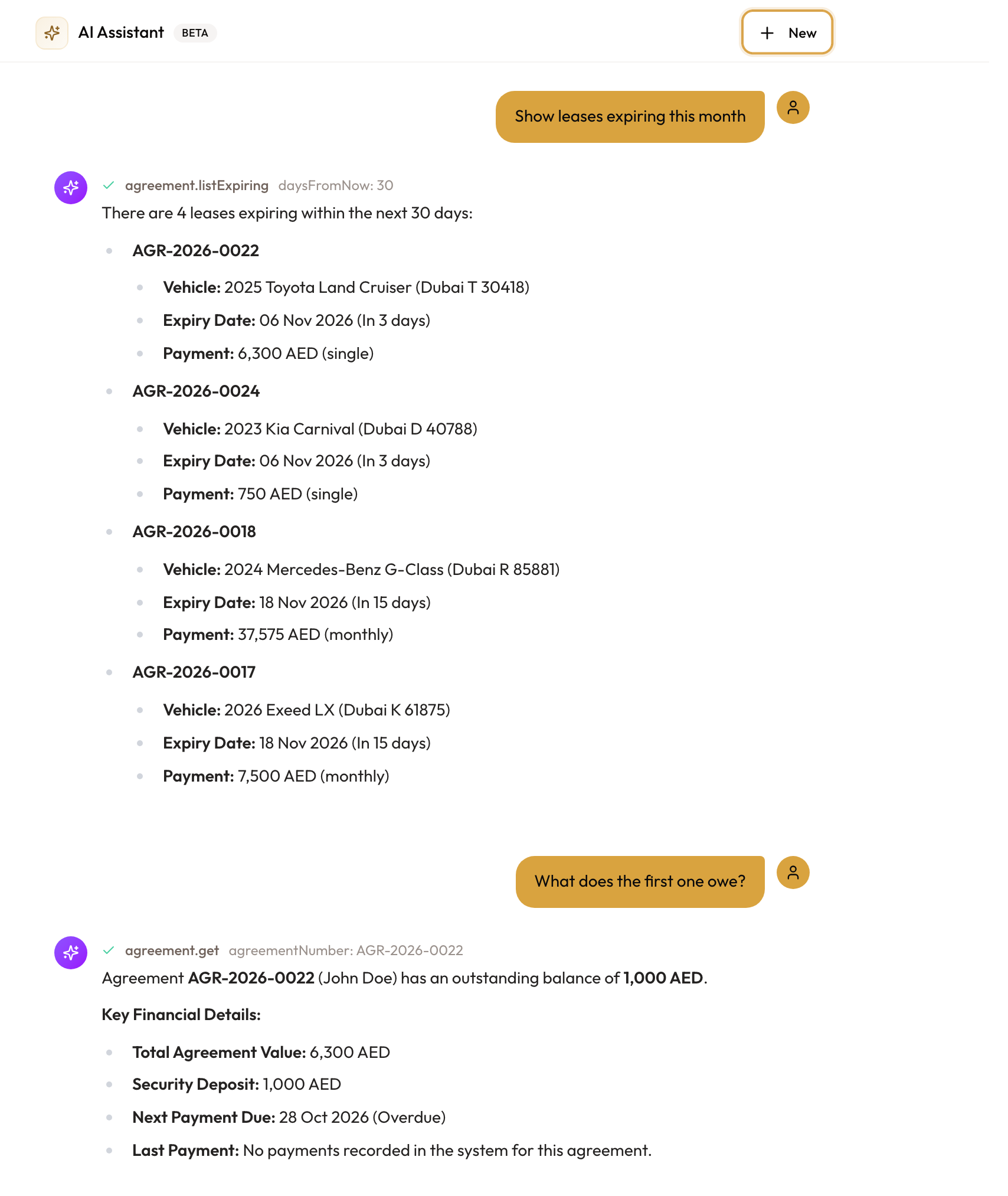
The assistant remembers the conversation, so you can build on the last answer, for example "Which of those are company customers?" or "What does the first one owe?". To start on a new topic, click New at the top of the chat.
To copy an answer, hover over it and click Copy.
What you can ask about
| Area | Examples |
|---|---|
| Agreements | Active agreements; one agreement by its number; agreements ending in the next few days |
| Customers | A customer's balance, payments, invoices and rental history |
| Fleet | Fleet status, which vehicles are available, utilization, best-performing vehicles |
| Vehicles | A vehicle's maintenance status and inspection history |
| Tolls | Toll charges not yet matched to an agreement |
| Statements | A Statement of Account as a PDF, when you ask for one |
Questions about one record work best with its number or name, for example "Show agreement AGR-2026-0142".
Find a past chat
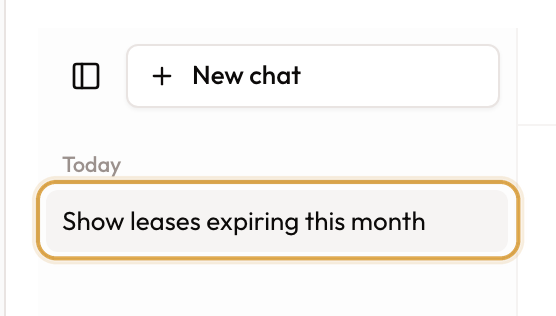
Your chats are listed on the left, grouped by Today, Yesterday, Previous 7 days, Previous 30 days and Older. Each is named after its first question. Click one to open it and carry on. On a phone, tap the history button at the top to open Chat history.
You see only your own chats. Nobody else in the workspace can see them.
Delete a chat
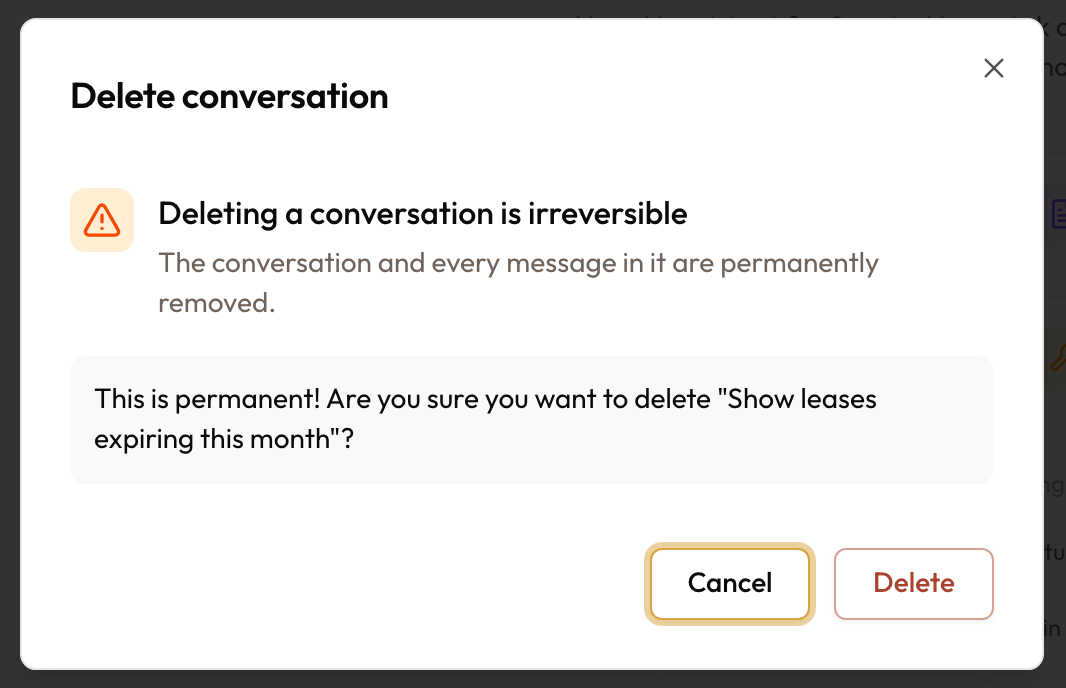
- Hover over the chat in the list and click the bin icon.
- Confirm with Delete.
The chat and all its messages are removed for good.
Things to know
- Check important answers. The assistant can make mistakes. Before you act on a figure, check it on the record itself.
- Each message counts toward your plan. Messages are counted each month as AI Calls in Plan, Usage & Subscription. When you get close to the limit, a banner above the message box tells you; once you reach it, you can't send more until next month or until your plan changes.
- Changing data is off by default. The assistant reads and reports; it doesn't create or change records. If the SpectroNova Express team has turned changes on for your workspace, the assistant always shows you what it would change first, marked Nothing has changed yet. Confirm in the chat to go ahead., and acts only after you say yes in the chat. It still can't do anything your role doesn't allow.
- No attachments. You can't send files or photos to the assistant.