

Plan, Usage & Subscription
See your plan, what it includes and how much of it you use, follow your payment schedule, and what happens when a payment is due or your subscription ends.
Your plan decides which features your company has and how much you can use, for example how many vehicles and workspaces. One page shows all of it, along with your payment schedule: Settings → Plan Usage. This page also explains the reminders you see when a payment is due, and what happens if your subscription ends.
Changing your plan is done with us, not in the app. There is no checkout in SpectroNova Express. To upgrade, add a feature or ask about your plan, contact the SpectroNova Express team. Wherever the app offers Contact us to upgrade, it opens an email to the team.
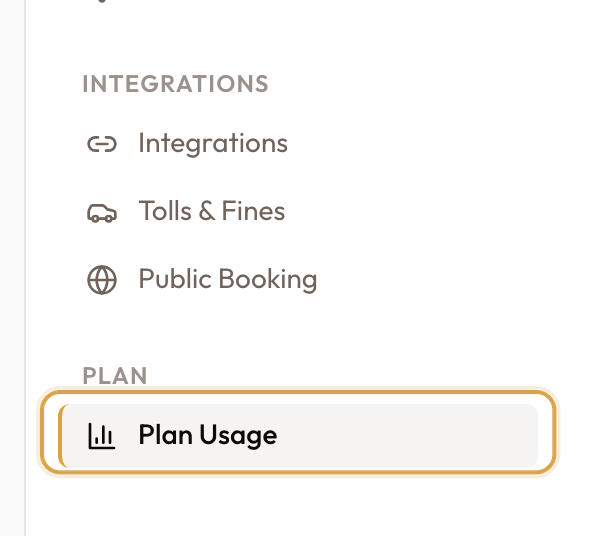
Open Plan Usage
- Open Settings in the main menu.
- Under Plan, click Plan Usage.
If you don't see Settings, your role doesn't include any settings permissions. Ask a Workspace Admin.
Your plan and its features
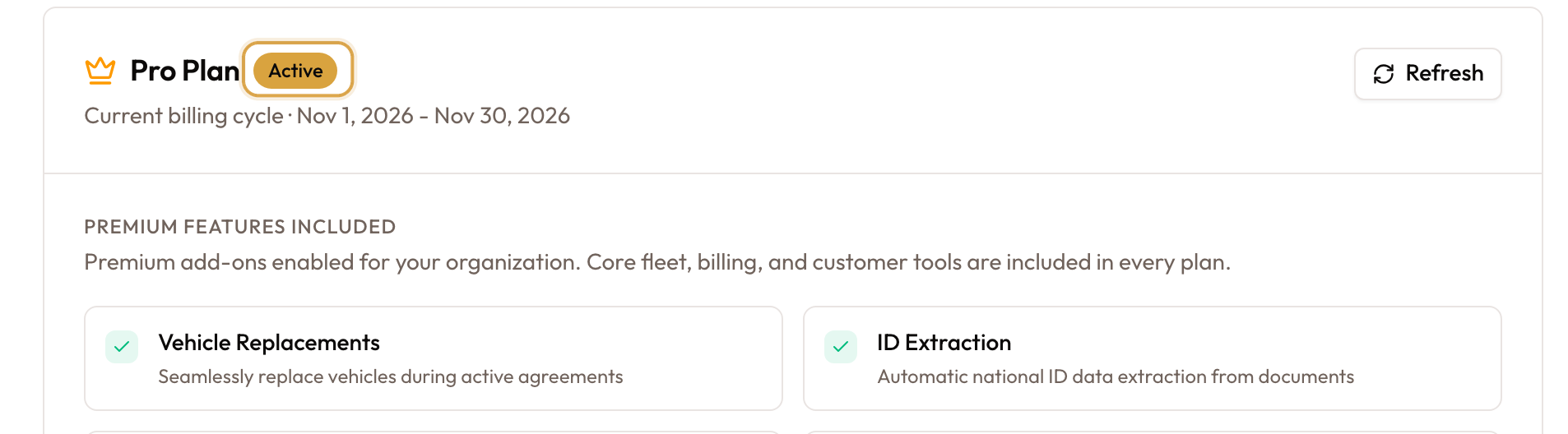
The first card shows your plan's name and its status:
- Active: your subscription is running.
- Trial: you're on a free trial.
- Past due: a payment is overdue. See When a payment is due.
- Inactive: your subscription isn't running.
Below it, Premium features included lists the extra features your company has, each with a short description. Core fleet, billing and customer tools are in every plan, so they aren't listed. A feature tagged Custom was switched on for your company on top of the standard plan.
Click Refresh to load the latest figures.
Usage Summary
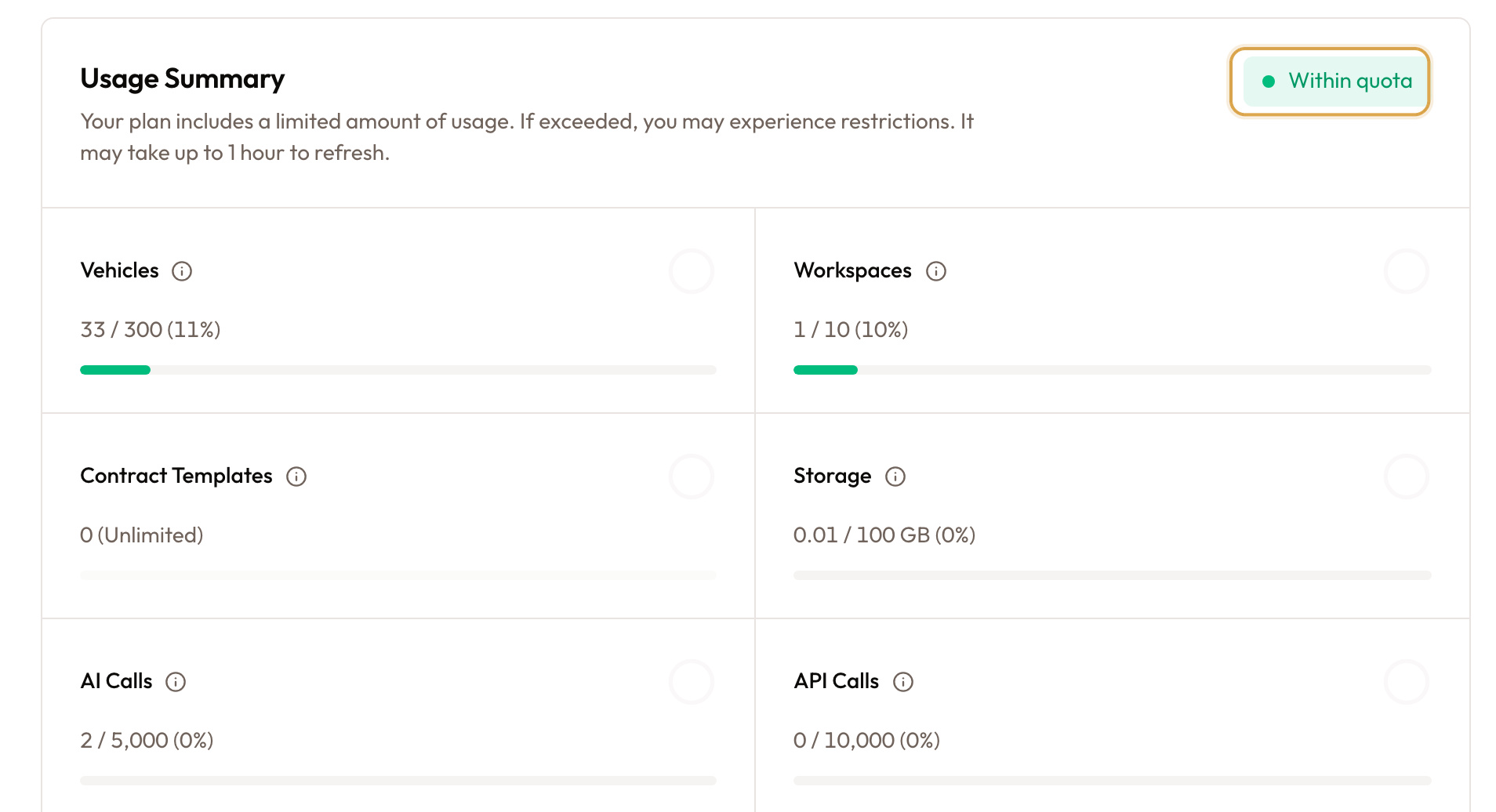
Usage Summary shows how much of your plan you're using:
| Meter | What it counts |
|---|---|
| Vehicles | Vehicles in your fleet |
| Workspaces | Workspaces in your company |
| Contract Templates | Agreement templates you've created |
| Storage | Space used by your files and documents |
| AI Calls | Messages to the AI Assistant this month |
| API Calls | Requests from outside systems this month |
Each meter shows what you use against what your plan includes. It turns amber, then red, as you get close to the limit. Unlimited means your plan has no cap, and Not in plan means your plan doesn't include it.
The pill at the top says Within quota, or Quota exceeded once any meter reaches its limit. Figures can take up to an hour to update.
Payment schedule
Payment schedule lists your subscription's instalments and any one-off charges, with the Due date, Amount and Status of each:
- Upcoming: not due yet.
- Due: the payment notice has been sent.
- Overdue: the due date has passed.
- Paid: received.
Click View on a row to open its payment notice as a PDF, with the bank transfer details.
When a payment is due
The payment notice email
When a payment is coming up, the SpectroNova Express team sends you an email. Its link opens the Payment notice: the amount due, the due date, and the details to Pay via bank transfer, including the payment reference to use. Click Download PDF to keep a copy.
Payment is by bank transfer. Once the team receives it, they mark it as paid and the row in your Payment schedule changes to Paid.
Banners in the app
A banner across the top of the app keeps the people who manage the subscription up to date. They are the company owner and anyone whose role includes View Subscription & Billing Status (a Workspace Admin, by default). See Roles & Permissions.
- During a trial: the banner shows how many days are left. Click Contact us to talk to the team about your plan. You can close this banner; it comes back the next day.
- Payment due: Payment due with the date and amount.
- Payment overdue: Payment overdue, and how long you have to pay.
- Access about to pause: a red banner shows when access will pause unless the payment arrives.
Click View schedule on a payment banner to open Plan Usage. Payment banners stay until the payment is recorded.
Everyone else sees only the last warning, Access pauses after a date, with Please contact your administrator.
When your subscription ends
If a trial ends without a plan, or an overdue payment isn't received in time, access to the workspace pauses. Every page is replaced by one message:
- Your free trial has ended, after a trial.
- Your subscription is paused, when a payment hasn't arrived.
- Your subscription has ended, in other cases.
Your data is kept. To restore access, get in touch with the team using Contact us on WhatsApp, Email us or Book a call. Once your plan is set up or your payment is recorded, the workspace opens again. Sign out signs you out.
Features your plan doesn't include
Some features are only in some plans. When your plan doesn't include one, you see a lock or a message saying which plan includes it, with Contact us to upgrade. Each guide says when a feature depends on your plan.
Roles & Permissions
Adjust what the built-in roles can do, create custom roles, see who changed a role and when, and give people a custom role.
AI Assistant
Ask the AI Assistant about your fleet, agreements, customers and balances in plain language, follow up in the same chat, and find or delete past chats.