

Roles & Permissions
Adjust what the built-in roles can do, create custom roles, see who changed a role and when, and give people a custom role.
A role decides what a person can see and do in SpectroNova Express. Every company starts with six built-in roles. You can adjust what each built-in role allows, or create your own roles for jobs the built-in ones don't fit. Roles belong to your company, so a change applies in every workspace.
You need the Manage Roles permission to change roles. A Workspace Admin has it. Without it, you can open the roles and look at them, but there is no New role button and you can't click permissions on or off.
You can only give what you have. A permission you don't hold yourself shows a lock, and you can't switch it on for any role. You can always switch one off.
Open Role Management
- Open Settings in the main menu.
- Under Team, click Roles.
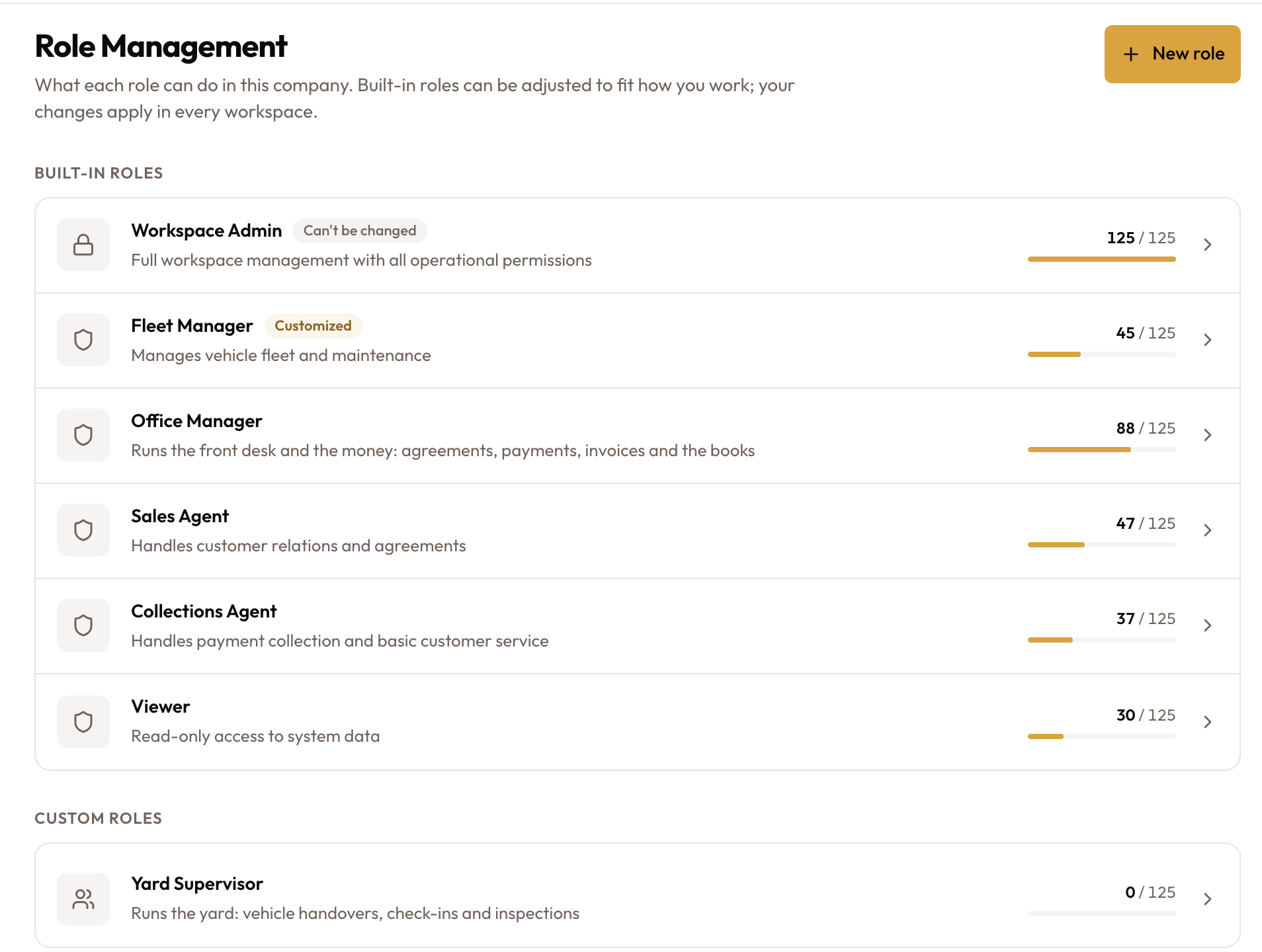
The page is headed Role Management. It has two lists:
- Built-in roles: the six roles every company starts with.
- Custom roles: roles your company created. Empty until you create one.
Each row shows the role's name, what it's for, and how many permissions it has. A built-in role your company has adjusted is tagged Customized. Workspace Admin is tagged Can't be changed: it always has every permission, so nobody can lock the company out of managing roles.
Read a role's permissions
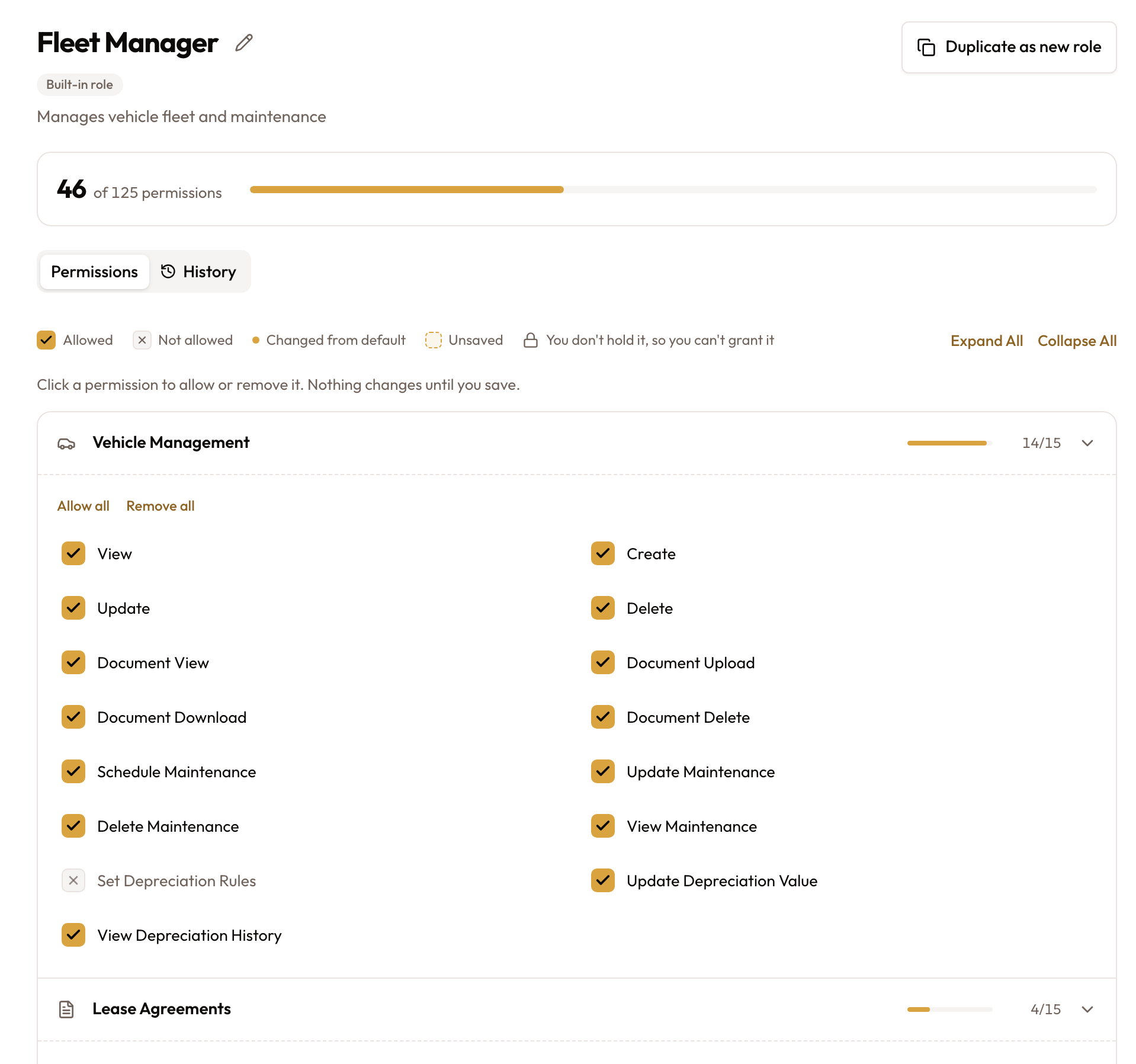
Click a role to open it. The Permissions tab lists every permission, grouped into sections by area, such as Vehicle Management, Lease Agreements, Customer Management, Billing & Payments and Settings & Admin. The last section, Dashboards, decides which dashboards the role sees on the Home screen.
Each section shows how many of its permissions are on. Click a section to open or close it, or use Expand All and Collapse All. The legend above the list explains the marks:
- Allowed and Not allowed: the permission is on or off.
- Changed from default: this built-in role differs from how it ships.
- Unsaved: you changed it and haven't saved yet.
- A lock: you don't hold this permission, so you can't grant it.
Adjust a built-in role
Change the permissions
- Open the role, for example Fleet Manager.
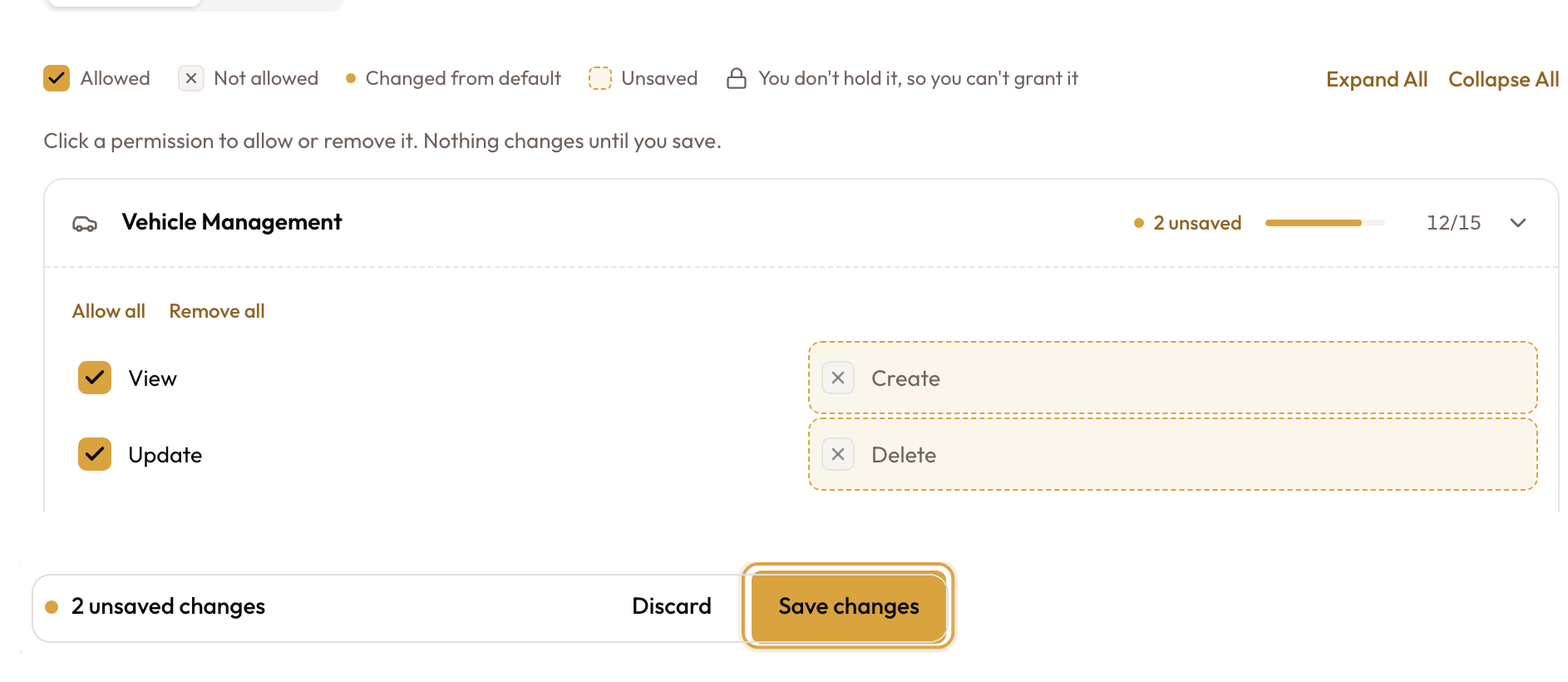
- Click a permission to switch it on or off. Use Allow all or Remove all to change a whole section.
Save
A bar appears at the bottom with the number of unsaved changes. Click Save changes. To undo everything since the last save, click Discard.
You see Role saved. The role is now tagged Customized, and each permission that differs from the default is marked. Everyone with this role, in every workspace, gets the change straight away.
To give a built-in role your company's own name, click the pencil next to the role name and fill in Display name (optional). Leave it empty to use the built-in name. The Role Management list then shows the built-in name under yours.
Reset a built-in role
To undo all your company's changes to a built-in role:
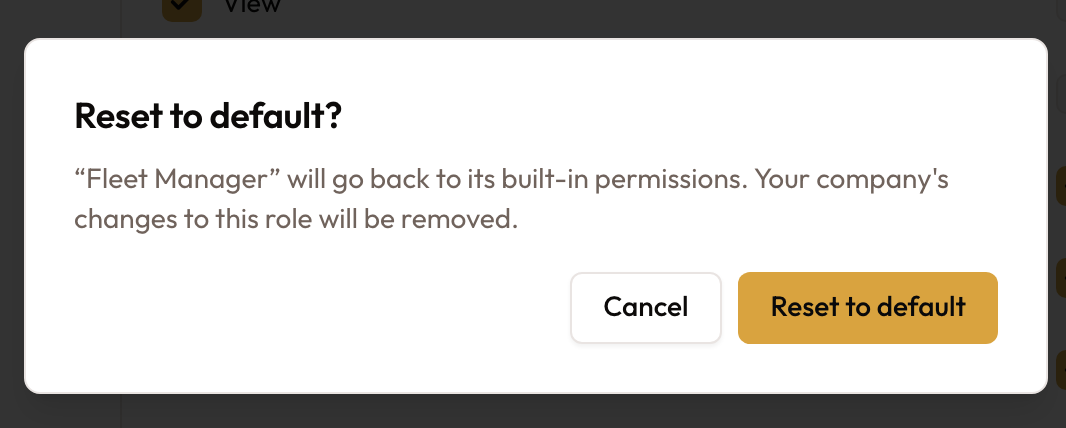
- Open the role and click Reset to default. The button shows only on a role tagged Customized.
- Confirm with Reset to default.
You see Role reset to default. The role goes back to its built-in permissions, and the display name is removed.
Create a custom role
Start the role
There are two ways to start.
Copy a built-in role, the quickest way when a built-in role is close to what you need:
- Open the built-in role.
- Click Duplicate as new role. Save or discard any unsaved changes first; the button is greyed out until you do.
You see Custom role created — now editing. The copy is named after the role with "(copy)" at the end and starts with the same permissions.
Start from scratch: on Role Management, click New role. A role named New role is created straight away, with no permissions.
Name it and choose its permissions
The new role opens with its name ready to edit.
- Type a Role name, for example "Yard Supervisor", and an optional Description.
- Switch on the permissions the role needs.
- Click Save changes.
The role appears under Custom roles.
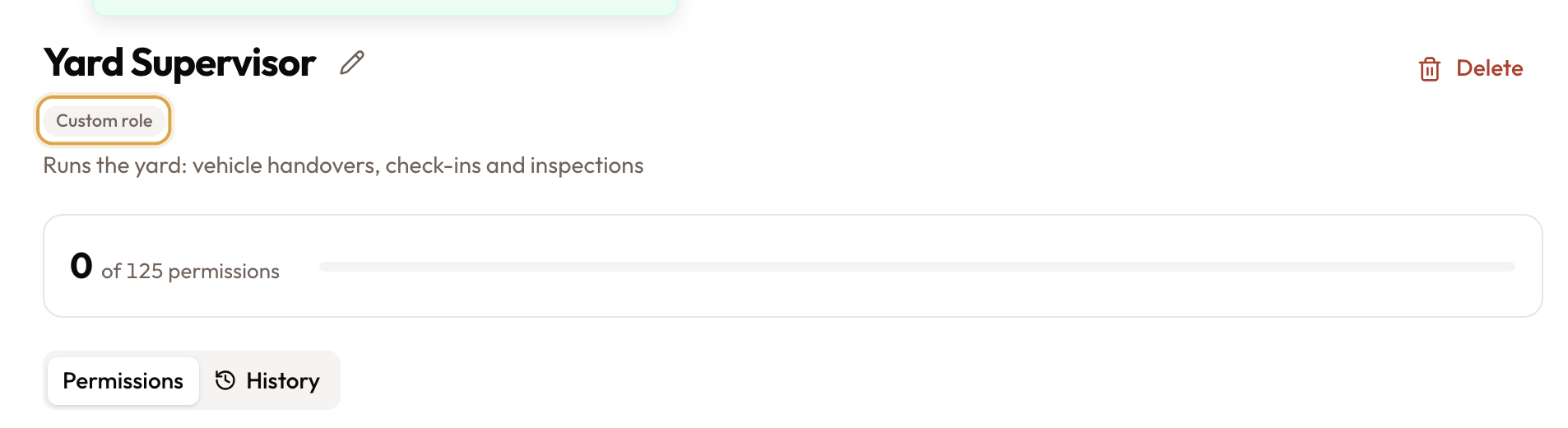
A role created with New role stays in the list even if you leave without saving. Delete it if you don't need it.
See who changed a role
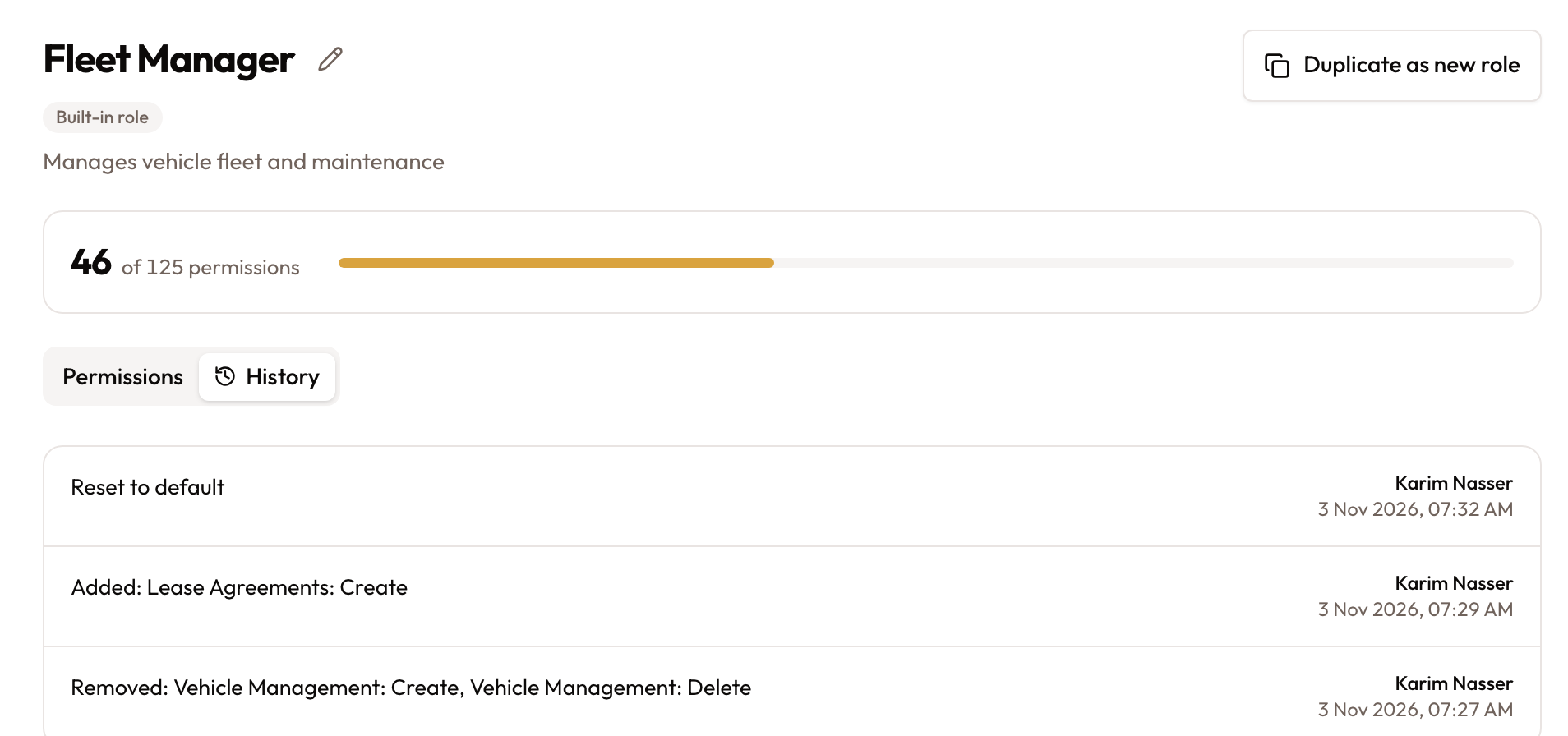
Open the role and click the History tab. Every change to the role is listed, newest first, with who made it and when:
- Added: and Removed: list the permissions that changed.
- Reset to default shows when a built-in role was reset.
- Name and description changes are listed too.
Give people a custom role
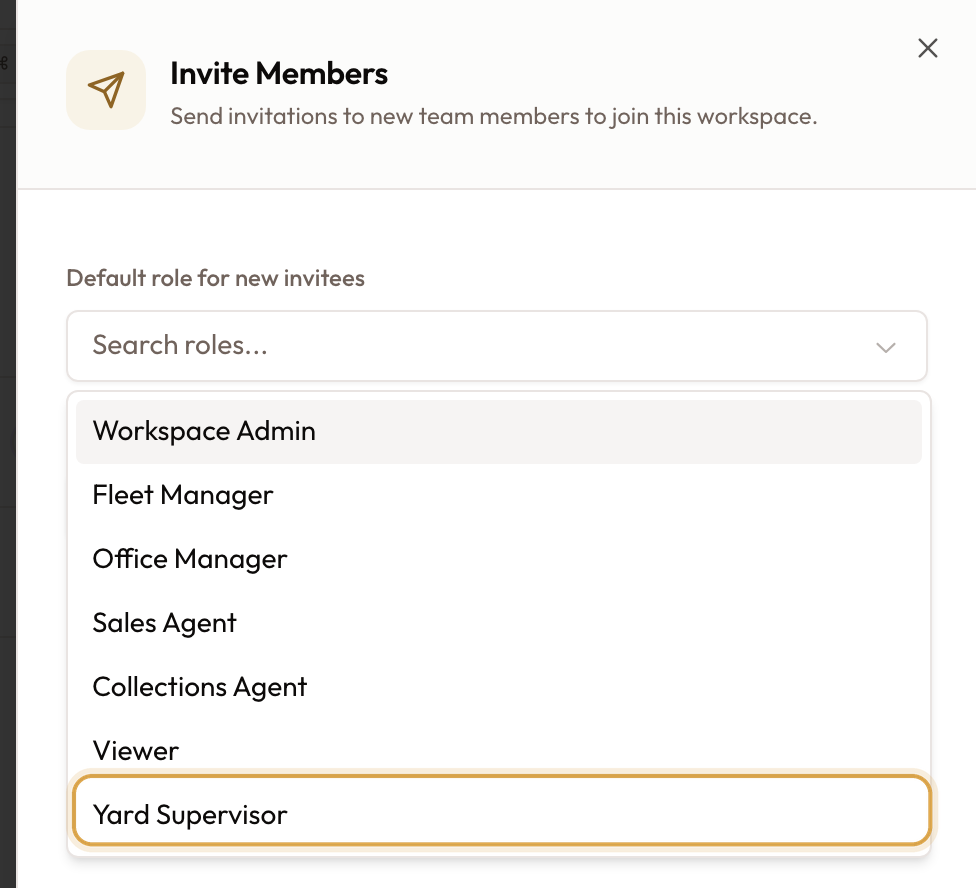
Custom roles appear alongside the built-in ones wherever you pick a role:
- New people: in Settings → Members, click Invite Members and pick the role in Default role for new invitees, or on each person's row.
- People already in the workspace: in Settings → Members, open the ⋯ menu on their row and click Change Role.
Both are covered in Inviting Team Members & Assigning Roles. The same rule applies there: you can only give a role whose permissions you hold yourself.
Delete a custom role
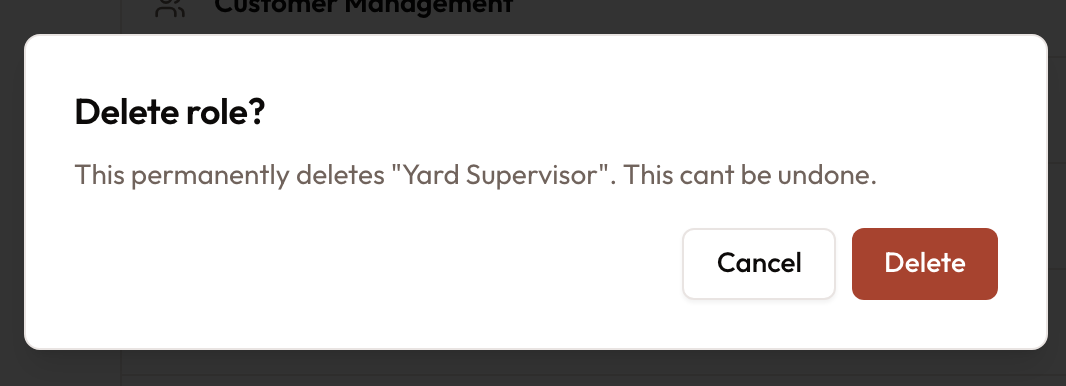
- Open the custom role and click Delete.
- Confirm with Delete.
You see Role deleted. Built-in roles can't be deleted.
A role in use can't be deleted. If anyone still has the role, in any workspace, or a pending invitation uses it, the delete is refused and the message says how many. Give those people another role with Change Role, and cancel the invitations, then delete.
Things to know
- Changes apply everywhere. Roles belong to the company, so an adjusted or custom role is the same in every workspace.
- New permissions still arrive. When SpectroNova Express adds a permission to a built-in role, an adjusted copy of that role gets it too. Only your own changes are kept on top.
- Leaving with unsaved changes asks Discard unsaved changes? Click Keep editing to go back, or Discard and leave.
- Two roles can have the same name. Give each custom role a clear, different name so it's easy to pick the right one.