

Expense Tracking & Categories
Record a cost, file it under an expense head, attribute it to a vehicle, and void one without breaking history.
Every cost your business carries — fuel, insurance, a workshop invoice, the office rent — is recorded here. Filing it correctly does three jobs at once: it lands on the right line of your Profit & Loss, it reaches your VAT return with the right treatment, and, if you attribute it to a vehicle, it shows up in that vehicle's running costs.
One thing under two names. The settings screen calls these Expense heads. The expense form and the list filter call the same thing Category. Every workspace starts with 26 built-in heads, listed at Settings → Expense heads (see Expense heads below).
Before you start
- Permission to create expenses. Without it, Add Expense does not appear.
- A vehicle, if you want the cost attributed to one. Optional, but it is what makes the second half of this page work.
The expenses list
Open Expenses under Financial Management. Three cards sit above the list.
| Card | What it shows |
|---|---|
| Total expenses | How many expenses match — a count, not money |
| Total (net) | The total, net of recoverable input VAT |
| This month | The same net figure, current month only |
Total (net) is deliberately not the sum of the amounts you typed. Recoverable VAT is money you reclaim from the tax authority, not a cost you bore — so it is excluded, and the card agrees with your Profit & Loss.
The cards always exclude voided expenses, even when the list is showing them. Switch the Voided filter to Show voided and the rows appear in the table but stay out of all three cards. A voided expense is not a cost.
The cards describe whatever is currently filtered, not the whole workspace.
Finding an expense
Columns are Expense #, Date, Category, Amount, Vehicle, Vendor and Description. You can filter by Category, Vehicle, Expense Date and Voided.
Two things about searching that save time:
- Search covers the expense number and the description only. Not the vendor, not the category, not the notes.
- Voided expenses are hidden until you ask for them. The Voided filter offers Show voided and Voided only.
The Category filter lists active heads only. An archived head keeps all its historical expenses, and those rows are still reachable through the unfiltered list — you just cannot filter by that head any more.
Recording an expense
Open the form
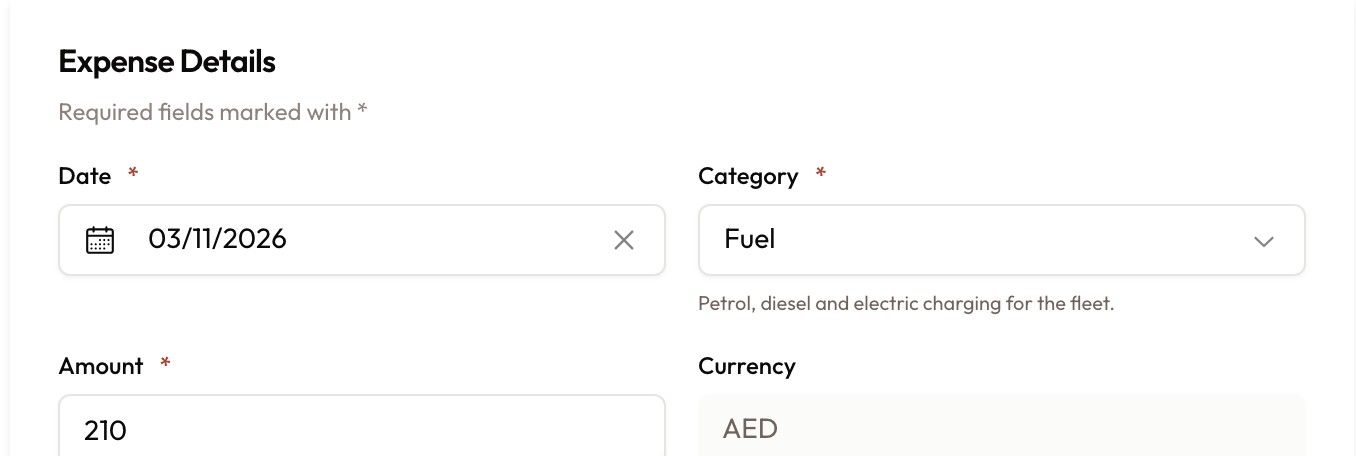
Select Add Expense. The form opens as New Expense, with everything in a single Expense Details card.
Fill the three required fields
Date, Category and Amount are required and marked with a red asterisk. Amount must be positive. Currency sits beside it.
The submit button stays disabled until all three are valid.
The Category picker shows a one-line description under each head, to help you pick the right one.
Set the tax treatment
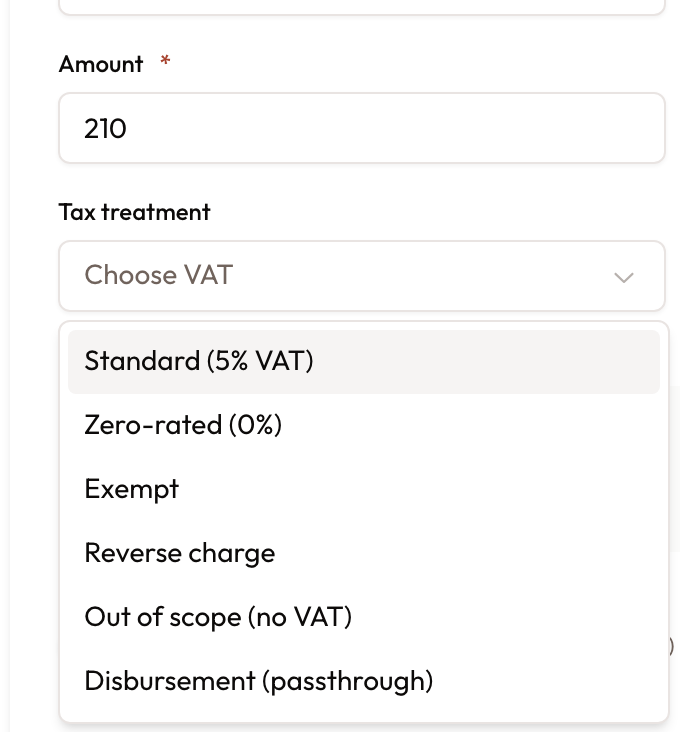
Tax treatment decides whether this cost reaches your VAT return. The hint on screen says it plainly: "Drives whether this expense contributes to Box 9 input VAT."
- The field starts empty, showing Choose VAT, and you must choose one. Saving without it shows "Choose the VAT for this expense".
- Picking a Category fills in that head's usual treatment. Check it and change it if this cost is different.
- Other and Commission have no usual treatment, so you choose it every time. Switching to one of them clears the field.
| Option |
|---|
| Standard (5% VAT) |
| Zero-rated (0%) |
| Exempt |
| Reverse charge |
| Out of scope (no VAT) |
| Disbursement (passthrough) |
Tell it whether your amount was gross or net
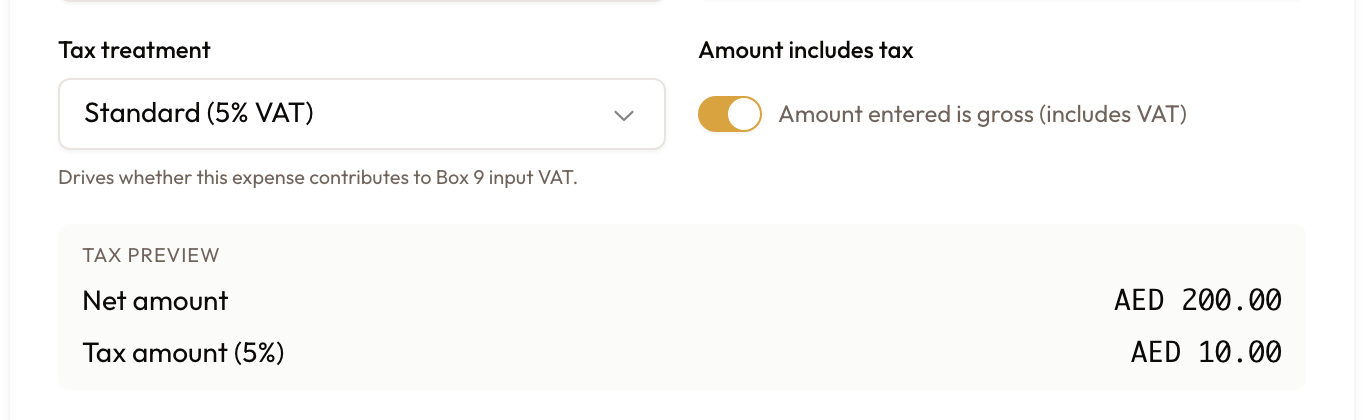
Amount includes tax changes how the number you typed is read:
| Toggle | Meaning |
|---|---|
| On | "Amount entered is gross (includes VAT)" |
| Off | "Amount entered is net (tax added separately)" |
A Tax preview then shows the Net amount and the Tax amount with its rate, so you can check the split before saving.
Getting this toggle backwards is the most common way to record the wrong number. Read the Tax preview before you save — if the total is higher than what you actually paid, the toggle is off when it should be on.
Decide whether the VAT is recoverable
Input VAT recoverable is ticked by default. Untick it for blocked expenses — the hint gives entertainment as the example — so they are left out of the VAT return.
This is the checkbox with real money attached. Leaving it ticked on a blocked expense claims back tax you were never entitled to.
Attribute the cost
Vehicle and Vendor are both optional. Vehicle searches by plate, make and model; Vendor by code, name and contact. Vendor invoice number takes the supplier's own reference, for matching against their statement later.
Leaving Vehicle empty is a decision, not a blank. The cost still reaches your Profit & Loss and your VAT return — it just never reaches any vehicle's running costs, and that vehicle's numbers will look better than reality.
Record how it was paid, and save
Paid Through offers Cash, Card or Bank Transfer.
Description is one of the two searchable fields, so write it for the person who will go looking for this expense in six months. Notes is not searchable.
Create Expense saves it and confirms with Expense created.
Expense heads
Expense heads are the categories your costs file under. Find them at Settings → Expense heads. Every workspace has the same 26 built-in heads, in groups:
- Fleet costs: spent to keep vehicles earning, such as Fuel and Insurance.
- Passed on to renters: costs you recharge to the renter, such as Salik Toll Charge, Darb Toll Charge, Traffic Fine Charge and Parking Charge.
- Overheads: running the business rather than a specific vehicle, such as Rent and Software & subscriptions.
- Your own: heads made just for your workspace, if it has any.
Each head carries a chip showing its usual VAT treatment, which the expense form fills in for you:
- Standard VAT, Zero-rated, Exempt, No VAT, Reverse charge or Disbursement.
- Choose each time: the head has no usual treatment, so you pick one on every expense.
Government fees and fines usually carry no VAT. The built-in Trade licence & government fees head suggests No VAT for that reason. If a fee lands under another head, choose Out of scope (no VAT) on the expense, or you will claim back tax that was never charged.
Archiving a head
Heads under Your own can be edited and archived. Archive stops a head appearing on new expenses. Costs already filed under it are untouched, and Restore reverses it. Built-in heads cannot be archived.
Where per-vehicle costs show up
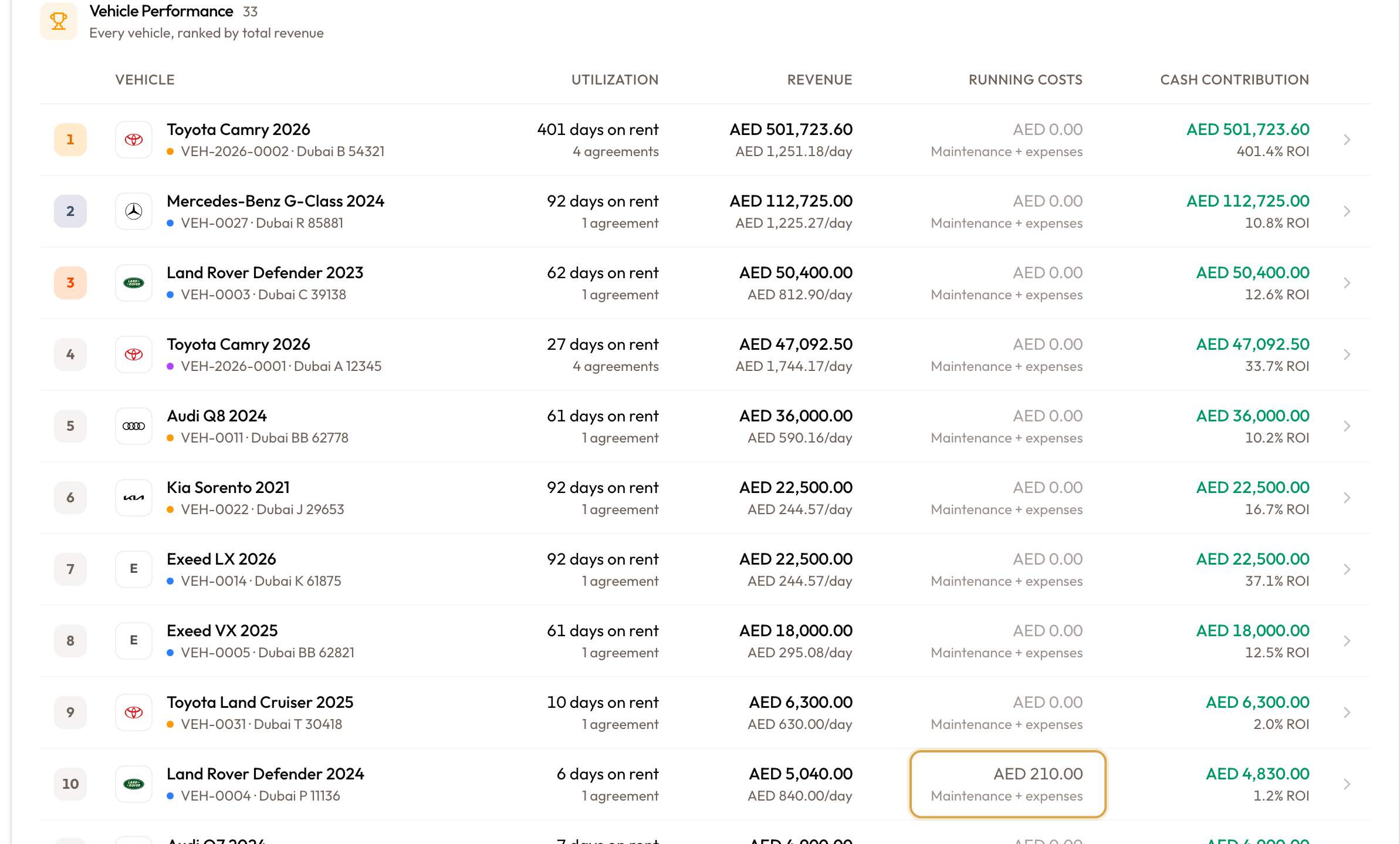
An expense with a Vehicle set feeds that vehicle's figures in the Vehicle Performance table under Analytics → Fleet.
The Running Costs column is that vehicle's maintenance plus the expenses you attributed to it. That is the entire payoff for filling in the Vehicle field — an expense saved without one never appears here.
Cash contribution is not net profit. It is revenue minus maintenance minus expenses, and it excludes depreciation and tolls. Reading it as profit overstates how well a vehicle is doing.
Correcting a mistake
Which action you need depends on what is wrong:
- Edit: the description, vendor or notes.
- Correct expense: the amount, VAT, date, category, payment method or vehicle.
- Void Expense: a cost that should never have been recorded at all.
Editing
Open the expense and select Edit. The detail page becomes editable in place, across three sections: Expense overview, Classification, and Description and notes.
The amount, VAT, date, category, payment method and vehicle stay read-only in Edit. The page says so: "To change the amount, VAT, date, category, payment method or vehicle, use Correct."
Correcting
Correct expense sits in the ⋯ menu and in the sidebar. You need permission both to void and to create expenses.
- Select Correct expense. The page switches to editing, titled Correcting {number}, with the amount, VAT, date, category, payment method and vehicle unlocked.
- Change what was wrong. The Tax preview shows the new split.
- Save.
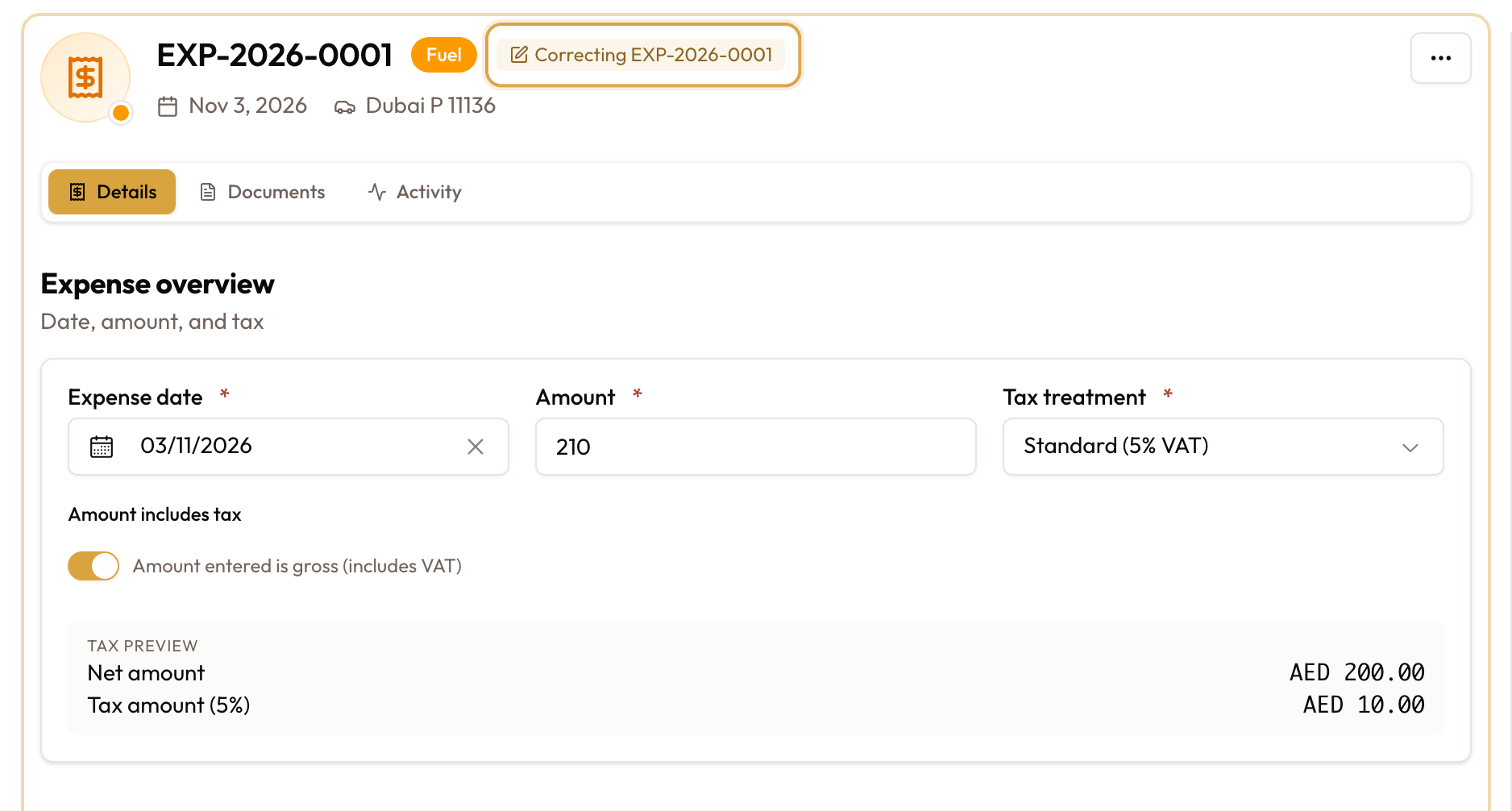
Saving voids the original on its own date and records a corrected copy with a new number. The two are linked:
- The original shows Corrected by {number}.
- The copy shows Correction of {number}, and its documents tab says "Receipts are on {number}, the expense this corrects."
Your VAT return and vehicle costs count only the corrected figure. An expense can be corrected once; to change it again, correct the newer copy.
Voiding
Void Expense opens Void this expense?, which states what happens: the expense stops counting towards your Profit & Loss, VAT return and vehicle costs, but stays on the record with your reason attached.
A Reason is required. Afterwards the expense carries a banner reading This expense is voided, along with the reason and the date, and the row shows a Void badge.
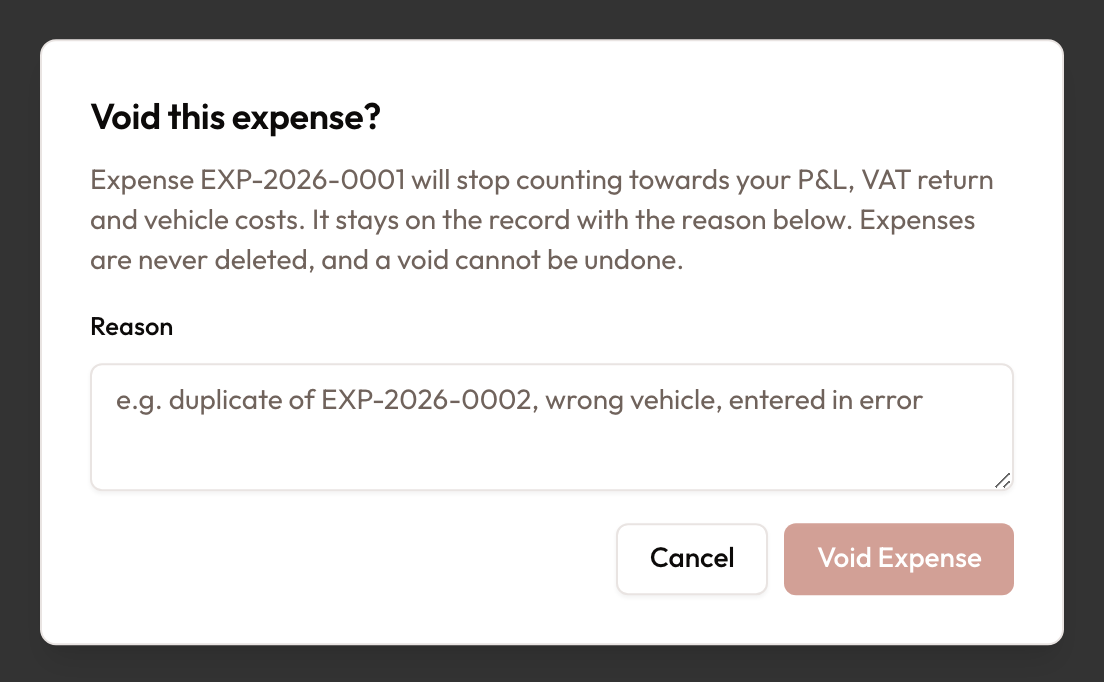
A void cannot be undone, and there is no delete. The reason you type is permanent and is the only explanation anyone gets later. Write it for a stranger reading it in six months — "duplicate of EXP-2026-0002" beats "wrong".
Why deletion does not exist here. Your Profit & Loss, your VAT return and every per-vehicle cost figure read this table live. Deleting a row would silently rewrite reported history. Voiding takes the expense out of those figures while leaving the record and the reason intact.
When something looks wrong
| What you see | What it means |
|---|---|
| No Add Expense button | You do not have permission to create expenses |
| You cannot find "Categories" in Settings | The screen is called Expense heads |
| The saved total is higher than you paid | Amount includes tax was off when your figure was gross — check the Tax preview |
| A blocked expense reached the VAT return | Input VAT recoverable was left ticked |
| An expense is missing from a vehicle's Running Costs | It was saved without a Vehicle |
| Picking Vehicle purchase shows "A car purchase is not an expense" and nothing saves | A car's price and VAT are recorded on the car. Use Add a vehicle or Find the car; see Adding Vehicles to Your Fleet |
| Searching a vendor name finds nothing | Search covers Expense # and Description only |
| An expense has vanished from the list | It was voided. Set the Voided filter to see it |
| The cards did not move after showing voided rows | Working as intended — the cards always exclude voided expenses |
| An archived head is missing from the Category filter | The filter lists active heads only; its historical rows remain |
| You want to delete an expense | There is no delete. Void it instead |
| You want to un-void an expense | Not possible. A void cannot be undone |
| The amount or VAT is read-only in Edit | Those fields change through Correct expense |
| "Nothing to correct: … Use Edit for anything else." | The correction changed none of the amount, VAT, date, category, payment method or vehicle. Use Edit for the description, vendor or notes |
| "… was already corrected by …" | That expense has a correction already. Open the newer copy and correct that one |
| "Choose the VAT for this expense" | Tax treatment is empty. Choose one before saving |
What to read next
The supplier side of the same spend, vendor records and the bills behind them, is covered by Vendor Management & Bills.
Costs & Vendors
Expenses attributed per vehicle and category, and the vendors and bills behind them.
Vendor Management & Bills
Keep a vendor master of suppliers, garages and insurers, and record the bills you owe them — the accounts-payable mirror of customer invoices: create a bill, categorise its lines, finalise it, and pay it.