

Vendor Management & Bills
Keep a vendor master of suppliers, garages and insurers, and record the bills you owe them — the accounts-payable mirror of customer invoices: create a bill, categorise its lines, finalise it, and pay it.
A vendor is anyone you buy from: a supplier, garage, insurer or subcontractor. A bill is a document one of them sends you, and it's the accounts-payable mirror of a customer invoice: line items, tax, a due date, and a lifecycle from draft to paid. This page covers keeping your vendor master and recording and paying bills.
Two permissions. Vendors are gated by vendors.view / vendors.create;
bills by bills.view / bills.create, plus a separate right to record bill
payments. A missing Add Vendor or New Bill button usually means a
missing permission.
Add a vendor
Open Vendors and add one
Open Vendors under Financial Management ("Manage suppliers, garages, insurers, and other vendors") and click Add Vendor.
Fill in the details
Name is the only required field. The rest are optional: Business name, Contact person, Email, Phone, Website, Address (City, State / Province, Country, Postal code), Tax ID, Payment terms, and the Preferred vendor / Active switches. Click Create Vendor.
You can also create a vendor inline from the vendor lookup while recording a bill.
Record a bill
Start a new bill
Open the Bills page and click New Bill ("Record a bill received from a vendor").
Fill in the bill
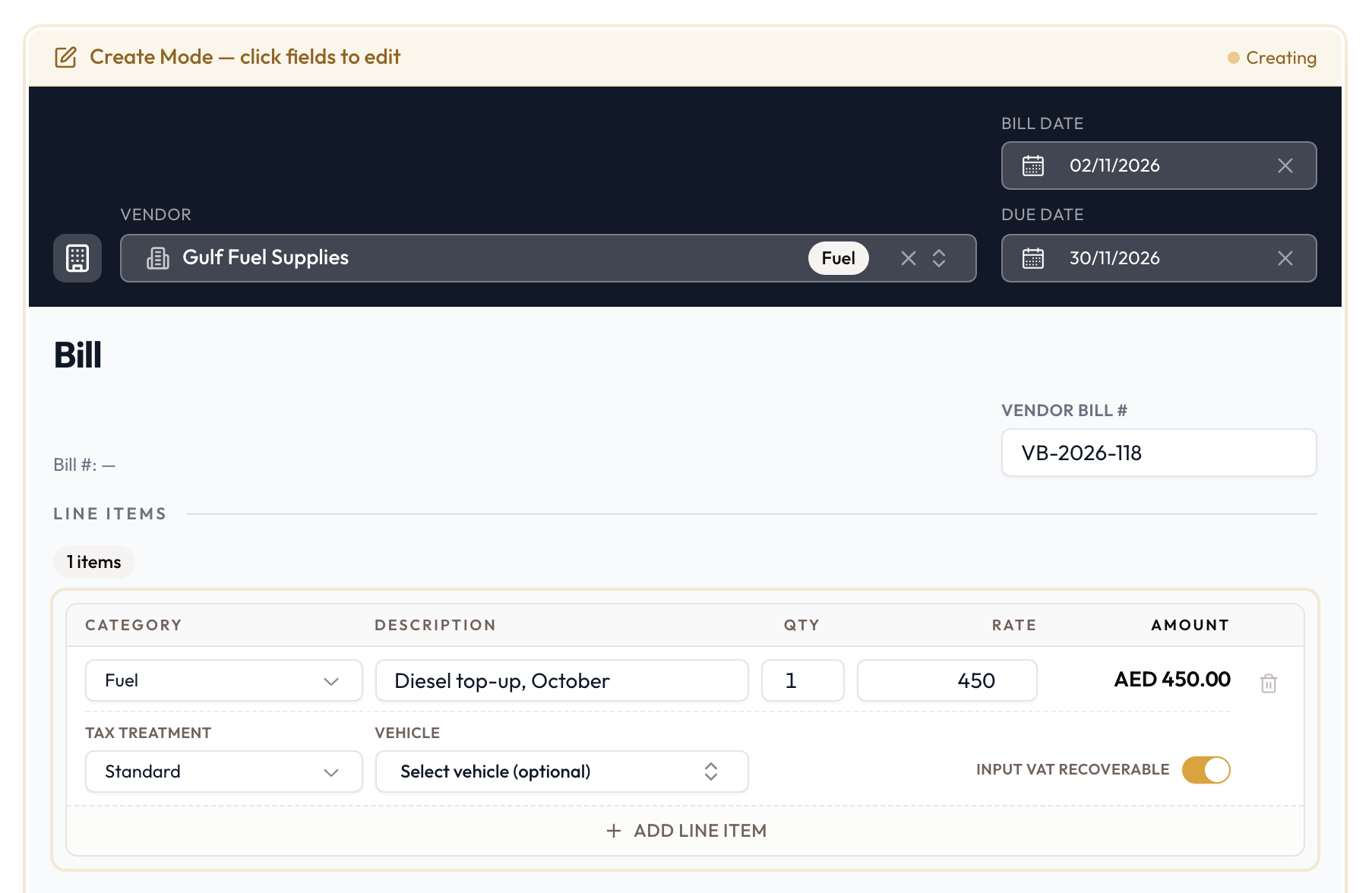
The bill is a paper-style document you edit in place:
- Vendor: pick the vendor (Select a vendor; the search matches code, name or contact).
- Vendor Bill #: the vendor's own reference for this bill.
- Bill Date and Due Date: when it was issued and when you owe it by.
- Amount Includes Tax: on by default; turn it off if the line amounts are before tax.
- Line Items: click Add Line Item for each charge. Each line has:
- a Category (the expense category). The picker shows a one-line description under each category, to help you pick the right one.
- a Description, Qty and Rate, with the Amount worked out for you.
- a Tax Treatment, which starts empty and must be chosen. The Category suggests one, which you can change.
- the Vehicle it was for (optional), and whether Input VAT Recoverable applies.
Tax, discount and total are calculated for you. Click Create Bill.
The Category on each line links the bill to your cost reporting. A bill's lines are categorised the same way an expense is. See Expense Tracking & Categories. A line with a Vehicle set counts towards that vehicle's operating cost in the Vehicle Profitability & Cost reports.
Finalise it
The bill is created in Draft: you can still edit it, and it isn't posted yet. Finalize Bill moves it to Open and locks it. As with an invoice, only a draft can be edited.
Find bills from a period
On the Bills list, the Bill Date filter in the toolbar narrows the list to a date range; Due Date is under Advanced. The outstanding total at the top follows the same range.
Pay a bill
On the bill's Payments tab (or from the sidebar), click Record Payment. Enter the Payment Amount, Payment Date (not in the future) and Payment Method, plus Payment Reference (Optional) and Notes (Optional) if you want them, and save. Record Payment is offered while the bill is Open with a balance left. The bill's status follows as you pay:
| Status | Meaning |
|---|---|
| Draft | Recorded, not yet finalised; editable |
| Open | Finalised, nothing paid yet |
| Partially Paid | Some paid, a balance remains |
| Overdue | Past its due date with a balance |
| Paid | Settled |
| Void | Cancelled |
To cancel a bill, use Void Bill. To reverse a payment, use Void on the payment. That reopens the bill and can't be undone.
Bills and their payments feed the Vendor Statement of Account. Each bill is a debit and each payment a credit on that vendor's running balance. See Vendor Statement of Account.