

Bulk Vehicle Import
Import a whole fleet from one Excel or CSV file — vehicles and variants together
When you have more than a handful of vehicles, import them all at once instead of adding them one at a time. In SpectroNova Express the Fleet import reads a single Excel or CSV sheet and creates both the vehicles and their variants — matching each row to an existing variant or creating a new one as needed. It runs as a four-step wizard: Upload → Map → Validate → Import.
Before you start:
- You need the settings: workspace.update permission — both the upload and the final import are gated on it. Import Data lives under Settings.
- Have your data in Excel (.xlsx) or CSV (.csv), 10MB or smaller. Download the template in Step 1 to see the expected columns.
Open the Import Hub and choose Fleet
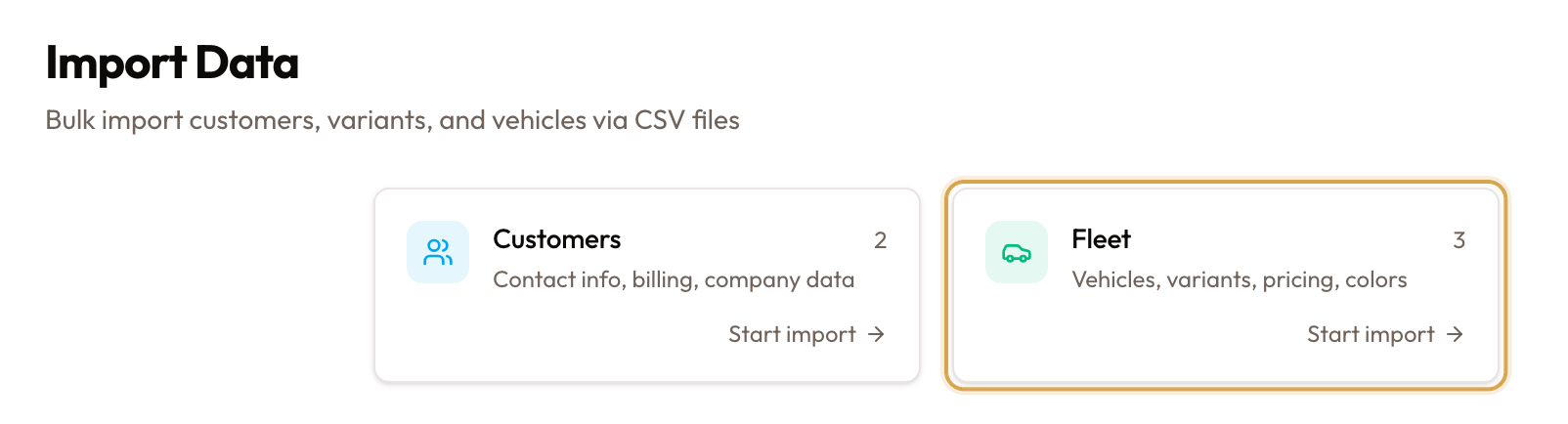
In Settings, under Business, open Import Data. The Import Hub shows two cards — Customers and Fleet — plus your Recent Imports. Click the Fleet card ("Vehicles, variants, pricing, colors"). The wizard opens at Step 1 of 4, breadcrumb Import Hub › Fleet.
Step 1 — Upload your file
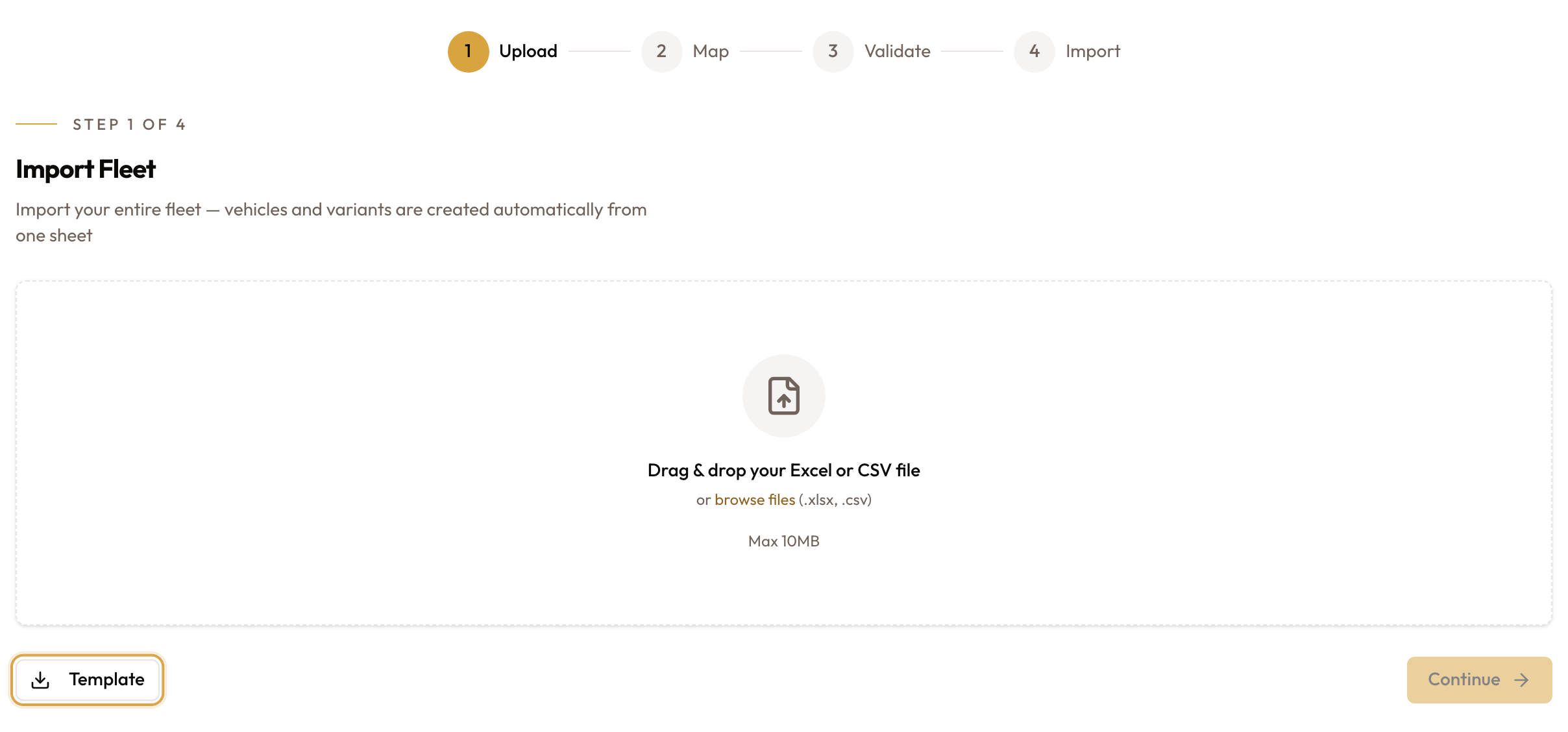
The step is titled Import Fleet — "Import your entire fleet — vehicles and variants are created automatically from one sheet."
Click Template to download a starter sheet: required columns are marked
with * and highlighted, and a Field Reference tab lists every field with
its allowed values and examples. Fill it in, then drag & drop your Excel or
CSV file (or browse files — .xlsx, .csv, max 10MB) and click
Continue.
Excel (.xlsx) is recommended — dates and phone numbers are formatted
automatically. A non-.xlsx/.csv file, or one over 10MB, is rejected at
upload.
Step 2 — Map Columns
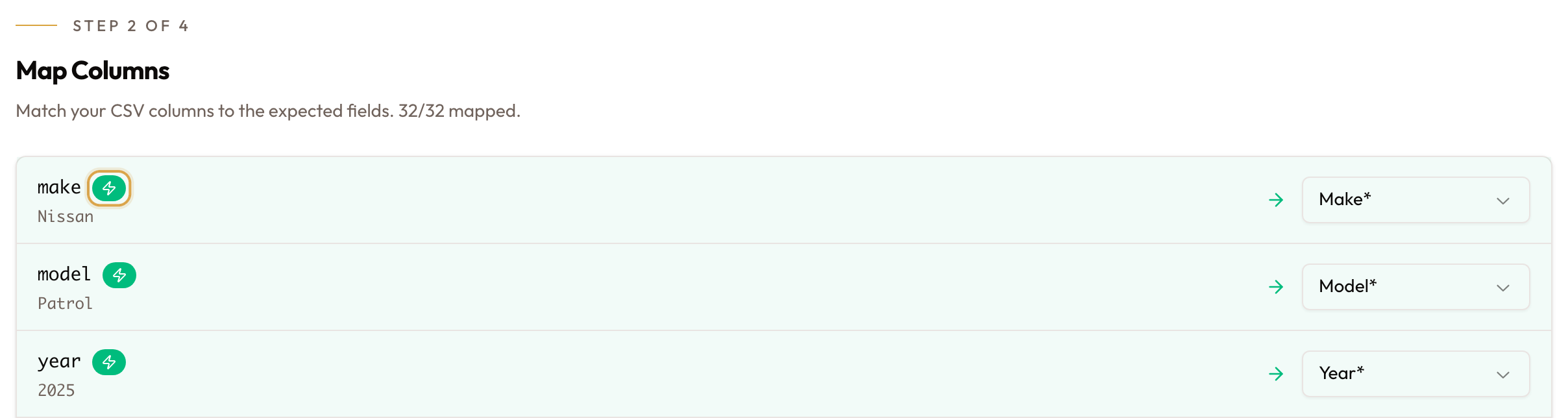
Match each column in your sheet to a fleet field; the header tracks how many
are mapped. Columns the system recognises are pre-filled and carry an
Auto-detected badge — adjust any that are wrong. Each dropdown also offers
Skip. Required fields are marked with *, and a Missing required…
banner keeps Validate disabled until they're all mapped.
The required fleet fields are Make, Model, Year, Category, Transmission, Fuel Type, VIN, License Plate, Color, Daily Rate, Weekly Rate, Monthly Rate, Purchase Price, Purchase Date, Current Value, and Current Mileage. Vehicle Number, MSRP, the plate parts, Condition, Status, and Variant Code are optional. Click Validate when the required fields are mapped.
Step 3 — Validation Results
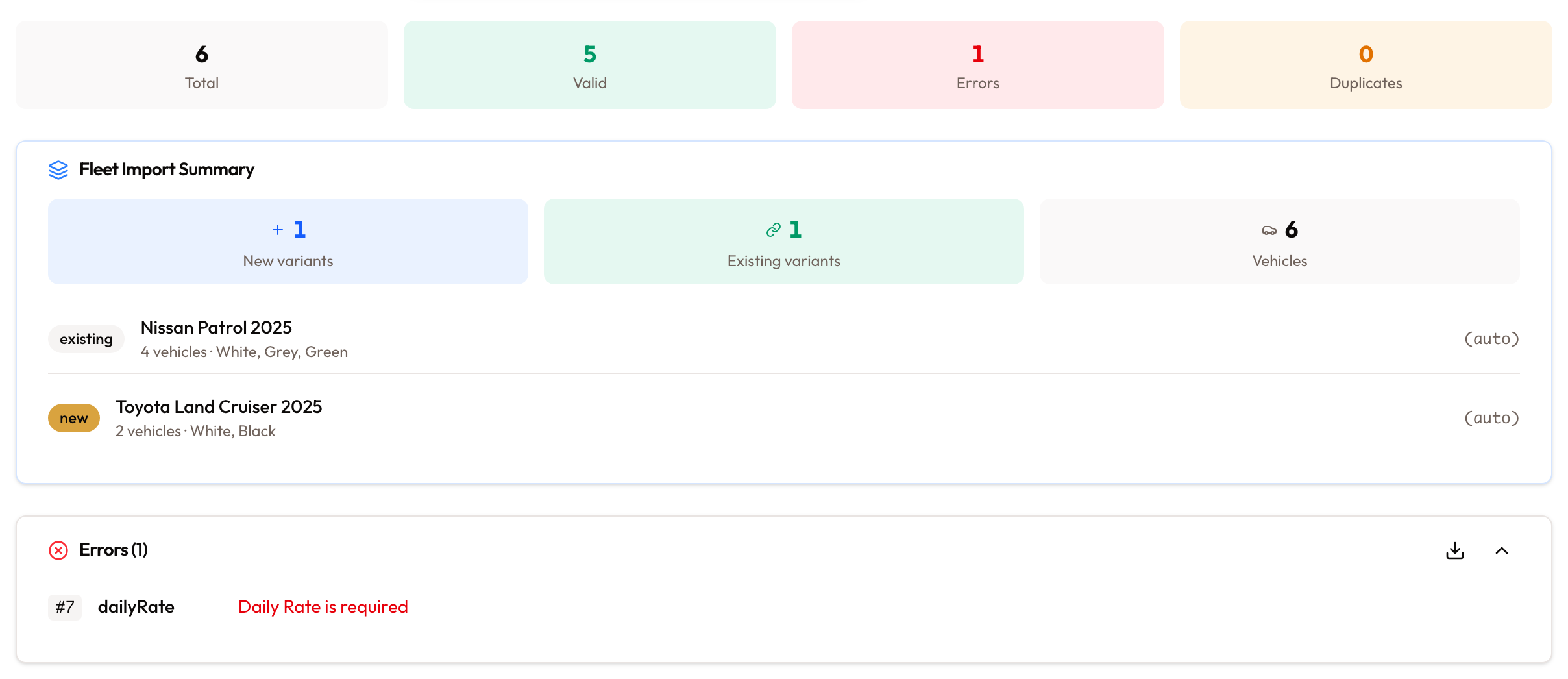
Before anything is written, this screen reports data quality: a status of All
rows valid, Some rows have errors, or All rows failed, and four
counters — Total, Valid, Errors, Duplicates. A Fleet Import
Summary shows how many New variants will be created, how many Existing
variants matched, and the total Vehicles, with a per-variant breakdown
(each tagged new or existing). Any errors are listed and can be
exported as validation-errors.csv.
Auto-generate vehicle numbers — tick this to ignore the sheet's vehicle-number column and assign numbers from your configured sequence (see Document Numbering). Leave it off to keep the numbers in the sheet.
Then click Import (n) to import the valid rows, or Import valid only (n) to import the good rows and skip the ones with errors.
Step 4 — Import
A progress bar runs to 100%, then a result: Success!, Partial import, or Import failed, with counters for Imported, Failed, and Skipped, and an errors list if any rows failed. From here, View vehicles opens the vehicle list to see what landed, New Import starts again, and Hub returns to the Import Hub.
Common mistakes and edge cases
- Wrong file type or too big. Only
.xlsxand.csvup to 10MB are accepted; anything else is rejected at upload. - A required column isn't mapped. Validate stays disabled until every
*field is mapped — read the Missing required banner for which. - Duplicate VINs. Rows whose VIN already exists, or repeats within the sheet, are flagged as duplicates in validation — fix or drop them.
- Vehicle-number clashes. If your sheet's numbers collide with existing ones, turn on Auto-generate vehicle numbers to assign them from your sequence instead.
- Partial imports. With some invalid rows you can Import valid only — the skipped rows are counted on the final screen so you can fix and re-import them.
Related
- Adding Vehicles to Your Fleet — add a single vehicle through the guided wizard.
- Managing Vehicle Variants & Brand Catalog — how variants work; the Fleet import creates or matches them for you.
- Document Numbering — the sequence used when you auto-generate vehicle numbers.