

Fleet Calendar & Availability
See every vehicle's bookings on a timeline, spot open gaps, and book straight from the calendar
The Fleet Calendar in SpectroNova Express is a timeline (Gantt-style) view with your vehicles down the side and time across the top. It answers "what's booked, what's free, and when does this vehicle come back?" at a glance — and lets you book an open slot by starting an agreement right from the calendar.
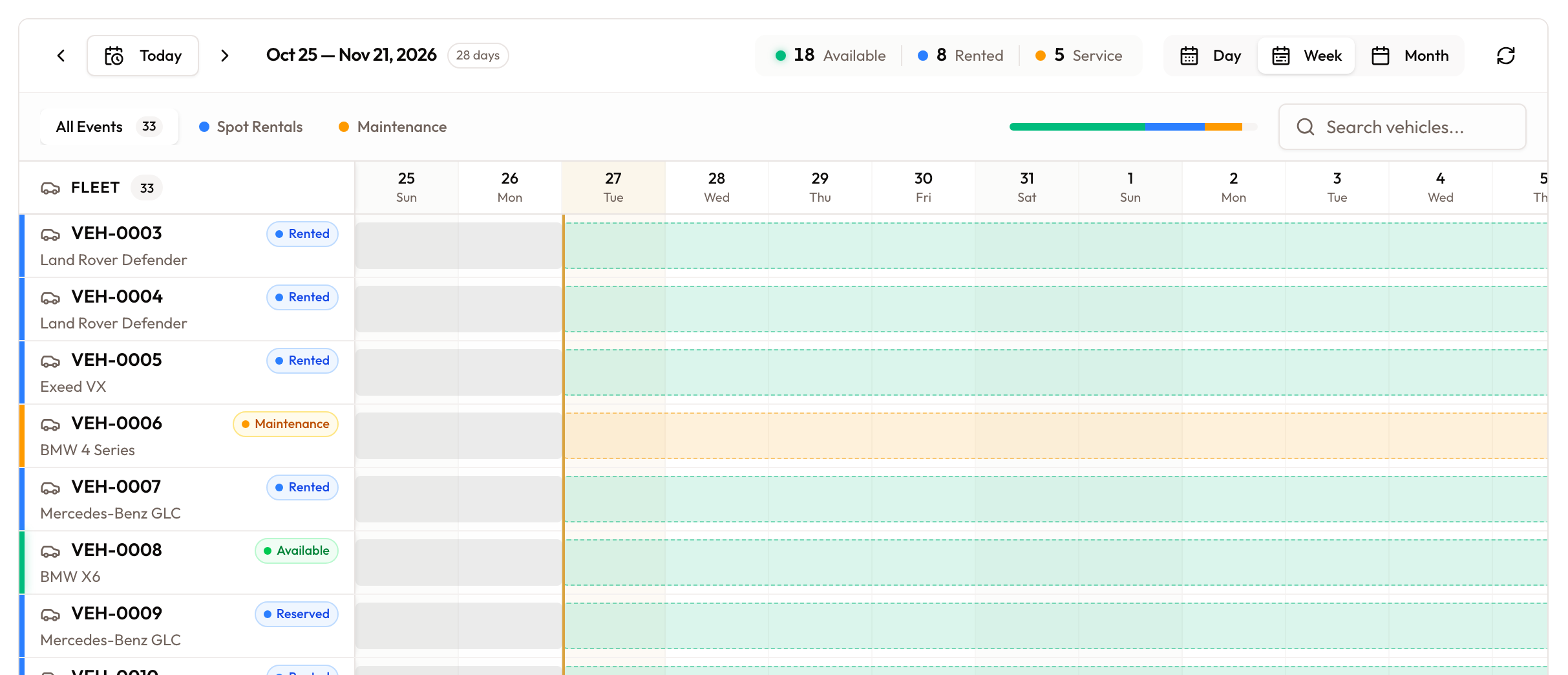
Each vehicle is a row; its coloured bars are bookings and maintenance against the dates in the header. Bars are colour-coded by type: Spot Rentals (blue) and Maintenance (amber). On desktop it's a scrolling timeline; on a phone the same rows render as a card list.
Before you start:
- The calendar isn't separately permission-gated — anyone in the workspace can view it. Booking a slot opens the Create Agreement flow, which needs the usual agreement-creation rights.
- You need vehicles in your fleet — an empty fleet shows No vehicles in your fleet with an Add Vehicle button.
Open the Fleet Calendar
Open Fleet Calendar in the sidebar. It loads every vehicle's availability ("Loading fleet data…"); if it can't, an Unable to load fleet data state offers Try Again.
Move around and zoom
Use the header: ‹ / › step backward and forward, Today jumps to now, and the current range and its length ("N days") show between them. Zoom switches detail: Day (detailed daily view), Week (4-week overview), or Month (1-month planning view).

Filter, search, and read availability
The filter tabs narrow what's shown — All Events, Spot Rentals, and Maintenance — and Search vehicles… filters the rows. Hover the availability indicator for % Available, % Rented, and % In Service, and use Refresh to reload.
In the name column, each vehicle shows its status and, when it's not currently available, when it next frees up — Today, Tomorrow, "Nd", or a date.

Inspect a booking
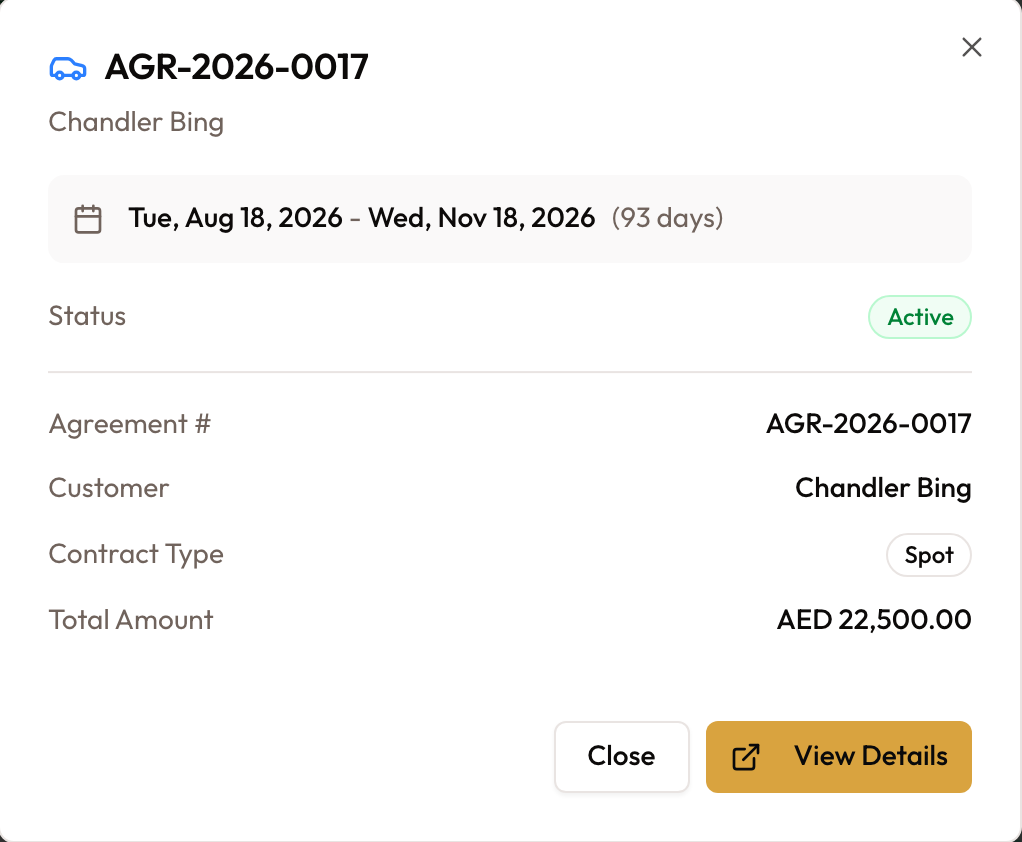
Click a coloured bar to open its detail popover — status, the customer or service, and the dates. View Details opens the underlying record (for a rental, the agreement).
Book an open slot
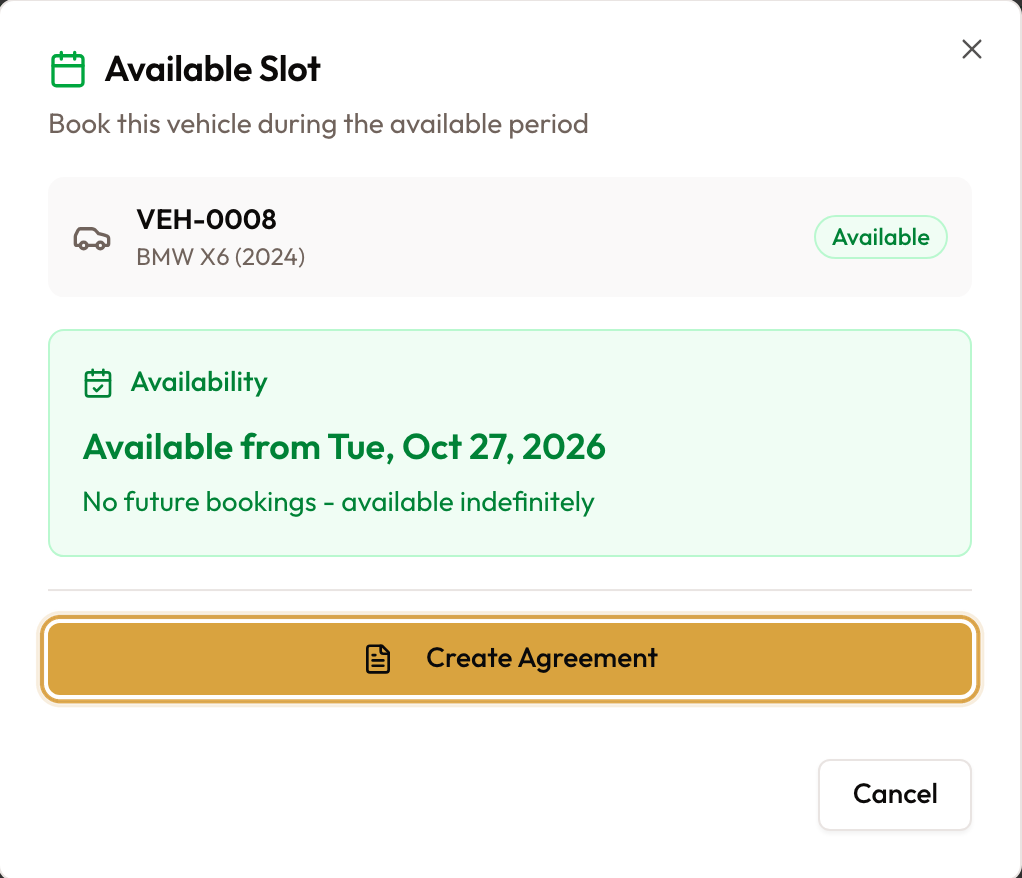
Click an available gap on a vehicle's row. A popover shows Available Slot — "Book this vehicle during the available period", with Available until… or Available from…. Click Create Agreement to open the agreement wizard pre-filled with that vehicle and the slot's start date (the end date too, unless the gap is open-ended).
A vehicle that's in maintenance shows In maintenance on its gaps, and clicking one opens Vehicle Under Maintenance. Return the vehicle to service first, then book the slot.
A vehicle that came back from a rental but was never released shows Not released and the agreement number on its gaps instead. Clicking one shows Not released yet, the agreement and the return date, with a Release button. Click Release (it needs permission to update agreements) and you'll see "Vehicle released. It is available for new agreements." The same line appears on the vehicle's own page.
Common mistakes and edge cases
- "No vehicles in your fleet". Add a vehicle and it appears on the calendar.
- Finding leases. The filter tabs are All Events, Spot Rentals, and Maintenance. Leases show under All Events, in the Lease colour from the legend.
- A gap that won't book. If the vehicle is in maintenance, the gap shows In maintenance and offers no Create Agreement — return the vehicle to service first.
- A slot that looks free may still be rejected. Booking from a gap opens the agreement wizard, which runs its own conflict and status checks — a slot can still be refused there if something changed.
- Dates don't shift. The calendar books using your local date, so the slot you click is the date that lands in the wizard.
- Phone view. On small screens the timeline becomes a per-vehicle card list — the same vehicles, events, and filters, drawn differently.
Related
- Creating a New Agreement — where Create Agreement from a gap takes you.
- Adding Vehicles to Your Fleet — vehicles must exist to appear on the calendar.